How to collect customers’ documents without WhatsApp
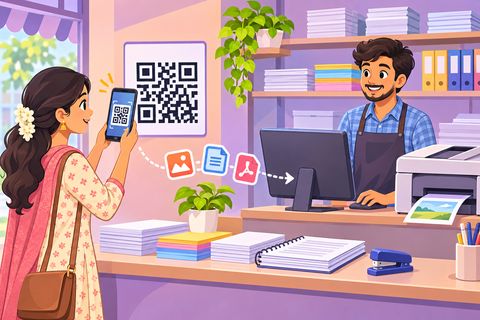
Every customer says “I’ll send it on your WhatsApp”, and your phone fills up with strangers’ Aadhaar and PAN cards. Many customers don’t like it either. Document Drop replaces that with one QR on your desk: the customer scans it, sees your checklist (PAN, Aadhaar, Form 16…) and sends each document straight to your computer. You see what has come and what is missing, save everything with clean names, and the files delete themselves.
This guide follows Sri Sai Tax & Online Services through a real morning. All the documents in the pictures are fake samples.
Steps
1Open Document Drop on your office computer
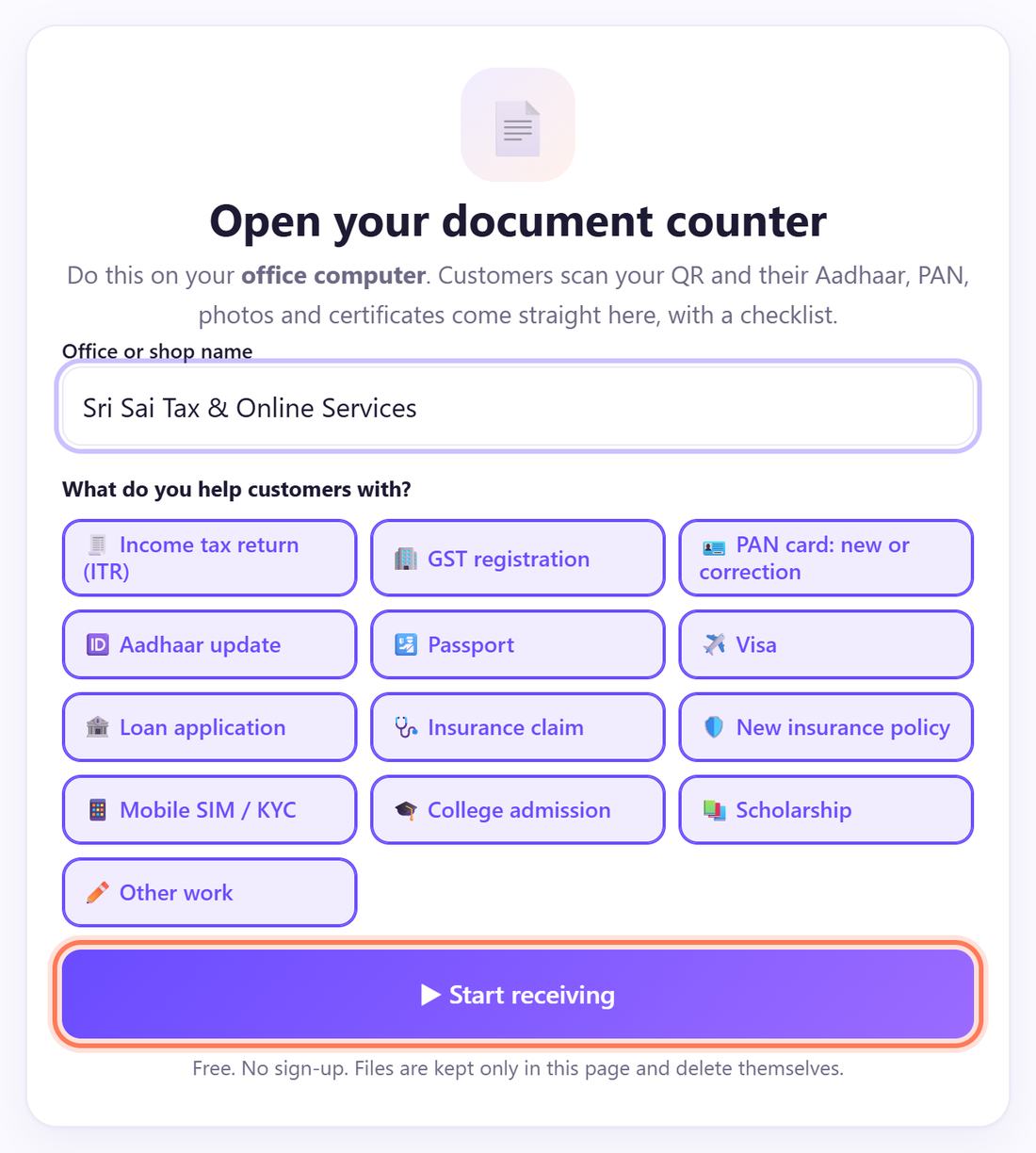
On the office computer, open spritesplit.com/docs in Chrome or Edge. Type your Office or shop name and tick what you help customers with (Income tax return, GST registration, PAN card, Aadhaar update, Passport, Visa, Loan, Insurance, Mobile SIM / KYC, College admission, Scholarship). Click ▶ Start receiving.
No sign-up and no password. The page remembers your office on this computer.
2Print the poster for your counter
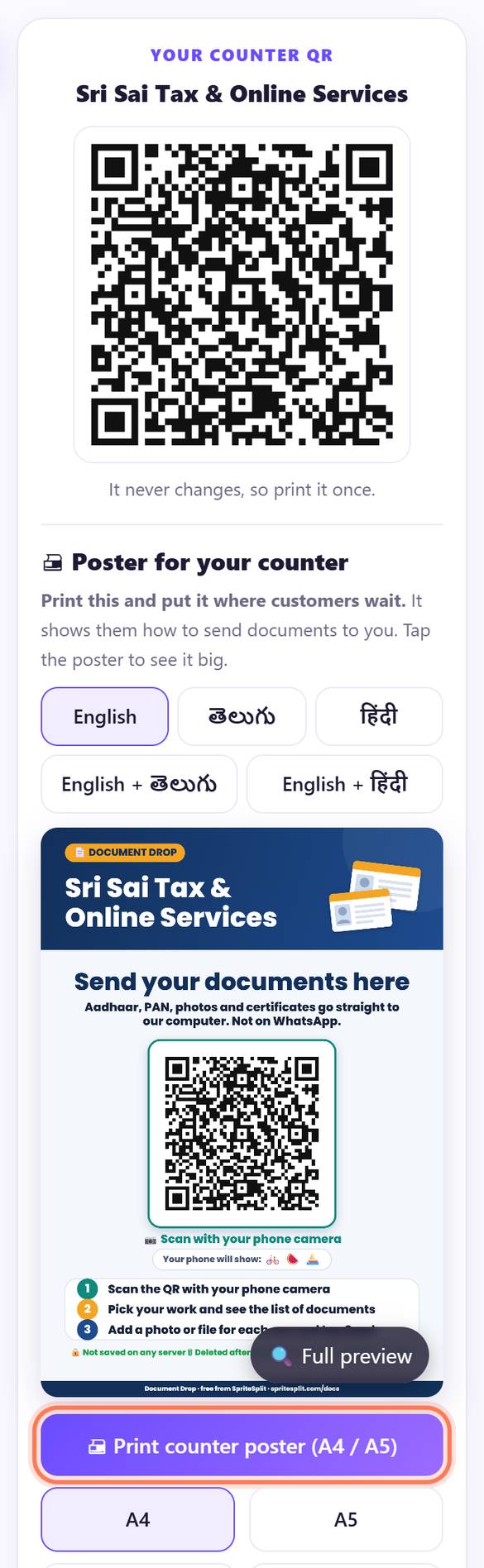
The green bar says Ready to receive ✓. On the right, under 🖨 Poster for your counter, pick English, తెలుగు, हिंदी or two languages, then 🖨 Print counter poster (A4 / A5). Put it where customers wait. The QR never changes, so you print it once.
💡 Tip: Click 📱 Try it: open the customer page to see exactly what your customers see.
3Customer at your desk? Make a token with a checklist
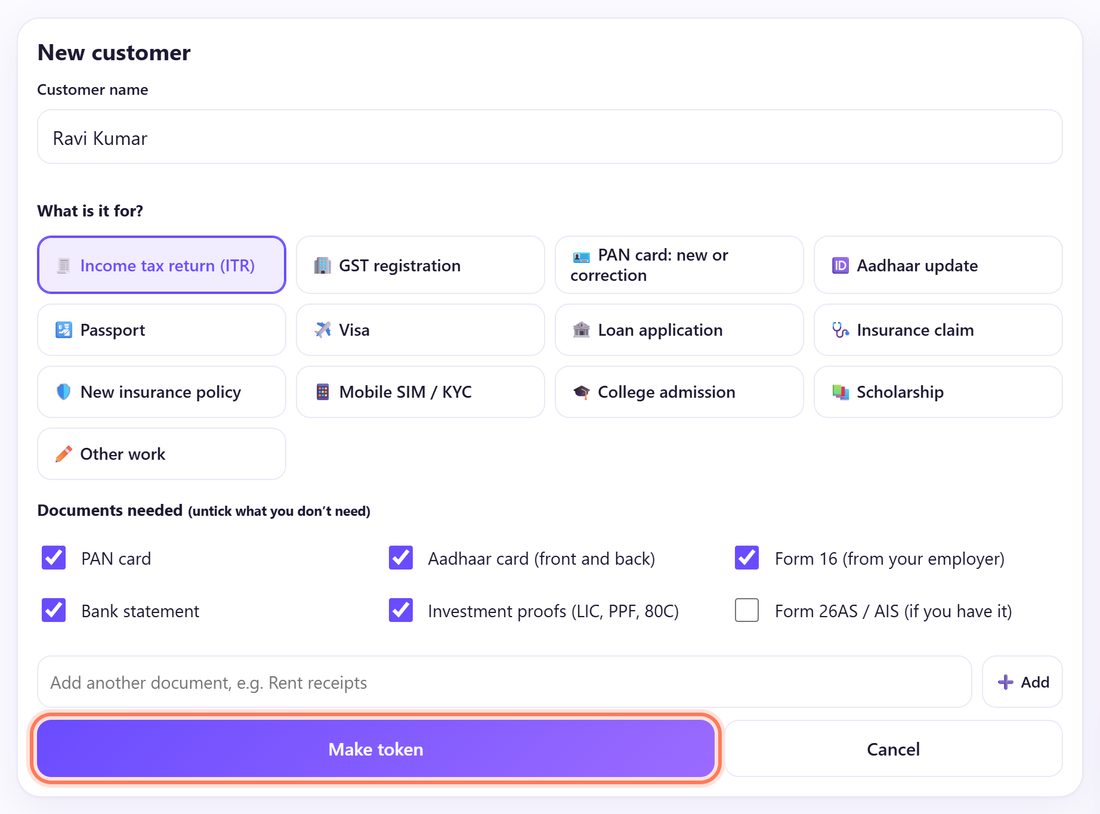
Click ➕ New customer: make a token and a checklist. Type the Customer name, pick what it is for, and untick documents you already have. Add your own with ➕ Add (for example Rent receipts). Click Make token.
4Send the customer their link, or let them scan the counter QR
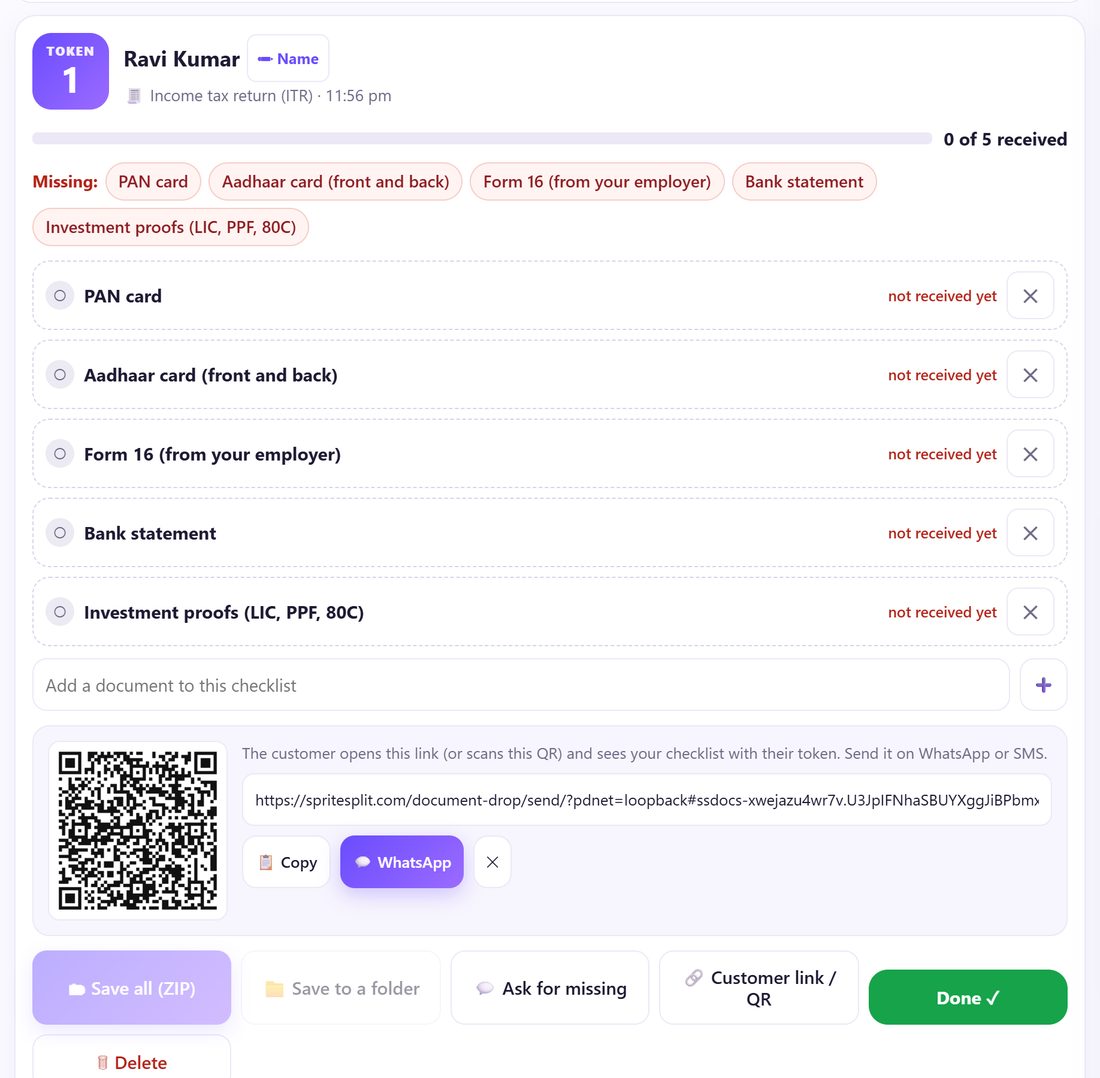
The new card shows the token and 0 of 5 received. The 🔗 Customer link / QR box opens: the customer scans that QR from your screen, or you click 💬 WhatsApp to send the link. Customers who scan the counter QR can also tap their token number.
💡 Tip: Walk-in customers don’t need a token first: they scan the counter QR and pick the work. A token is made when their documents arrive.
5What the customer sees on the phone
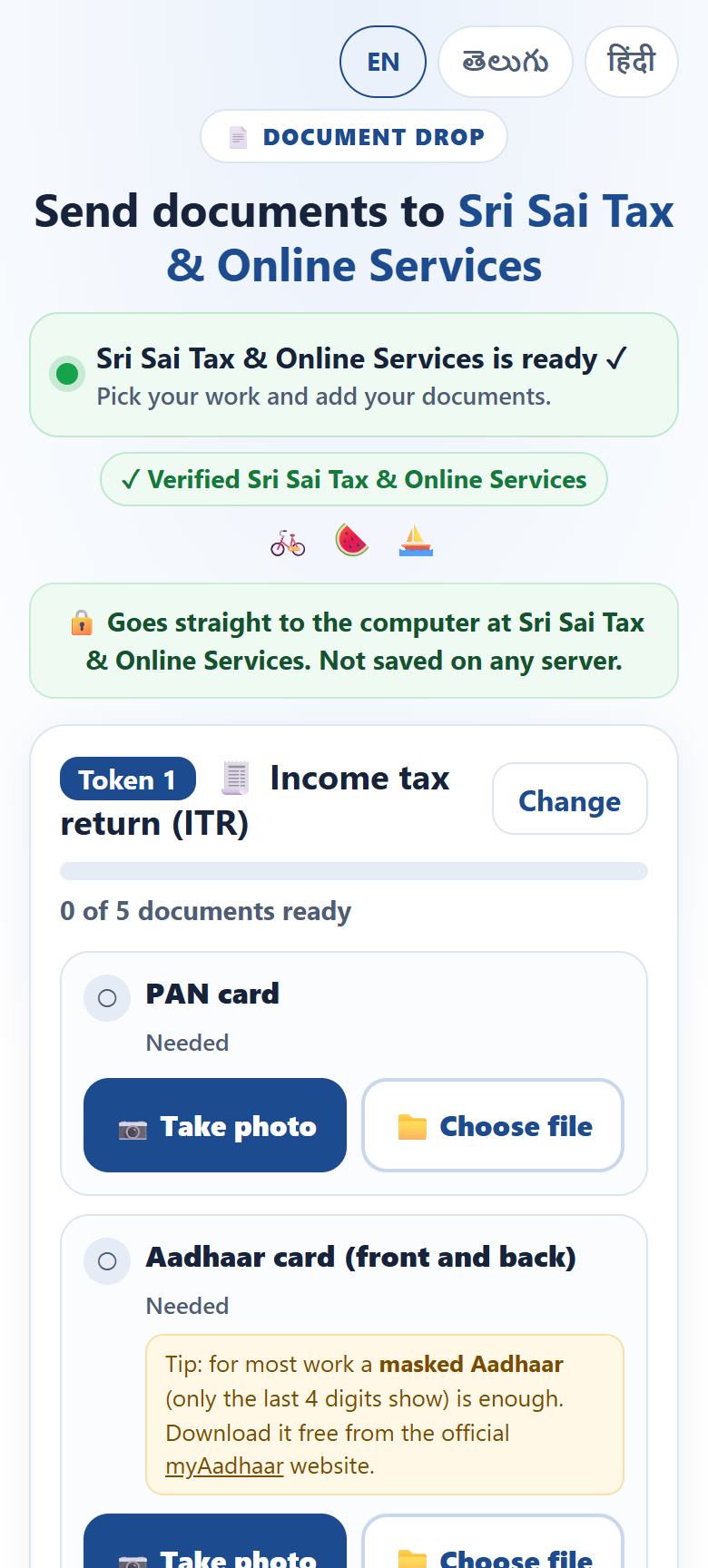
The phone shows your office name, a ✓ Verified badge with the same three pictures as your screen, and the line Goes straight to the computer at … Not saved on any server. Under their token is your checklist, each document with 📷 Take photo and 📁 Choose file. Aadhaar shows a tip about the masked Aadhaar. EN, తెలుగు and हिंदी are at the top.
6The customer adds documents and taps Send
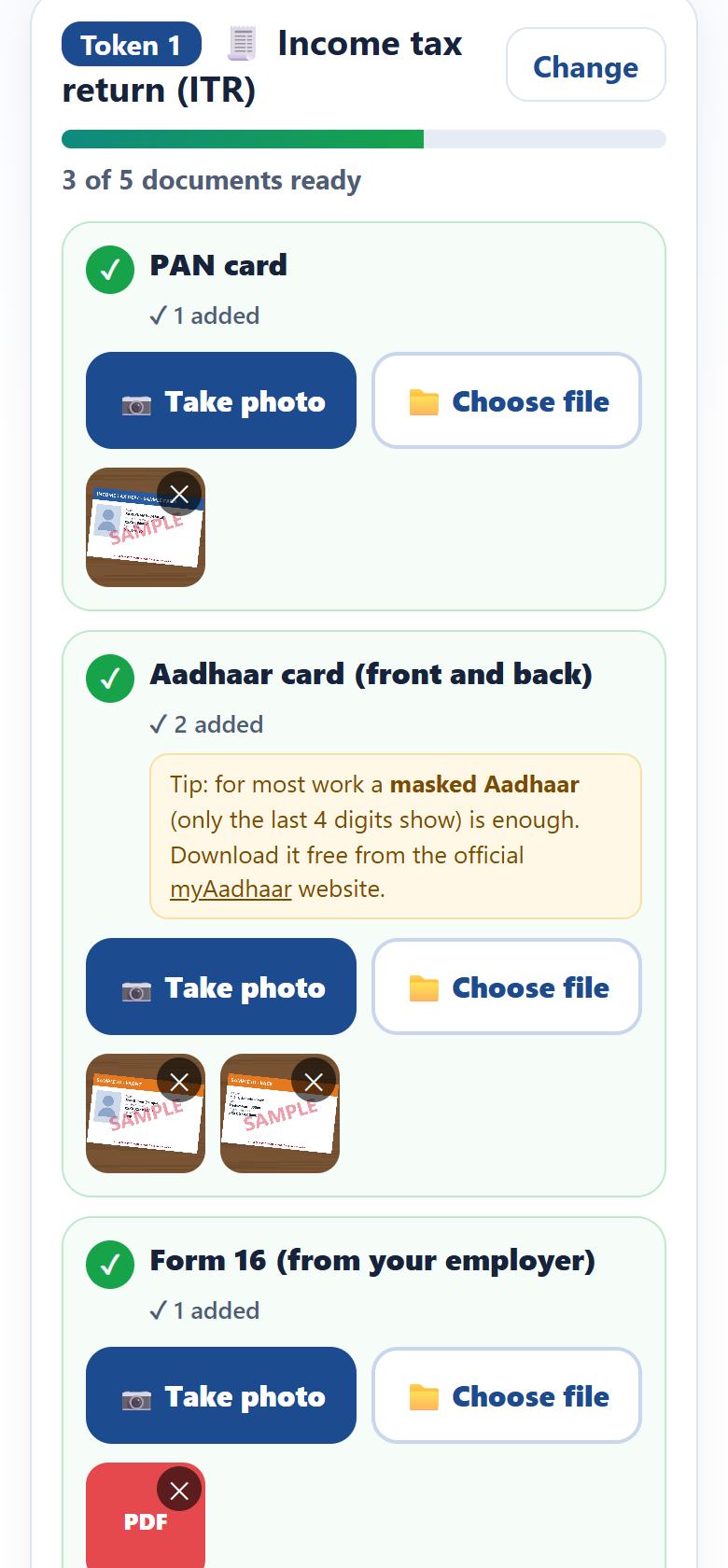
Each document gets a tick and a small picture: 3 of 5 documents ready. They type their name, choose when the documents are deleted (When the work is done, 30 minutes or 1 hour) and tap Send … ➜. The phone then shows their token, what was sent and what is still needed.
7Documents arrive sorted by the checklist
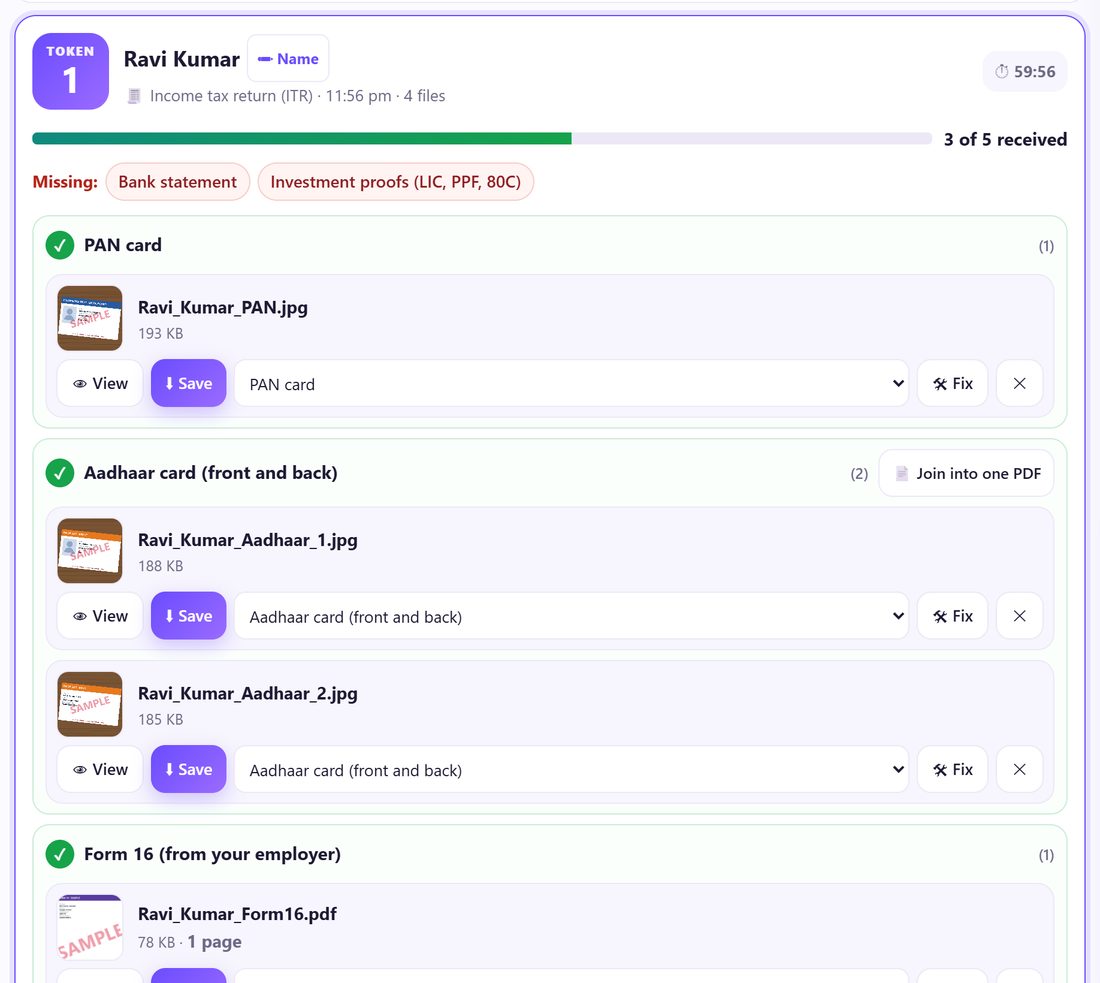
The card shows 3 of 5 received and Missing: in red. Each file sits under its checklist item, already named Ravi_Kumar_PAN.jpg, Ravi_Kumar_Aadhaar_1.jpg. Customer picked the wrong item? Change it in the drop-down next to the file.
Click 💬 Ask for missing: the message with the missing list and their link is ready to send on WhatsApp.
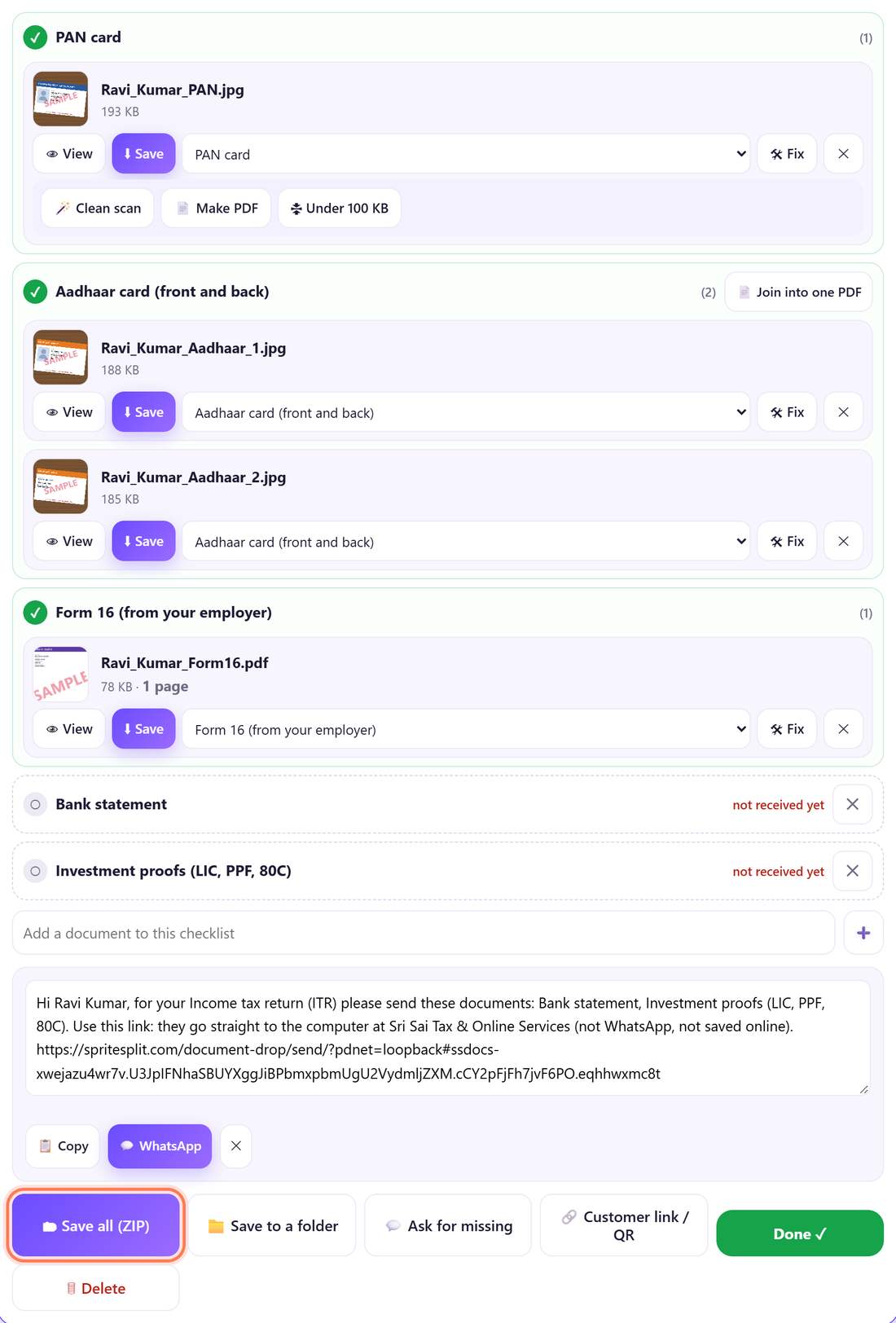
8Fix photos for the portal, save, then Done ✓
Click 🛠 Fix on a photo: 🪄 Clean scan straightens it and removes shadows, 📄 Make PDF, or 🗜 Under 100 KB (set the limit in ⚙ Settings). Front and back photos of one card: 📄 Join into one PDF.
Then 🗂 Save all (ZIP), or 📁 Save to a folder in Chrome and Edge. When the work is done, click Done ✓: the documents are deleted and the customer’s phone says you have finished.
📝 Example: Sri Sai Tax & Online Services in ITR season
Srinivas files income tax returns near a bank. At 10 am Ravi Kumar walks in. Srinivas makes token 1 for Income tax return, unticks Form 26AS, and Ravi scans the QR on the screen. Two minutes later PAN, Aadhaar (front and back) and Form 16 are on the computer: 3 of 5 received.
Srinivas clicks Ask for missing and sends the message on WhatsApp. That evening Ravi opens the link at home and sends the bank statement. Srinivas saves one ZIP, files the return, and clicks Done ✓. Nothing stays in his WhatsApp gallery.
🛠 If something goes wrong
The bar says “Not connected”
The internet dropped. It tries again by itself. If it stays red, check the Wi-Fi or cable and click Try again.
A customer’s phone cannot connect
Check your screen says Ready to receive ✓. Ask them to join your office Wi-Fi, or switch mobile data off and on and tap Send again.
A file is under the wrong item
Use the drop-down next to the file to move it. The name and the “received” count change at once.
The photo is too big for the portal
Click 🛠 Fix and 🗜 Under 100 KB. Change the limit in ⚙ Settings › Size limit for government portals. For exact exam sizes use the photo & signature resizer.
I closed the page
The tokens and checklists come back when you open it again, but the documents that were here are gone. Send those customers their link and ask them to send again.
The documents deleted themselves before I saved them
They are deleted after your delete time, counted from the last document. In ⚙ Settings choose up to 4 hours, and save as soon as the documents arrive.
🔒 Privacy in plain words
- Documents travel straight from the customer’s phone to your browser over an encrypted connection. A public connection service only helps the two find each other; it never sees the documents.
- Nothing is uploaded to SpriteSplit or any other server. Documents live only in the open Document Drop tab until you save them.
- They are deleted on Done ✓, after your delete time (or the customer’s shorter choice), or when you close the page.
- You are responsible for the documents you collect: ask only for what the work needs, keep saved copies safe, delete them when the work is done, and follow the Aadhaar Act and the DPDP Act. Prefer a masked Aadhaar.
Questions people ask
Does Document Drop cost anything?
No. It is free for offices and customers, with no limit and no sign-up.
Can I change the checklists?
Yes. Open 📋 Services & checklists: switch services on or off, add, remove or reorder documents, or type your own. ↺ Back to the standard list undoes it.
How are the files named?
As Customer_Item, for example Ravi_Kumar_PAN.jpg; two files for one item get _1 and _2. The ZIP is named after the customer and the service.
Can customers send PDFs?
Yes: photos, PDFs and Word or Excel files, up to 20 files at a time and 50 MB each.
Does it work in Telugu and Hindi?
Yes. The customer’s page has EN, తెలుగు and हिंदी buttons, and the counter poster comes in English, Telugu, Hindi or two languages.