How to set up Print Drop in your xerox shop
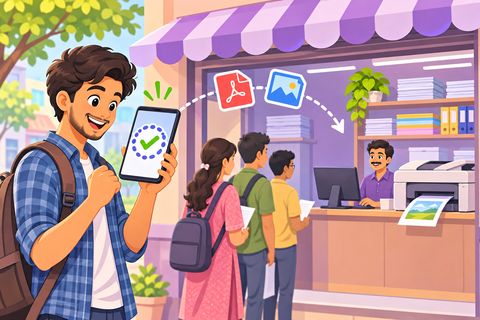
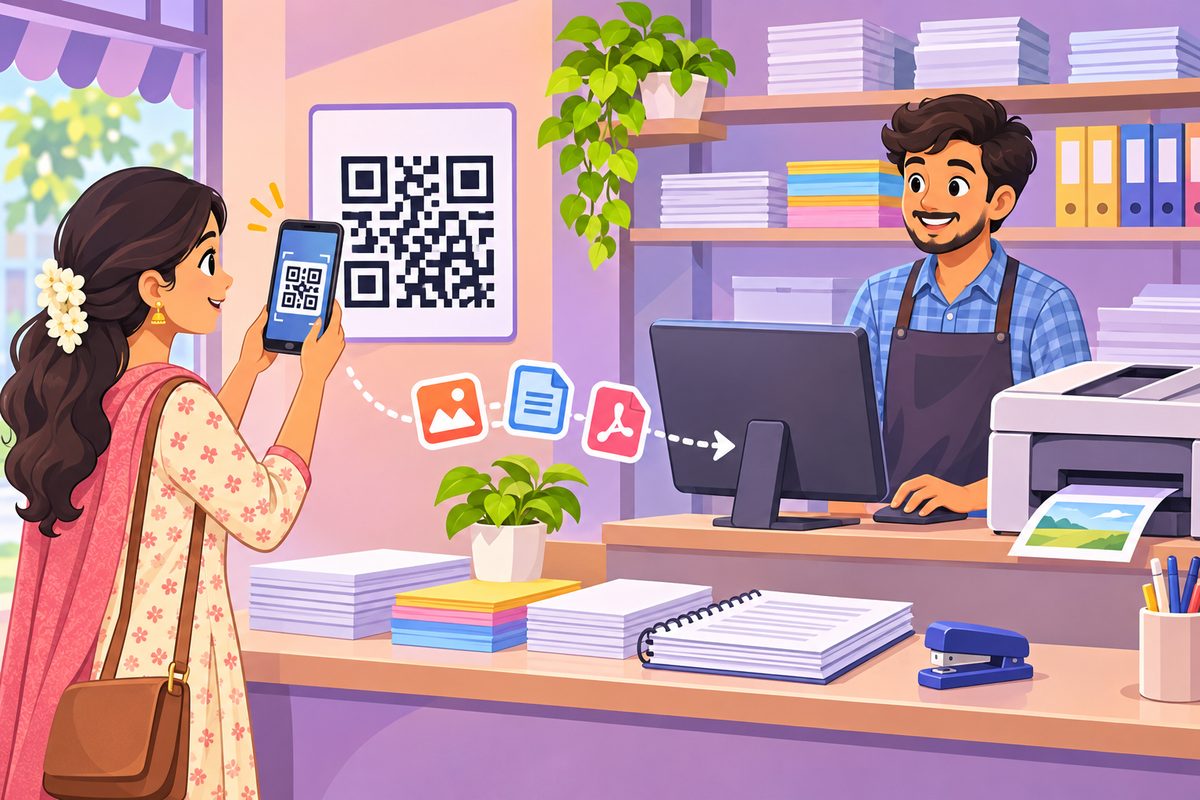
Customers keep saying “I’ll send it on your WhatsApp”, and your phone fills up with strangers’ Aadhaar cards, marksheets and resumes. Print Drop replaces that with one QR on your counter: the customer scans it, picks files and taps Send, and the files land on the computer next to your printer with a token number, copies and colour notes. Nothing is saved on any server.
This guide follows Sri Lakshmi Xerox through the whole set-up, using the real screens.
Steps
1Open Print Drop on the computer next to your printer
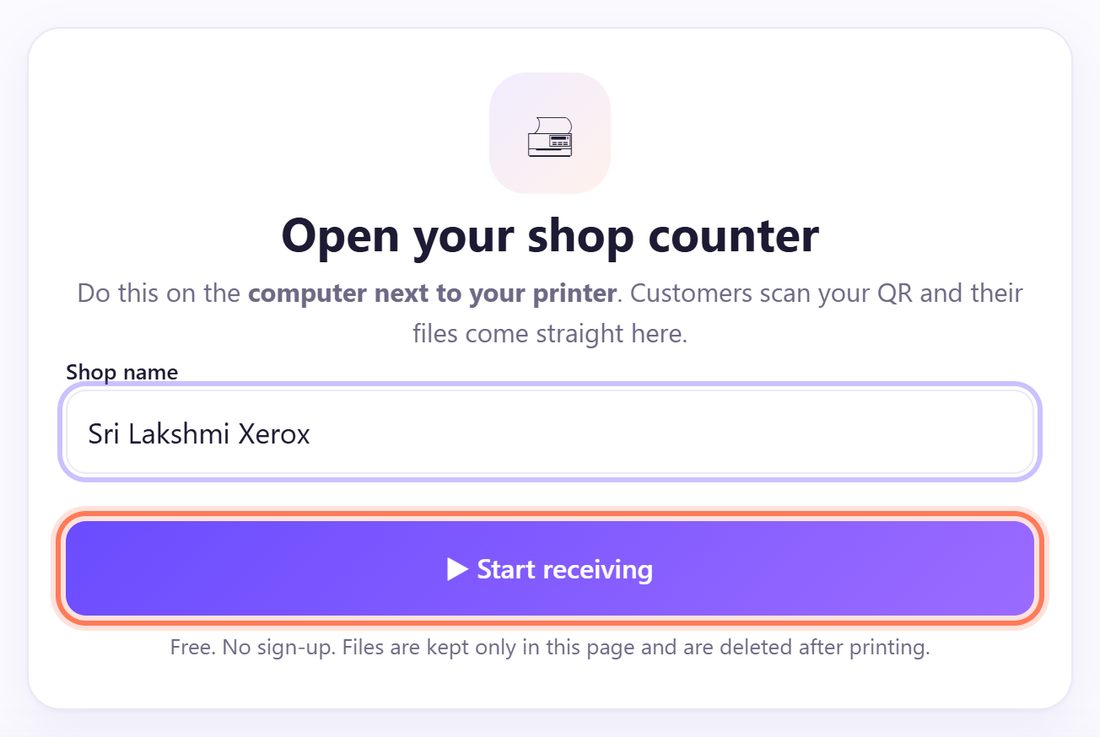
On the shop computer, open spritesplit.com/print in Chrome or Edge. Under Open your shop counter, type your Shop name the way customers know it (for example Sri Lakshmi Xerox) and click ▶ Start receiving.
No sign-up and no password. The page remembers your shop on this computer.
💡 Tip: Use the computer that is connected to the printer, not your phone. Files then go straight from the customer to the printer.
2Wait for “Ready to receive ✓”
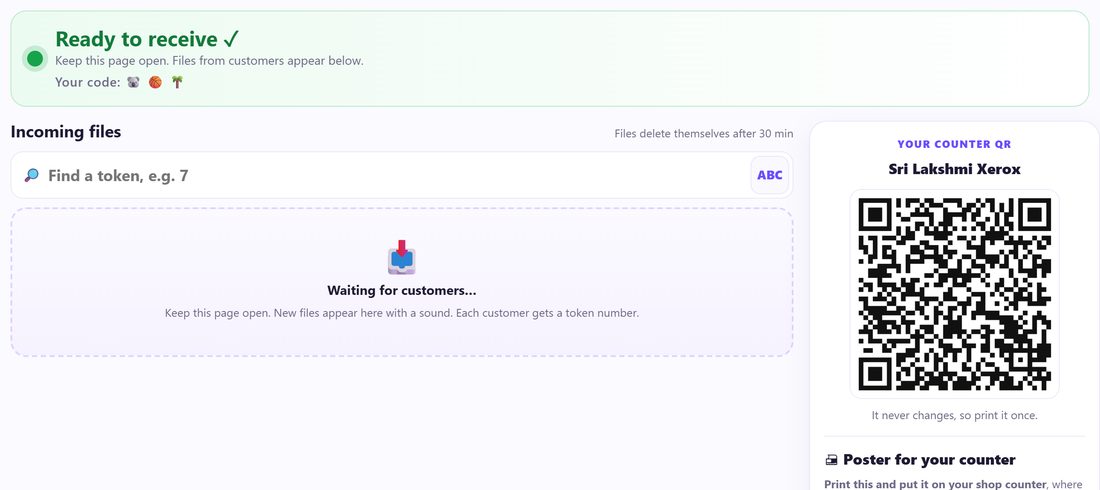
After a few seconds the green bar says Ready to receive ✓ with Your code: three small pictures. Customers see the same three pictures on their phone, which proves they reached your computer and not a fake QR.
Keep this tab open all day. New files appear under Incoming files with a sound.
3Print the poster for your counter
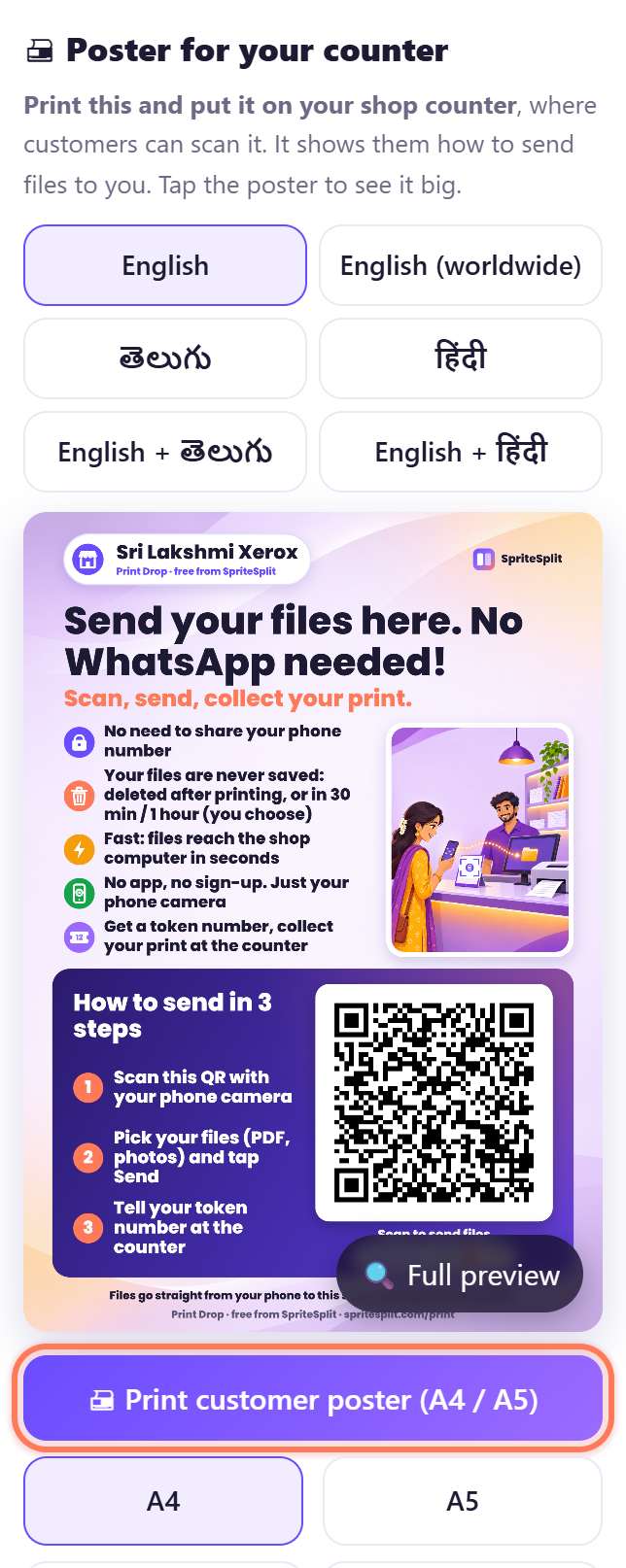
On the right, under 🖨 Poster for your counter, pick the language (English, తెలుగు, हिंदी, or two languages together) and click 🖨 Print customer poster (A4 / A5). Choose A4 or A5 first.
Stick it where customers stand. Your counter QR never changes, so you print it only once. ⬇ Status image makes a picture for your WhatsApp Status, and 🔗 Copy customer link gives the same link as text.
💡 Tip: Click 📱 Try it: open the customer page once to see exactly what your customers will see.
4Fill in your shop card (optional)
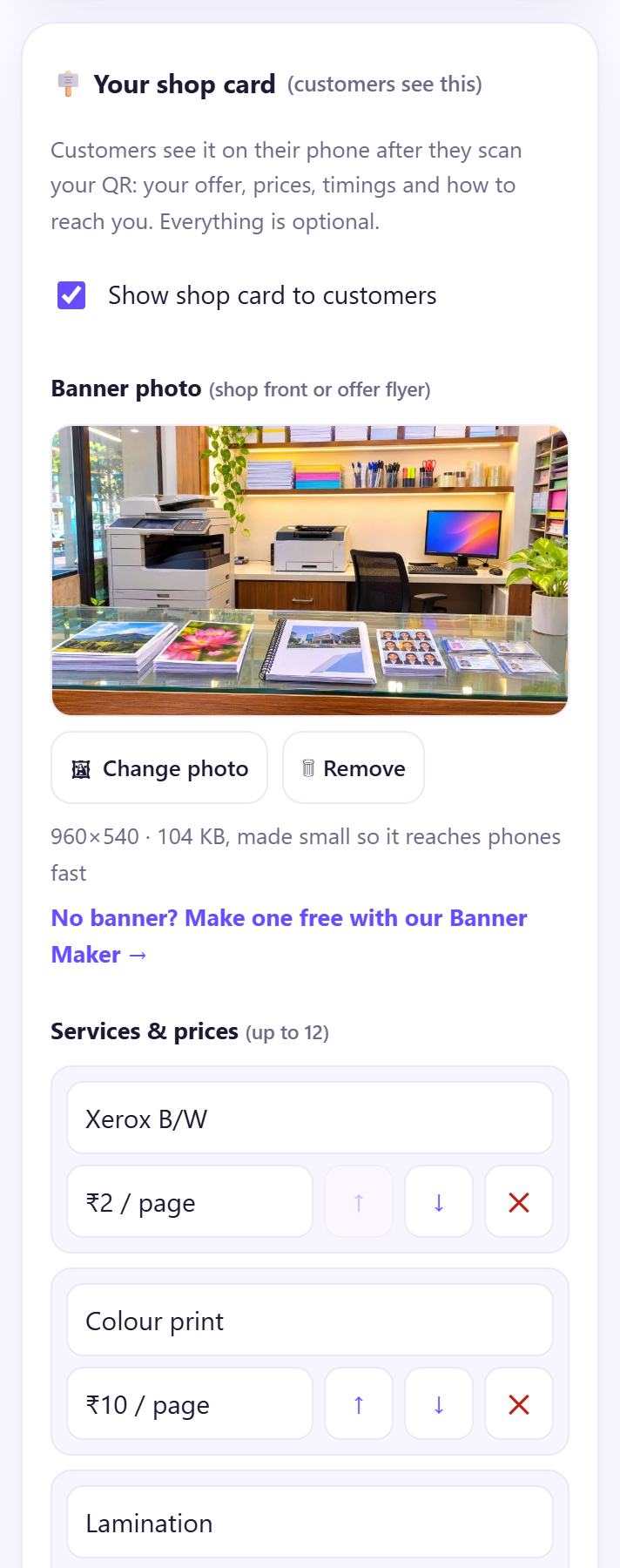
Open 🪧 Your shop card (customers see this). Add a Banner photo of your shop front, your Services & prices (up to 12 rows), an Offer line, Timings, Phone / WhatsApp and a Google Maps link.
Customers see this card on their phone right after they scan, and again while they wait. Everything is optional.
5Customers send files: each job gets a token
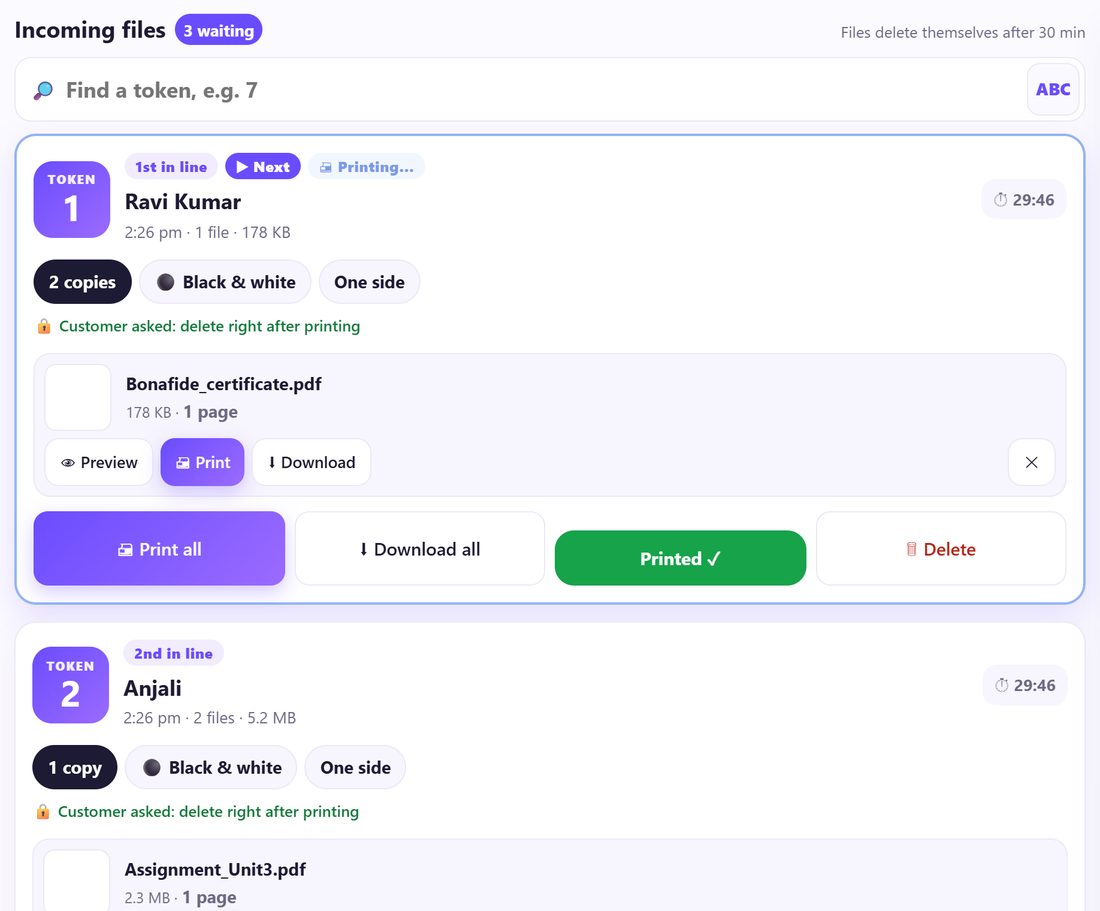
When a customer taps Send, a card appears with a big TOKEN number (1, 2, 3…), their name, and chips for copies, Black & white or Colour, One side or Both sides, and any note they typed. Cards are in line order: 1st in line, 2nd in line.
Ask “Which token?” and type it in Find a token, e.g. 7 if the list is long.
💡 Tip: Tokens start from 1 by themselves every day at 4 am. Two counters? In Settings, give the second computer a Token letter (A, B…) so tokens look like A1, A2.
6Print, then click Printed ✓
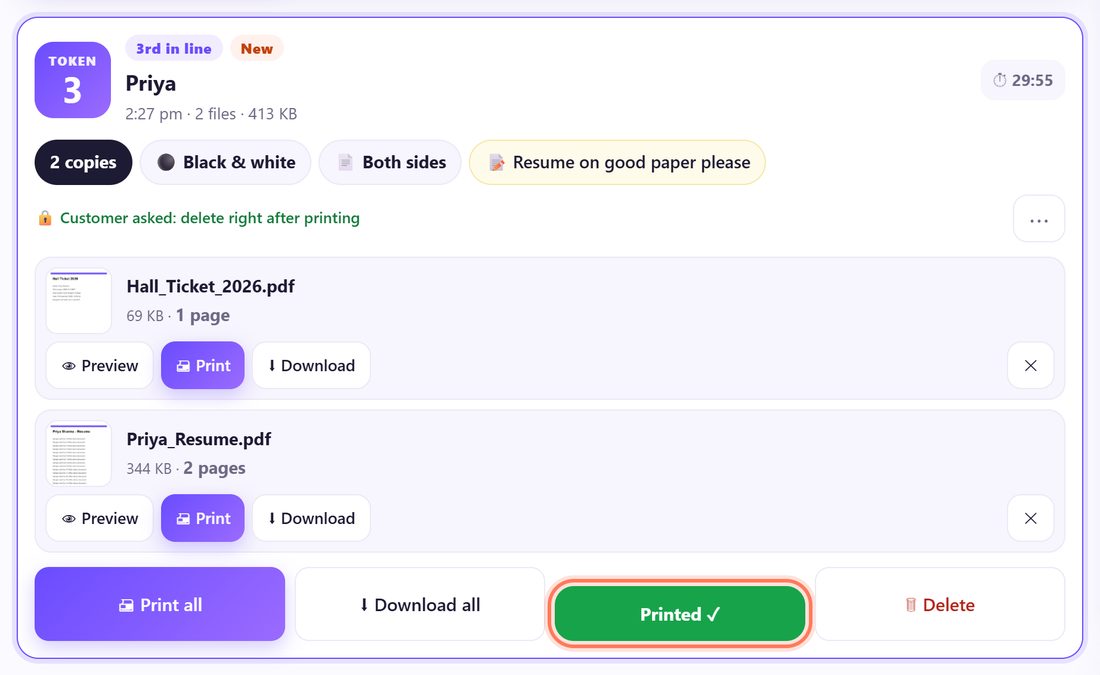
Click 👁 Preview to check a file, 🖨 Print for one file or 🖨 Print all for the whole job. The customer’s phone now shows Printing now….
Hand over the prints and click Printed ✓. The files are deleted from your computer at once and the customer’s phone says Printed, collect at the counter. Clicked by mistake? Use Undo at the bottom.
Word and Excel files show Open it in Word / Excel to print: click ⬇ Download and open them there.
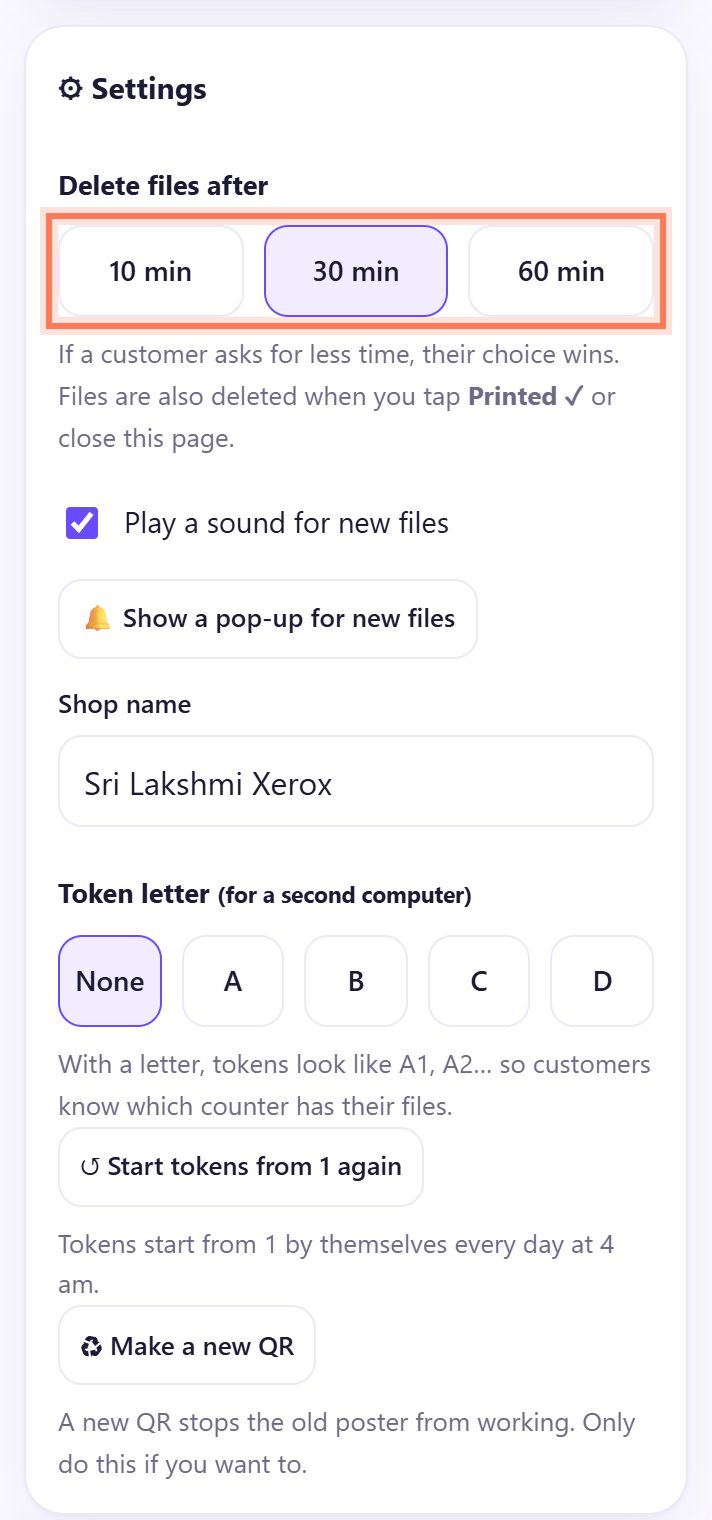
7Set when files delete themselves
Open ⚙ Settings. Under Delete files after choose 10 min, 30 min or 60 min. Every job also shows a ⏱ countdown.
If a customer asks for less time (for example After printing), their choice wins. Files are also deleted when you click Printed ✓ or close the page. Turn on 🔔 Show a pop-up for new files if you work in other windows.
📄 One-page handout for your counter
Print this A4 sheet for the counter staff or a second shop. It has the same steps in short, with a QR to spritesplit.com/print.
📝 Example: Sri Lakshmi Xerox on a Monday morning
Srinivas runs Sri Lakshmi Xerox near a degree college. At 9:30 am he opens Print Drop on the counter PC, types the shop name and clicks Start receiving. He printed the English + తెలుగు poster last week and it still works, because the QR never changes.
By 10 am there are three tokens: Ravi Kumar (bonafide certificate, 2 copies), Anjali (assignment and lab record) and Priya (hall ticket and resume, 2 copies, both sides, “resume on good paper please”). Srinivas prints token 1, clicks Printed ✓, and Ravi’s phone says “Printed, collect at the counter”. Nobody asked for his WhatsApp number, and by lunchtime none of those files is on his computer any more.
🛠 If something goes wrong
The bar says “Not connected”
The internet dropped. Print Drop tries again by itself. If it stays red, check the Wi-Fi or cable and click Try again.
It says “Open somewhere else”
The same counter is open in another tab or on another computer. Close it there, then click Try again. For two counters, use the Token letter setting on the second computer.
A customer says their phone cannot connect
First check your screen shows Ready to receive ✓. Then ask them to join the shop Wi-Fi, or switch mobile data off and on and tap Send again. Some office and mobile networks block direct connections.
I closed the page and customers were waiting
Open Print Drop again. A box says ⚠ Page was closed. These customers need to send again with their tokens. If a customer’s phone is still open, their files come back by themselves with the same token.
A file shows “Did not arrive fully”
The customer’s connection broke during sending. Ask them to tap Send again; it is usually quick on the shop Wi-Fi.
A Word or Excel file has no Print button
Only PDFs and photos open inside Print Drop. Click ⬇ Download, open the file in Word or Excel and print from there. Open only files you expected.
Someone keeps sending junk
Click ⋯ on their job and choose 🚫 Block this sender. Their phone cannot send to you for the rest of the day, and their job is deleted.
No sound when files arrive
In ⚙ Settings tick Play a sound for new files, and click once anywhere on the page after opening it (browsers allow sound only after a click). Check the computer’s volume.
🔒 Privacy in plain words
- Files travel straight from the customer’s phone to your browser over an encrypted connection. A public connection service only helps the two browsers find each other; it never sees the files.
- Nothing is uploaded to SpriteSplit or any other server. Files live only in the open Print Drop tab.
- They are deleted on Printed ✓, after your delete time (10, 30 or 60 minutes) or the customer’s shorter choice, or when you close the page.
- Done today keeps only the token, name and notes, never the files, and clears itself at 4 am.
- You never need the customer’s phone number, and they never need yours.
Questions people ask
Does Print Drop cost anything?
No. It is free for shops and customers, with no limit on jobs and no sign-up.
Do I need to install software on the shop computer?
No. It runs in Chrome or Edge. Keep the tab open next to your printer; it keeps the screen awake and reconnects by itself.
Will my counter QR stop working?
No. It stays the same until you choose ♻ Make a new QR in Settings, which you only need if you want to stop the old poster.
What files can customers send?
PDFs, photos, Word and Excel files: up to 20 files at a time, 50 MB each and 200 MB together. PDFs and photos open with a preview and one-click print.
Can two computers in the same shop receive files?
Open the counter on one computer at a time. For a second counter, set a Token letter so its tokens read A1, A2… and customers know where to go.
Can I see how many customers I had?
Yes. 📊 Reports shows customers, pages, busy hours and earnings, kept only on this computer.
Related guides