How to give studio customers their photos with a token and PIN
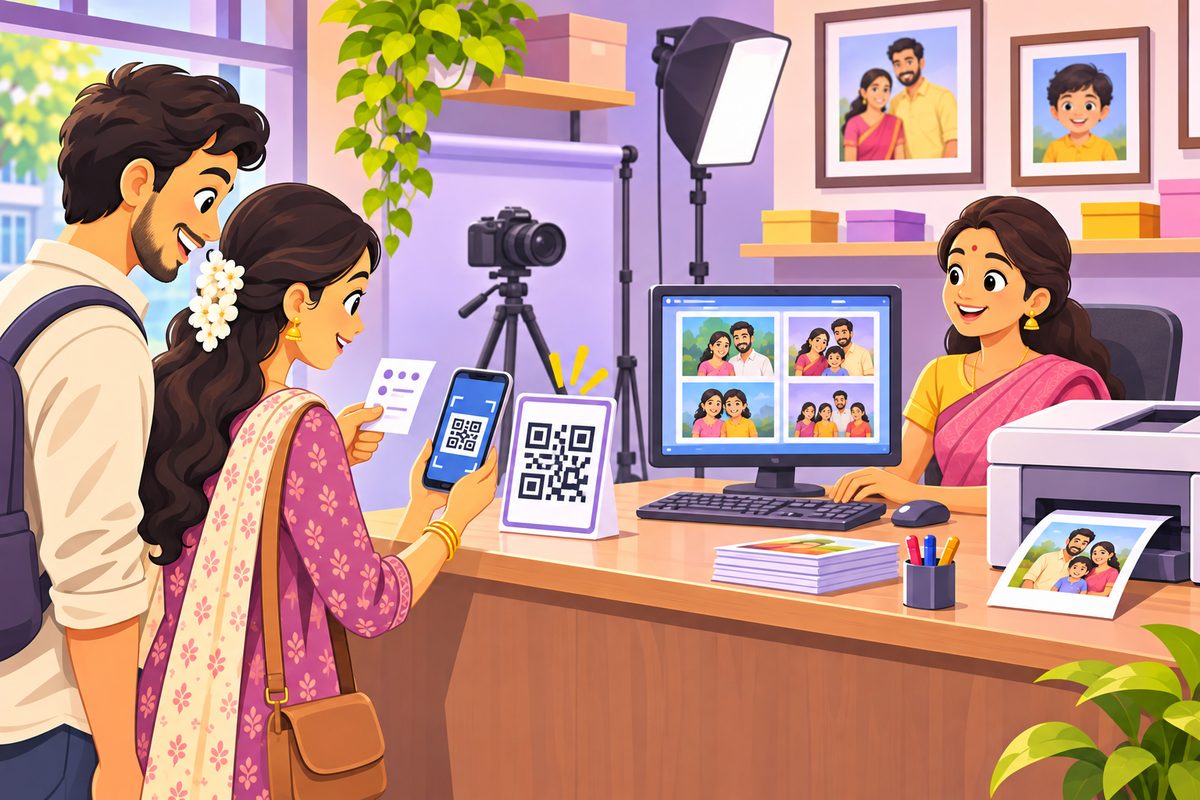
Customers want their photos on their phone today, but you do not want to turn your computer screen around for every one of them, or collect fifty WhatsApp numbers a day. Photo Studio Drop gives your counter one QR that never changes. Each customer gets a slip with a token number and a 4-digit PIN; they scan the counter QR, type both, and only their own photos arrive on their phone, in full quality.
This guide follows Lakshmi Photo Studio through a normal day, using the real screens.
Steps
1Open Photo Studio Drop and type your studio name
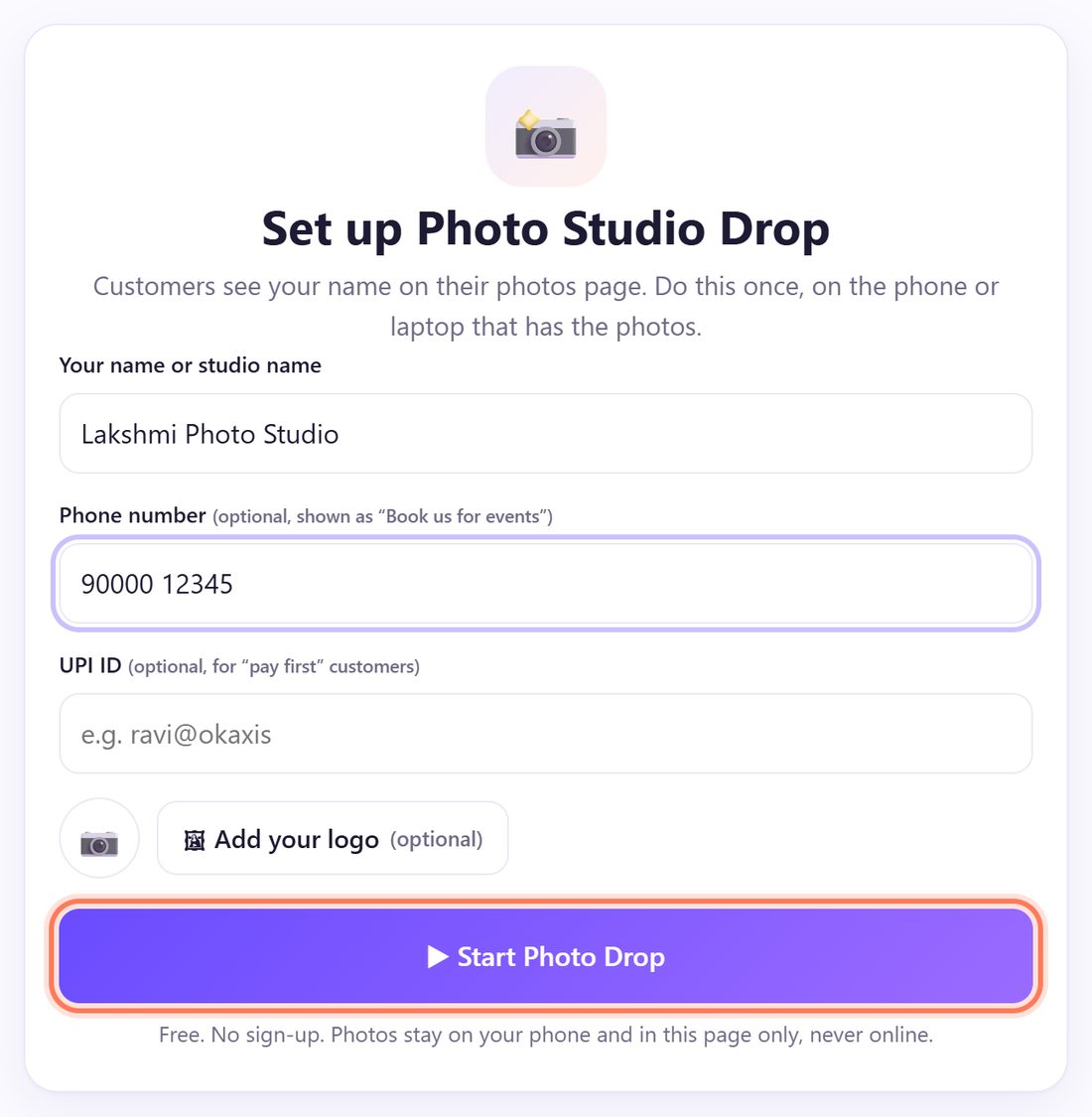
On the studio computer that has the photos, open spritesplit.com/studio. Under Set up Photo Studio Drop, type Your name or studio name and, if you like, a Phone number (customers see it as “Book us for events”) and your logo.
Click ▶ Start Photo Drop. There is no sign-up; the page remembers your studio on this computer.
2Print your counter QR once
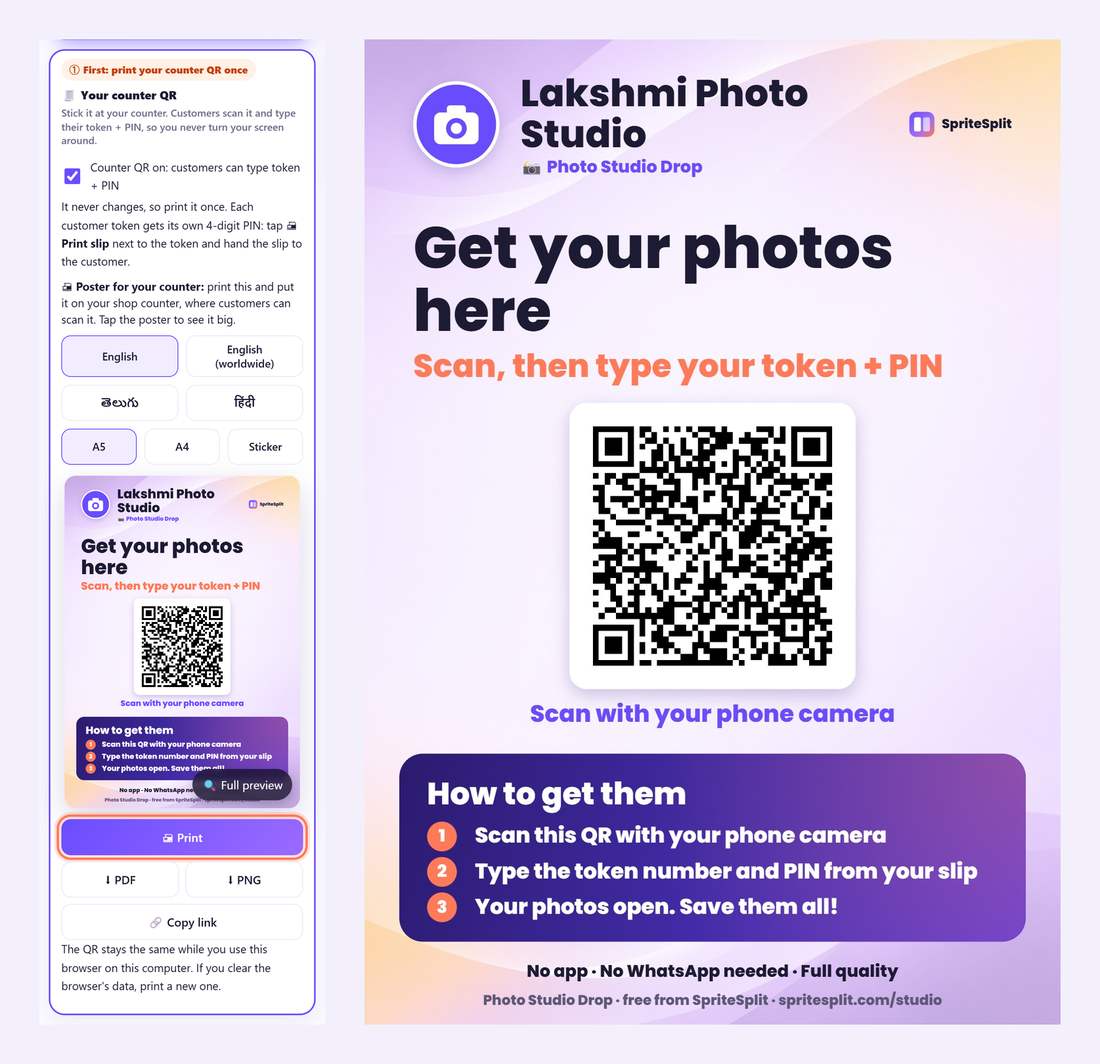
The panel 🧾 Your counter QR opens by itself the first time, marked ① First: print your counter QR once. Pick the poster language (English, తెలుగు, हिंदी) and size (A5, A4 or a Sticker for the counter glass), then click 🖨 Print. ⬇ PDF and ⬇ PNG save it for a print shop.
Stick it where customers stand. Keep Counter QR on: customers can type token + PIN ticked.
💡 Tip: The QR stays the same while you use this browser on this computer, so you print it only once. If you clear the browser’s data, print a new one.
3Tap New customer and add their photos
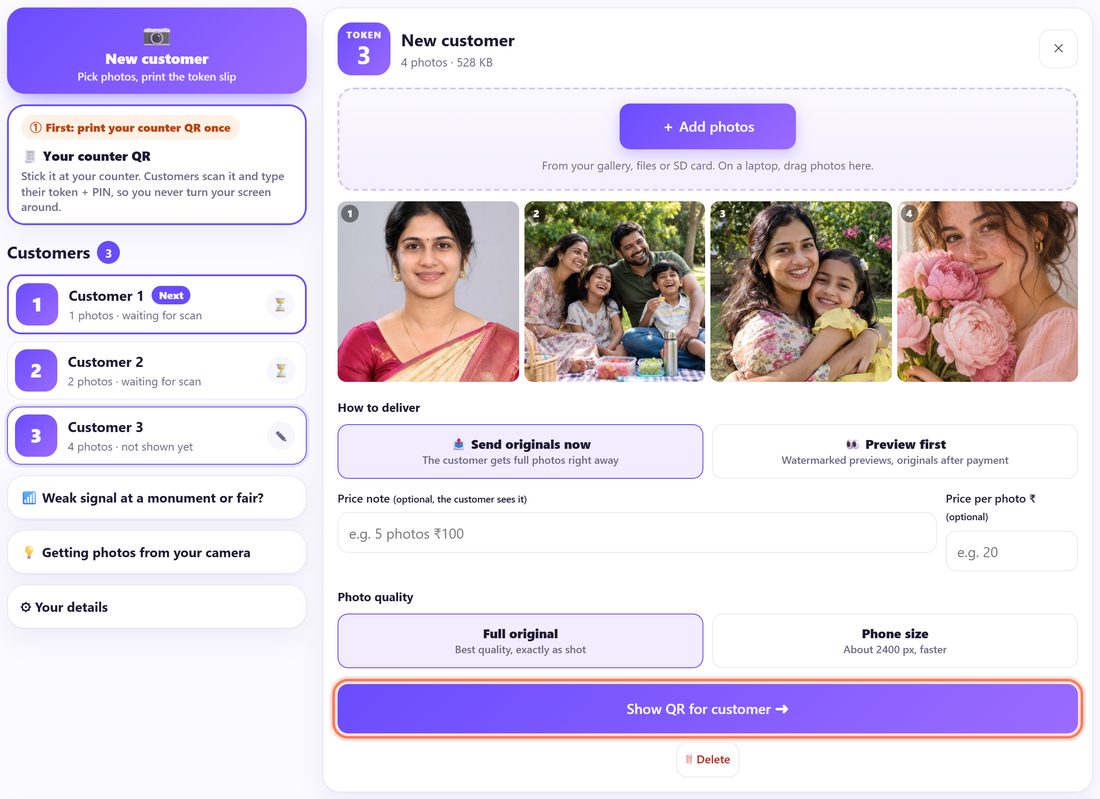
Click 📷 New customer (Pick photos, print the token slip). Pick the photos, or drag them from a folder onto the page. The customer gets the next TOKEN number: 1, 2, 3…
Under How to deliver keep 📤 Send originals now, or choose 👀 Preview first to send watermarked previews until they pay. Under Photo quality keep Full original. Then click Show QR for customer ➜.
4Print the slip with the token and PIN
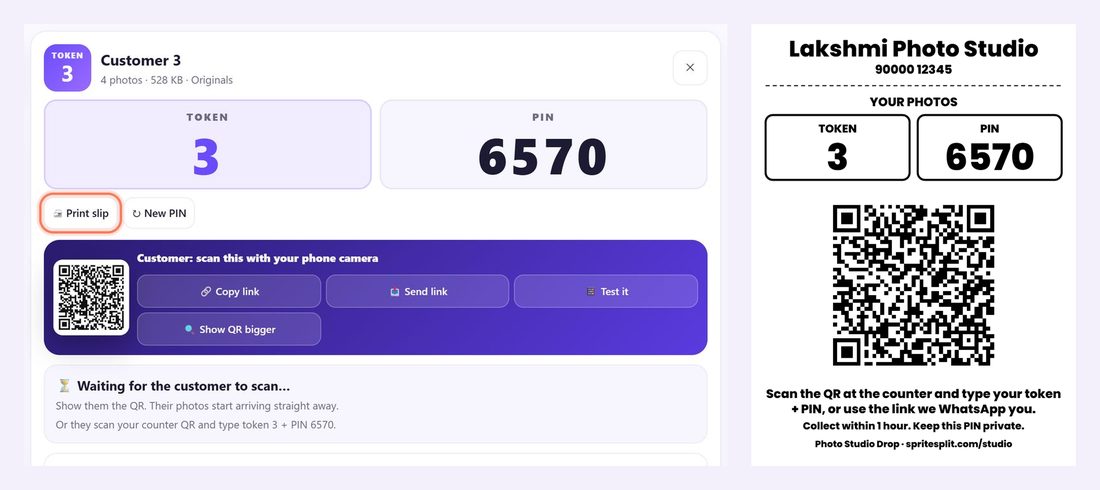
The customer’s card now shows a big TOKEN and a PIN. Click 🖨 Print slip: it prints on an 80 mm receipt printer or plain paper with your studio name, the token, the PIN and the counter QR. Hand it to the customer.
No printer handy? Just tell them the token and PIN, or write them on your bill.
💡 Tip: Each token has its own PIN. ↻ New PIN makes a fresh one (the old PIN stops working, so give a new slip).
5The customer scans the counter QR and types token + PIN
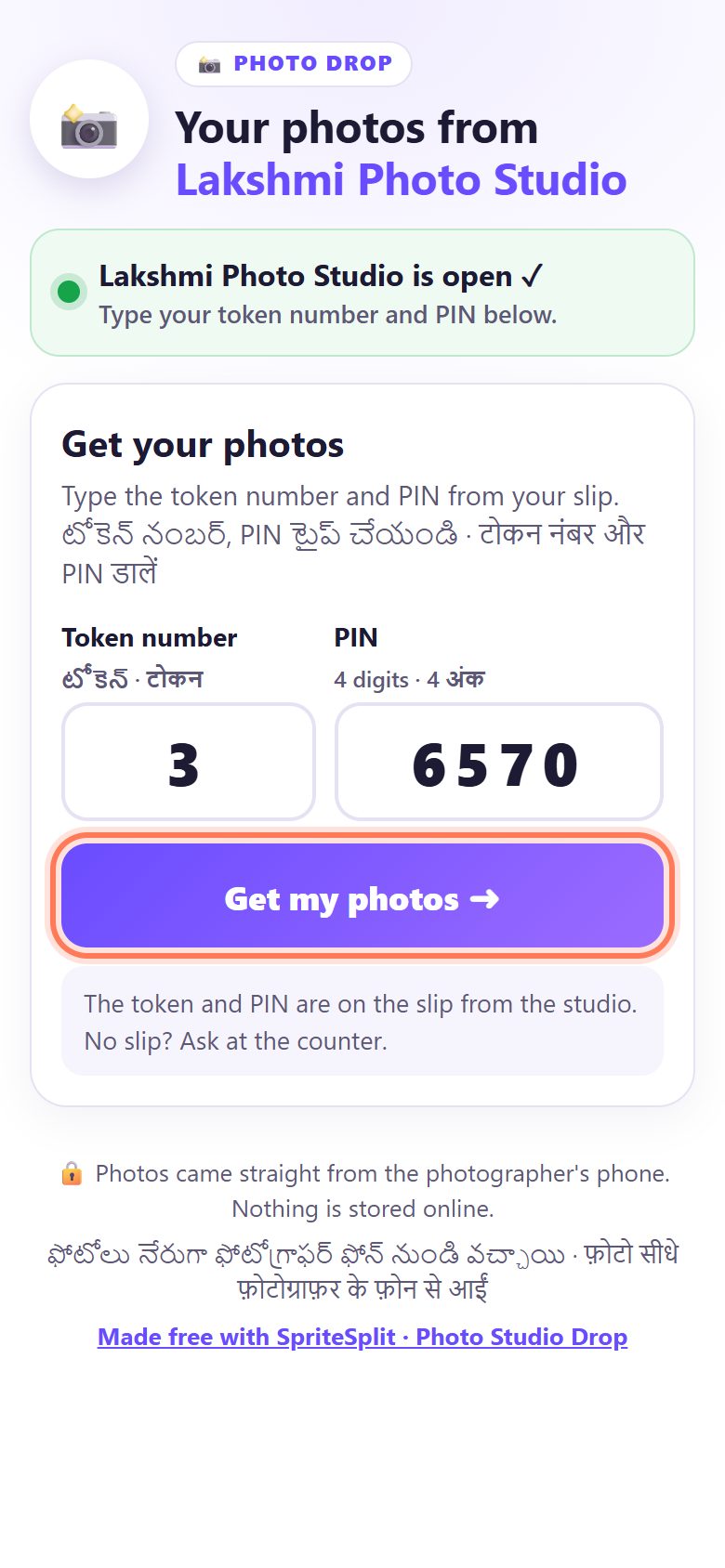
The customer scans your counter QR with the normal phone camera. No app, no sign-up, no phone number. Their phone shows Lakshmi Photo Studio is open ✓ and the form Get your photos.
They type the Token number and the PIN from the slip and tap Get my photos ➜. The form also has short Telugu and Hindi hints.
6Only their photos arrive, in full quality
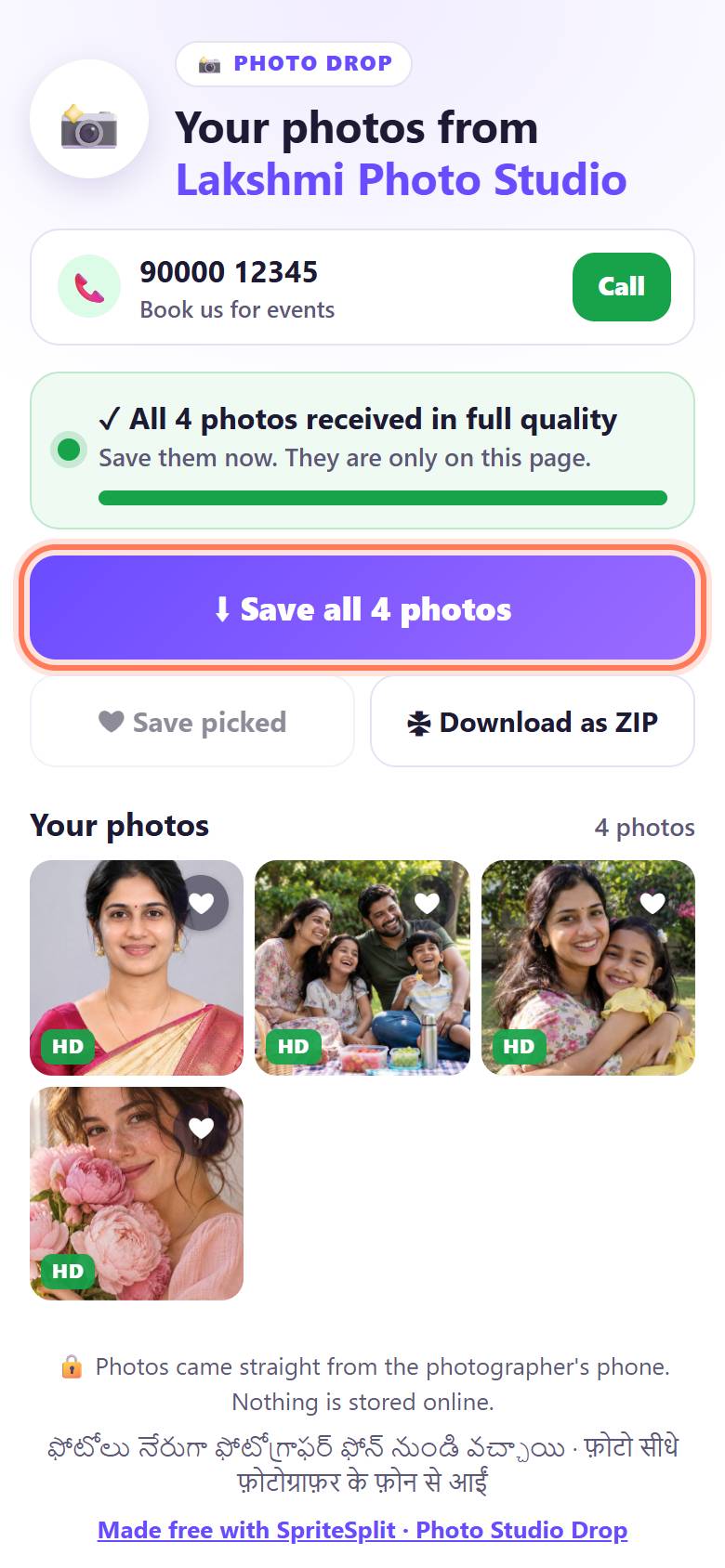
Their own photos come straight from your computer to their phone, byte for byte as you shot them, each marked HD. They tap ⬇ Save all photos, or ❤ a few and tap ❤ Save picked, or 🗜 Download as ZIP.
On an iPhone, Save all photos opens the share sheet: tap Save Images.
7See “delivered”, then tap Done ✓
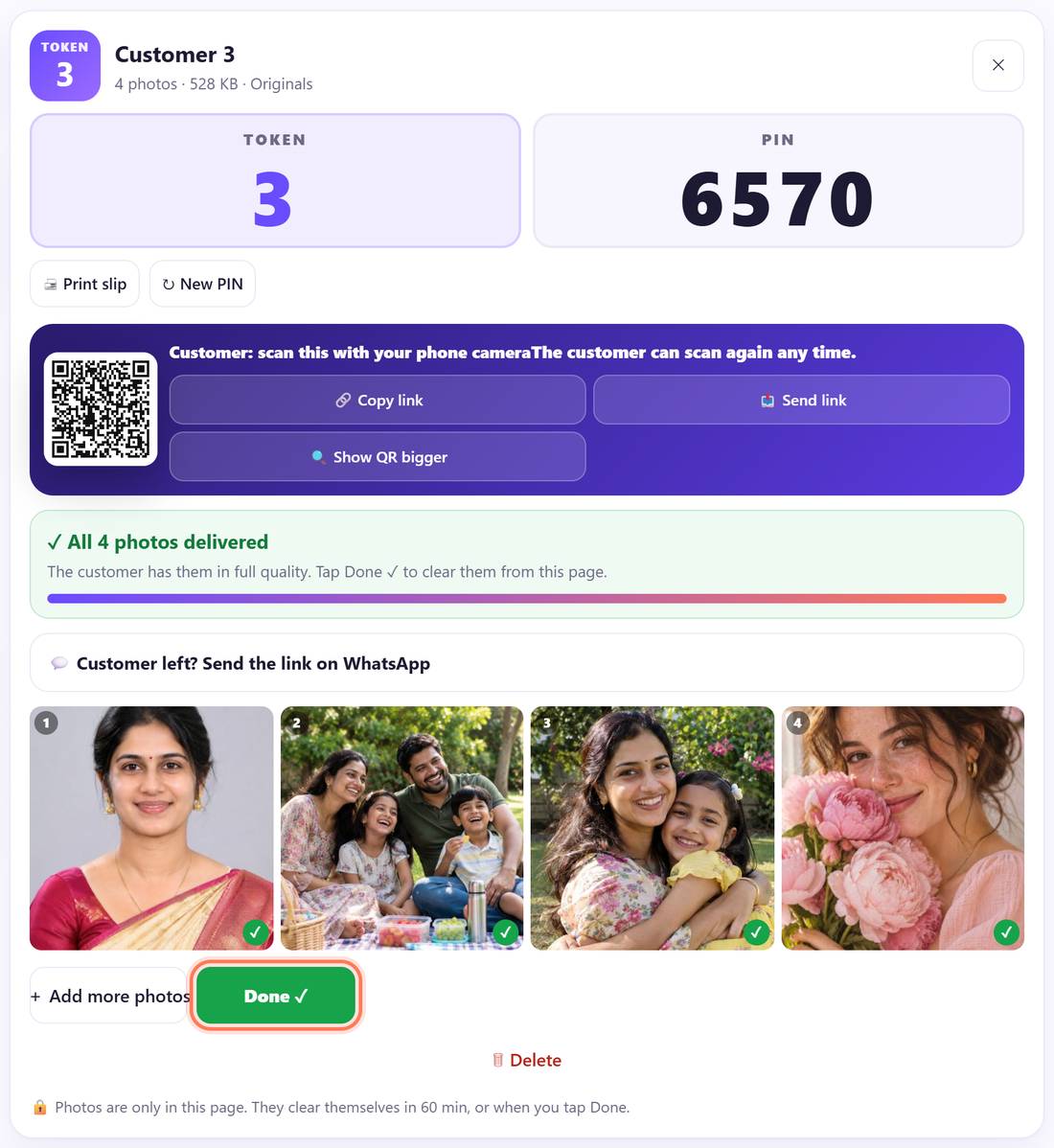
Your screen shows ✓ All 4 photos delivered and a green tick on each photo. Click Done ✓: the photos are cleared from the page and the customer’s card leaves the list.
Forget to tap it? Every customer’s photos clear themselves after 60 minutes, or when you close the page.
8Customer left? Send the link on WhatsApp
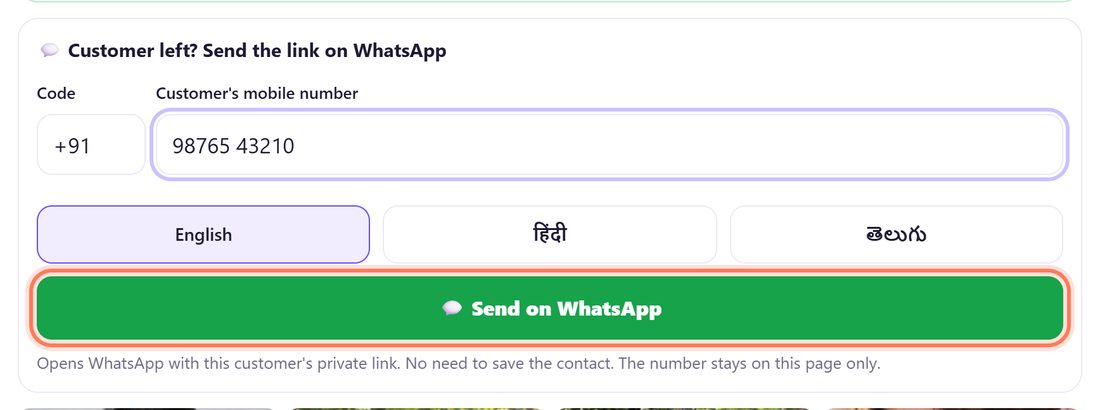
If the customer went home before the photos were ready, open their token and click 💬 Customer left? Send the link on WhatsApp. Type Customer’s mobile number, pick the message language (English, हिंदी, తెలుగు) and click 💬 Send on WhatsApp.
WhatsApp opens with a short message, the token and their private link. You don’t need to save the contact; the number stays on this page only.
A busy day at the counter
- Prepare several customers: each gets the next token. The list on the left shows waiting for scan, Sending 2/4 or Delivered ✓ for each one, and marks the next one with Next.
- Payment first: choose 👀 Preview first, add a Price per photo, and the customer sees watermarked previews, picks favourites ❤ and pays. Click Paid ✓, send originals to send the full photos.
- Start tokens again: in ⚙ Your details, ↺ Start tokens from 1 again resets the numbers.
- Very big orders: up to 300 photos or 1.5 GB per customer while the page is open.
📝 Example: Priya collects her family photos at Lakshmi Photo Studio
Priya’s family had a portrait session on Saturday. On Monday at 11 am, Lakshmi opens Photo Studio Drop, clicks New customer, and drags in the four edited photos. Priya is token 3 today. Lakshmi clicks 🖨 Print slip and hands over a small slip with token 3 and a 4-digit PIN.
Priya scans the A5 poster on the counter, types 3 and the PIN, and in a few seconds sees All 4 photos received in full quality. She taps Save all 4 photos, checks them in her gallery, and leaves. Lakshmi sees ✓ All 4 photos delivered and clicks Done ✓.
Her neighbour, token 4, had to leave early. Lakshmi opens token 4, types his number under Customer left?, picks తెలుగు and sends the link on WhatsApp. He opens it at home within the hour and saves the photos. Nobody’s number or photos stay in Lakshmi’s phone.
🛠 If something goes wrong
The customer sees “That token and PIN don’t match”
Check the slip: the token is the big number, the PIN is 4 digits. If you have just made a ↻ New PIN, the old slip no longer works. The message is the same for a wrong token or a wrong PIN, so nobody can guess other customers’ photos.
“Too many tries. Please wait 60 seconds”
After 5 wrong tries on one phone, the form waits a minute. Ask the customer to read the slip again slowly, or tell them the token and PIN yourself.
The token shows “🔒 Locked”
After 10 wrong PINs for one token, that token locks to keep the photos safe. Open it and click Unlock (the same PIN works again), or ↻ New PIN and print a new slip.
“The shop is offline right now”
The counter QR works only while Photo Studio Drop is open on your computer. Open the page again: the same QR starts working at once. Keep the tab open during shop hours.
“Couldn’t connect on this network”
Some mobile networks block direct connections. Ask the customer to join the studio Wi-Fi, or switch mobile data off and on, and try again. The page also tries again by itself.
“This studio is not using token + PIN right now”
The tick Counter QR on: customers can type token + PIN was turned off. Open 🧾 Your counter QR and tick it again, or click 🔍 Show QR bigger on the customer’s card and let them scan their own QR.
Photos are slow on a weak connection
Before sending, choose Phone size under Photo quality (about 2400 px). It is still sharp on any phone and prints well up to 6×8 inches.
The customer closed the page before saving
Ask them to scan the counter QR and type the token and PIN again; the photos come again as long as you have not clicked Done ✓ and the hour is not over.
🔒 Privacy in plain words
- Photos go straight from your computer to the customer’s phone over a direct, encrypted connection. They are never uploaded to SpriteSplit or any other server. A public service only helps the two browsers find each other.
- On your computer, photos stay only in the open page and clear on Done ✓, after one hour, or when you close it.
- A customer sees only the photos of their own token. The PIN is never in the link, and wrong guesses are slowed down and locked.
- The WhatsApp number you type is kept in this page’s memory for that customer only, and forgotten when the page closes.
Questions people ask
Do customers need an app or an account?
No. They scan the counter QR with the phone camera and the page opens in the browser. No app, no sign-up and no phone number.
Do I have to print a new counter QR every day?
No. Print it once. It stays the same while you use the same browser on the same computer. Only the token and PIN change for each customer.
Can I take payment before sending the full photos?
Yes. Choose 👀 Preview first: customers see watermarked previews, pick favourites ❤ and pay you. Click Paid ✓, send originals to send the full photos.
What if the studio computer is switched off?
Customers see “The shop is offline right now. Try during shop hours.” Open Photo Studio Drop again and the same counter QR works; you never reprint it.
How is this different from Photo Drop?
Photo Drop is for freelance photographers: each customer scans their own QR on your phone. Photo Studio Drop adds the fixed counter QR, a PIN per token and a printed slip.
Is it free?
Yes. Free for studios and customers, with no limit on customers and no watermark of ours on your photos.
Related guides