How to share event photos with every guest using one QR
After a birthday or a family function, everyone wants “the photos”. Sending them one by one in the family WhatsApp group squashes them, and the big ones never arrive. A Photo Drop Event gallery puts all the photos behind one QR. Every guest opens it on their own phone, sees small previews first, and saves the full-size photos they like, straight from your phone.
Steps
1Tap Event gallery
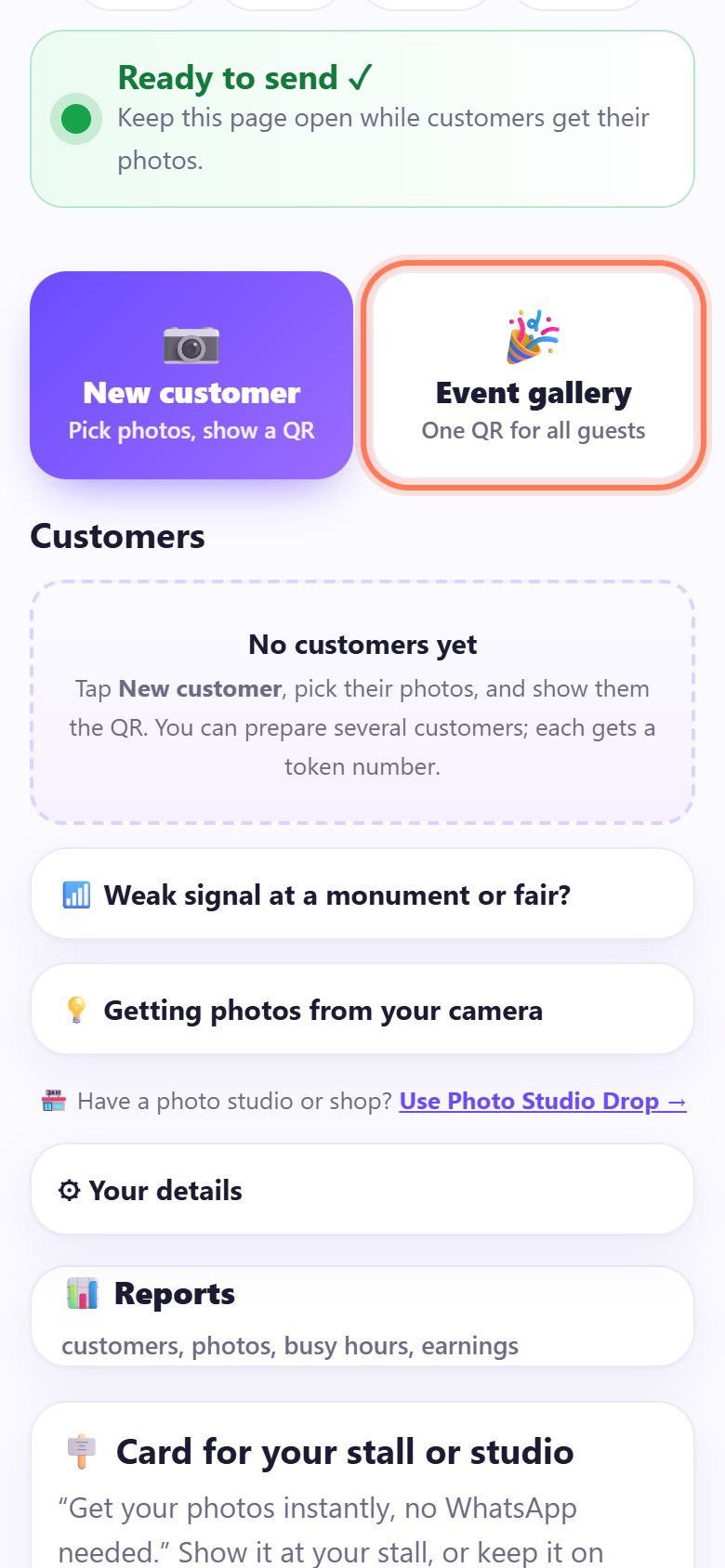
Open spritesplit.com/photo and set up your name once (see the photographer guide). When it says Ready to send ✓, tap 🎉 Event gallery (One QR for all guests).
2Name the event and add the photos
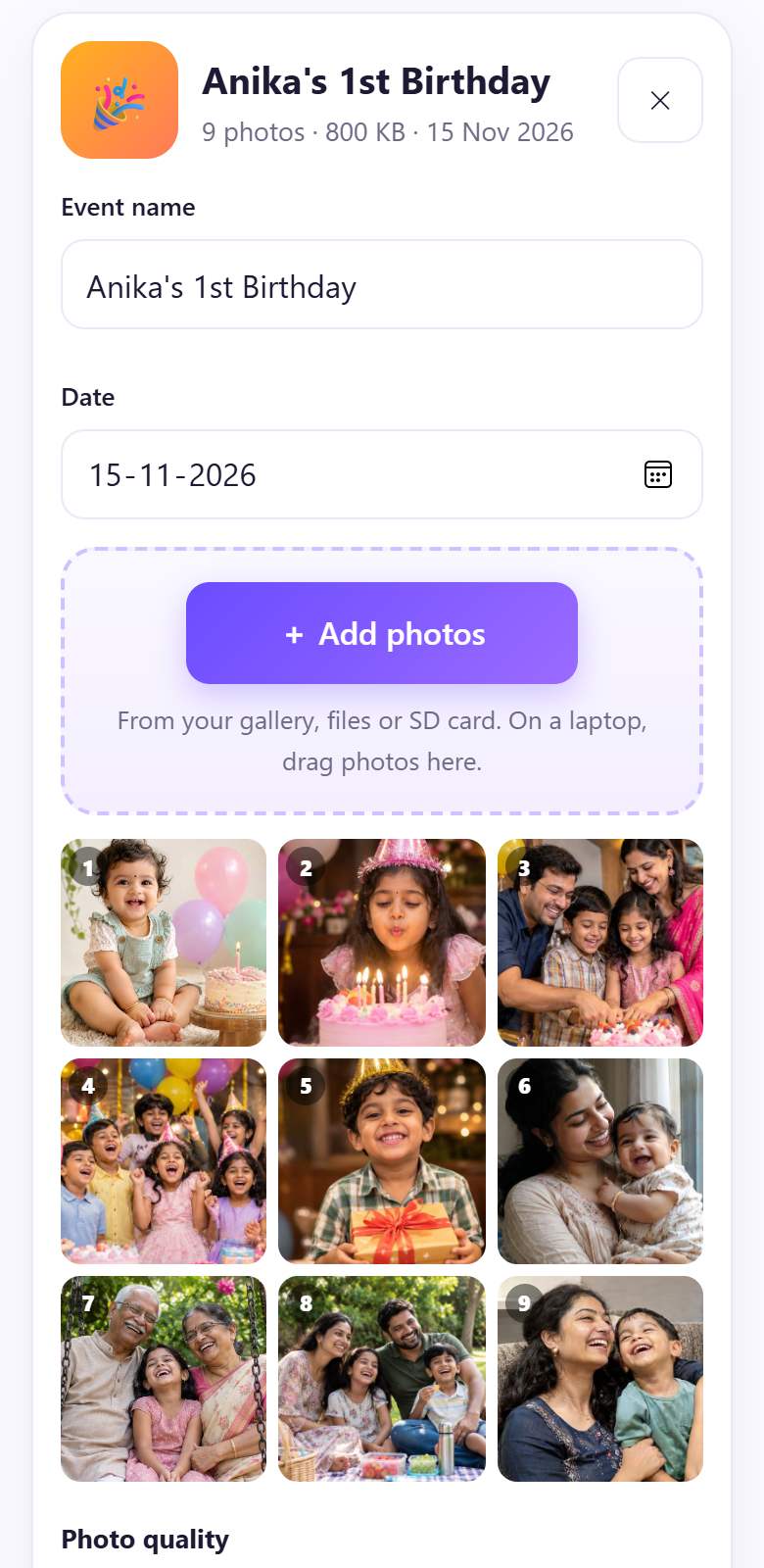
Type the Event name (guests see it as the gallery title) and the Date. Tap + Add photos and pick the photos. On a laptop, drag a whole folder of photos in.
Under Photo quality keep Full original, or choose Phone size if many guests are on slow mobile data. Tap Show event QR ➜.
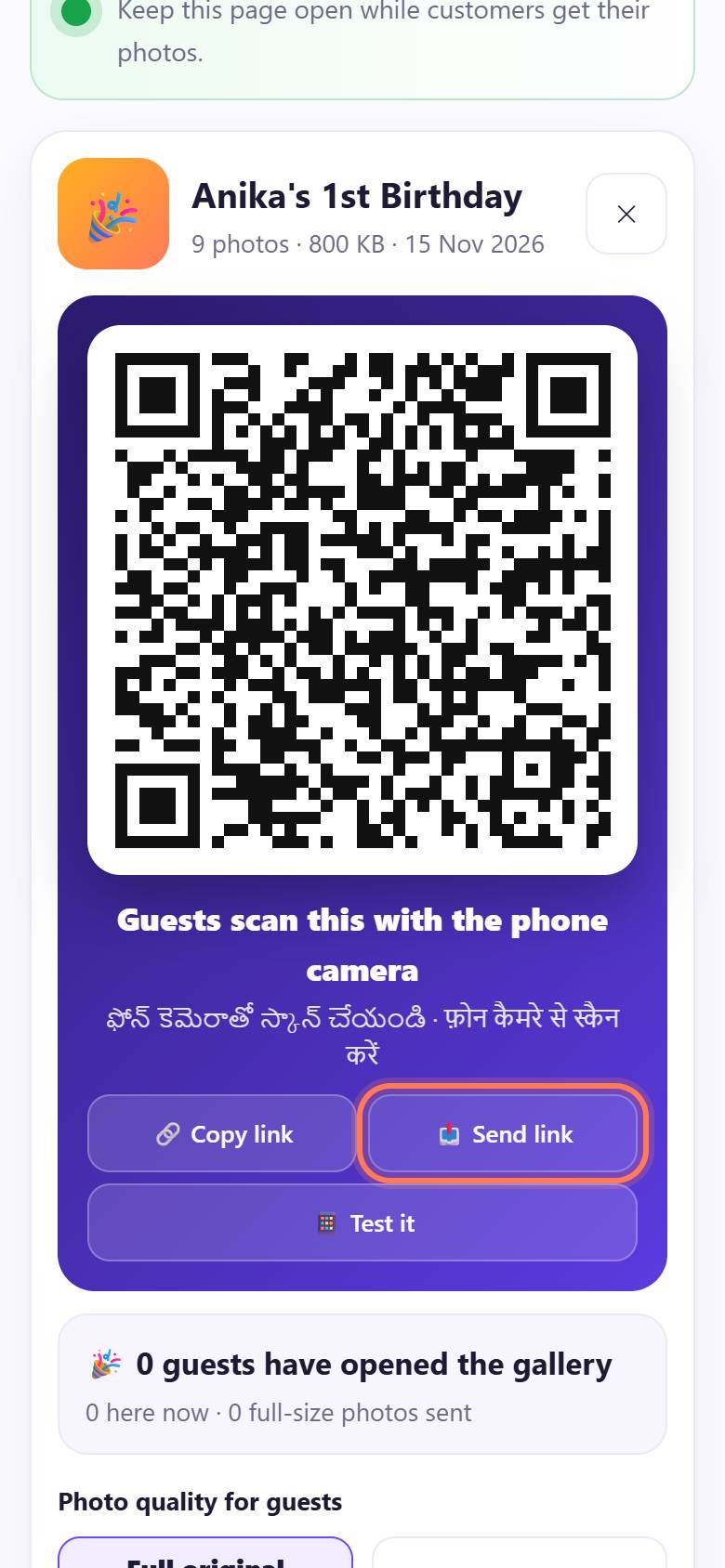
3Show the QR, or share the link in the group
A big QR appears: Guests scan this with the phone camera. Show it at the venue, or tap 📤 Send link to post the link in the family WhatsApp group with a ready message. 🔗 Copy link copies it.
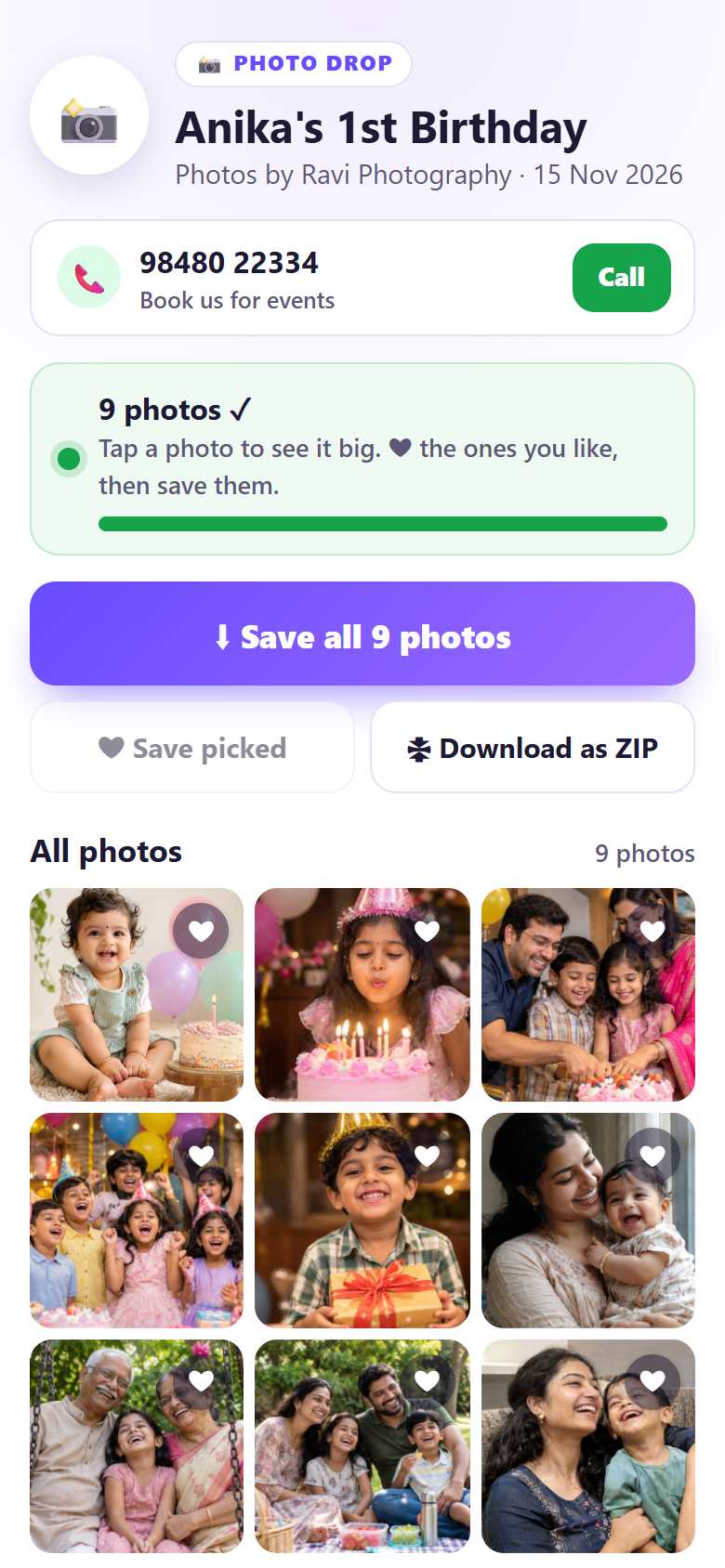
4Guests see the whole gallery
Each guest sees the event name, Photos by your name and the date, and 9 photos ✓. Small previews load first, so the gallery opens fast even on mobile data.
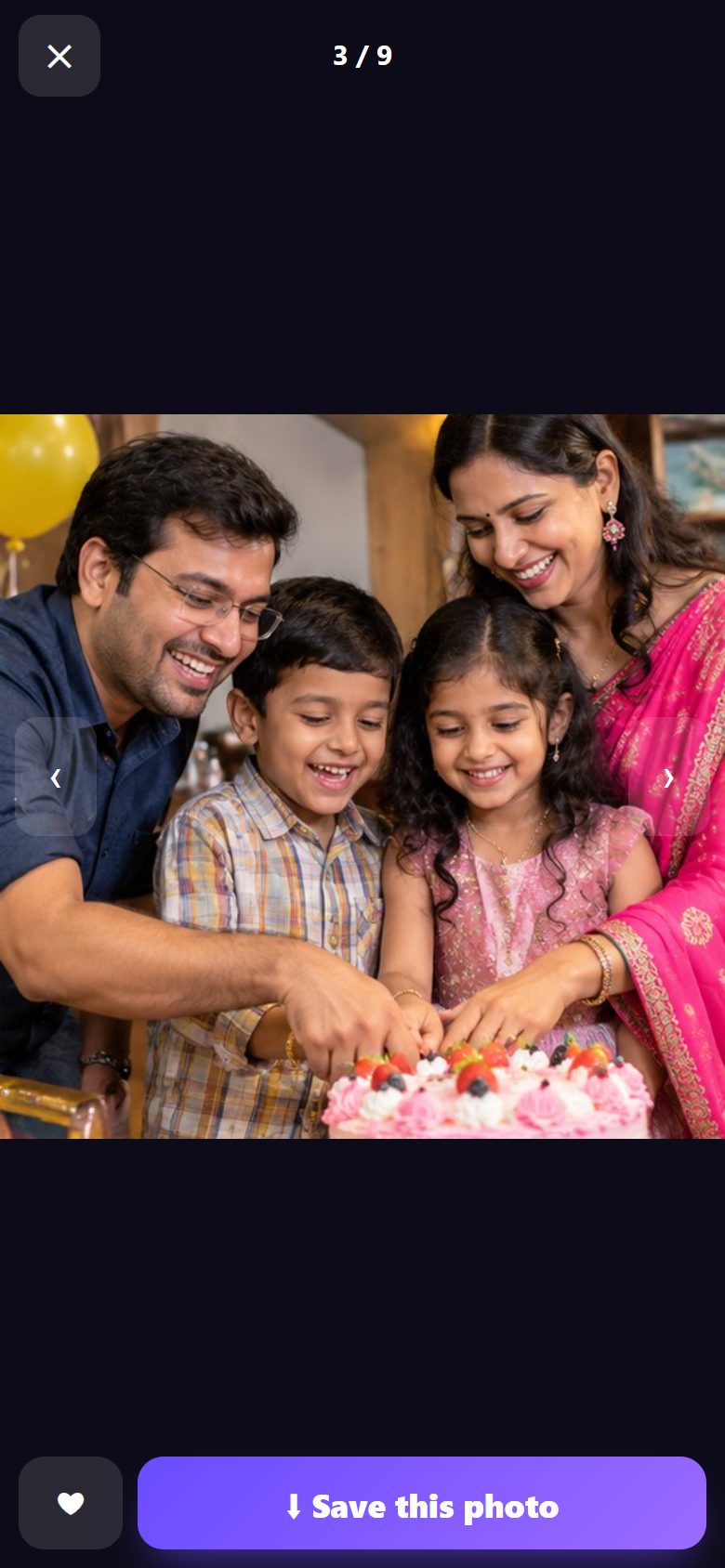
5Open a photo and save it
Tapping a photo opens it big (3 / 9); swipe for the next one. The full-size file loads only now, then ⬇ Save this photo saves it. The ❤ button marks a favourite.
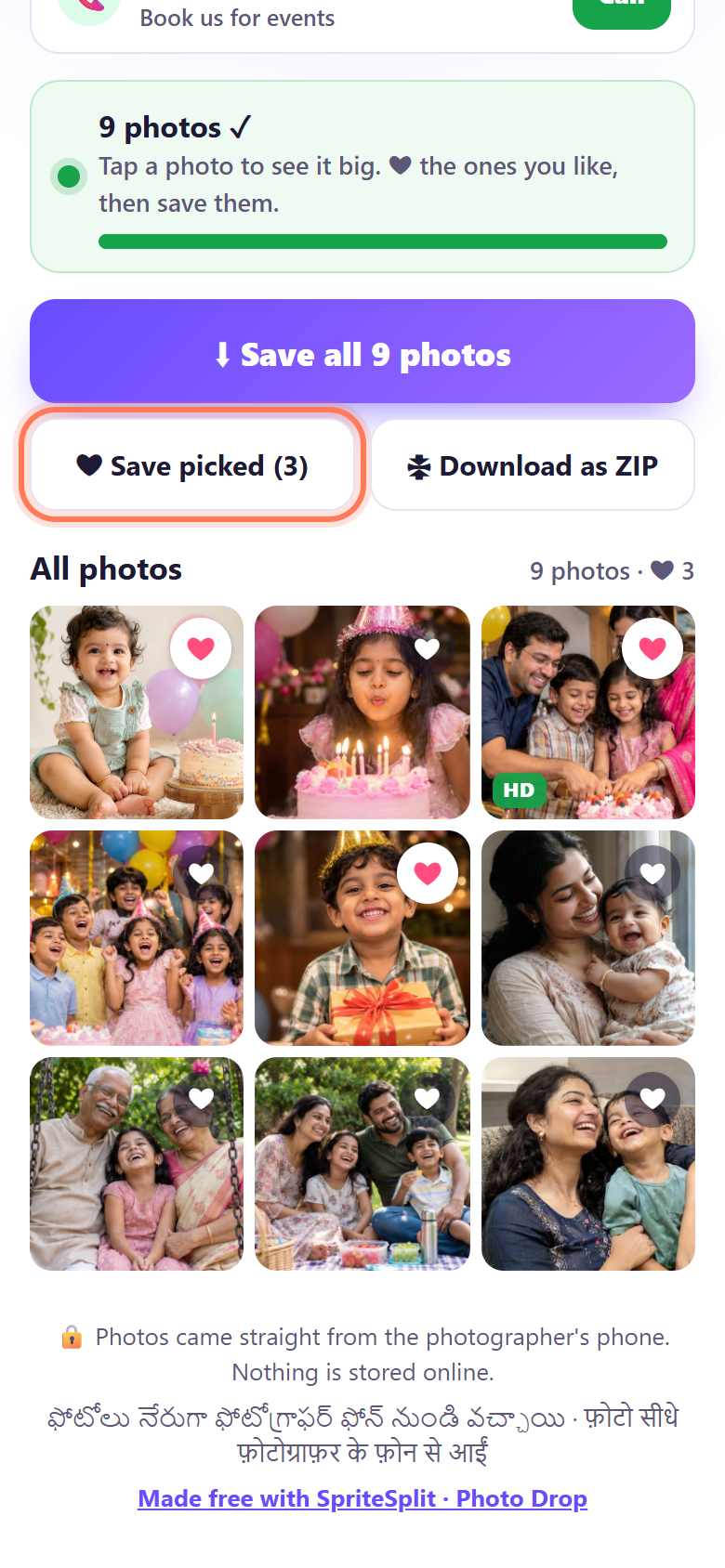
6Pick favourites and save them together
Guests tap ❤ on the photos they like, then ❤ Save picked. Or ⬇ Save all photos, or 🗜 Download as ZIP for everything.
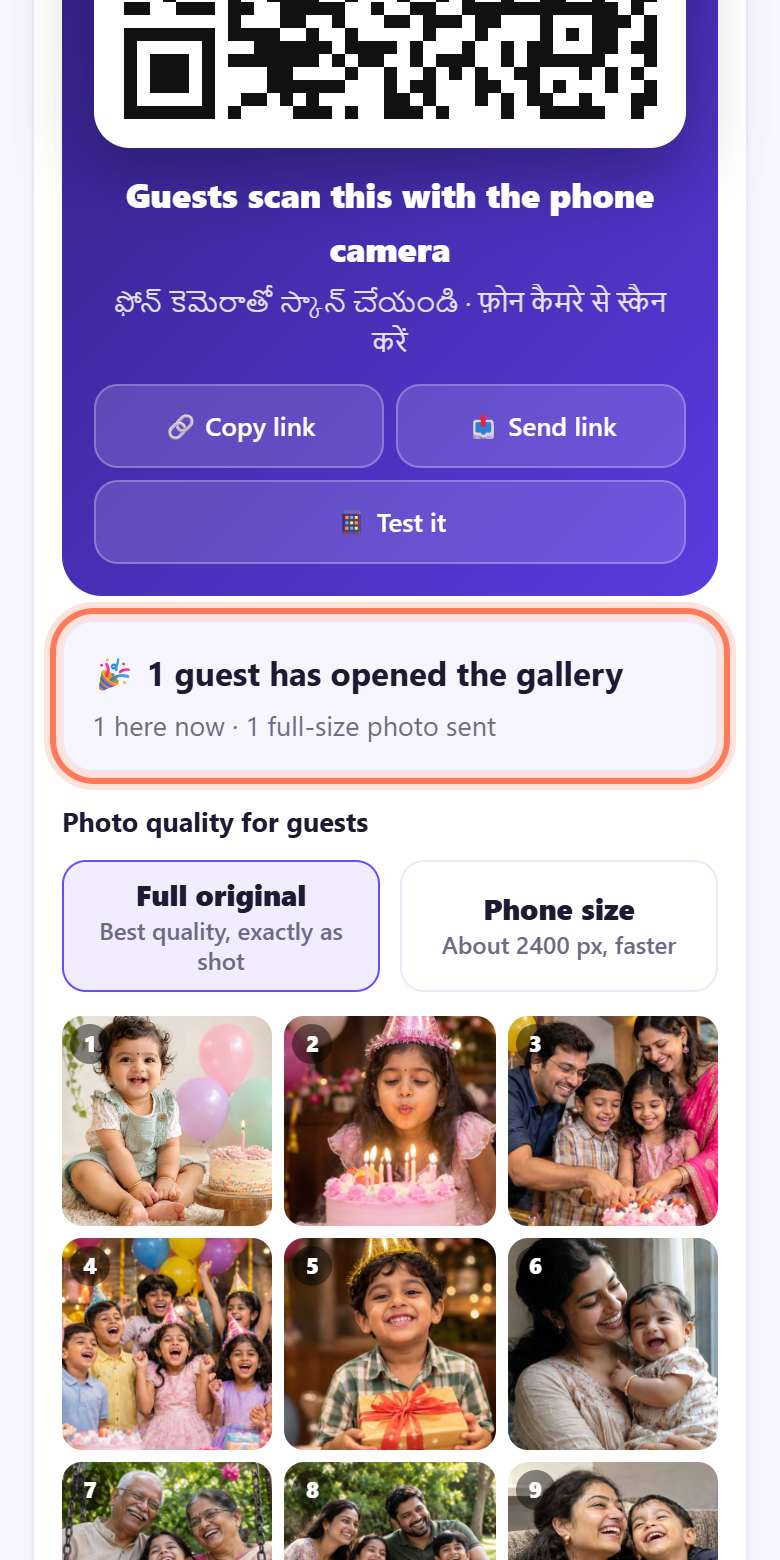
7See how many guests opened it, then end the event
Your screen counts the guests: 1 guest has opened the gallery · 1 here now · 1 full-size photo sent. Use + Add more photos any time; guests see them too.
When everyone has their photos, tap 🗑 End event. Guests can no longer open the gallery and the photos are cleared from your page.
Good to know
- Keep the page open: the gallery lives on your phone or laptop. While it is open, guests can come and go. A laptop on charge is best for a long event.
- Size: up to 300 photos or 1.5 GB in one gallery.
- Only for this event: anyone with the link can see the photos while the page is open, so share it with the guests only.
- Want guests to send photos to you instead? That is Wedding Drop.
📝 Example: Anika’s 1st birthday
Ravi photographs Anika’s first birthday at a small hall in Vijayawada. After the cake, he picks the nine best photos on his phone, taps Event gallery, types “Anika’s 1st Birthday” and shows the QR near the gift table.
Grandparents, cousins and friends scan it one after another. Anika’s aunt hearts three photos and taps Save picked (3); her uncle saves all nine. Ravi also taps Send link and posts it in the family WhatsApp group for relatives who left early. At night, when the count stops moving, he taps End event.
🛠 If something goes wrong
Guests see “The photographer’s page is not open”
The gallery works only while your page is open. Keep the screen on (the page tries to keep it awake) and do not close the tab. Open it again and guests reconnect by themselves.
The gallery opens but photos load slowly
Previews come first, the full size only when a guest opens or saves a photo. If many guests are on slow data, switch Photo quality for guests to Phone size.
“Please type the event name”
The event needs a name before the QR appears. Type it in Event name and tap Show event QR ➜ again.
A guest on iPhone can’t find the saved photos
Save all photos opens the share sheet: tap Save Images. A single photo: open it, long-press, Save to Photos. ZIPs go to the Files app.
Some guests can’t connect at the venue
Ask them to join the venue Wi-Fi or your phone hotspot, or switch mobile data off and on. You can also share the link later in the family group while your page is open.
Your phone is getting slow
Very big galleries (close to 300 photos or 1.5 GB) need a lot of memory. Use a laptop for big events, or split them into two galleries.
🔒 Privacy in plain words
- The photos stay on your phone or laptop. Guests’ phones fetch them directly from you over an encrypted connection; nothing is uploaded to SpriteSplit or any server.
- When you tap 🗑 End event or close the page, the gallery is gone for everyone.
- Guests don’t sign up or give a number. You only see a count of guests, not who they are.
- Anyone with the link can view the photos while the page is open, so share it only with the people at the event.
Questions people ask
Do guests need an app?
No. They scan the QR or tap the link and the gallery opens in the browser.
Do guests get full-quality photos?
Yes, with Full original they save the exact files. Previews are only for browsing.
How long does the gallery stay open?
As long as your page is open. Tap 🗑 End event to close it for everyone.
Can I add photos later?
Yes. Tap + Add more photos in the event; guests who are already in the gallery see them too.
Can guests send their own photos to me?
Not with the event gallery. Use Wedding Drop to collect photos from guests.
Is it free?
Yes. Free, with no sign-up and no watermark of ours.
Related guides