How to share trip photos with friends in full quality
After every trip the same thing happens: twenty photos in the WhatsApp group, all blurry, and the best ones still on someone else’s phone. Trip Drop puts everyone in one trip room. Each friend adds their photos once, sees everybody’s small previews, and saves the originals they want, in full quality.
No Google Drive, no Google Photos, no account and no app. Up to 10 friends per room.
Steps
1One friend starts a trip room
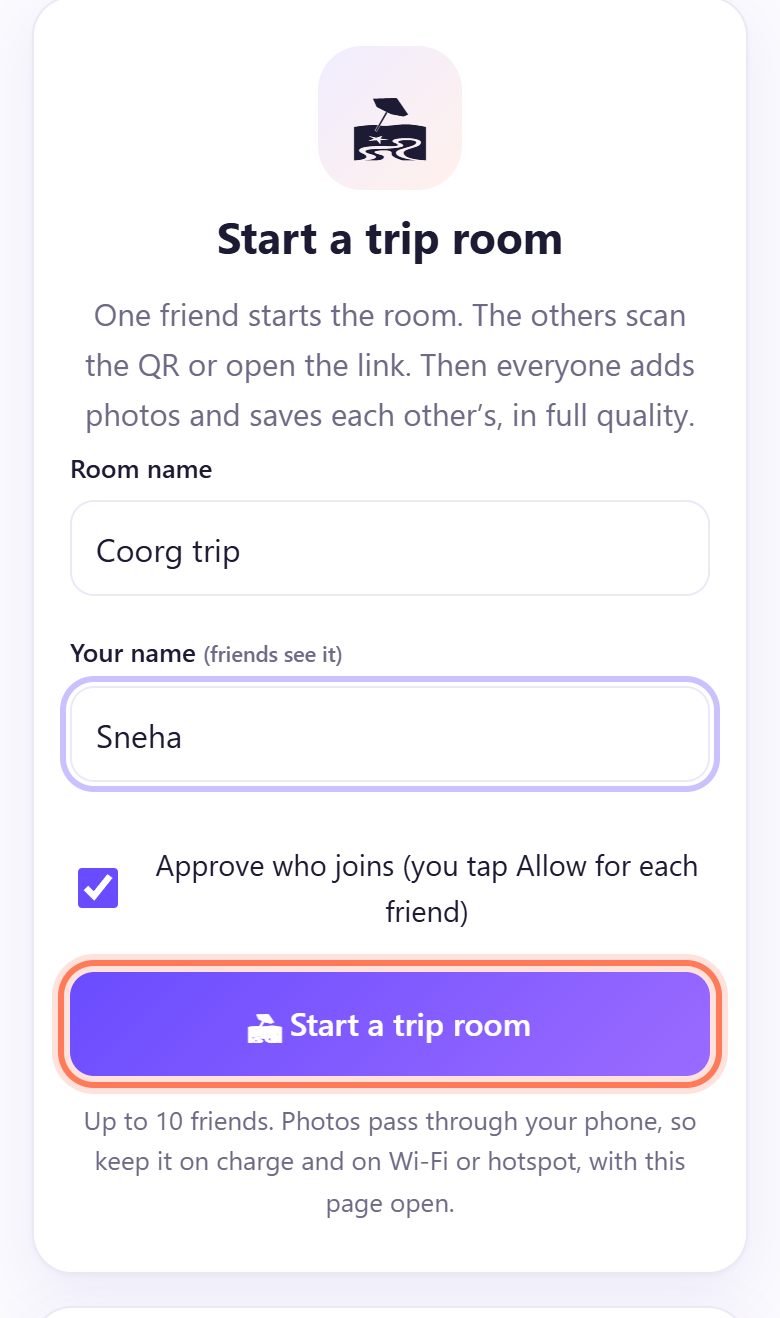
One person opens spritesplit.com/trip. Type a Room name (for example “Coorg trip”) and Your name, then tap 🏖 Start a trip room.
Keep Approve who joins ticked, so you tap Allow for each friend and nobody else gets in.
💡 Tip: Everyone’s photos pass through this phone. Pick the phone with the most battery, keep it on charge, and keep the page open until everyone has saved.
2Show the QR, or tap 📤 Share link
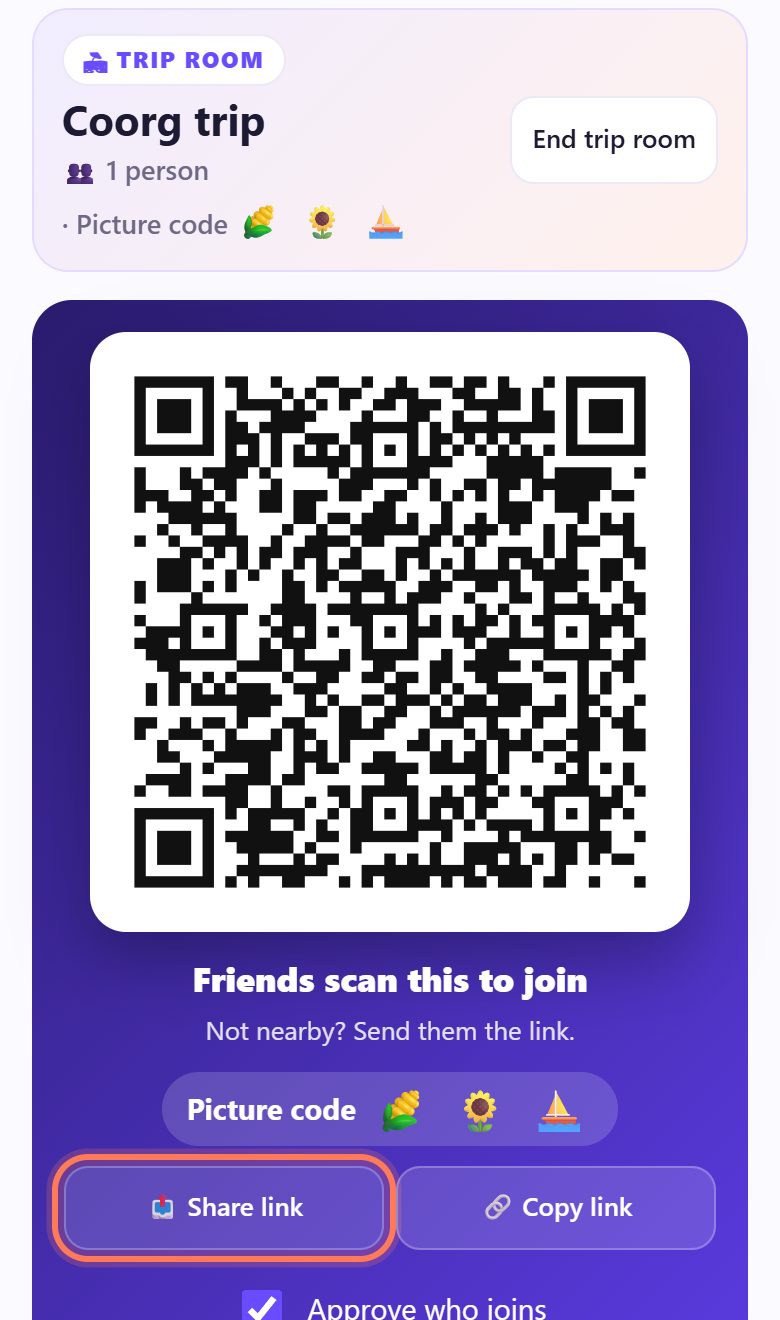
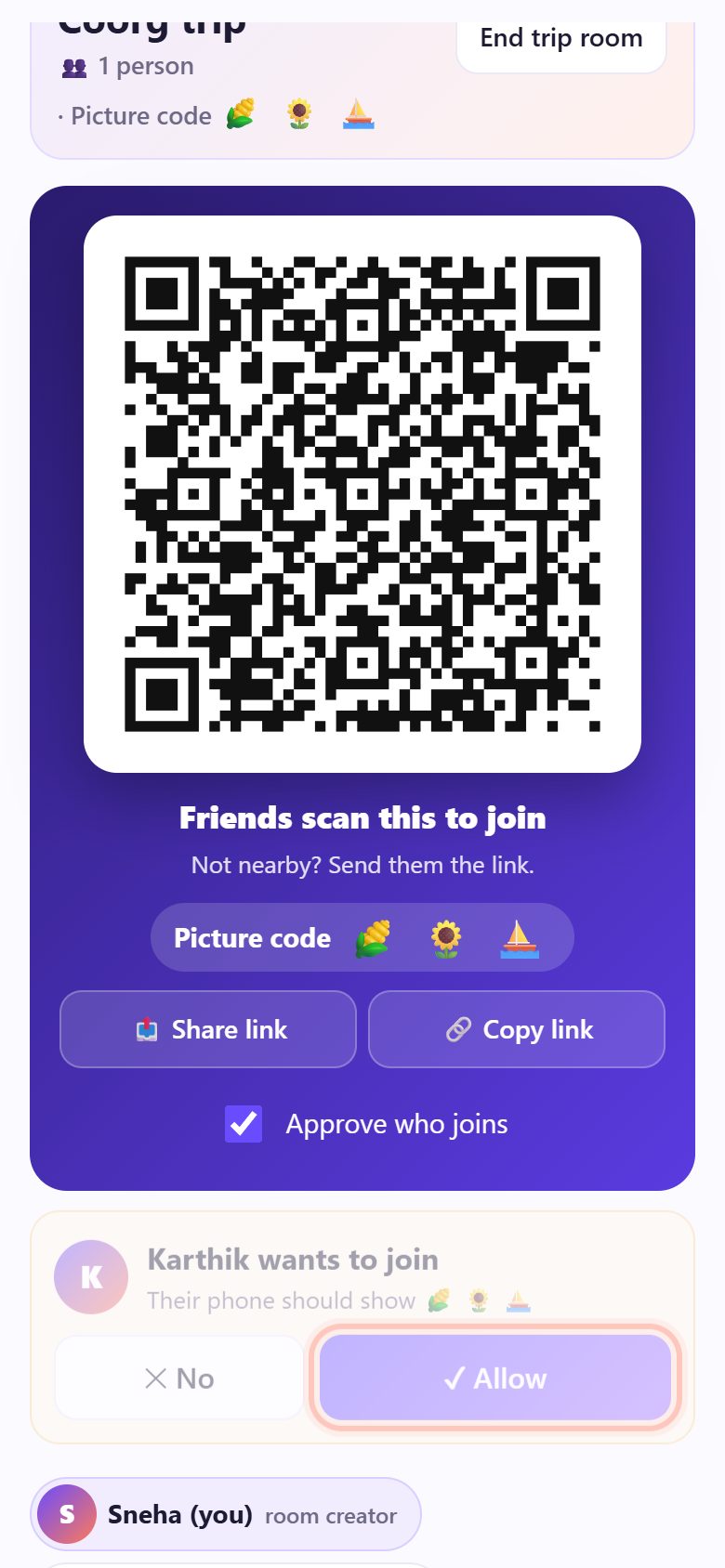
A big QR appears with Friends scan this to join and a picture code (three small pictures).
Friends sitting with you scan it with their camera. Friends who already left? Tap 📤 Share link and send it in your WhatsApp group: they can join from anywhere with internet.
3Each friend types a name and taps ✓ Join
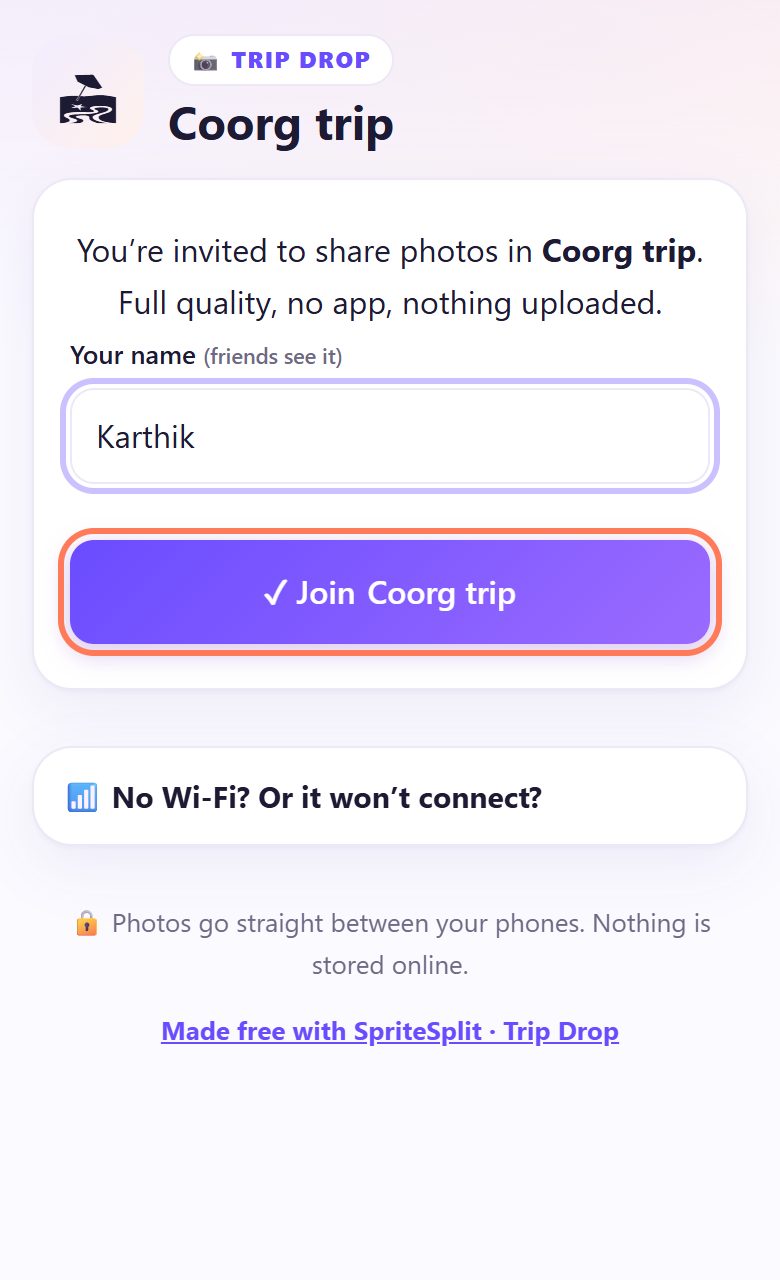
The QR opens a page in the friend’s browser: You’re invited to share photos in the room. They type their name and tap ✓ Join.
Their phone then says Waiting for the room creator to let you in and shows the same picture code.
4The room creator taps ✓ Allow
On the room creator’s phone a card appears: Karthik wants to join. Check the friend’s phone shows the same pictures, then tap ✓ Allow. Tap ✕ No for anyone you don’t know.
5Everyone taps 📸 Add my photos
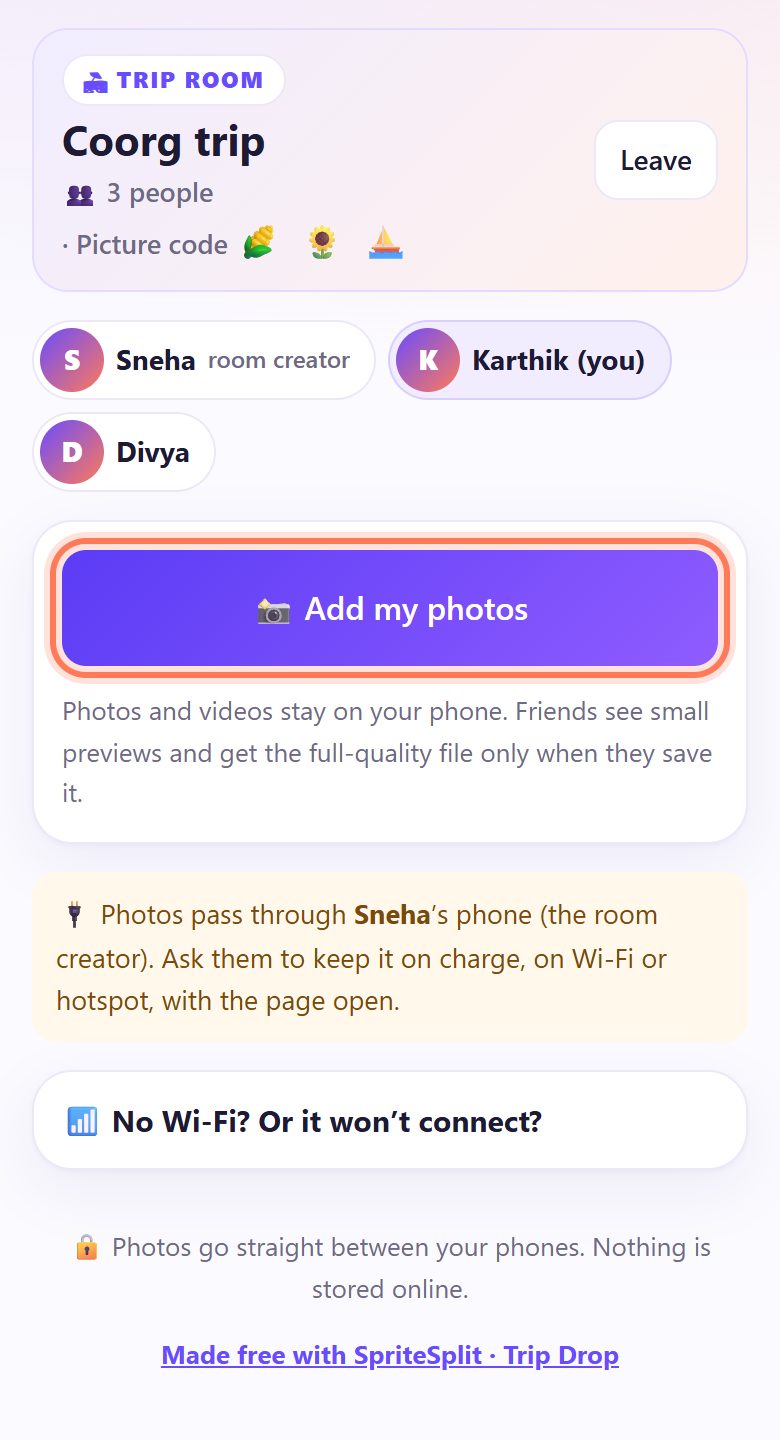
Everyone in the room shows as a name chip at the top. Each person taps 📸 Add my photos and picks their trip photos and videos (up to 500 each).
Adding is instant: the photos stay on your phone, and friends see small previews. The full file travels only when someone saves it.
6Save all from a friend
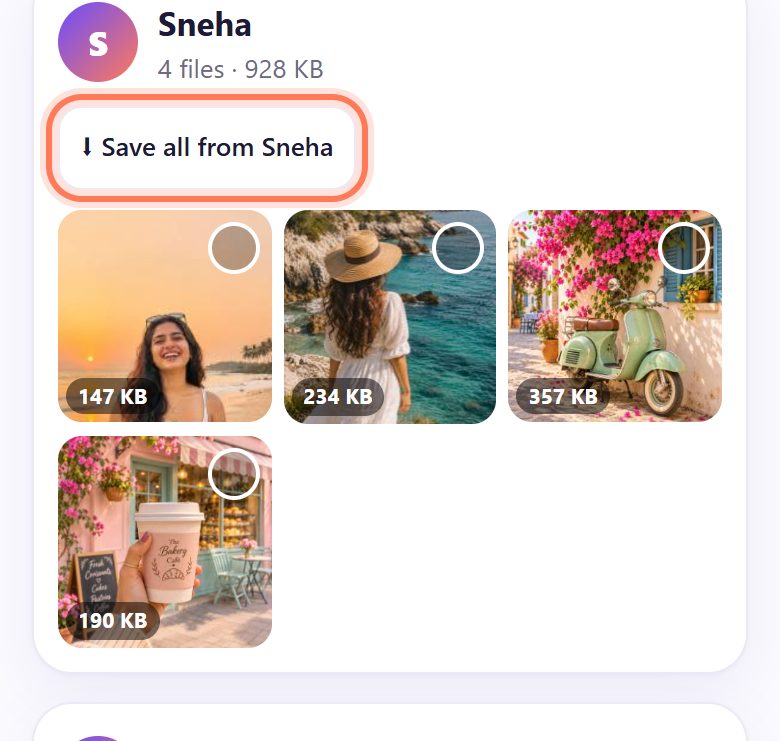
Photos are grouped by person. To get all of one friend’s photos, tap ⬇ Save all from that friend. There is also ⬇ Save all from everyone at the top.
7Or tap your favourites, then ⬇ Save picked
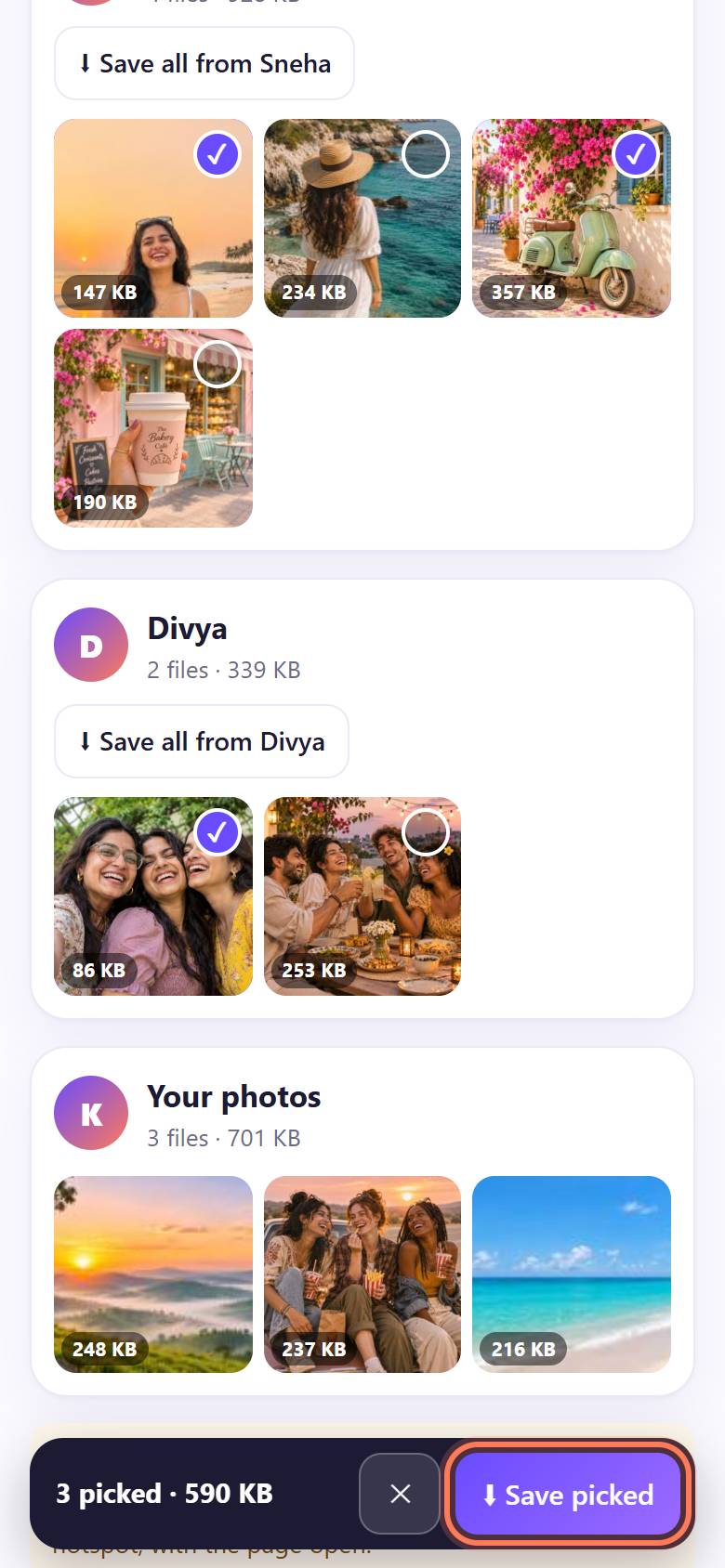
Only want the good ones? Tap photos to tick them (from anyone). A bar shows how many you picked and their size. Tap ⬇ Save picked.
8Check the size, then save to your phone
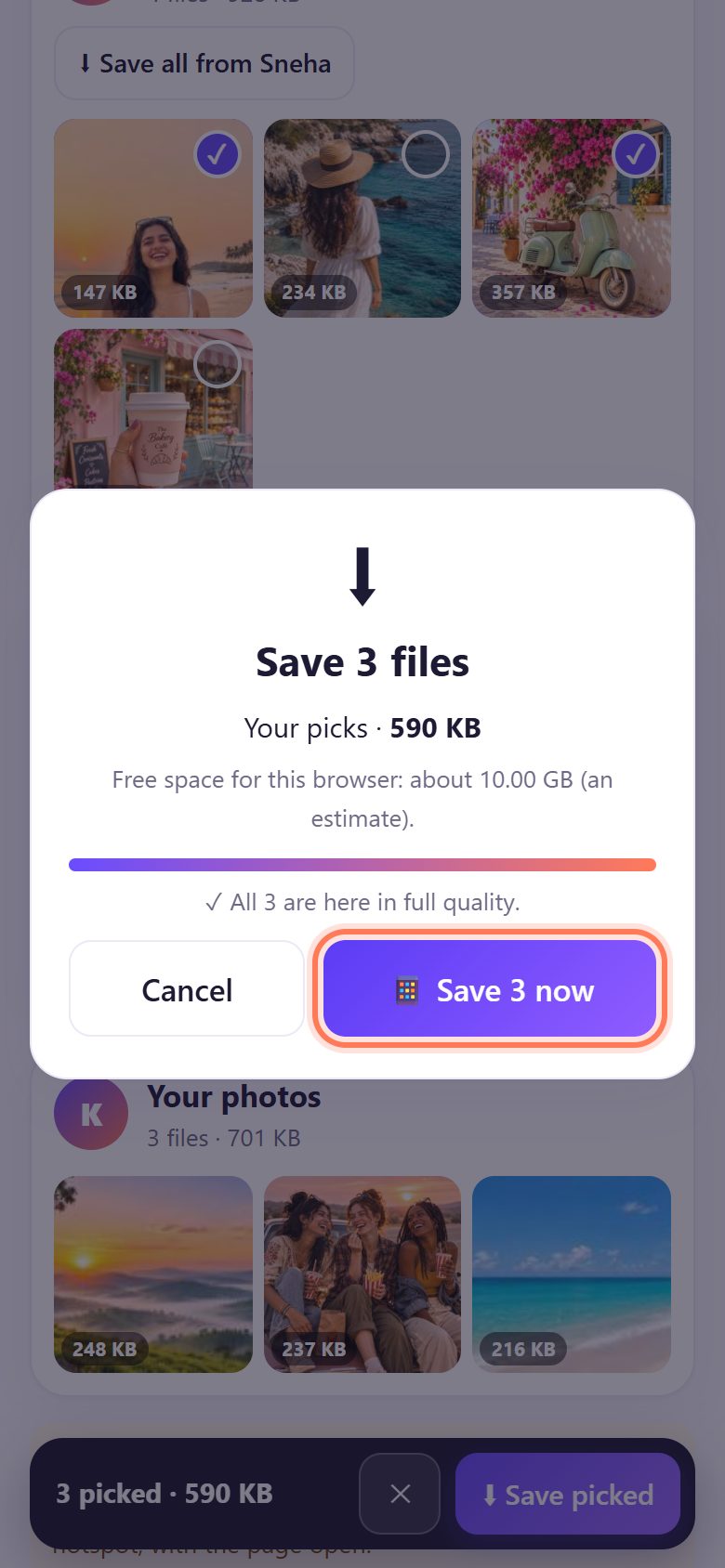
Before anything downloads, you see the total size and a rough estimate of your free space. Tap ⬇ Get & save. When it says ✓ All 3 are here in full quality, tap 📱 Save 3 now.
On Android they go to your gallery or Downloads. On an iPhone the share sheet opens: tap Save Image or Save Video. On a laptop you get one ZIP.
When everyone is done
- Friends tap Leave when they have saved what they want.
- The room creator taps End trip room. Everyone is disconnected and the room is gone. Photos you saved stay on your phone.
- Do it before you split up: at the hotel, in the car or at the station, while everyone is still on the same Wi-Fi or hotspot.
- Splitting costs too? Use the trip expense splitter.
📝 Example: four friends back from a Coorg weekend
Sneha, Karthik and Divya drove from Bengaluru to Coorg for the long weekend. Karthik had the best coffee estate and waterfall shots; Divya had all the group selfies; Sneha had the sunset at Raja’s Seat. In the WhatsApp group, every photo arrived blurry.
At the homestay on the last morning, Sneha plugs in her phone, opens spritesplit.com/trip, names the room “Coorg trip” and taps 🏖 Start a trip room. Karthik and Divya scan the QR, type their names and tap ✓ Join; Sneha taps ✓ Allow twice. Their cousin who left a day early joins through 📤 Share link.
Everyone taps 📸 Add my photos. Karthik taps ⬇ Save all from Sneha and ticks two of Divya’s selfies. Ten minutes later every photo is on every phone in full quality, and Sneha taps End trip room.
🛠 If something goes wrong
A friend’s phone says “Couldn’t connect on this network”
Some networks block direct phone-to-phone connections (about 1 in 10). One friend turns on mobile hotspot and everyone joins it, then tap Try again. It needs a little mobile data to connect; then the photos go over the hotspot.
“No answer from the room creator”
The room creator has not tapped Allow yet, or their screen is off. Ask them to tap ✓ Allow on their phone, then tap Try again.
“This trip room is not open” or “Room ended”
The room creator’s page was closed or their phone went offline. Everyone’s photos pass through that phone, so it must stay open. Ask them to start the room again and share the new QR or link.
“This room is full”
A trip room takes up to 10 friends. Big group? Start a second room for the rest.
“⚠ This is not your friend’s room”
The picture code did not match. Do not add photos. Ask your friend to show the QR again and scan it from their screen.
“This person left. Only photos you already got can be saved.”
That friend left the room or closed the page, so their full-size photos are not available any more. Ask them to join again (they tap 🔄 Join again) and add their photos.
Saving says the phone may be low on space
Before saving you see the total size and an estimate of free space. Save fewer at a time with ⬇ Save picked, or free up space first.
🔒 Privacy in plain words
- Photos go straight from phone to phone over direct, encrypted connections, through the room creator’s phone. They are never uploaded to SpriteSplit, Google or any server.
- A public connection service only helps the phones find each other. It never sees your photos.
- With Approve who joins on, nobody gets in unless the room creator taps Allow, and the picture code shows you are in the right room.
- Friends see small previews only. A full photo leaves your phone only when someone in the room saves it.
- When the room ends, it is gone. No account, no phone numbers.
Questions people ask
Why not just use WhatsApp or Google Drive?
WhatsApp shrinks photos and videos, so they look soft on a big screen. Drive and Google Photos need accounts, uploads and storage space. Trip Drop sends the original files phone to phone, with nothing to sign up for.
Can friends on iPhone and Android be in the same room?
Yes. It works in Chrome, Samsung Internet, Edge and Safari. On an iPhone, saving opens the share sheet: tap Save Image or Save Video.
How many people and photos can a room take?
Up to 10 friends, and up to 500 files each. Long videos are fine; they travel in small pieces.
Does it use a lot of mobile data?
Only for what you save. On the same Wi-Fi or one friend’s hotspot, the photos move between phones without using much mobile data.
Can a friend who is not with us join?
Yes. Tap 📤 Share link and send it on WhatsApp. They can join from anywhere with internet while the room creator’s page is open.
Is it free?
Yes. Free, no app, no sign-up and no watermark.
Related guides