How to send photos from phone to PC without a cable
The usual tricks are slow or messy: a USB cable that only charges, WhatsApp to yourself (which squashes the photos), or emailing files one by one. With PC Drop you open one page on the computer, scan its QR with your phone, and send files either way in full quality. Nothing is uploaded to a server.
Steps
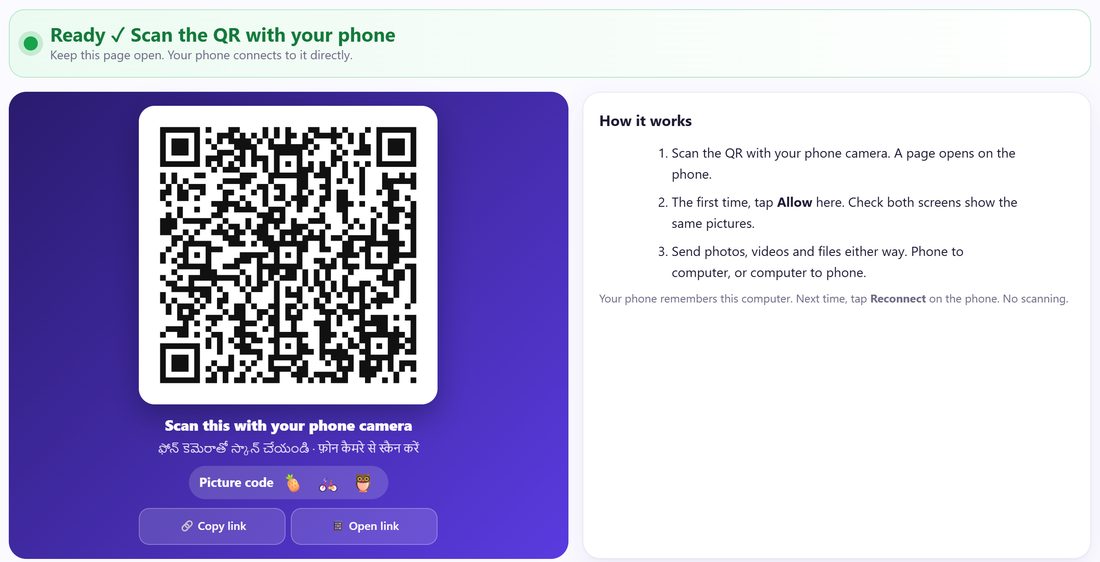
1On the computer, open spritesplit.com/pc
Open Chrome or Edge on your laptop or PC and type spritesplit.com/pc. In a few seconds the top line says Ready ✓ Scan the QR with your phone and a big QR appears.
Keep this tab open for as long as you are sending. The QR stays the same every time you open PC Drop on this computer.
💡 Tip: Give the computer a name your phone will show: open ⚙ This computer under the QR and type something like “Ananya’s laptop”.
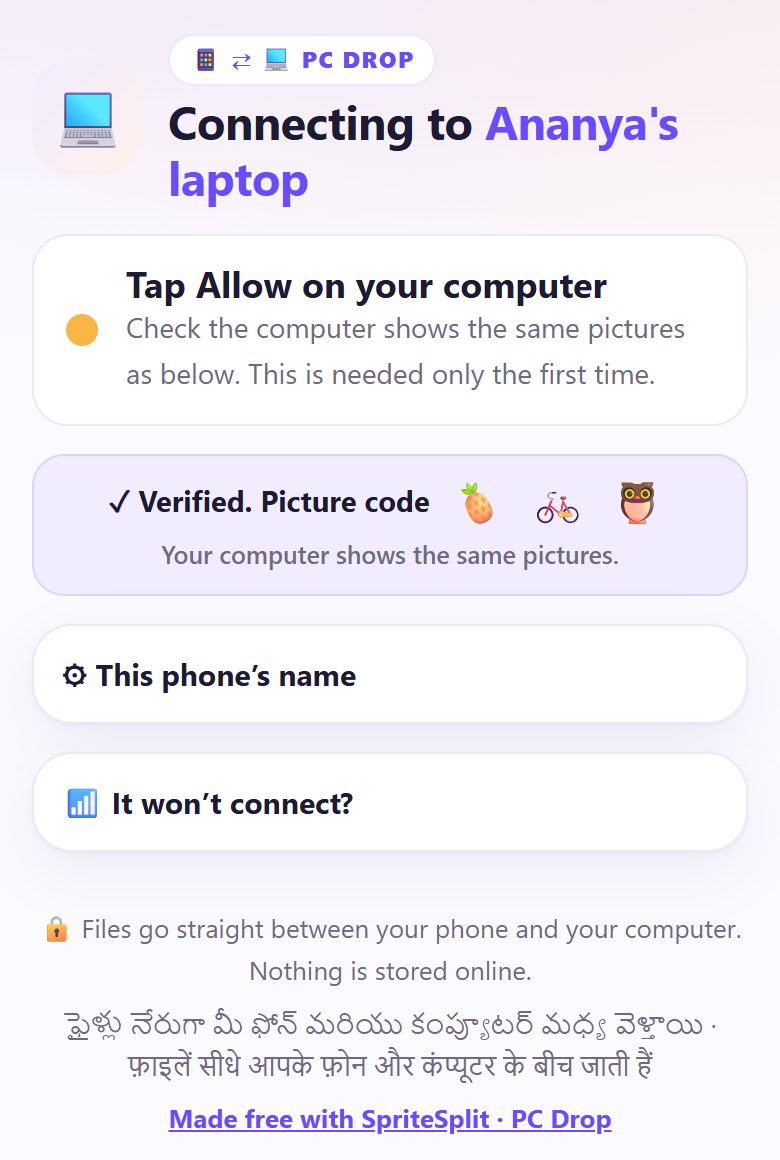
2Scan the QR with your phone camera
Open the normal camera app (or Google Lens) and point it at the QR on the computer screen. Tap the link that pops up. A page opens in the phone’s browser. No app to install.
The phone shows Tap Allow on your computer and a picture code: three small pictures, like 🐘 🌻 🚲.
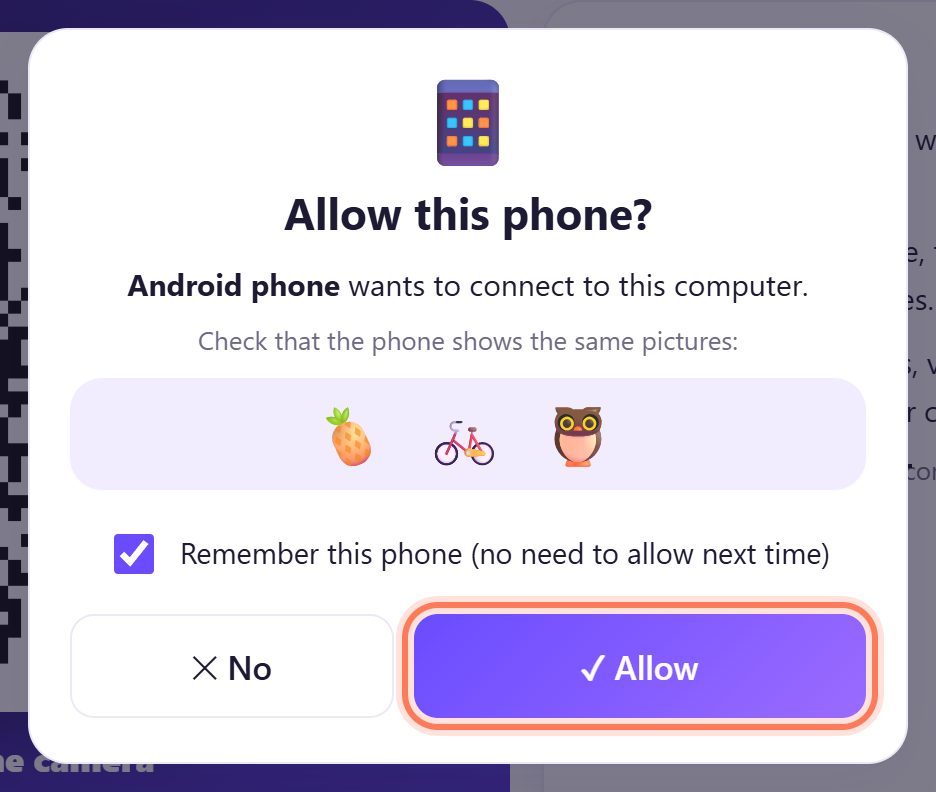
3Click ✓ Allow on the computer (first time only)
The computer asks Allow this phone? Check that it shows the same pictures as your phone, then click ✓ Allow.
Leave Remember this phone ticked. Next time this phone is let in without asking.
💡 Tip: If the pictures do not match, click ✕ No. Someone else’s phone may be trying to connect.
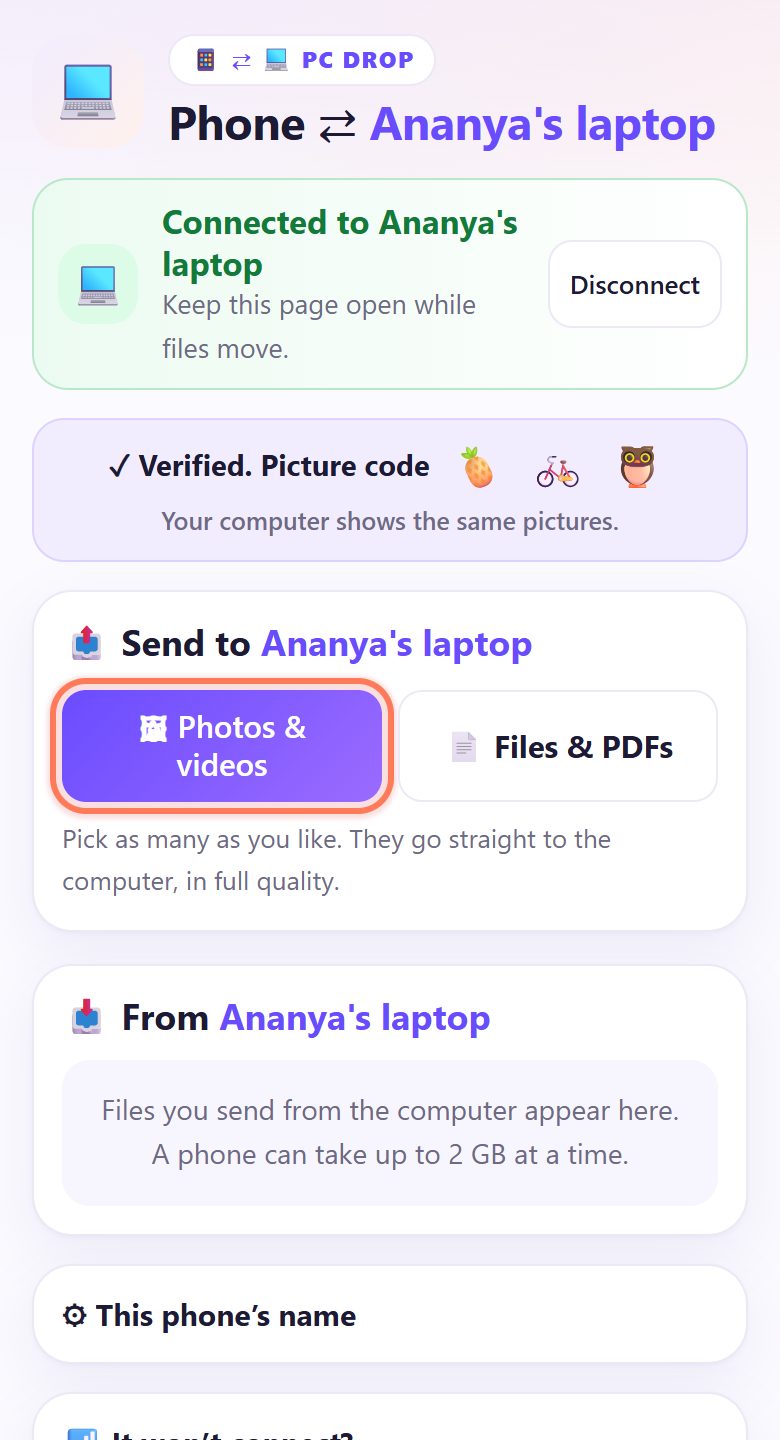
4On the phone, tap 🖼 Photos & videos
Both screens now say Connected. On the phone, under 📤 Send to your computer, tap 🖼 Photos & videos to pick from the gallery, or 📄 Files & PDFs for documents.
Pick as many as you like. They go straight to the computer in full quality, exactly as the camera saved them.
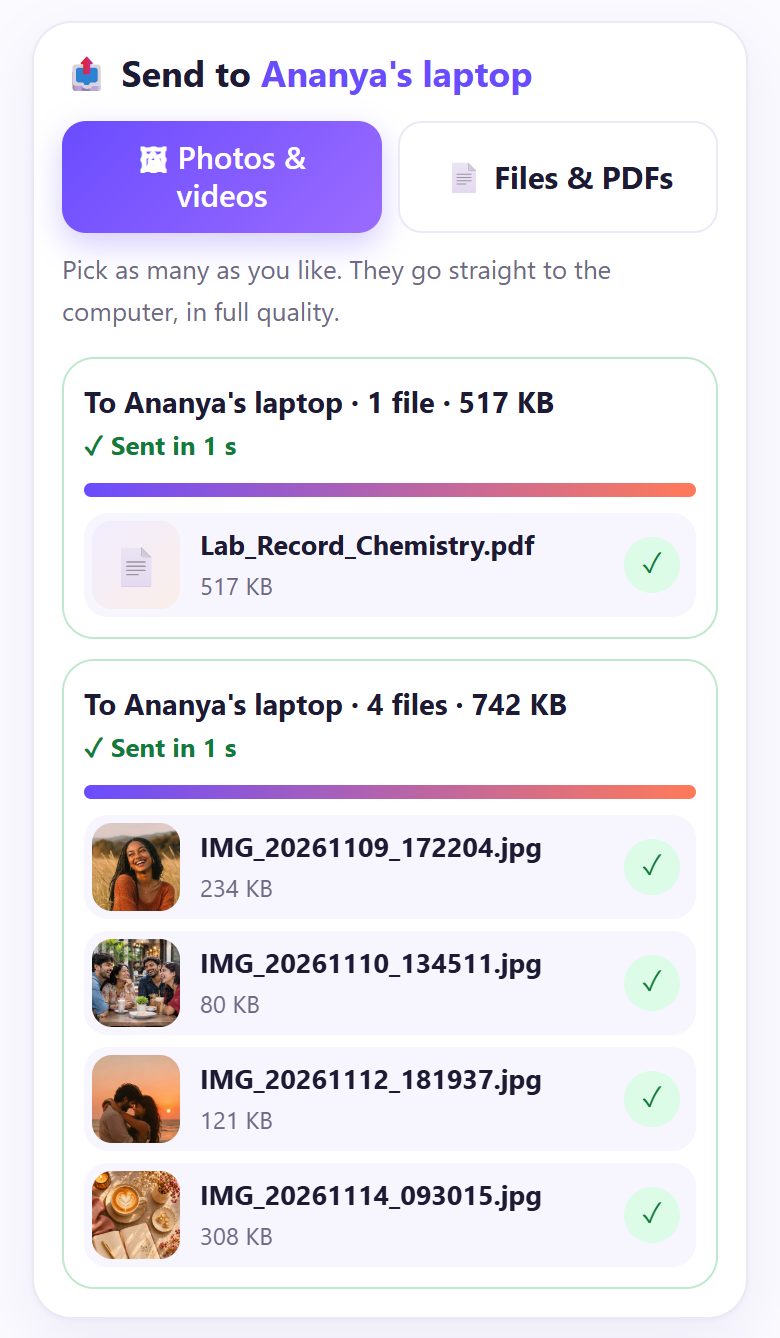
5Wait for ✓ Sent on the phone
Each batch shows a progress bar, then ✓ Sent with the time it took. On the same Wi-Fi, a few photos take a second; a long video can take a minute or two.
Keep the phone screen on and the page open until it says Sent.
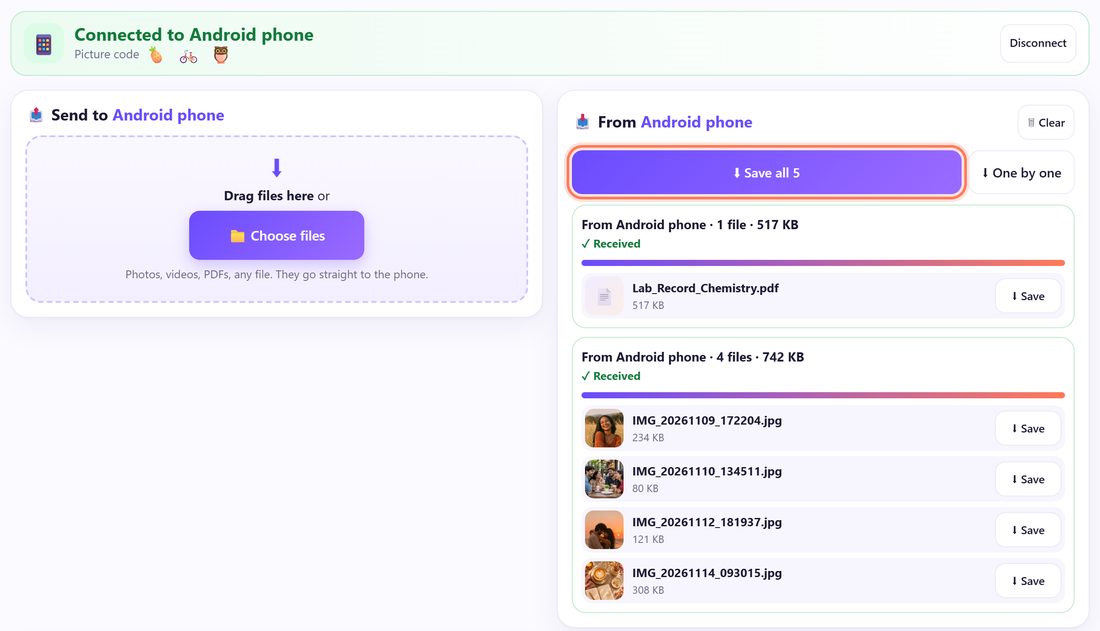
6On the computer, click ⬇ Save all
The files appear on the computer under 📥 From your phone, with small previews. Click ⬇ Save all to download them together as one ZIP, ⬇ One by one for separate files, or ⬇ Save next to a single file.
They land in your Downloads folder. Save them before you close the tab: the page keeps them only while it is open.
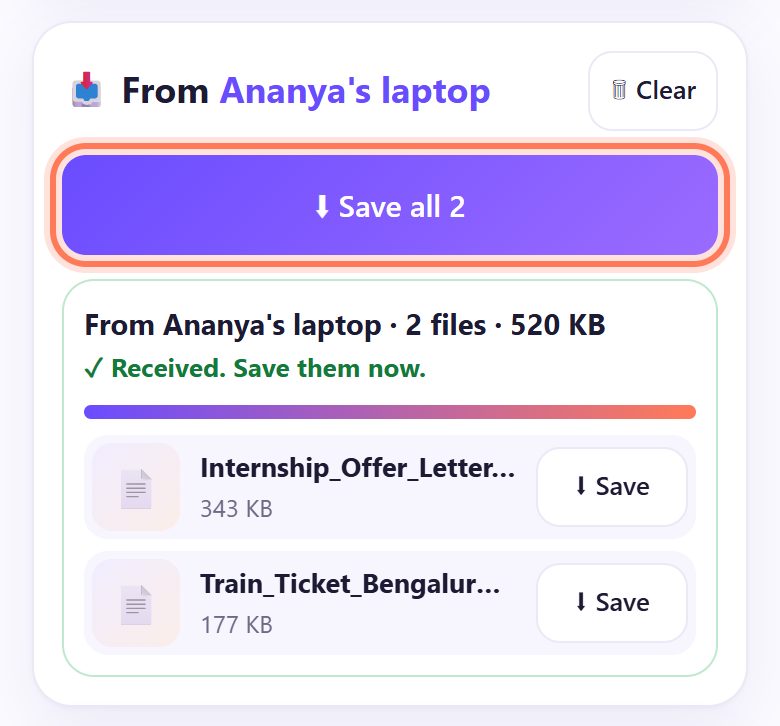
7Send from the computer to the phone too
It works the other way on the same connection. On the computer, drag files onto the page (where it says Drag files here) or click 📁 Choose files.
The phone shows ✓ Received. Save them now. Tap ⬇ Save all or ⬇ Save. Android puts them in Downloads (photos also show in the gallery).
💡 Tip: On an iPhone the share sheet opens: tap Save Image or Save Video for Photos, or Save to Files for PDFs.
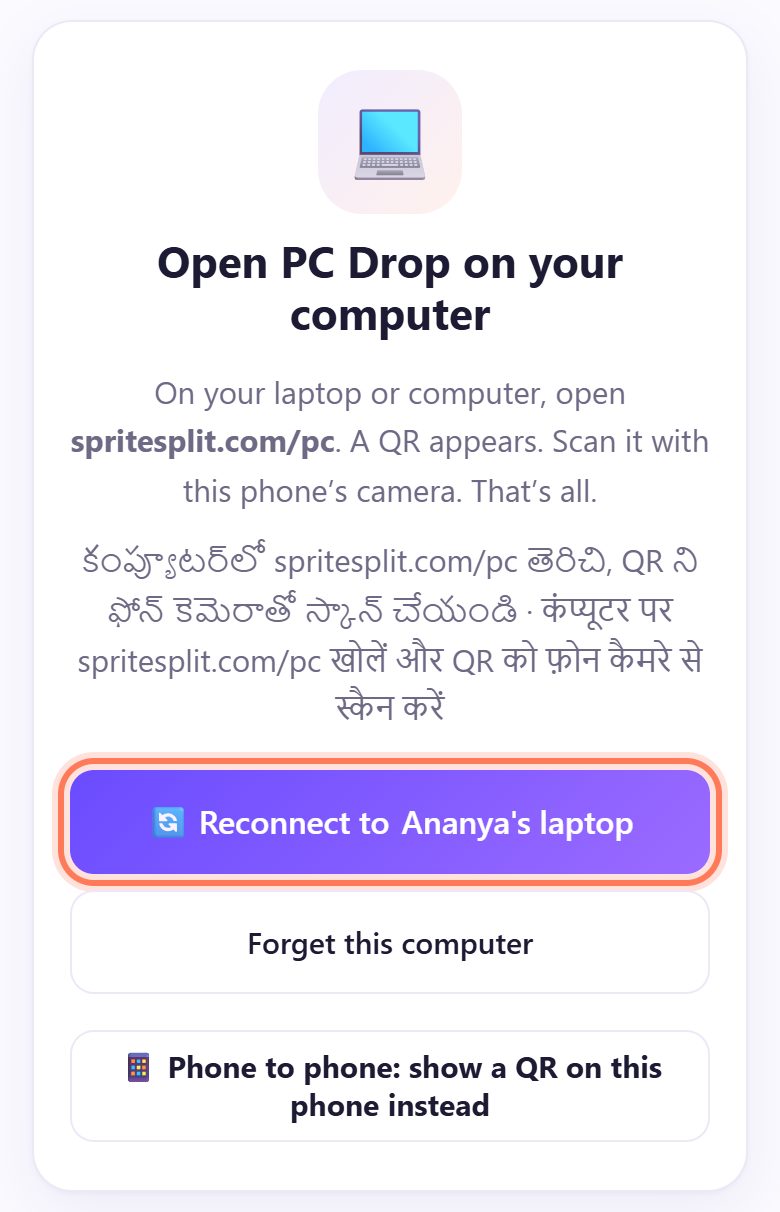
8Next time: tap 🔄 Reconnect, no scanning
Your phone remembers the computer. Next time, open spritesplit.com/pc on the computer, then open the same address on the phone and tap 🔄 Reconnect to your computer. No QR, no Allow.
On a shared or office computer, tap Forget this computer on the phone when you are done, or use ↺ Make a new QR (forget all phones) on the computer.
iPhone to a Windows PC (AirDrop does not work there)
- Scan the QR with the iPhone Camera app. The page opens in Safari.
- Tap 🖼 Photos & videos. iPhone photos are sent as they are; Windows opens HEIC photos in the Photos app (or convert them with our HEIC to JPG tool).
- An iPhone can take up to 500 MB at a time from the computer, because the files wait in Safari until you save them. Send big videos in a few smaller batches.
- No iTunes, no iCloud and no cable needed.
📝 Example: Ananya’s lab record photos, from phone to college laptop
Ananya is a B.Sc. student in Hyderabad. She photographed four pages of her chemistry observations and has a Lab_Record_Chemistry.pdf on her phone. The record has to be typed and printed from her laptop, and her cable only charges.
She opens spritesplit.com/pc on the laptop, names it “Ananya’s laptop”, and scans the QR. She clicks ✓ Allow after checking the pictures 🐌 🍁 🌈 match. From the phone she sends the four photos and the PDF: ✓ Sent in 1 s. On the laptop she clicks ⬇ Save all and gets one ZIP in Downloads.
Then she drags her Internship_Offer_Letter.pdf and a train ticket onto the laptop page, and taps ⬇ Save all on the phone so she has them on the way home. The next week she only taps 🔄 Reconnect.
🛠 If something goes wrong
The phone says “Couldn’t connect on this network”
Some office, college and mobile networks block direct connections (about 1 in 10). Turn on your phone’s mobile hotspot, connect the laptop to it, and tap Try again. That almost always works.
The phone keeps waiting: “No answer from the computer”
The computer is asking Allow this phone? Maybe the tab is behind another window. Click ✓ Allow there, then tap Try again on the phone.
The computer says “Open in another tab”
PC Drop is already open in another tab or window on this computer. Close the other one, then click Try again.
The phone says “The computer is busy”
The computer is connected to another phone. Click Disconnect on the computer, then tap Try again on your phone.
The phone says “⚠ This is not your computer”
The picture code did not match, so the phone refused to connect. Do not send anything. Scan the QR on your own computer screen again.
The phone says “This QR is old”
Someone clicked ↺ Make a new QR on the computer. Scan the new QR on the computer screen.
“Too big for your phone” when sending from the computer
A phone can take up to 2 GB at a time (an iPhone 500 MB), because the files wait in the page until saved. Send fewer files per batch.
Files stopped half way: “Connection lost”
The phone screen went off or the page was closed. Open the page again (or tap 🔄 Reconnect) and send that batch again. Keep both screens on while files move.
🔒 Privacy in plain words
- Your files go straight from the phone to the computer (or back) over a direct, encrypted connection. They are never uploaded to SpriteSplit or any other server.
- A public connection service only helps the two browsers find each other. It never sees your files.
- The picture code proves the phone is talking to your computer, not someone else’s.
- Received files live only in the open page until you save them. Close the tab and they are gone from it.
- No account, no email, no phone number.
Questions people ask
Do the phone and the laptop need to be on the same Wi-Fi?
No. Wi-Fi on the laptop and mobile data on the phone works. The same Wi-Fi is just faster for big videos.
Is the quality reduced like on WhatsApp?
No. PC Drop sends the original file byte for byte, so a 12 MP photo stays 12 MP and videos keep their full resolution.
Can I send a 1 GB video from my phone?
Yes. Files travel in small pieces, so a 1 to 2 GB video from the phone reaches the computer fine. Keep the phone screen on until it says ✓ Sent.
Does it work from an iPhone to a Windows laptop?
Yes. Scan the QR with the iPhone camera; Safari opens the page. It works like AirDrop, but for Windows and Android too, with no iTunes.
Do I have to scan the QR every time?
No. After the first ✓ Allow, the phone remembers the computer. Open spritesplit.com/pc on both and tap 🔄 Reconnect on the phone.
Is it safe on a college or office computer?
Yes, files are never stored online. When you finish on a shared computer, save your files, close the tab, and tap Forget this computer on your phone.
Related guides