How to send files to a xerox shop without WhatsApp
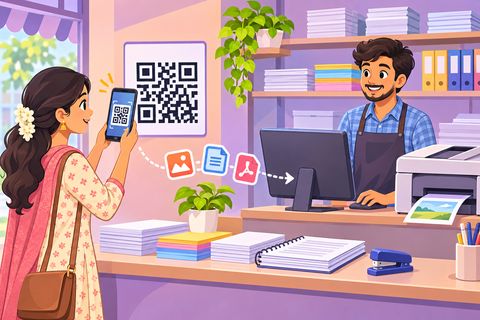
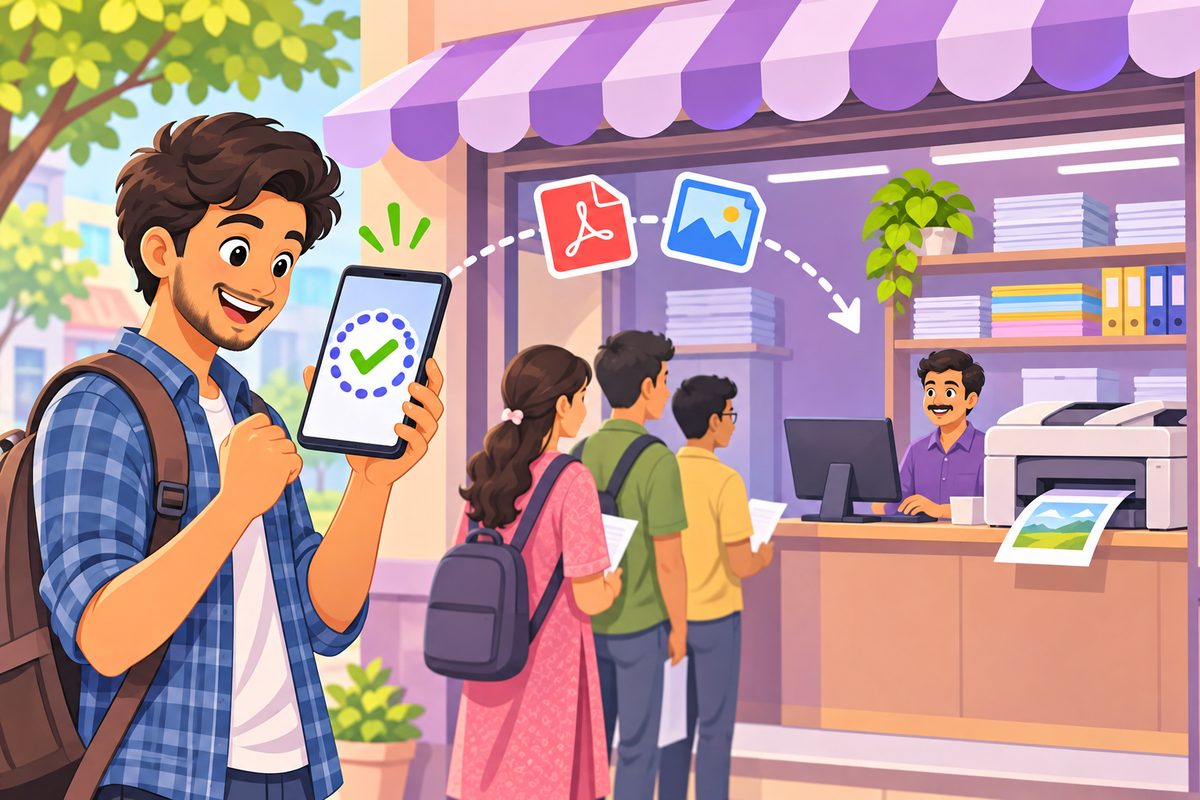
You need a hall ticket printed, and the shopkeeper says “send it on my WhatsApp”. Now a stranger has your number and your documents in his gallery. If the shop has a Print Drop QR on the counter, you can skip all that: scan, pick the files, tap Send, and collect your print with a token number.
No app, no sign-up, and the shop never sees your phone number.
Steps
1Scan the QR on the shop counter
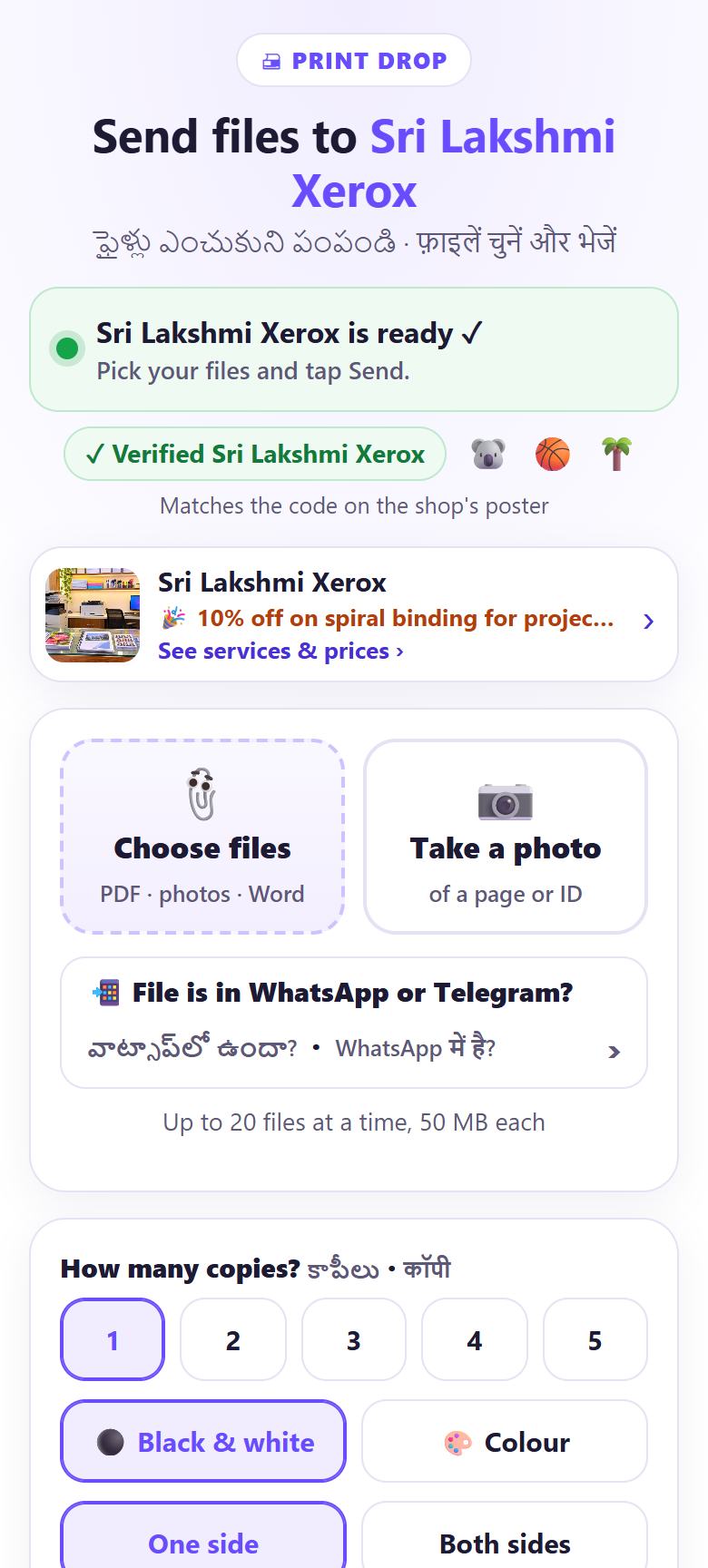
Open your phone camera and point it at the Print Drop poster. Tap the link that appears. A page opens: Send files to Sri Lakshmi Xerox, with a green bar Sri Lakshmi Xerox is ready ✓.
The ✓ Verified badge and three small pictures should match the code on the shop’s screen or poster.
2See the shop’s prices and timings (optional)
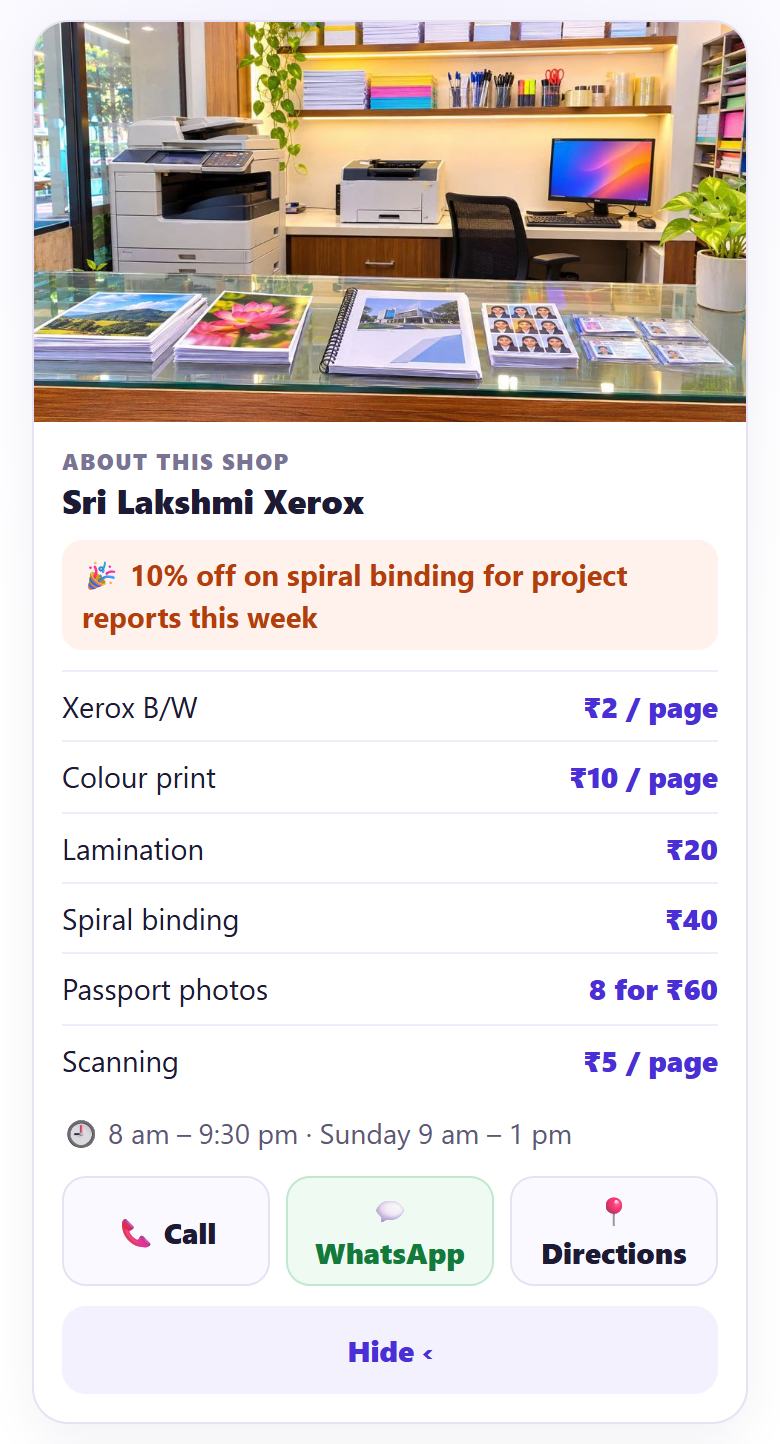
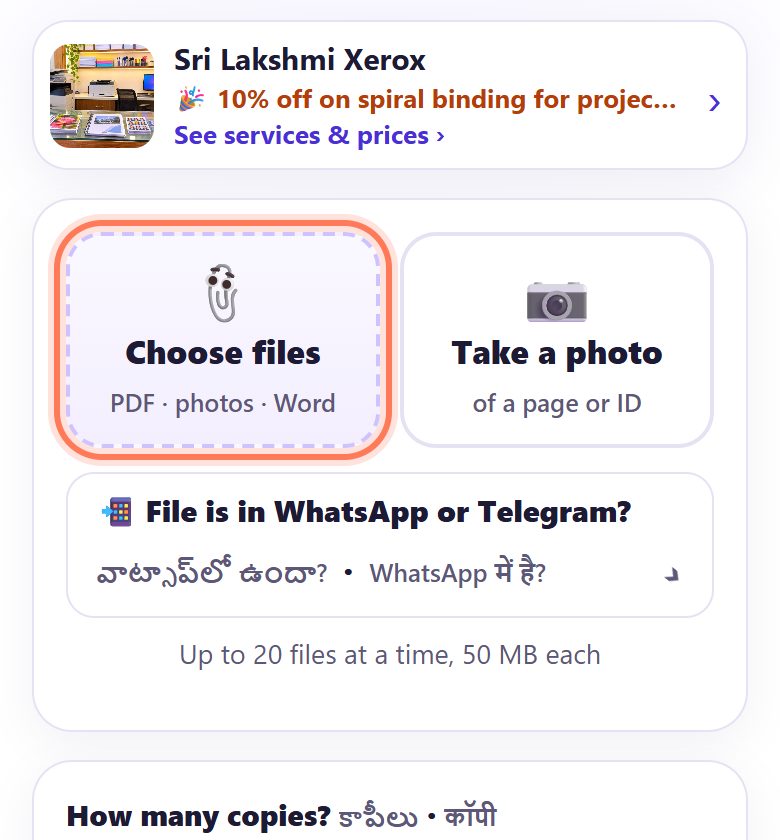
Tap the shop’s name card to see About this shop: offer, prices per page, timings, and buttons to Call, WhatsApp or get Directions. Tap Hide to close it.
3Tap “Choose files”
Tap 📎 Choose files (PDF · photos · Word) and pick your documents. You can add up to 20 files at a time, 50 MB each.
Only have paper? Tap 📷 Take a photo of the page or ID card.
4Check the file list
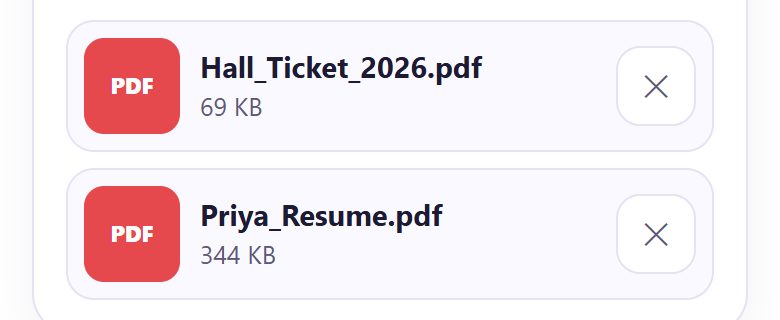
Your files appear in a list. Wrong file? Tap ✕ next to it.
5Say how to print it
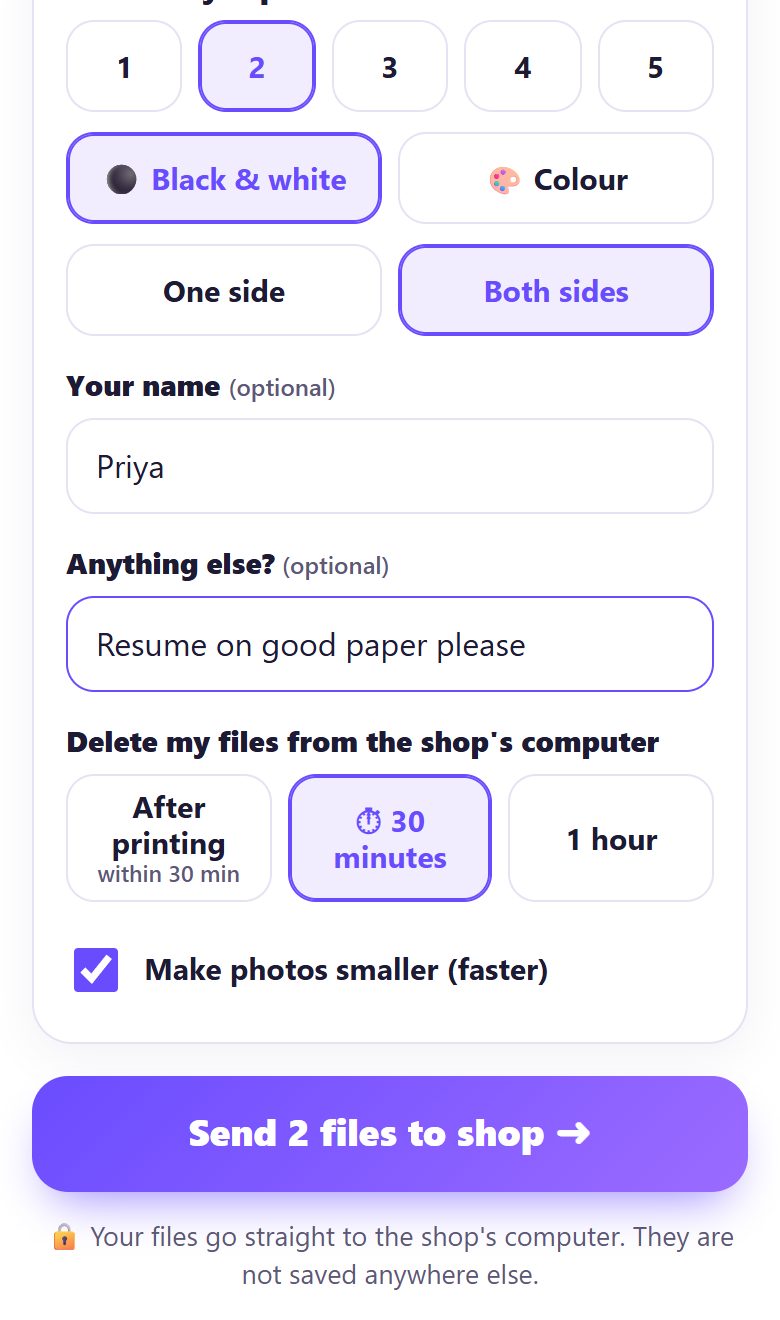
Choose How many copies? (1–5), ⚫ Black & white or 🎨 Colour, and One side or Both sides.
Type Your name (optional) so the shop can call you, and anything special in Anything else? (optional), like “spiral binding” or “resume on good paper”.
6Choose when your files are deleted, then send
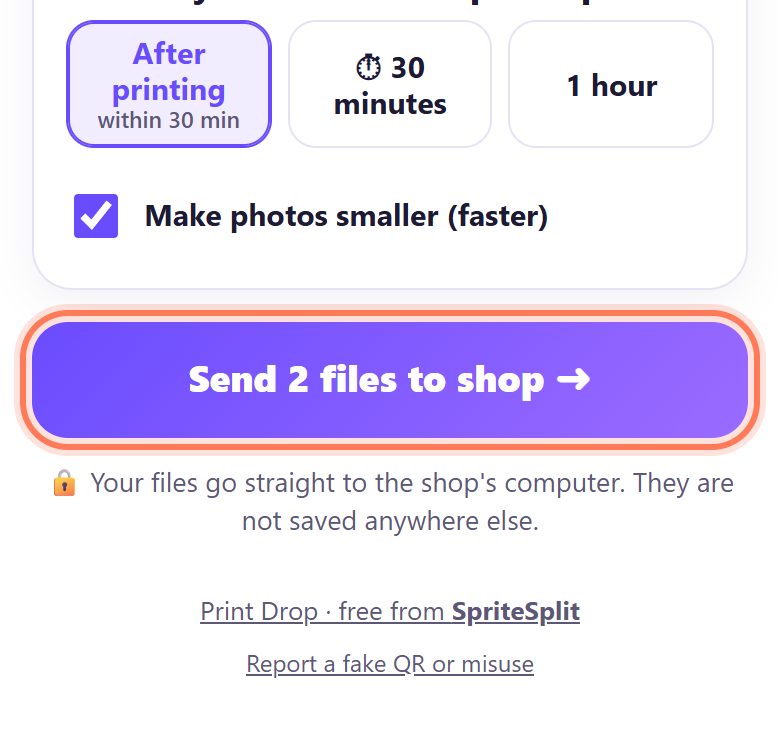
Under Delete my files from the shop’s computer pick After printing, ⏱ 30 minutes or 1 hour. Then tap Send 2 files to shop ➜. Keep the page open until it says Sent ✓.
7Tell the shop your token number
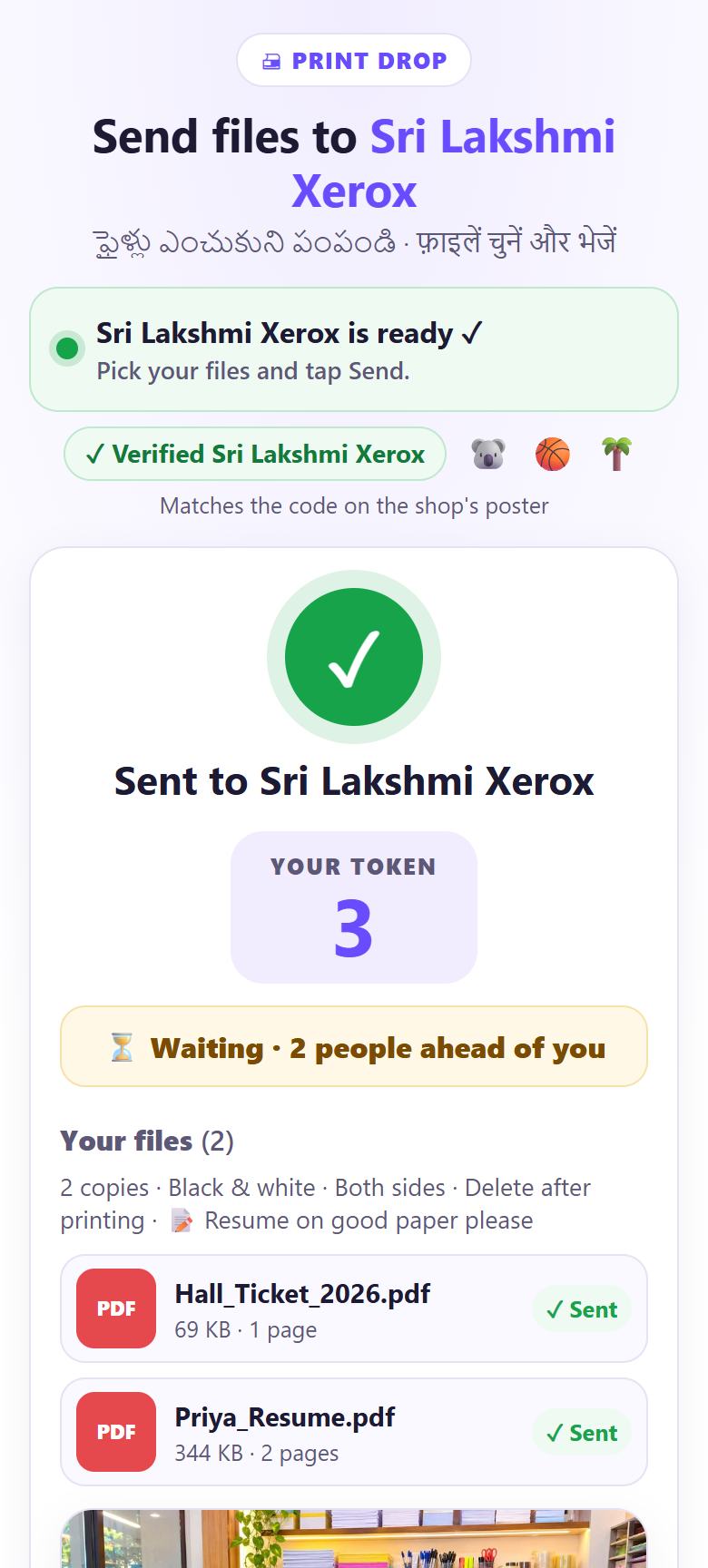
You get YOUR TOKEN (here 3) and a live line status, for example ⏳ Waiting · 2 people ahead of you. Say the number at the counter.
8Collect your print
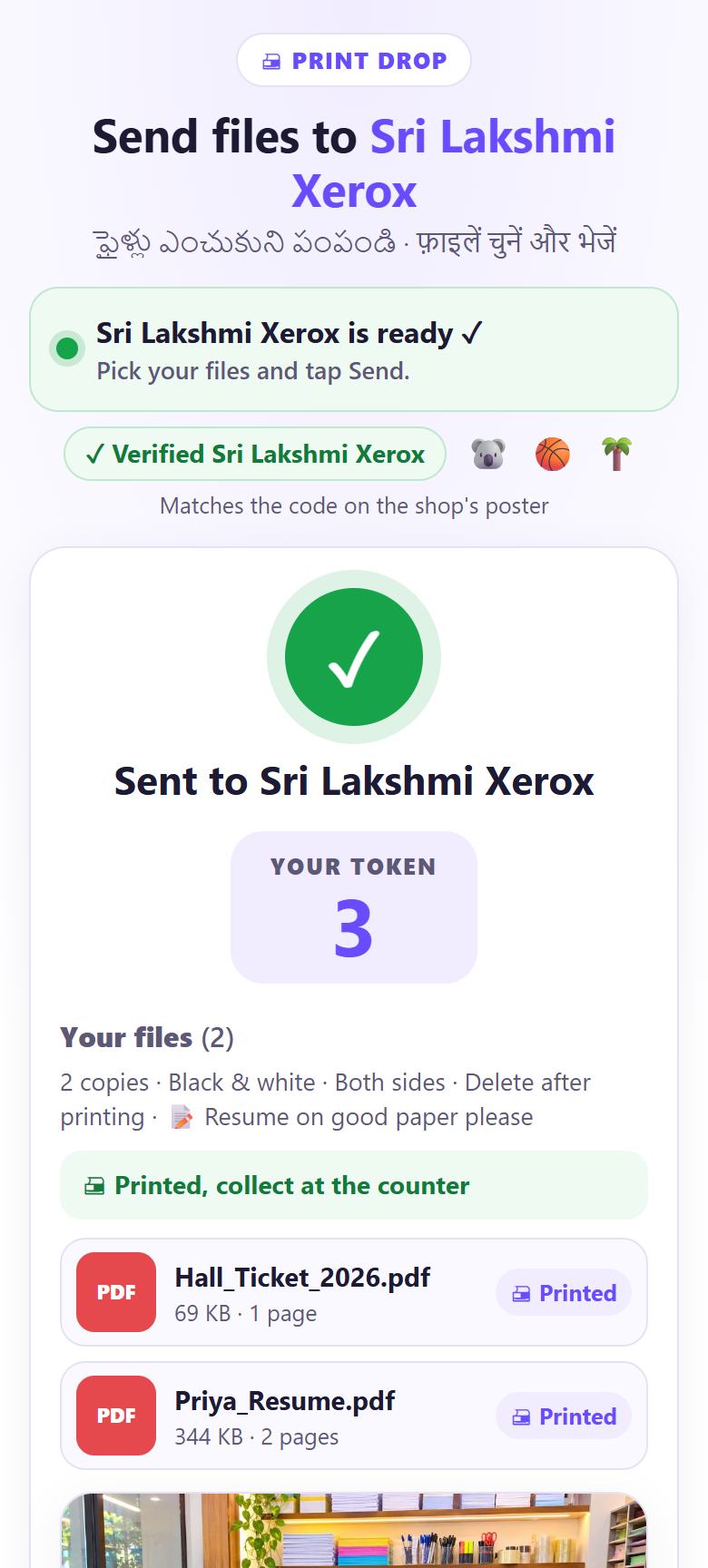
The status changes to Printing now… and then 🖨 Printed, collect at the counter. Your files are now deleted from the shop’s computer. Need more? Tap ➕ Send more files.
📝 Example: Priya prints her hall ticket and resume
Priya has an exam on Sunday and an interview on Monday. At Sri Lakshmi Xerox she scans the counter QR, checks that the shop prints colour at ₹10 a page, and picks Hall_Ticket_2026.pdf and Priya_Resume.pdf. She sets 2 copies, Both sides, types “Priya” and “resume on good paper please”, chooses After printing, and taps Send.
Her phone says Token 3 · 2 people ahead of you. Five minutes later it says “Printed, collect at the counter”. She never gave her number, and the shop’s computer no longer has her files.
🛠 If something goes wrong
The page says the shop isn’t ready
The shop computer is closed or offline. Ask the shop to open Print Drop; the page connects by itself. You can also tap Try again.
“Couldn’t connect on this network”
Join the shop’s Wi-Fi if they have one, or switch mobile data off and on, then tap Send again. Some office and college networks block direct connections.
“Is too big. The limit is 50 MB for each file”
Big scans and videos go over the limit. Make the PDF smaller with Compress PDF, or send fewer files at a time (200 MB together).
I can’t find the PDF someone sent me on WhatsApp
Open 📲 File is in WhatsApp or Telegram? on the page. It shows where the file is on Android and how to save it to Files on iPhone. See the print from phone guide.
The page warns it doesn’t look like the real shop computer
Do not send. Tell the shop. The three pictures must match the code on the shop’s screen. Use Report a fake QR or misuse at the bottom.
The shop computer went offline after I sent
Keep the page open. It says it will resend when the shop is back, and your token stays the same. If it says the shop is still offline, tap ↻ Send again later.
“The shop is busy, try again in a few minutes”
Many people are sending at the same moment. Wait a minute and tap Send again.
🔒 Privacy in plain words
- Your files go straight from your phone to the shop’s computer. They are not uploaded to SpriteSplit or any other server.
- You choose when they are deleted: after printing, in 30 minutes or in 1 hour. The shop’s own setting can only make it shorter.
- The shop never gets your phone number. Your name is optional.
- Your phone remembers only your name, the last shop and a random sender number (so the shop can block spam), to make the next visit quicker.
Questions people ask
Do I need to install an app?
No. The QR opens a normal web page in your phone’s browser. No app, no sign-up and no phone number.
Does it work on iPhone?
Yes. Scan with the Camera app. For files that are in WhatsApp, save them to Files first (Share › Save to Files), then pick them with Choose files.
Can I send Word or Excel files?
Yes. They arrive at the shop, and the shop opens them in Word or Excel to print. PDFs and photos print straight away.
Is my Aadhaar card safe?
It goes only to the shop’s open Print Drop page and is deleted after printing or after the time you chose. It never goes into anyone’s WhatsApp gallery.
Does it cost anything?
Print Drop is free. You pay the shop only for the printing, as usual.
Related guides