How a teacher can send notes to the whole class without a WhatsApp group
“Ma’am, please post it in the group.” A class WhatsApp group means sharing your personal number with 40 students and their parents, late-night messages, and the notes buried under 300 “good morning”s. Google Classroom needs every student to log in.
Class Drop is simpler: you add today’s notes, show one QR on the projector or a printed notice, and every student scans it and saves the files. No numbers, no group, nothing uploaded, and a register tells you who actually got them.
Steps
1Name the class and add your notes
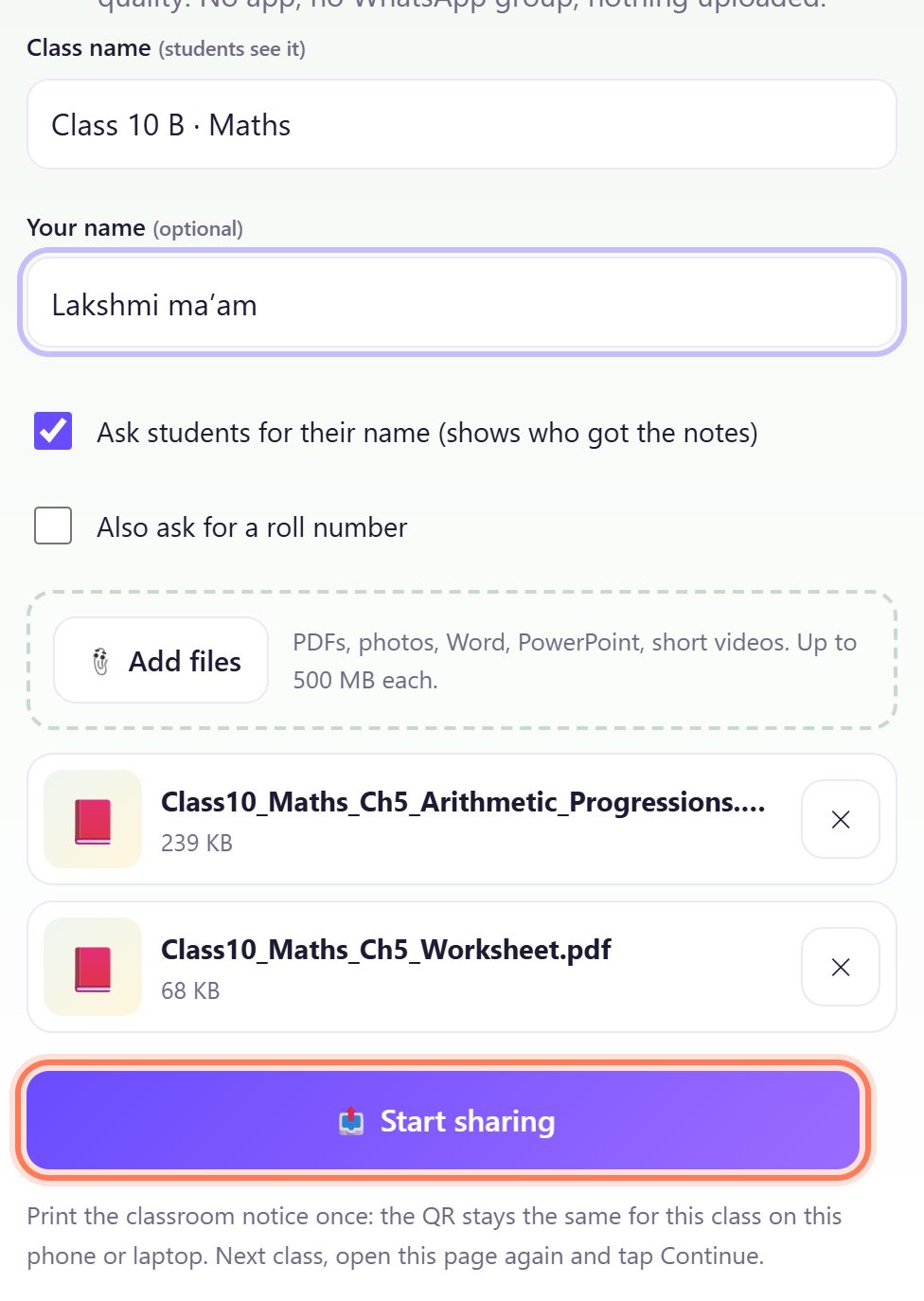
Open spritesplit.com/class on your laptop or phone. Type the Class name (students see it), for example Class 10 B · Maths, and Your name if you like.
Keep Ask students for their name (shows who got the notes) ticked; tick Also ask for a roll number if you want it. Tap 📎 Add files and pick your notes: PDFs, photos of the board, Word or PowerPoint, short videos, up to 500 MB each. Then tap 📤 Start sharing.
💡 Tip: Save Word and PowerPoint notes as PDF first. A PDF opens on every student’s phone.
2Your QR is ready
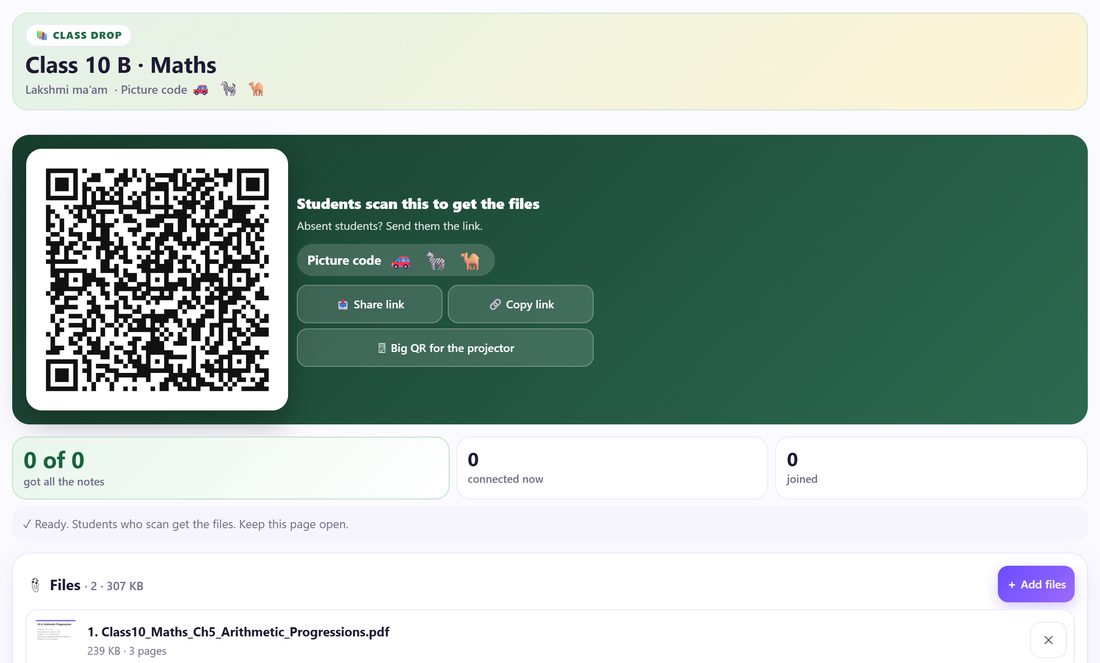
You now see Students scan this to get the files, a Picture code of three small pictures, and counters for how many students got all the notes, are connected now and have joined. Your files are listed under 📎 Files.
Absent students? Tap 📤 Share link or 🔗 Copy link and send it to them; it works while your page is open.
3Show the big QR on the projector
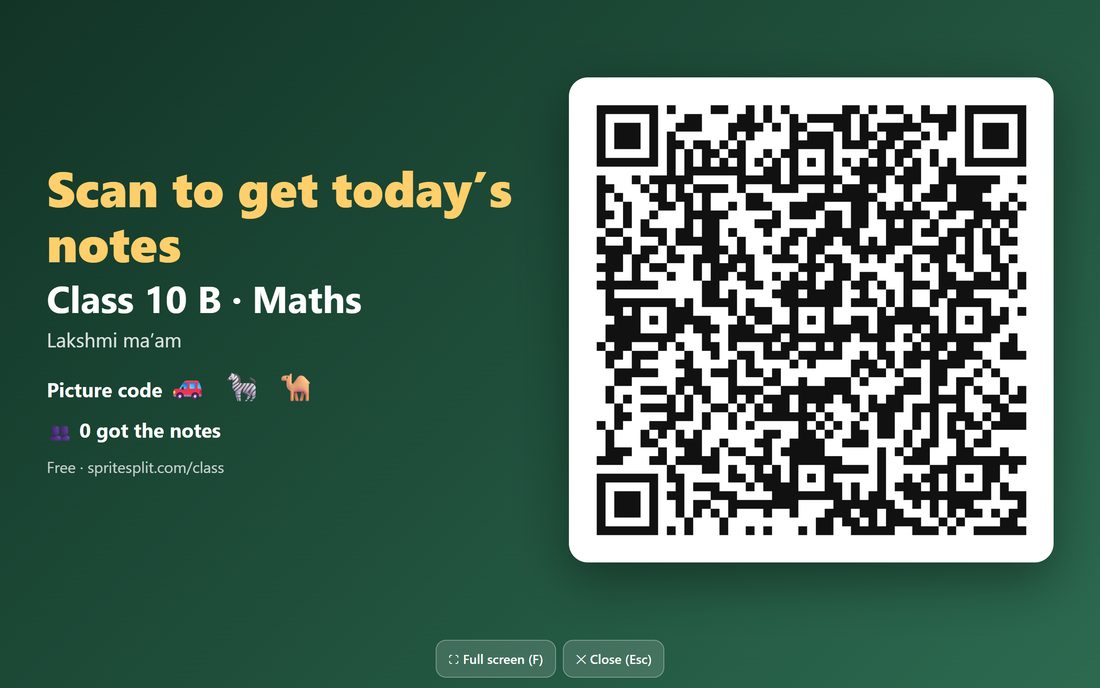
Tap 🖥 Big QR for the projector. It fills the screen with Scan to get today’s notes, the class name, the picture code and a live count. Press F for ⛶ Full screen and Esc to close.
No projector? Students can scan the QR on your laptop or phone, or the printed classroom notice (step 7).
4Students scan and type their name
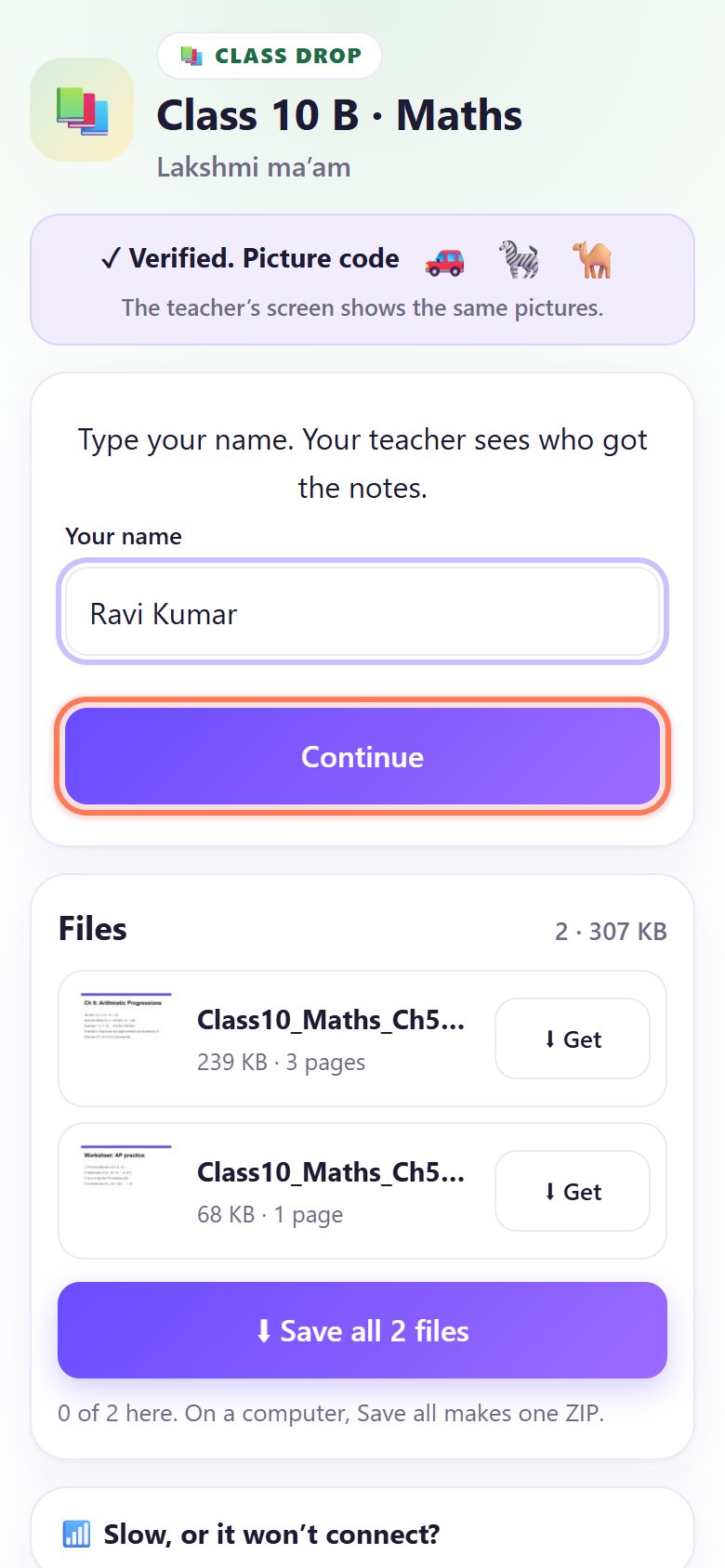
Each student scans with the normal phone camera. No app and no sign-up. They see your class name, type Your name (and roll number if you asked) and tap Continue.
5Students tap Save all
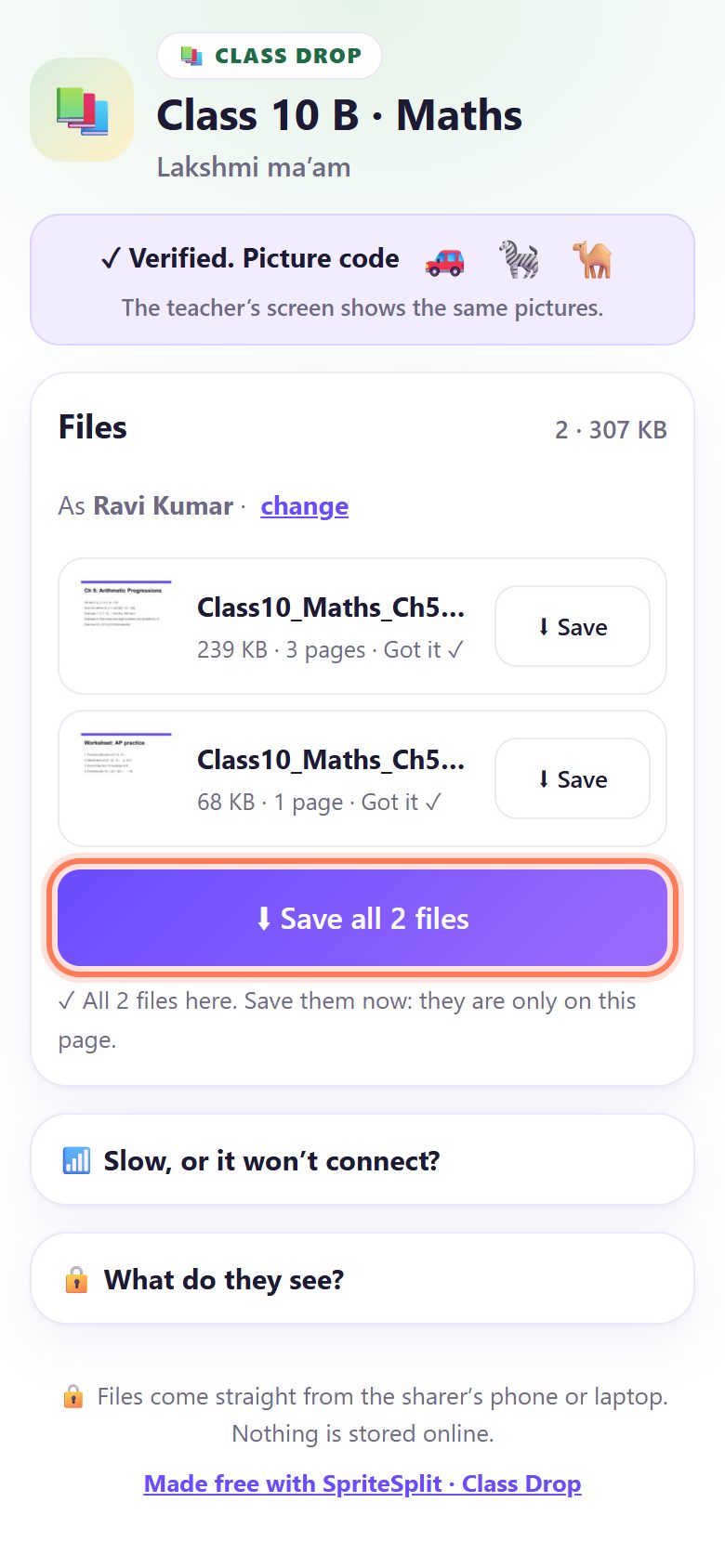
The phone shows ✓ Verified. Picture code with the same pictures as your screen, and the files arrive one by one with Got it ✓. The student taps ⬇ Save all (or ⬇ Save on one file).
When the whole class scans together, four files go at a time and the rest see Waiting… you’re next for a few seconds.
💡 Tip: On iPhone the share sheet opens: tap Save to Files. On Android the files go to Downloads.
6See who got it, and download the register
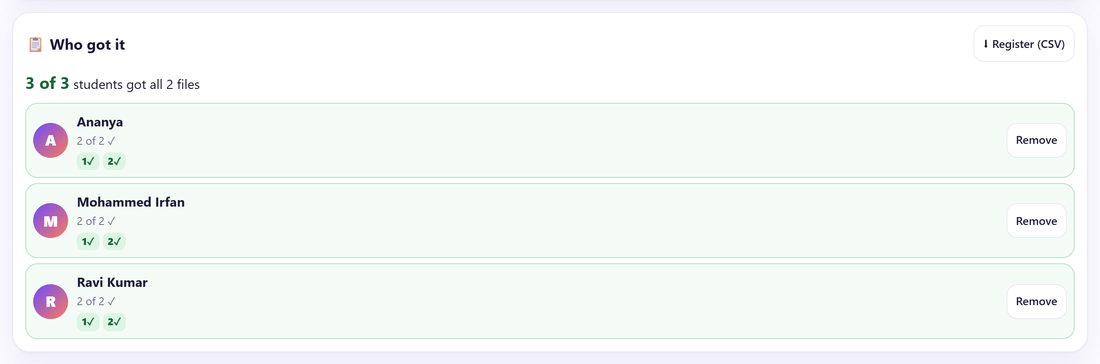
Under 📋 Who got it you see “3 of 3 students got all 2 files” and a ✓ for every file each student got. Tap ⬇ Register (CSV) to open it in Excel or Google Sheets.
Add more files any time with + Add files; students who are still connected see them at once.
7Print the classroom notice (once)
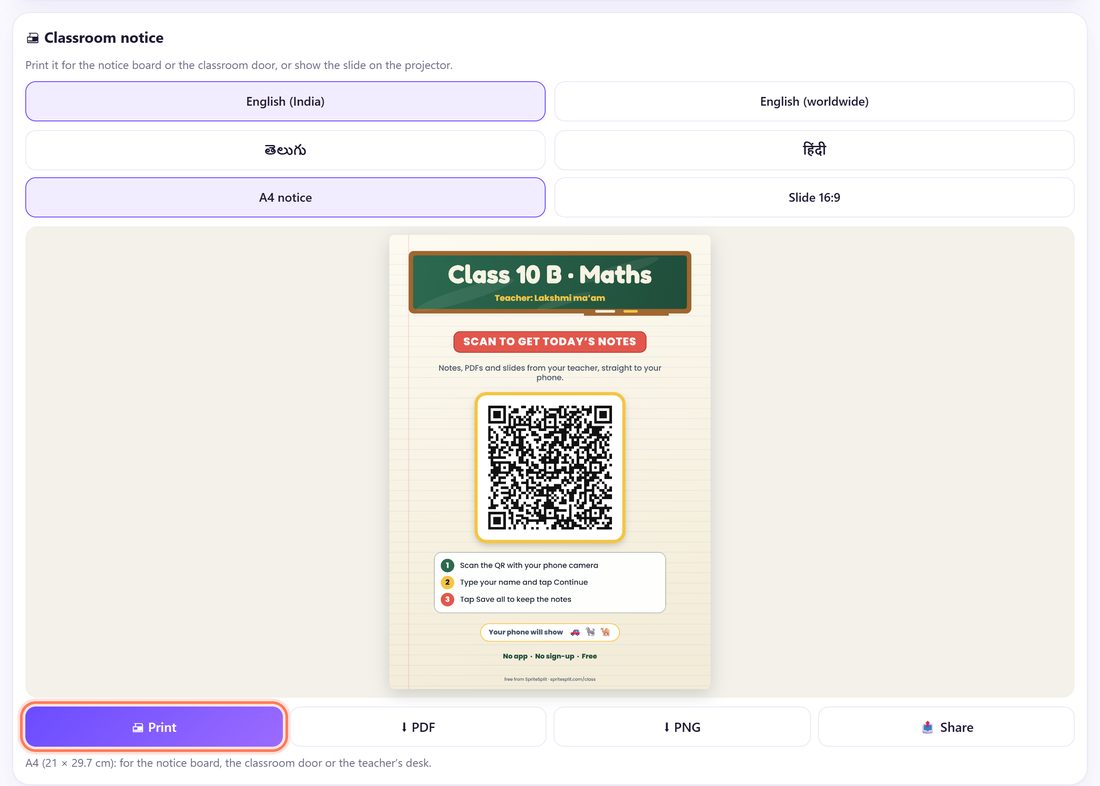
Scroll to 🖨 Classroom notice. Pick a language (English, తెలుగు or हिंदी) and A4 notice for the notice board or Slide 16:9 for the projector, then tap 🖨 Print or ⬇ PDF.
The QR stays the same for this class on this device. Next class, open spritesplit.com/class, tap ▶ Continue next to the class under Your classes, and add the new chapter.
Giving a talk or seminar? Use Slides Drop
Slides Drop (spritesplit.com/slides) is the same idea for presentations: people in the hall scan one QR and save your slides and handouts. It does not ask for names; you see only how many got the slides and a 👏 Say thanks count.
- Open spritesplit.com/slides on your laptop, type the talk title and add your slides as a PDF.
- Pick Last slide 16:9, download it and add it as the final slide of your deck (or print the A4 table card for the front row).
- On the day, open the page on the same laptop and tap ▶ Continue. The QR is the same as on your slide.
- During Q&A tap 🖥 Big QR for the projector. Keep the page open until people have saved the slides.
📝 Example: Lakshmi ma’am shares Chapter 5 with Class 10 B
Lakshmi ma’am teaches maths at a government high school in Guntur. Her Class 10 B has 42 students and no class WhatsApp group, which she prefers. At the start of the period she opens spritesplit.com/class on the staff-room laptop, continues Class 10 B · Maths and adds two PDFs: Ch 5 Arithmetic Progressions (3 pages) and a one-page worksheet.
She taps Big QR for the projector. Students who have phones scan it during the first five minutes; those without phones get it later from a friend’s link. Ravi, Ananya and Irfan type their names and tap Save all. By the end of the period the register shows 38 of 42 got the notes. She downloads the CSV, sees the four names missing, and sends them the link while the page is still open after school.
🛠 If something goes wrong
Students see “The teacher’s page is closed”
Your Class Drop page was closed or the laptop slept. Open spritesplit.com/class, tap ▶ Continue next to the class, and ask students to tap Try again. Keep the device on charge; the page keeps the screen awake while it is open.
“Couldn’t connect on this network”
Some school, college and mobile networks block direct connections (about 1 in 10). The student joins your phone hotspot or the same Wi-Fi as you, or switches between Wi-Fi and mobile data, and taps Try again.
Many students wait at “Waiting… you’re next”
That is normal for a full class: four files go at a time so your phone or laptop keeps up. It moves on by itself in a few seconds; ask students to keep the page open.
The printed notice stopped working
The QR belongs to that class on that device. If someone tapped ✕ (Forget) next to the class, or you are on another computer, the old QR stops. Use the same device, or print a new notice.
A student’s phone says “⚠ This is not the teacher’s page”
The picture code did not match, so it is a wrong or copied QR. Tell them not to open the files and to scan your QR again.
A Word or PowerPoint file won’t open on a student’s phone
Many phones have no Office app. Save the notes as PDF on your computer (File → Save as → PDF) and add the PDF instead.
Someone who is not in your class joined
In 📋 Who got it, tap Remove next to their name. That phone can’t get files again until you close the page. Turn on ⏸ Pause sharing while you check.
🔒 Privacy in plain words
- Your notes go straight from your phone or laptop to each student’s phone. They are not uploaded to SpriteSplit or any cloud.
- You don’t share your phone number, and you never need the students’ numbers.
- You see only the name (and roll number, if you asked) each student typed, and which files reached their phone. Untick Ask students for their name to collect nothing.
- Sharing stops when you close the page or tap ⏹ Stop sharing. Students keep the files they saved.
- Slides Drop collects no names at all: only a count of phones and 👏 taps.
Questions people ask
Do students need an app or a login?
No. They scan the QR with the phone camera and the files open in the browser. No app, no sign-up and no WhatsApp group.
Does my page need to stay open?
Yes. Students get the files only while Class Drop is open on your phone or laptop. Close it after everyone has saved.
How many students can get the notes at once?
A whole class. Everyone can be connected; four files are sent at a time and the rest wait a few seconds. It has been tested with 30 phones at once.
Can I use the same QR every week?
Yes. The QR stays the same for that class on that phone or laptop. Next class, open the page, tap Continue and add the new files.
What can I share?
PDFs, photos of the board, Word and PowerPoint files and short videos, up to 500 MB each. PDF is the safest for every phone.
Is it free?
Yes. Class Drop and Slides Drop are free, with no sign-up and no limit on classes.
Related guides