How to collect wedding photos from all your guests (in full quality)
The photographer covers the stage, but the photos you will love most are on the guests’ phones: the haldi chaos, the baraat dance, grandmother laughing at the dinner table. Asking for them on WhatsApp gets you blurry copies weeks later, and a shared Google Drive needs every aunty to sign in.
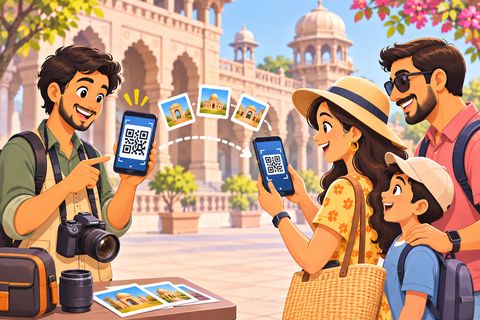
Wedding Drop puts one QR on every table. Guests scan it, type their name and send their photos straight to one collecting phone or laptop, in the original quality. Guests never see each other’s photos, and nothing is uploaded to any server.
Steps
1Start your event on the collecting phone or laptop
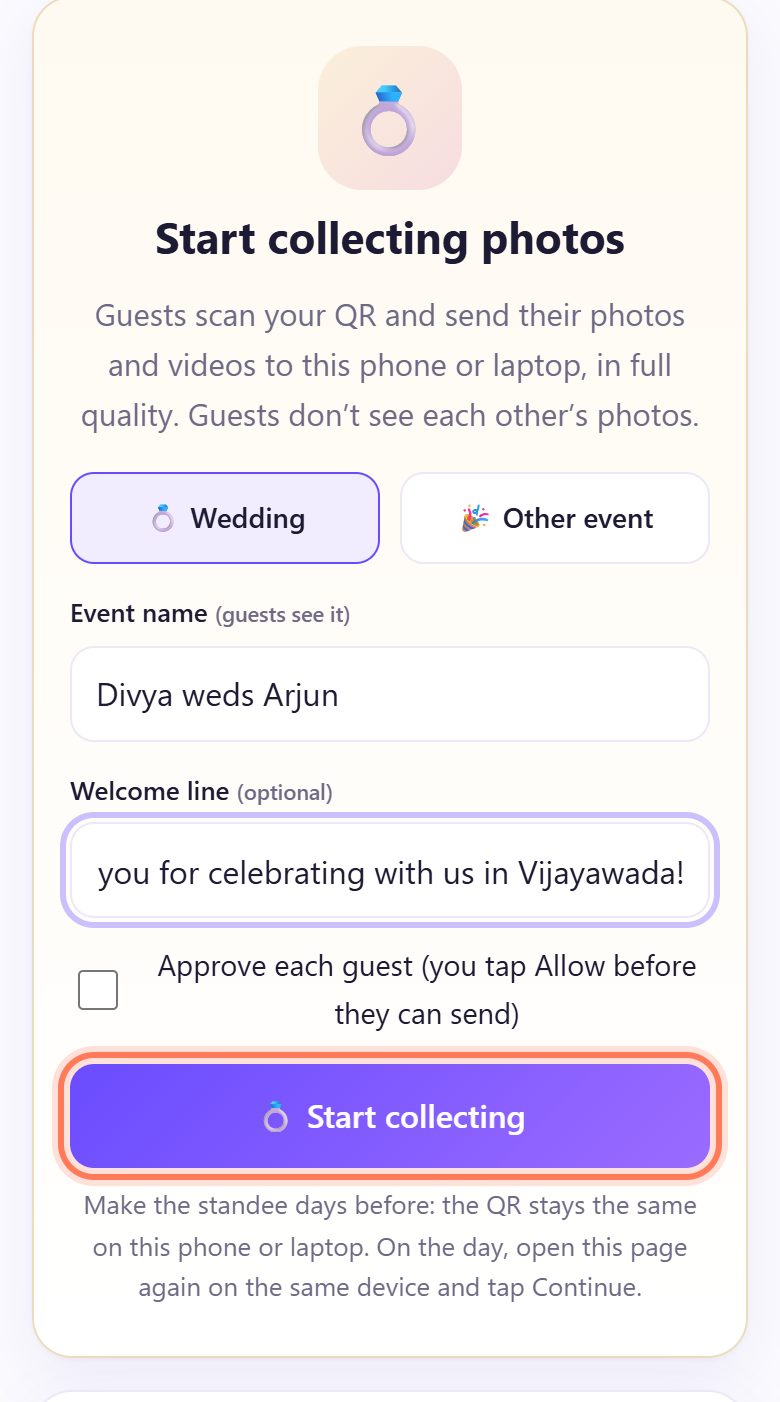
On the phone or laptop that will collect the photos, open spritesplit.com/shaadi. Keep 💍 Wedding selected (or pick 🎉 Other event for a birthday or function).
Type the Event name, for example Divya weds Arjun. Guests see it. Add a Welcome line if you like, then tap 💍 Start collecting.
💡 Tip: Do this a few days before the wedding, on the same device you will use on the day. The QR stays the same, so you can print the cards early.
2Your QR and picture code appear
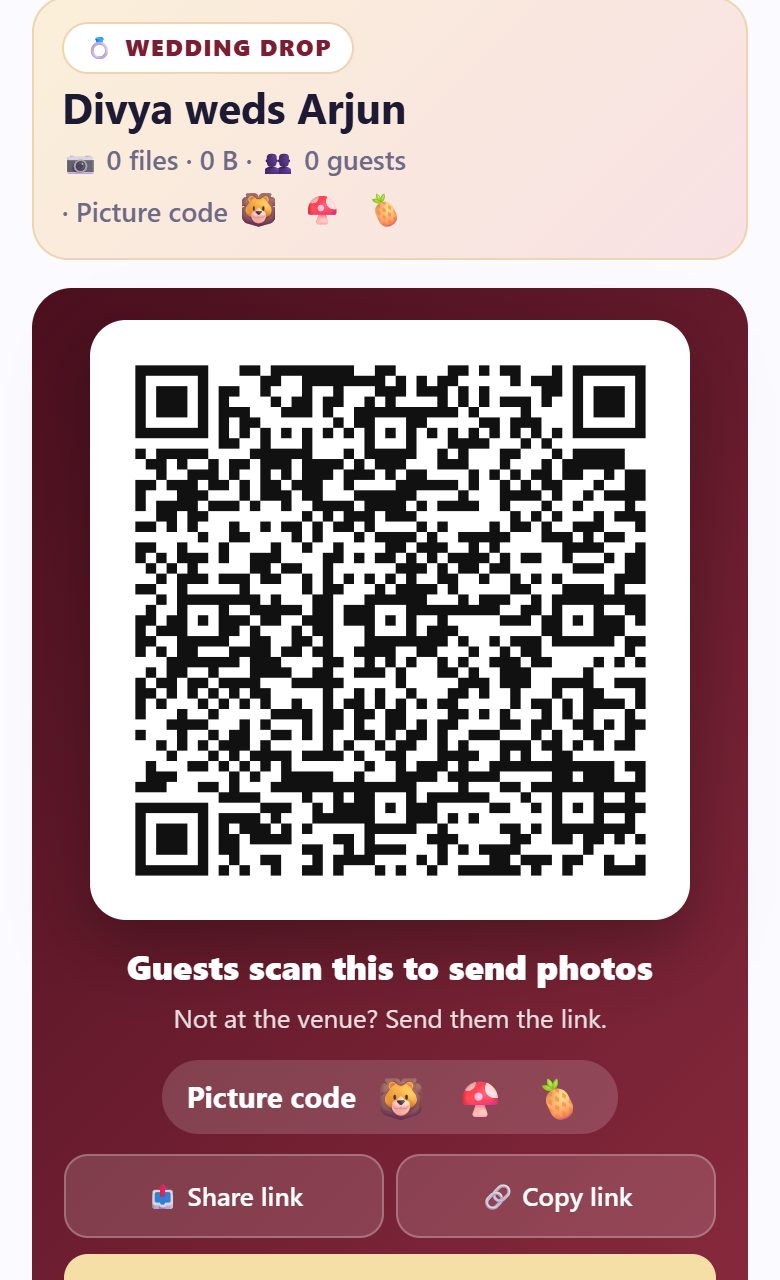
A few seconds later you see the QR with Guests scan this to send photos, and a Picture code of three small pictures. Every guest’s phone shows the same three pictures, so they know they reached your phone and not someone else’s.
For relatives who are not at the venue, tap 📤 Share link or 🔗 Copy link and post it in the family WhatsApp group.
3Print a standee or table cards
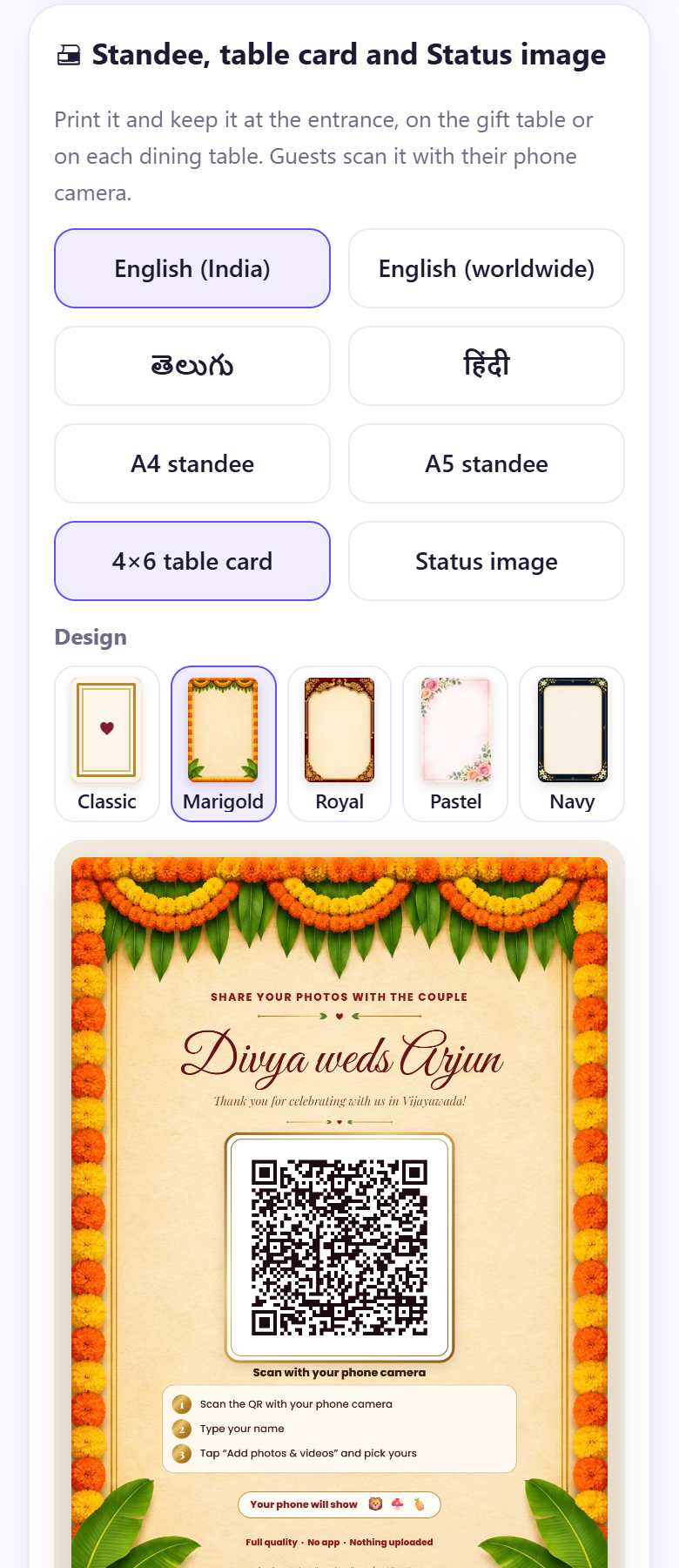
Tap 🖨 Print a standee or table card, or scroll to 🖨 Standee, table card and Status image. Choose the language (English (India), English (worldwide), తెలుగు or हिंदी), the size (A4 standee, A5 standee, 4×6 table card or Status image) and a Design: Classic, Marigold, Royal, Pastel or Navy.
Tap 🖨 Print, or ⬇ PDF to take the file to a print shop. Put an A4 standee at the entrance and a 4×6 card on each dining table.
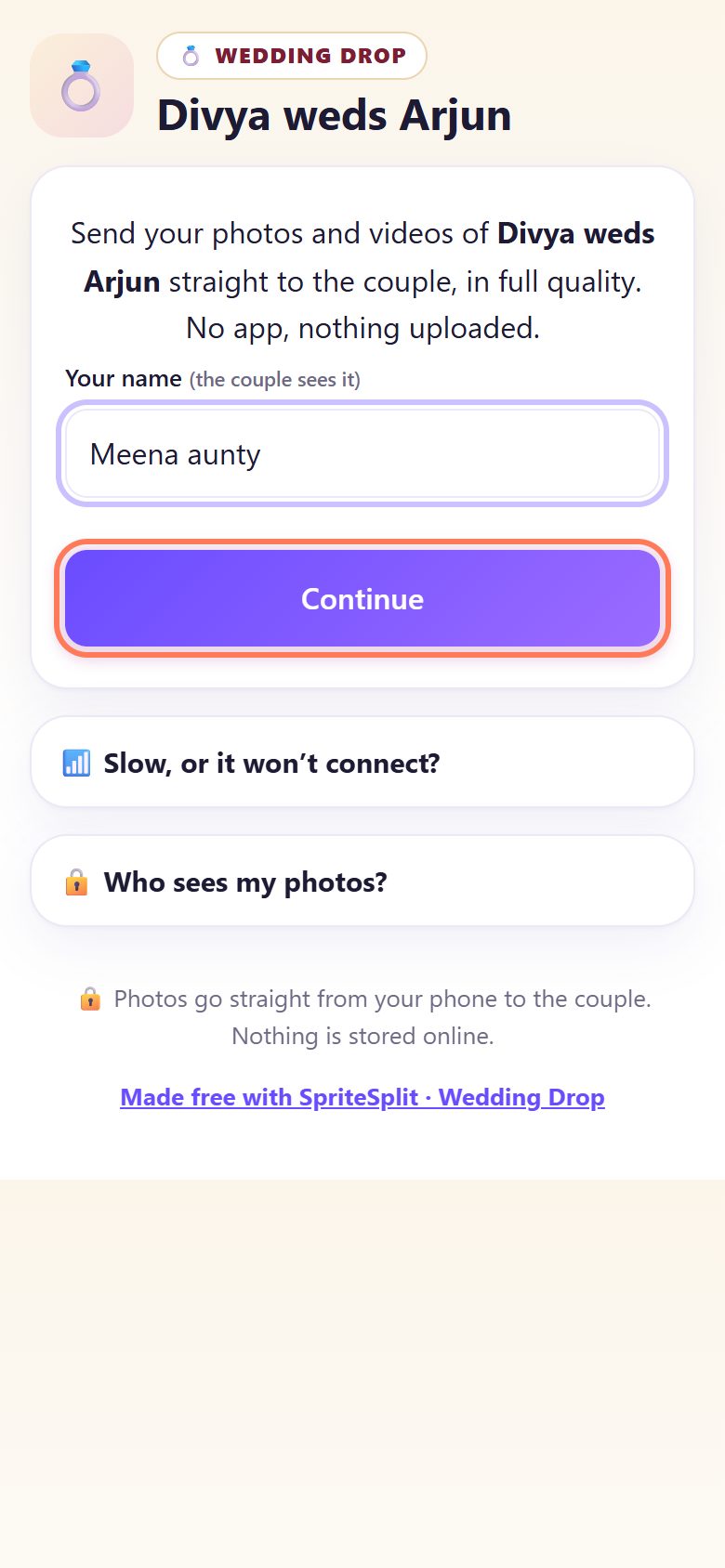
4A guest scans the QR and types their name
The guest points the normal phone camera at the card and opens the link. No app and no sign-up. They see your event name and welcome line, type Your name (you see it next to their photos) and tap Continue.
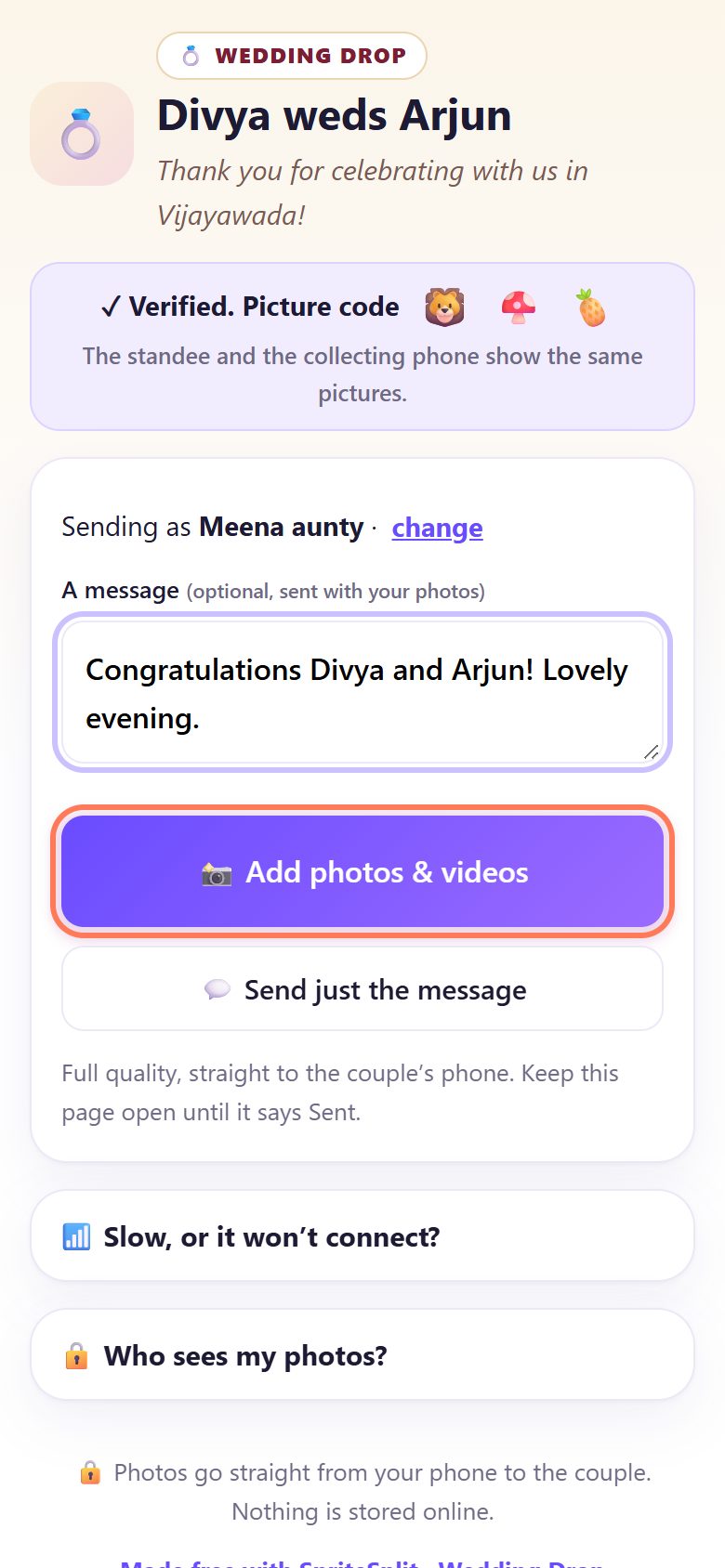
5The guest checks the picture code and adds photos
Their phone shows ✓ Verified. Picture code with the same three pictures as your card. They can write A message (it goes into your guestbook) and tap 📸 Add photos & videos to pick from the gallery.
Only want to say congratulations? 💬 Send just the message works too.
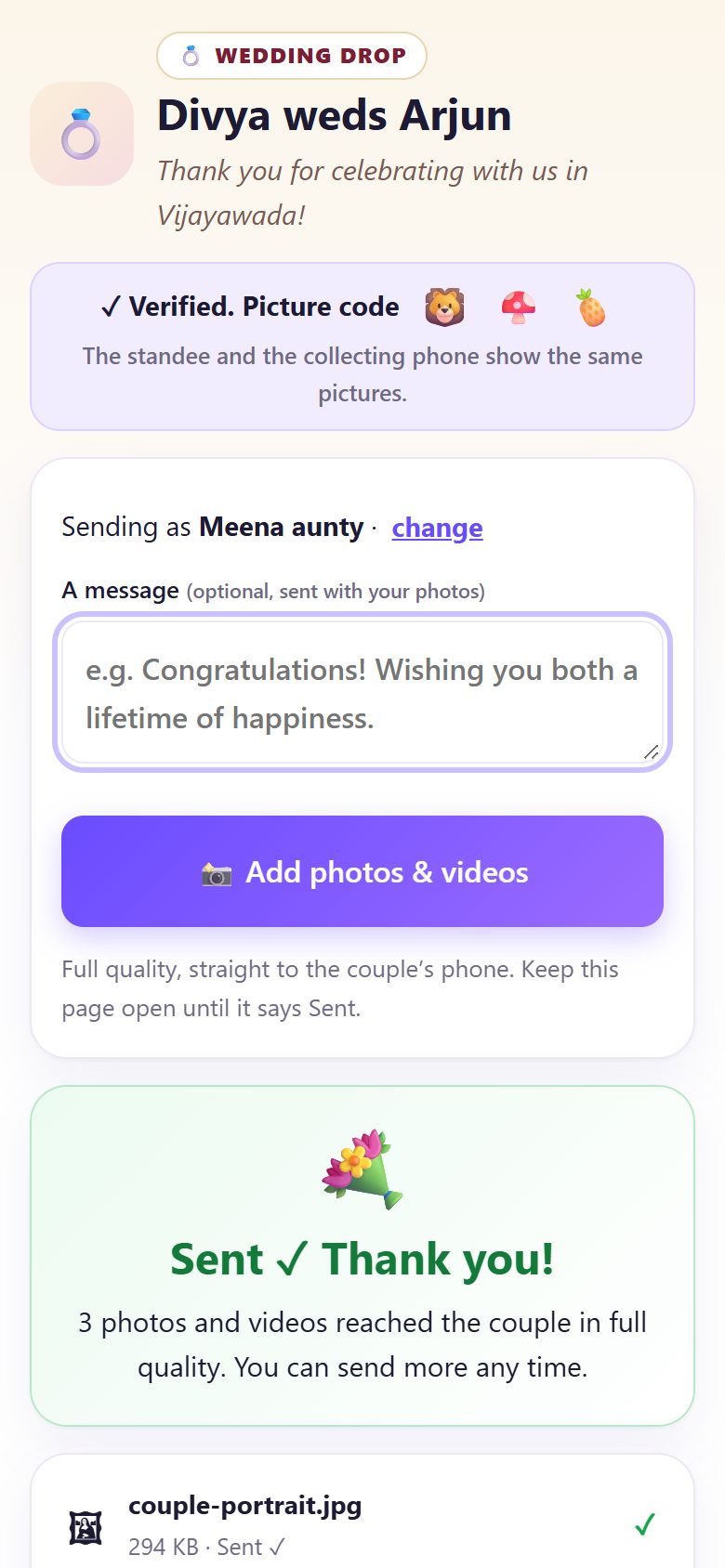
6“Sent ✓ Thank you!” on the guest’s phone
Each file shows a progress bar, then Sent ✓. When all are done the guest sees Sent ✓ Thank you! and how many photos reached you in full quality. They can add more any time while your page is open.
If many guests send together, three send at once and the rest see Waiting… you’re next. Their photos go by themselves.
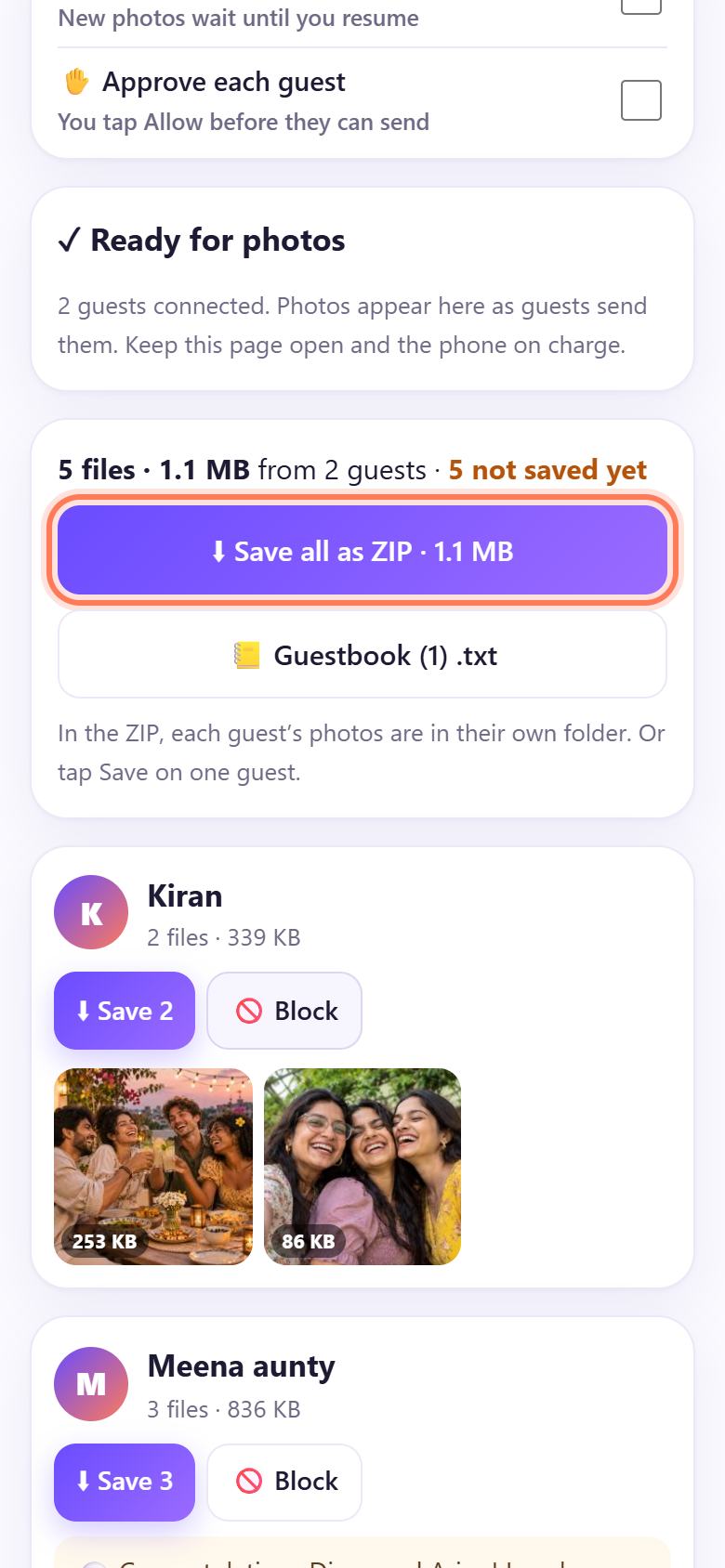
7Save everything as a ZIP before you close the page
Photos arrive grouped by guest, with their name and message. Tap ⬇ Save all as ZIP: inside, each guest’s photos are in their own folder. Or tap ⬇ Save on one guest. 📒 Guestbook (.txt) downloads every message.
The orange ⚠ Save before closing this page line tells you what is not saved yet. Photos live only in this open page until you save them.
💡 Tip: On a phone, save now and then during the evening, then tap 🧹 Free memory. For a big wedding a laptop is better: very large sets are split into ZIPs of up to 500 MB.
On the wedding day: a short checklist
- Open spritesplit.com/shaadi on the same phone or laptop and tap 💍 Continue collecting. Do not tap Start a different event: that makes a new QR and your printed cards stop working.
- Keep the device on charge, on the venue Wi-Fi or a mobile hotspot, with the page open. A cousin who is not dancing is the best keeper.
- Want to check each guest first? Turn on ✋ Approve each guest; you tap ✓ Allow or ✕ No when someone new joins.
- Need a break (photos, rituals, dinner rush)? ⏸ Pause receiving. Guests see “Paused” and their photos send when you turn it off.
- At the end of the night, save the ZIP and the guestbook, then tap End this event if you want the QR to stop working.
📝 Example: Divya and Arjun’s reception in Vijayawada
Divya’s cousin Sravani is in charge of photos. Three days before the reception she opens spritesplit.com/shaadi on her laptop, types Divya weds Arjun and the welcome line Thank you for celebrating with us in Vijayawada!, and taps Start collecting. She picks 4×6 table card, the Marigold design in English and తెలుగు, saves the PDF and gets 25 cards printed at the xerox shop near Benz Circle for about ₹10 each.
On the day she opens the same page, taps Continue collecting and leaves the laptop on charge at the gift table, on her phone hotspot. Meena aunty sends three photos from the stage with a message; Divya’s college friend Kiran sends the dinner-table selfies. By midnight the laptop shows 412 photos and 38 videos from 61 guests. Sravani taps Save all as ZIP (two parts) and Guestbook (.txt), and the next morning the couple has every photo, sharp enough to print, sorted by who took it.
🛠 If something goes wrong
A guest sees “The collecting page is closed”
The collecting phone or laptop has the page closed, or it went to sleep. Open spritesplit.com/shaadi on it, tap 💍 Continue collecting, and ask the guest to tap Try again.
“Couldn’t connect on this network”
Some hotel and mobile networks block direct connections (about 1 in 10). The guest switches between the venue Wi-Fi and mobile data, or joins your phone hotspot, and taps Try again.
A guest is stuck on “Waiting for the family to let you in” or “No answer yet”
✋ Approve each guest is on. Look on the collecting device for “… wants to send photos” and tap ✓ Allow. Turn Approve off if nobody can watch the screen.
The printed cards stopped working
Someone tapped Start a different event, or the event was started on another device. The QR belongs to the device and event it was made on. Open the page on that same device and tap Continue collecting; if the event is gone, print new cards.
A guest’s phone says “⚠ This is not the family’s page”
The picture code did not match, so the link is not your event (a wrong or copied QR). The guest should not send anything; give them your QR or link again.
The collecting phone warns it may be low on space
Tap ⬇ Save all as ZIP, then 🧹 Free memory. For a big wedding switch to a laptop, which has more room.
Someone is sending photos you don’t want
Tap Block next to their name. They can’t send more to this event; the photos they already sent stay until you remove them.
On iPhone, the photos went to Files, not Photos
When the share sheet opens, tap Save Image or Save Video. If they landed in Files, open them there, tap Share, then Save Image.
🔒 Privacy in plain words
- Photos go straight from each guest’s phone to your collecting device over a direct, encrypted connection. They are not uploaded to SpriteSplit or any cloud.
- A public connection service only helps the two phones find each other. It never sees the photos.
- Guests only send. They cannot see each other’s photos or the guest list.
- You see the name each guest typed and their optional message, nothing else. No phone numbers are collected.
- Photos stay only in the open page until you save them. Close the page and unsaved photos are gone.
Questions people ask
Do guests need an app, a Google account or WhatsApp?
No. They scan the QR with the phone camera, type their name and tap Add photos & videos. It works in Chrome, Samsung Internet, Edge and Safari.
Will the photos really be full quality?
Yes. The original file is sent byte for byte, so a 12 MP photo stays 12 MP, and videos are not squashed the way WhatsApp does it.
Can we print the table cards before the wedding?
Yes. Start the event early on the device you will use on the day and print the cards. On the day, open the page on that device and tap Continue collecting. The QR stays the same.
How many guests can send at the same time?
Many guests can be connected. Three send at a time so the device keeps up; the others see “Waiting… you’re next” and their photos go by themselves.
Can relatives abroad send photos too?
Yes. Tap Share link and post it in the family group. It works from anywhere while your collecting page is open.
Is Wedding Drop free?
Yes. Free, no sign-up, no watermark and no limit on guests.
Related guides