How copy shops can receive student files without WhatsApp, email or USB
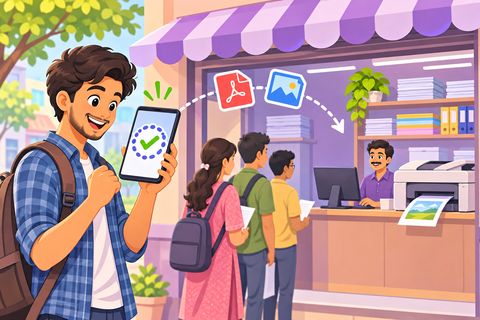
Near a campus the day goes like this: students send PDFs to the shop’s WhatsApp, to the shop email, or walk in with a USB stick. The WhatsApp chat fills up with strangers’ theses and ID scans, the inbox fills with “print this please”, USB sticks bring viruses, and in exam and thesis weeks the queue goes out of the door while you search for “the file from Lucía”. On top of that, every phone number and email address you collect is personal data you are now keeping.
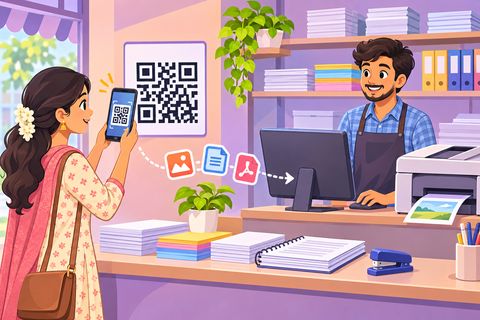
Print Drop replaces all of that with one QR on your counter. The student scans it, picks the files and taps Send. The files go straight to the computer next to your printer, with a queue number, copies, colour and double-sided notes. You never get their phone number or email, nothing is stored online, and the files delete themselves after printing. It is free, and nobody installs an app.
Steps
1Open Print Drop on the computer next to your printer
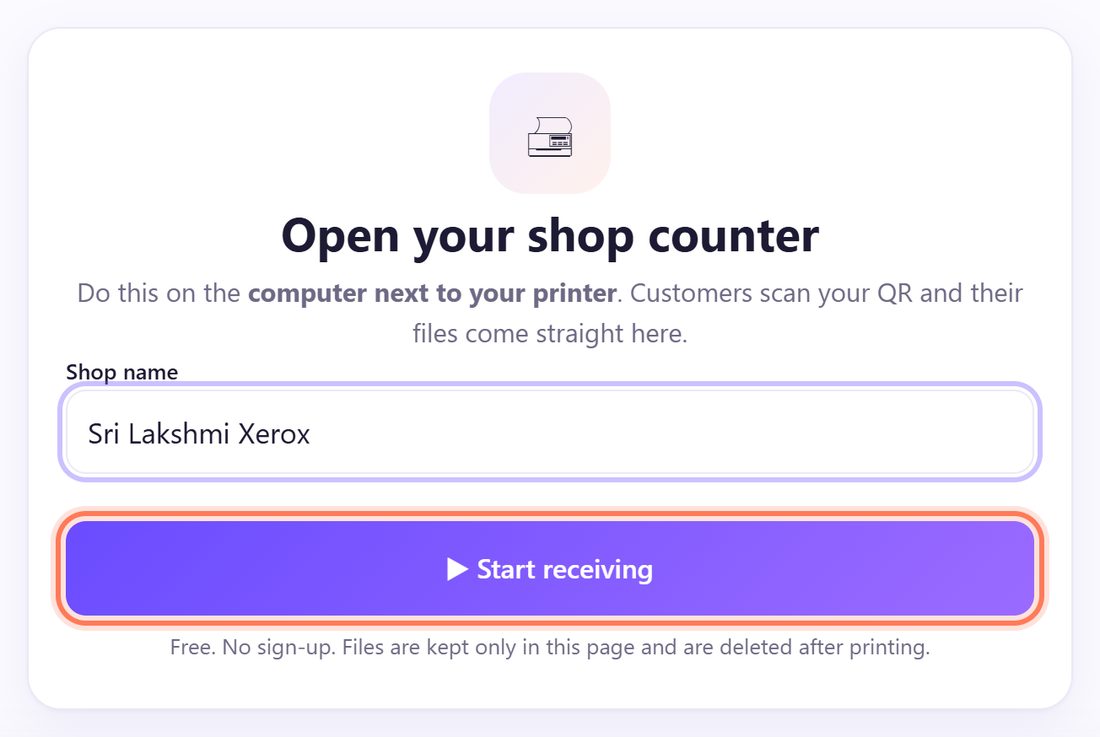
On the shop computer, open spritesplit.com/print in Chrome or Edge. Under Open your shop counter, type your Shop name as students know it (for example Copy Campus) and click ▶ Start receiving. Wait for the green bar Ready to receive ✓.
No account, no password and nothing to install. The page remembers your shop on this computer.
💡 Tip: Keep this tab open all day. New files arrive under Incoming files with a sound, and the page reconnects by itself.
2Print the counter poster in “English (worldwide)”
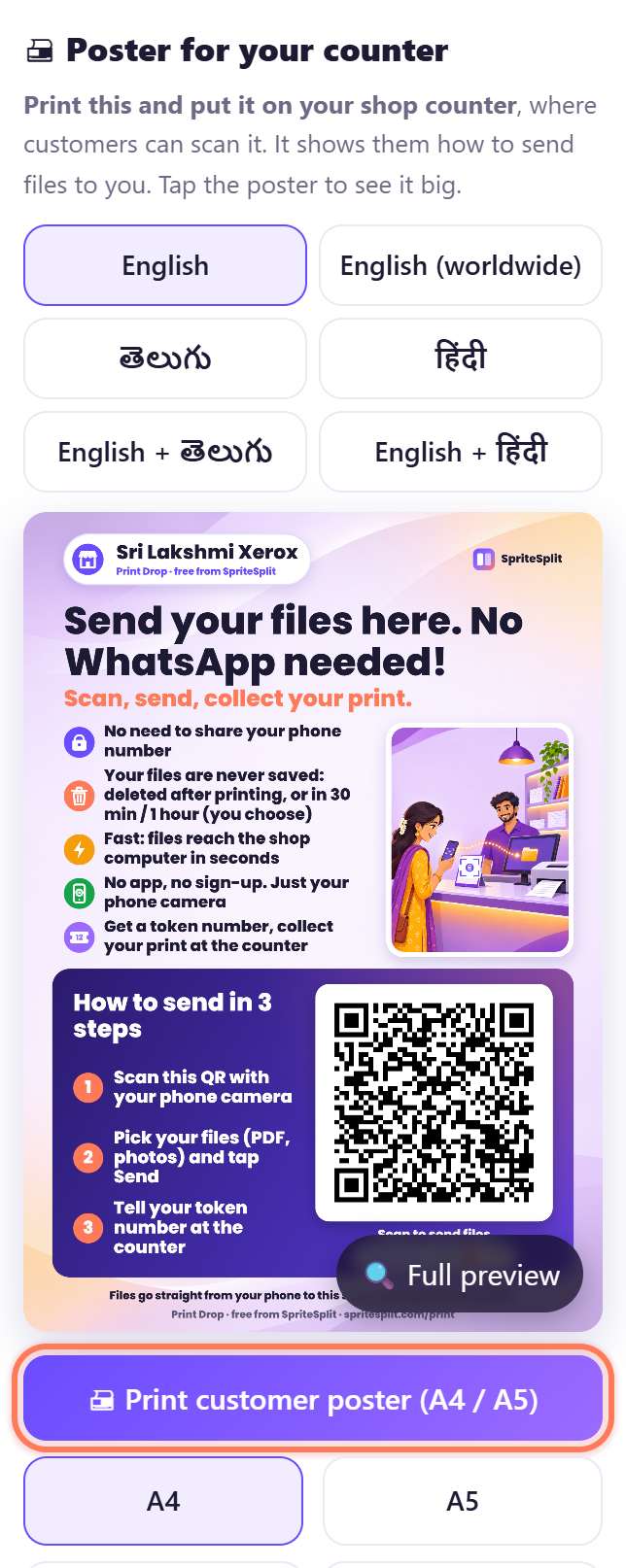
Under 🖨 Poster for your counter, choose English (worldwide), then A4, and click 🖨 Print customer poster (A4 / A5). Put it on the counter and near the queue, where students wait.
The QR never changes, so you print it once. 🔗 Copy customer link gives the same link as text for your website, Instagram bio or the student union’s group.
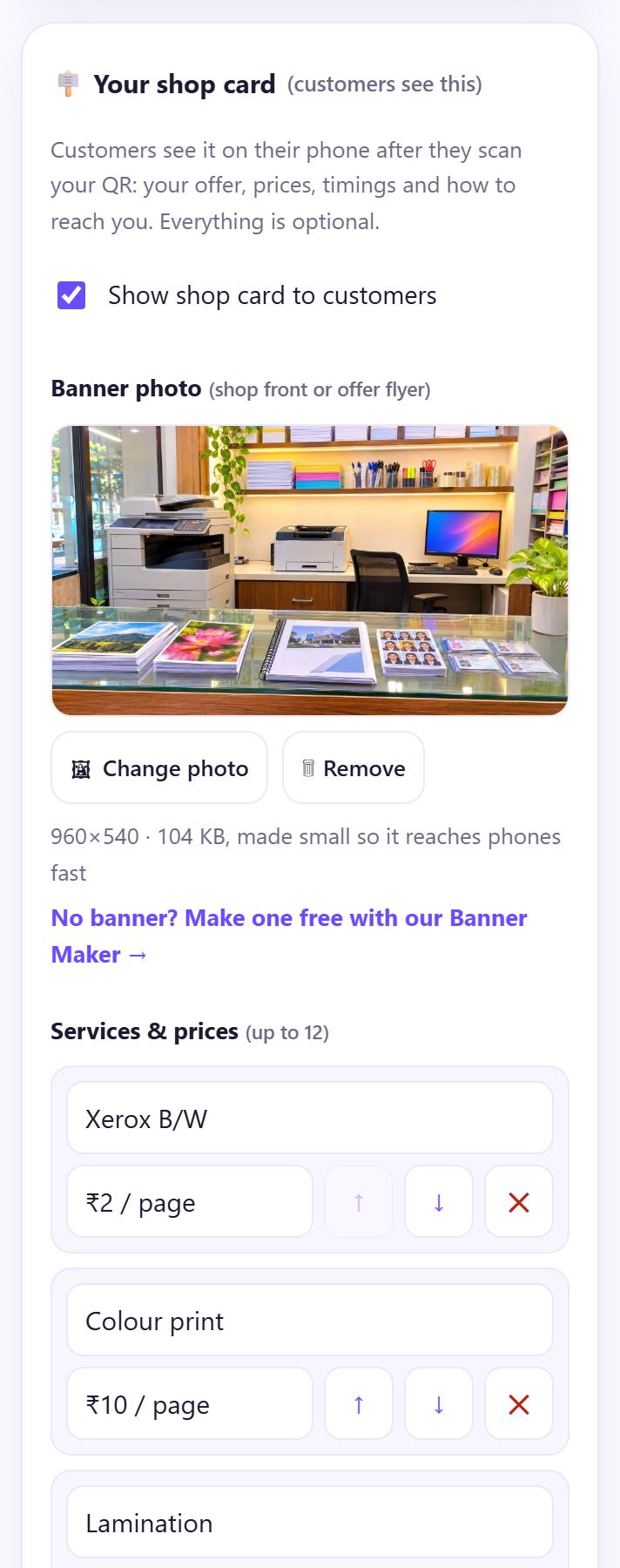
3Add your prices and opening hours (optional)
Open 🪧 Your shop card (customers see this). Write your Services & prices in your own currency (for example “B/W A4 · 0.05 per page”, “Thesis binding · 8.00”), your Timings and an Offer line (“Thesis week: open until 21:00”).
Students see this card right after they scan, so fewer people ask “how much is binding?” at the counter.
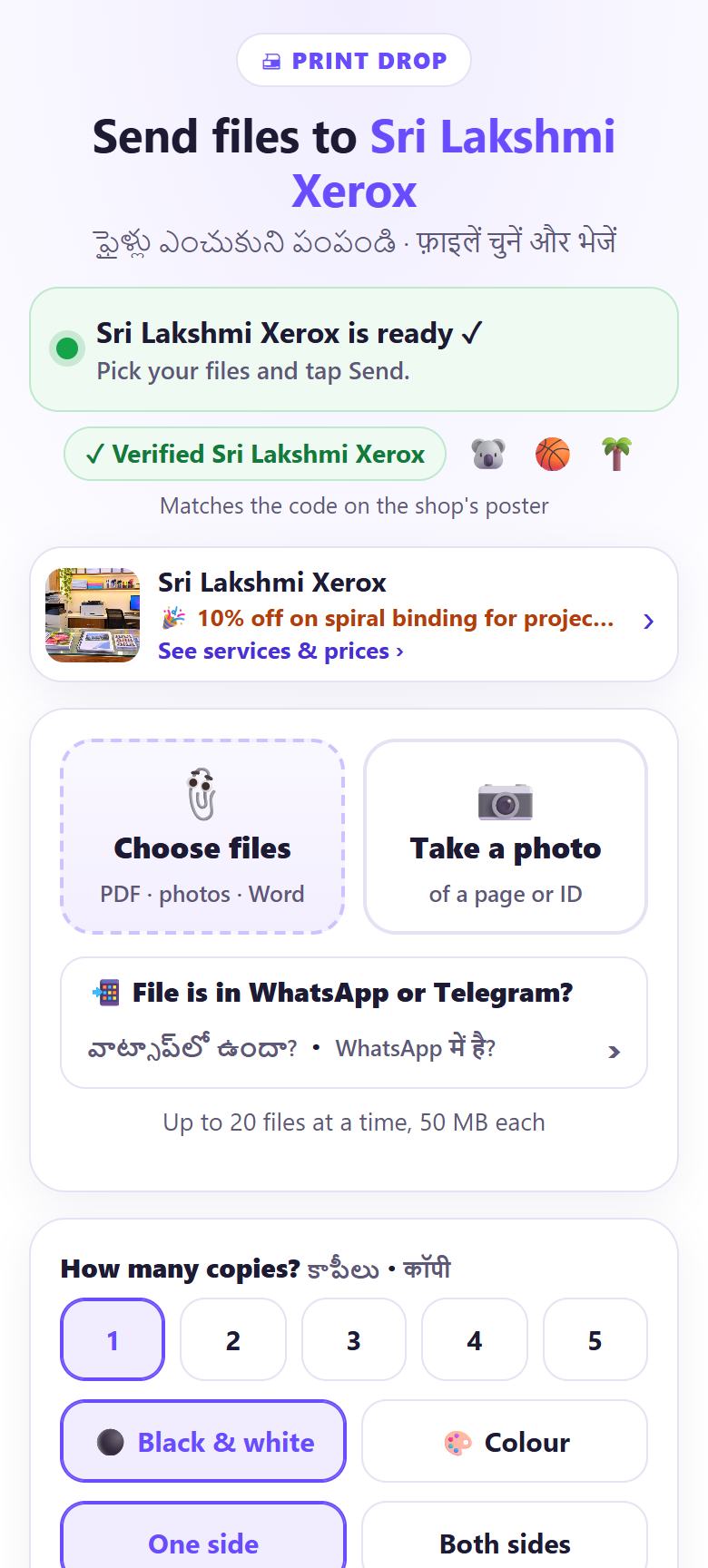
4The student scans the QR
The student points the phone camera at the poster and taps the link. A page opens with Send files to your shop name and a green “ready” bar. No app, no sign-up, no phone number, no email.
They tap 📎 Choose files and pick PDFs, photos or Word files: up to 20 files at a time, 50 MB each.
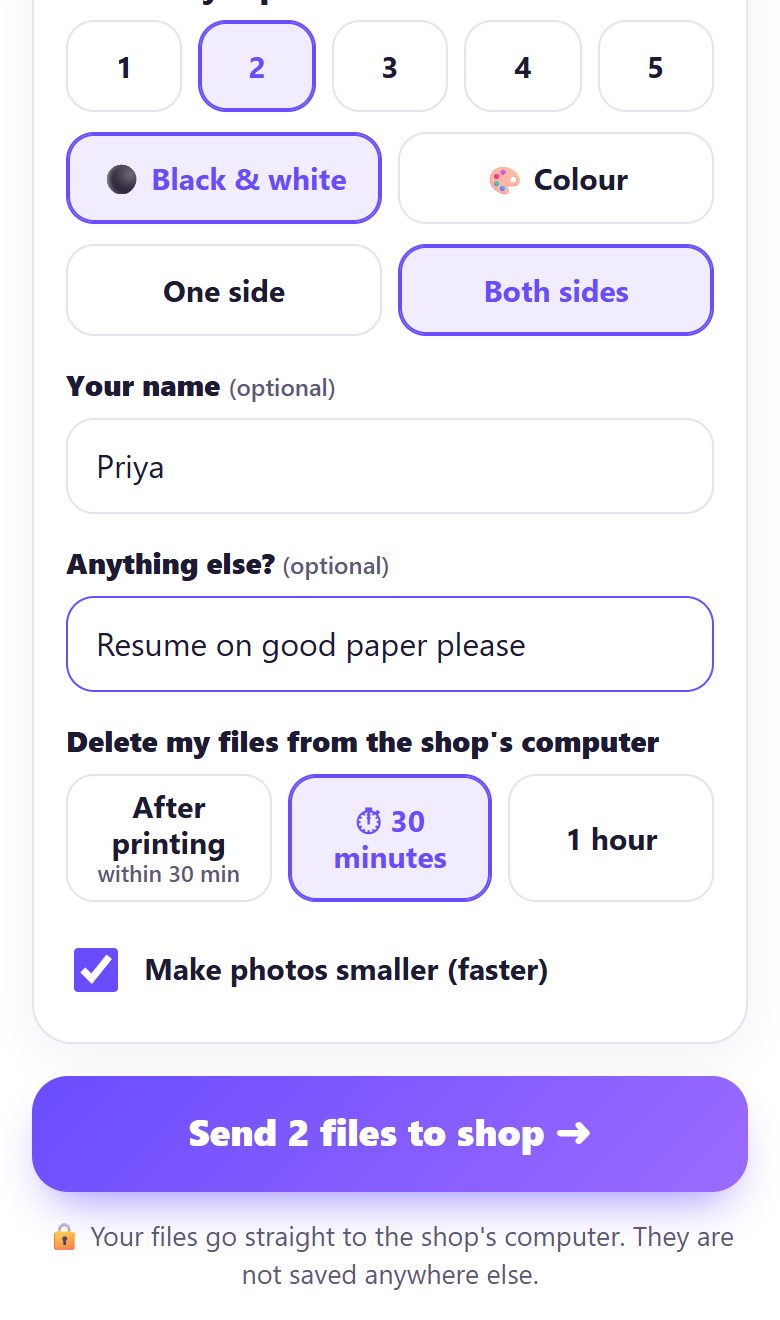
5They choose copies, colour and sides
The student sets How many copies?, ⚫ Black & white or 🎨 Colour, One side or Both sides, and can add a first name and a note in Anything else? (optional), such as “spiral binding” or “cover in colour, rest B/W”.
Then they pick when their files are deleted and tap Send.
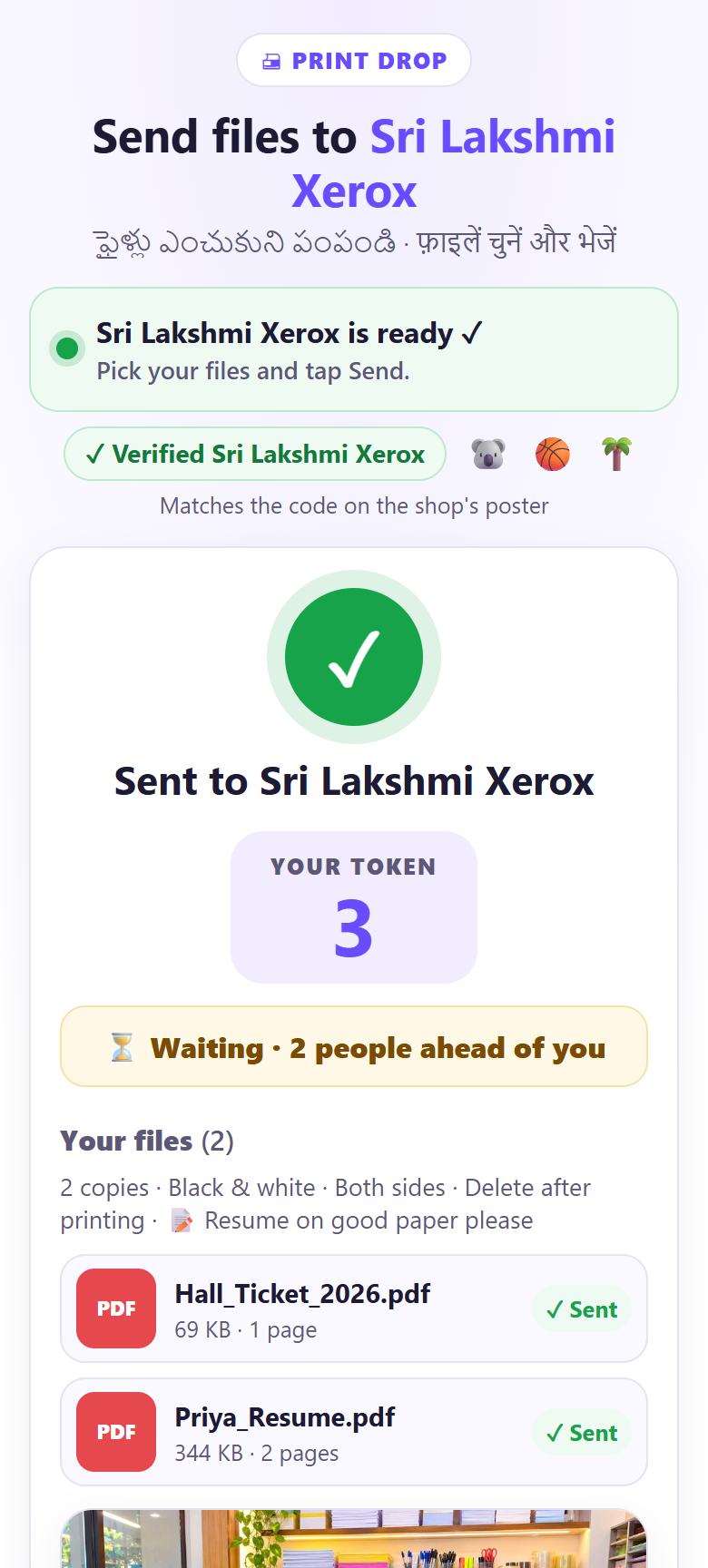
6Each student gets a queue number
The phone shows YOUR TOKEN (a queue number: 1, 2, 3…) and a live status such as ⏳ Waiting · 2 people ahead of you. Students can wait outside or get a coffee instead of crowding the counter.
On your screen the job appears with the same big number, in queue order.
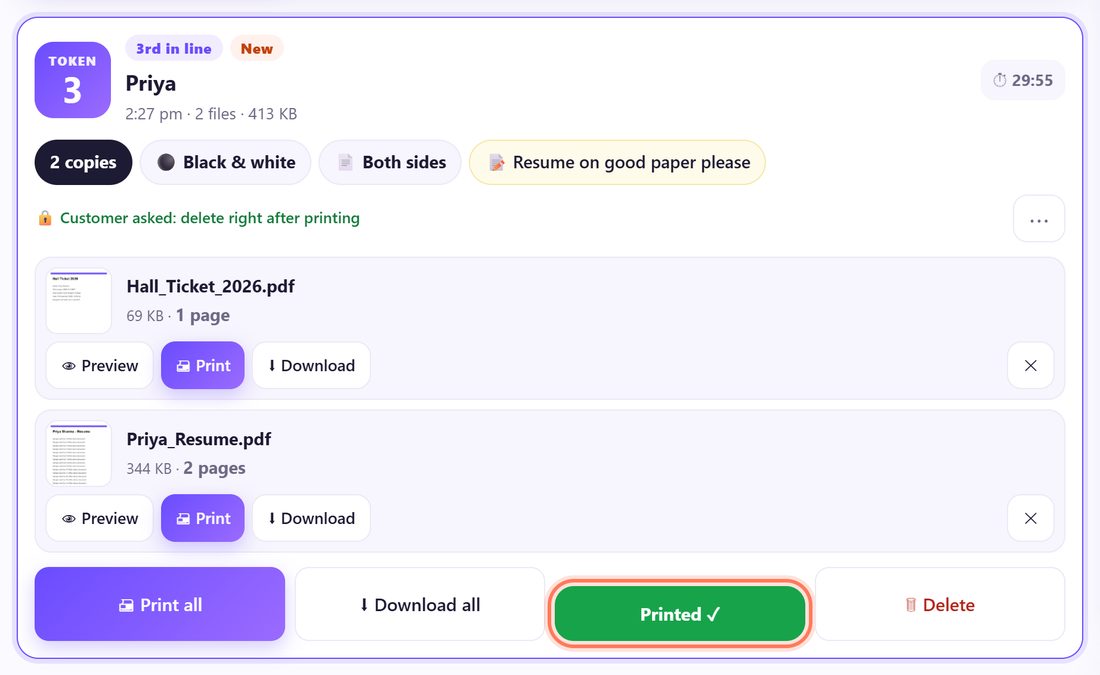
7Print, take payment, click Printed ✓
Click 👁 Preview to check the file, then 🖨 Print or 🖨 Print all. The student’s phone says Printing now….
Take payment at the counter as usual (card, contactless or cash; Print Drop never handles money), hand over the prints and click Printed ✓. The files are deleted from your computer at once and the phone says Printed, collect at the counter.
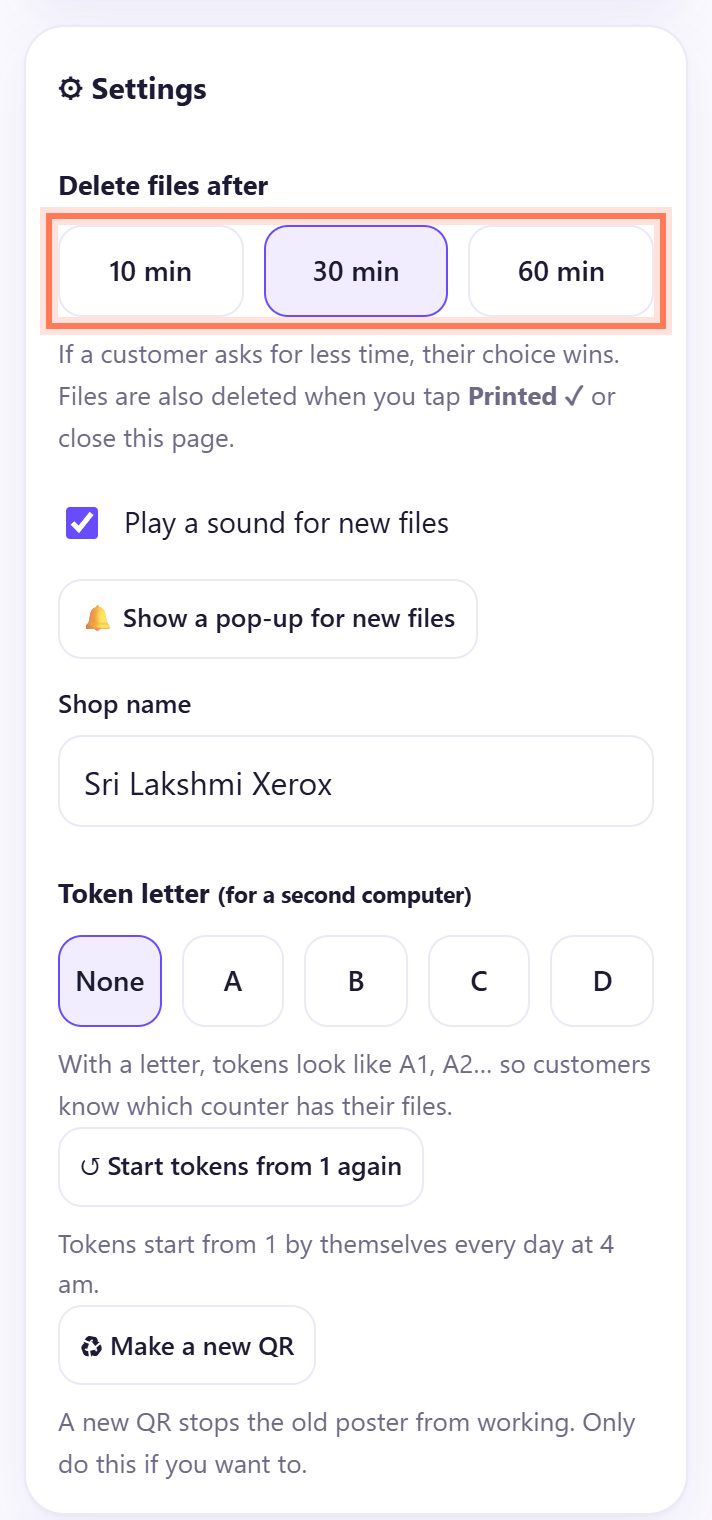
8Choose how long files may stay
In ⚙ Settings, under Delete files after, choose 10 min, 30 min or 60 min. A student can ask for less time (for example After printing), never more. Files also go when you click Printed ✓ or close the page.
Two counters? Give the second computer a Token letter (A, B…) so its numbers read A1, A2.
🎓 Tips for exam and thesis season
- Put a second poster at the end of the queue. Students send while they wait, so by the time they reach you the job is already in your list.
- Write “Send a PDF” on your shop card. Word files arrive fine, but you must open them in Word and the layout of a thesis can shift. A PDF prints exactly as the student saw it.
- Ask for binding in the note. Spiral, thermal or hardcover, number of copies for the examiners, colour pages only: it is all written on the job, not shouted across the counter.
- Big theses with photos can pass 50 MB. Point students to Compress PDF, or ask them to send the chapters as separate files (200 MB together).
- Busy evening? Turn on 🔔 Show a pop-up for new files in Settings so you see new jobs even while you work in another window.
- Second counter for binding: open Print Drop on a second computer with a different token letter and its own poster.
📝 Example: Lucía prints her thesis at Copistería Campus
Copistería Campus is two streets from a university in Madrid. In June, final-year students hand in their TFG (bachelor’s thesis), and the queue used to reach the pavement while the owner, Javier, scrolled through WhatsApp for the right PDF.
This year a Print Drop poster sits on the counter and another at the door. Lucía scans it in the queue, picks TFG_Lucia_Final.pdf (86 pages), sets 3 copies, Both sides, and writes “thermal binding, cover in colour”. Her phone says Token 7 · 4 people ahead of you, so she goes for a coffee. When it says “Printed, collect at the counter”, she pays by contactless card and leaves. Javier never saw her phone number or email, and by closing time none of the day’s theses is left on his computer.
🛠 If something goes wrong
A student’s phone cannot connect on the campus Wi-Fi
Some university and office networks block direct connections between devices. Ask the student to switch to mobile data, or to join your shop Wi-Fi, and tap Send again. Check that your screen still says Ready to receive ✓.
The bar says “Not connected”
Your internet dropped. Print Drop tries again by itself. If it stays red, check the router or cable and click Try again.
It says “Open somewhere else”
The same counter is open in another tab or on another computer. Close it there and click Try again. For a real second counter, use the Token letter setting.
“Is too big. The limit is 50 MB for each file”
Theses full of photos often are. The student can shrink the PDF with Compress PDF or send it in parts.
A Word file has no Print button
Only PDFs and photos open inside Print Drop. Click ⬇ Download, open it in Word and print from there, or ask the student for a PDF so the layout does not move.
I closed the page while students were waiting
Open Print Drop again. A box lists the tokens that need to send again. If a student’s page is still open, their files come back by themselves with the same number.
Someone keeps sending junk
Click ⋯ on the job and choose 🚫 Block this sender. That phone cannot send to you for the rest of the day.
🔒 Privacy in plain words
- Files travel straight from the student’s phone to your open Print Drop tab over an encrypted connection. A public connection service only helps the two browsers find each other; it never sees the files.
- Nothing is uploaded to SpriteSplit or any other server, so there is no online copy to leak or to delete later.
- Files are deleted when you click Printed ✓, after your delete time (10, 30 or 60 minutes) or the student’s shorter choice, or when you close the page.
- You do not collect phone numbers or email addresses. The name is optional (a first name is enough), and Done today keeps only the number, name and notes, never the files, until 4 am.
- This makes data protection (for example under the GDPR in Europe) simpler for your shop, but it is not legal advice: you remain responsible for how you handle the prints themselves.
Questions people ask
Is Print Drop free for copy shops?
Yes. It is free for shops and students, with no limit on jobs, no account and no subscription.
Do students need an app or an account?
No. They scan the QR with the normal phone camera and a web page opens. It works on Android and iPhone, with no sign-up, phone number or email.
Do I collect personal data from students?
Only what they choose to type: an optional first name and a note. No phone number, no email, and the files are never stored online. They stay in your open browser tab until they are deleted.
Does Print Drop take payments?
No. Students pay you at the counter as usual, by card, contactless or cash. Print Drop only moves the files and keeps the queue.
Which files can students send?
PDFs, photos, Word and Excel files: up to 20 files at a time, 50 MB each and 200 MB together. PDFs and photos open with a preview and print in one click.
Can I use it on two computers, one for printing and one for binding?
Yes. Open it on each computer and give the second one a Token letter, so its numbers read A1, A2 and students know which counter to go to.
Related guides