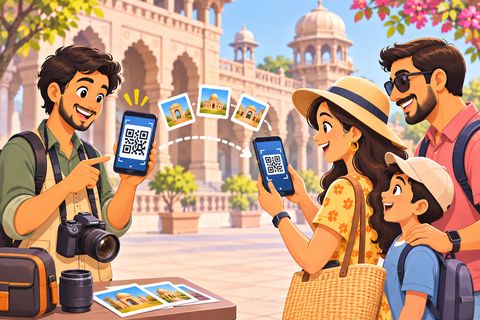
How to send photos from iPhone to Android (no app)
AirDrop only works between Apple devices, and WhatsApp squashes your photos and videos. With DashDrop both phones open one page in the browser. One shows a QR, the other scans it, and photos, videos and files go straight across in full quality, both ways. No app, no sign-in, and nothing is uploaded to a server.
Steps
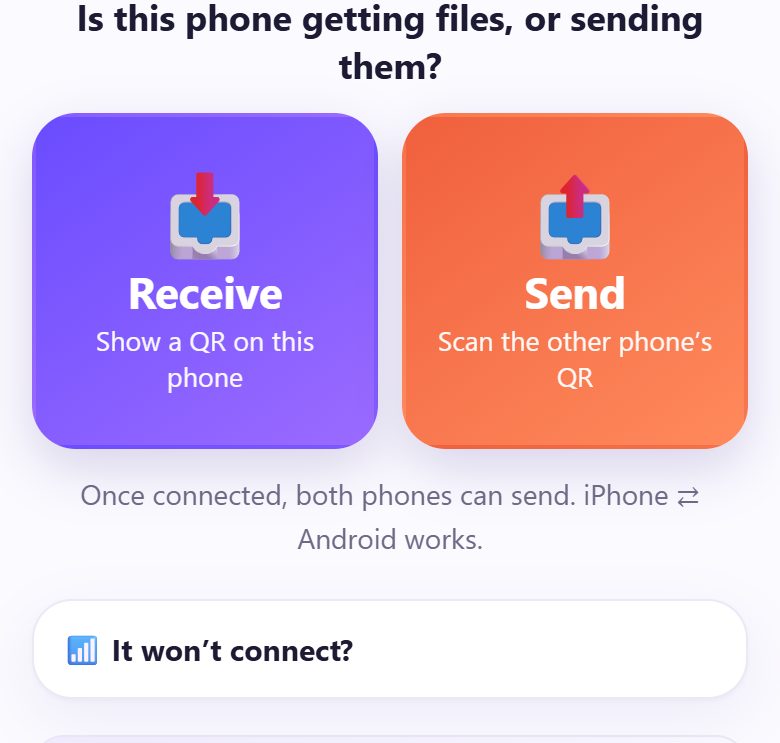
1Open spritesplit.com/dash on both phones
On both phones, open the browser you already use (Safari on the iPhone, Chrome on Android) and type spritesplit.com/dash. You see two big buttons: 📥 Receive and 📤 Send.
The 🌐 Read in buttons above the tool switch the page to తెలుగు or हिंदी.
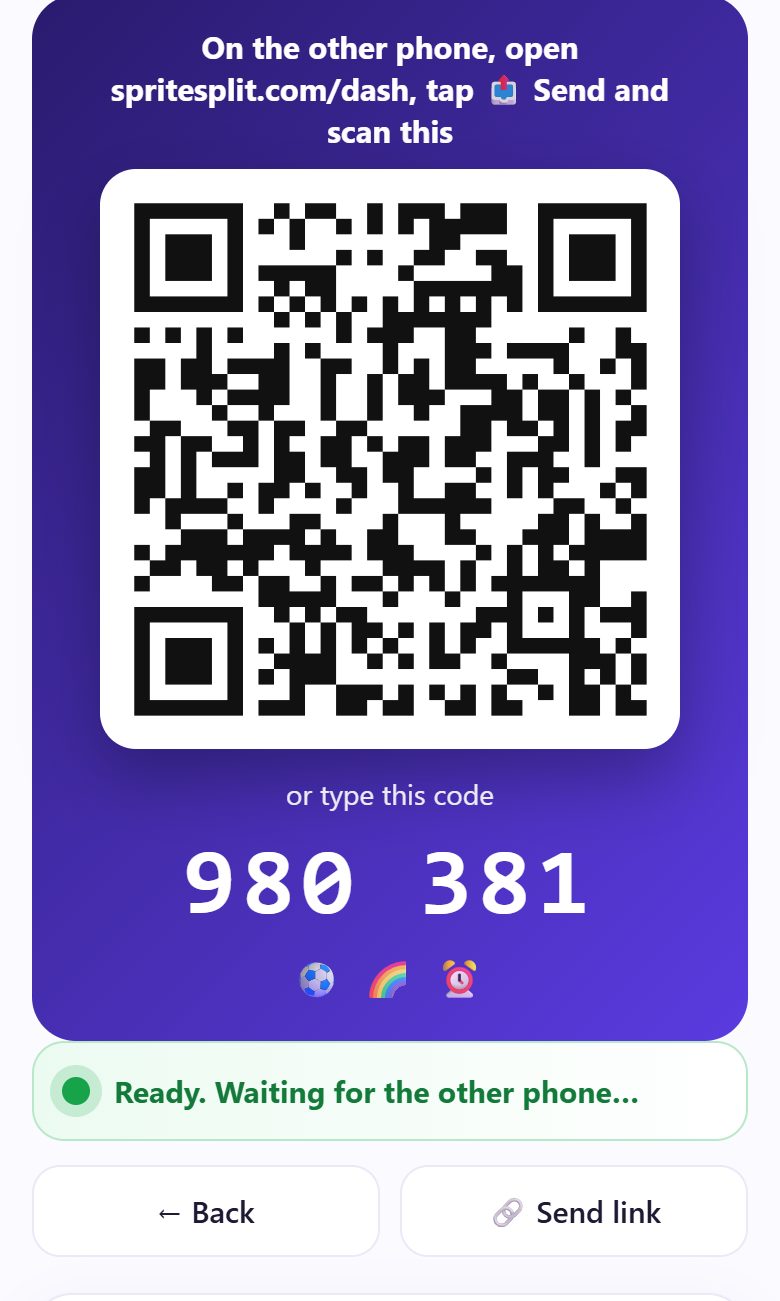
2On the phone that gets the photos, tap 📥 Receive
A big QR code and a 6-digit code appear, and the line under them turns green: Ready. Waiting for the other phone…
Keep this screen open. It does not matter which phone receives: after connecting, both can send.
💡 Tip: The friend is far away? Tap 🔗 Send link and send it on WhatsApp. Opening the link connects their phone.
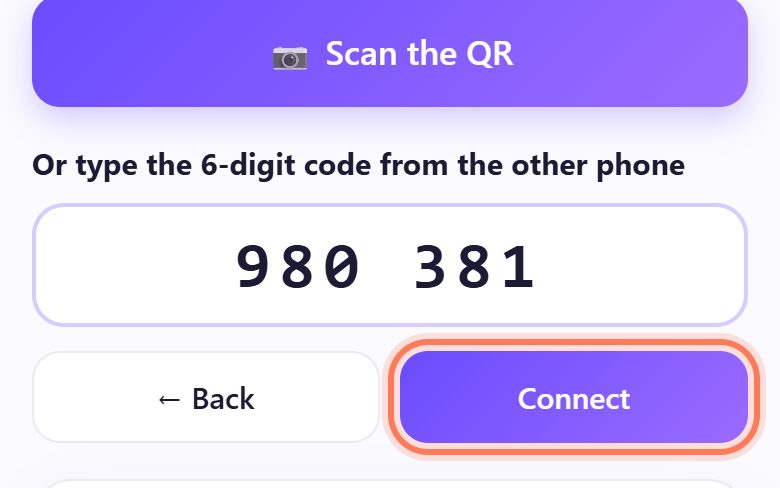
3On the other phone, tap 📤 Send and scan the QR
Tap 📷 Scan the QR and point the camera at the first phone, or type the 6-digit code in the box. With 6 digits it connects by itself.
You can also scan the QR with the normal camera app: the page opens and connects.
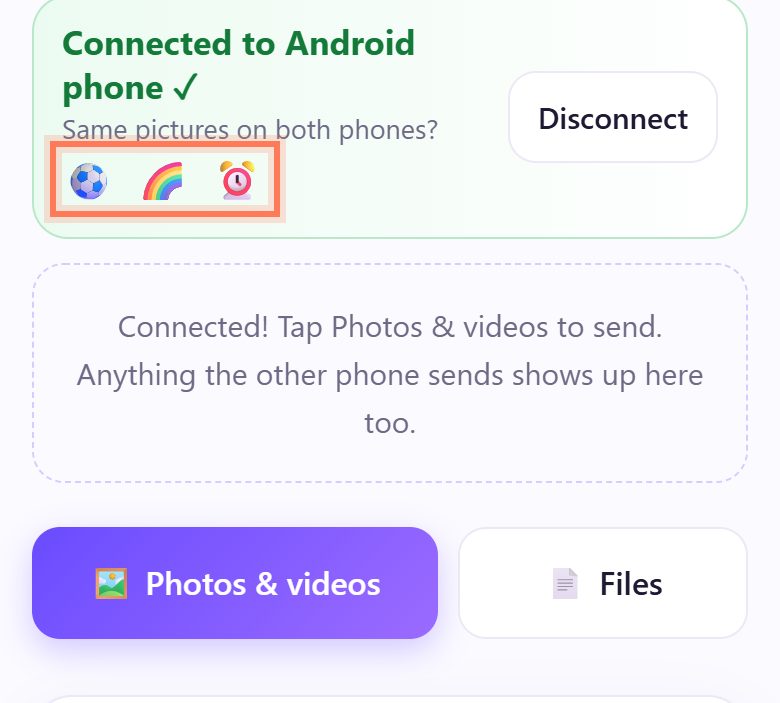
4Check both phones show the same pictures
Both phones now say Connected to the other phone, with three small pictures, like 🐘 🌻 🚲. If both phones show the same pictures, you are connected to the right phone.
💡 Tip: Different pictures? Tap Disconnect and scan again. Someone else may have typed the code.
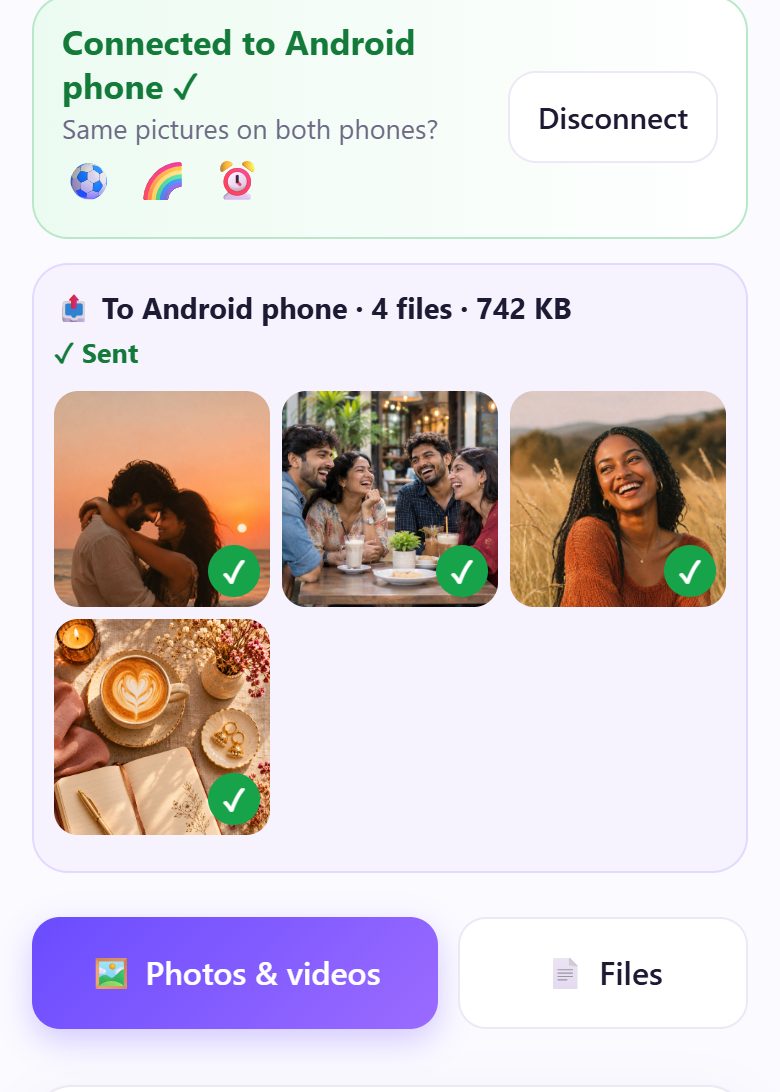
5Tap 🖼 Photos & videos and pick
Tap 🖼 Photos & videos to pick from the gallery, or 📄 Files for PDFs and documents. Pick as many as you like.
You see a progress bar, then ✓ Sent. Big videos are fine (1 to 2 GB); keep both screens on until it says Sent.
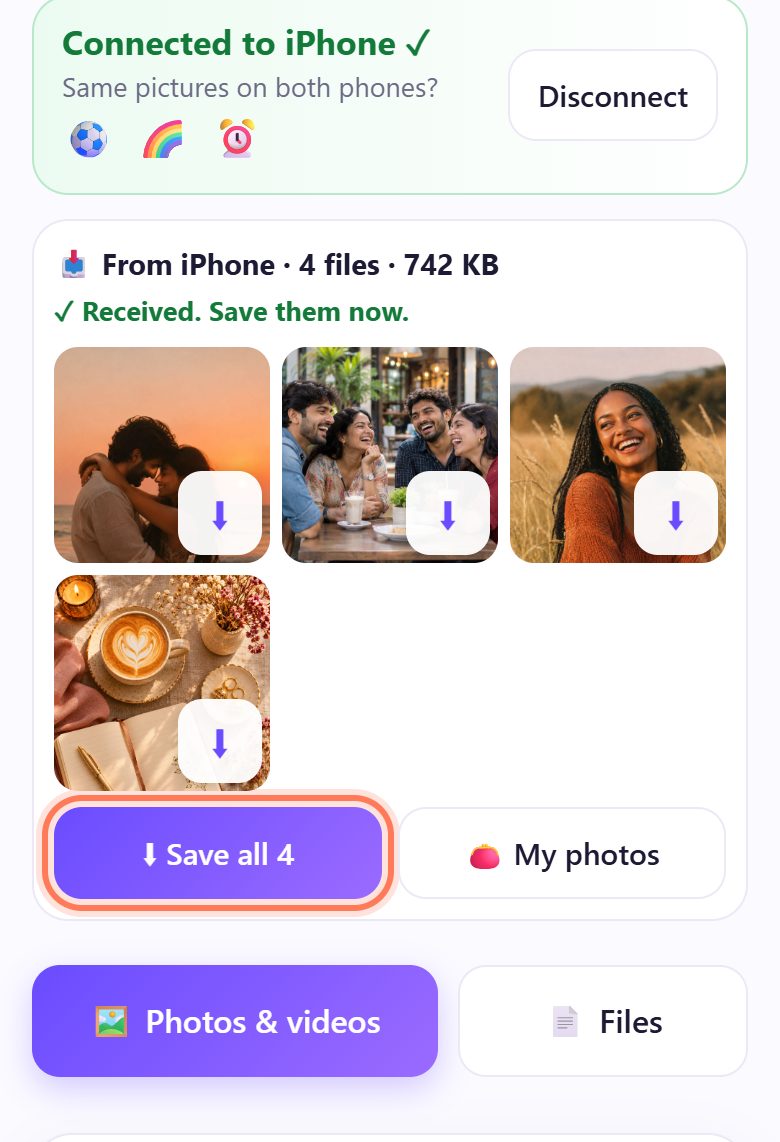
6On the phone that got them, tap ⬇ Save all
The photos appear with small previews and ✓ Received. Save them now. Tap ⬇ Save all, or the ⬇ on one photo.
On Android they go to Downloads and show up in the gallery. Save before you close the page: it keeps them only while it is open.
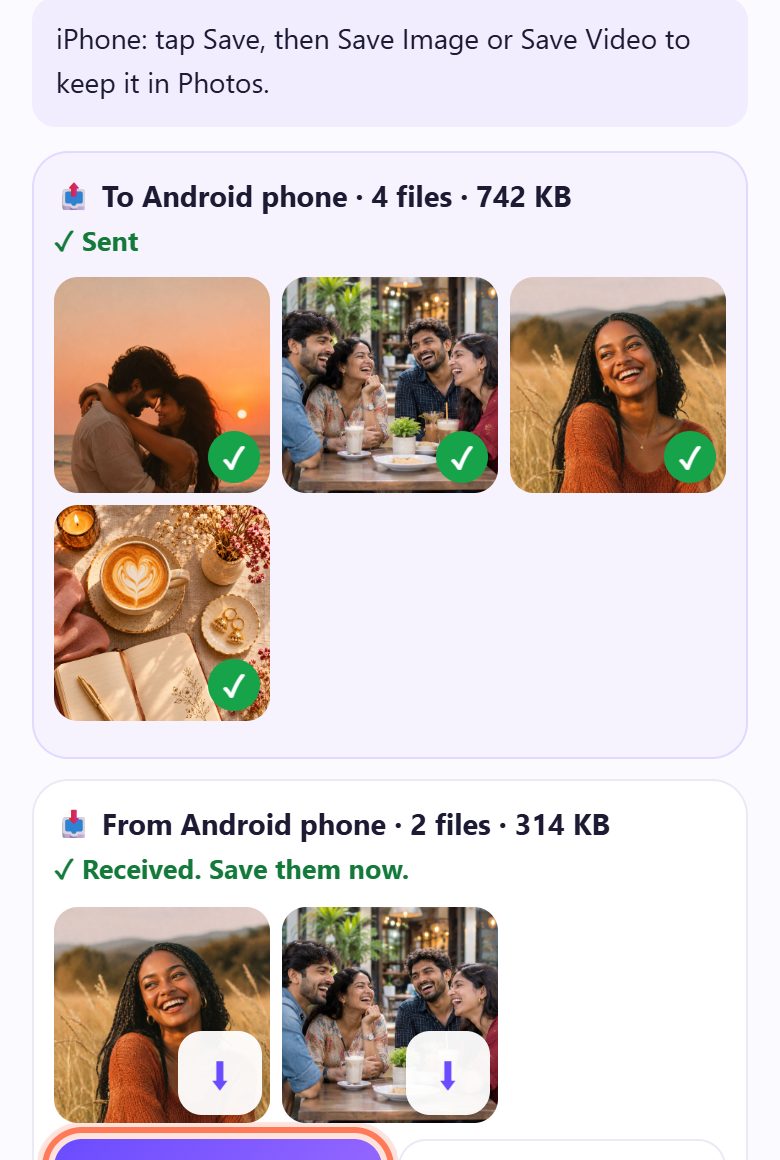
7Send the other way too (iPhone: Save Image)
On the same connection, the other phone taps 🖼 Photos & videos too. Files go both ways, as many times as you like.
On an iPhone, tapping Save opens the share sheet: tap Save Image or Save Video to put them in Photos, or Save to Files for documents.
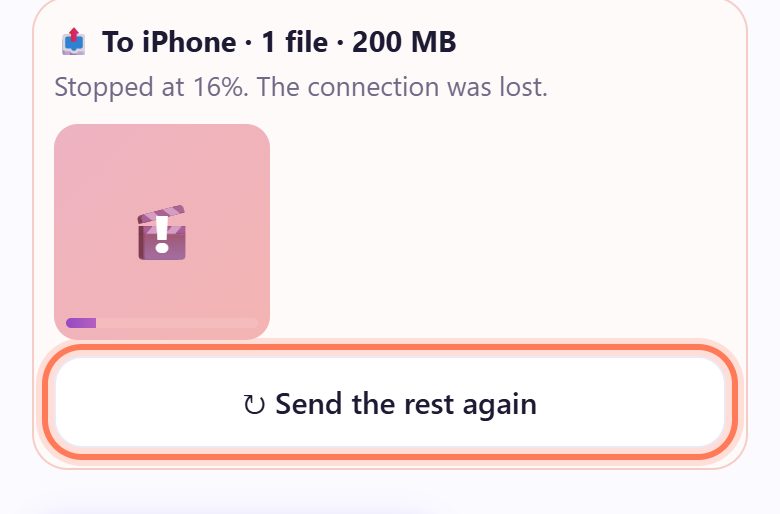
8Connection dropped? It comes back by itself
If a screen turns off or a page is closed, you see Connection lost. Open the page again: the phones reconnect by themselves, with no scanning.
Files that already arrived stay. For a batch that stopped half way, tap ↻ Send the rest again.
💡 What comes next: Back from a trip? Share everyone’s photos in full quality, not squashed.
Big videos without WhatsApp
- The original video goes across, so it keeps its full resolution and sound. WhatsApp shrinks it.
- On the same Wi-Fi, or with one phone’s hotspot on, a 1 GB video takes about a minute. On mobile data it works too, just slower.
- On Android the video is written straight to the phone’s storage as it arrives, so even 2 GB does not fill the phone’s memory.
- An iPhone with an older iOS can take up to 500 MB at a time. Send bigger videos from the iPhone, or in a few parts.
📝 Example: Meena’s Goa photos, from her iPhone to her sister’s Android
Meena has an iPhone, her sister Lakshmi a Samsung. After a weekend in Goa, Lakshmi wants the beach photos and a 900 MB video of the sunset cruise. On WhatsApp the video would not even go, and the photos would look blurry on Lakshmi’s TV.
Both open spritesplit.com/dash. Lakshmi taps 📥 Receive, Meena taps 📤 Send and scans the QR. Both phones show 🐬 🌴 🎈. Meena picks 46 photos and the video: ✓ Sent in under two minutes on the hotel Wi-Fi. Lakshmi taps ⬇ Save all.
Then Lakshmi sends back her own 12 photos. Meena taps Save, then Save Image, and they are in her Photos.
🛠 If something goes wrong
“No phone is waiting with this code”
The code is wrong, or the other phone left the Receive screen. Check the 6 digits on the other phone, keep its page open, and type them again.
“Couldn’t connect on this network”
Some office, college and mobile networks block direct connections (about 1 in 10). Turn on mobile hotspot on one phone, join it from the other, and tap Try again.
“That phone is connected to someone else”
The receiving phone is already connected to another phone. Ask them to tap Disconnect, then tap Try again.
“⚠ Not the right phone”
The QR check failed, so the phone refused to connect. Don’t send anything. Scan the QR on your friend’s screen again.
“Too big for the other phone”
The other phone does not have space for that much at once (an older iPhone takes 500 MB at a time). Send fewer files, or free up space first.
The camera does not open to scan
Allow the camera when the browser asks, or simply type the 6-digit code shown on the other phone.
“Stopped at 40%. The connection was lost.”
A screen turned off or the page was closed. Open the page again on both phones; they reconnect by themselves. Then tap ↻ Send the rest again.
🔒 Privacy in plain words
- Your files go straight from one phone to the other over a direct, encrypted connection. They are never uploaded to SpriteSplit or any other server.
- A public connection service only helps the two phones find each other. It never sees your files.
- The three pictures prove both phones are talking to each other, not to someone else.
- Received files stay only in the open page until you save them. Close it and they are gone from it.
- No account, no email, no phone number.
Questions people ask
Do I need an app like ShareIt or Xender?
No. Both phones only open spritesplit.com/dash in the browser they already have. Nothing to install, no ads, no permissions.
Does it work from Android to iPhone too?
Yes. Any two phones: iPhone to Android, Android to iPhone, Android to Android or iPhone to iPhone. Once connected, both can send.
Is the quality reduced like on WhatsApp?
No. The original file goes across byte for byte, so photos and videos keep their full resolution.
Do both phones need the same Wi-Fi?
No. Any internet works, even mobile data. The same Wi-Fi or one phone’s hotspot is much faster for big videos.
Is it free?
Yes. Free, no sign-up, no limit on files and no watermark.
📚 Share and send
Related guides