How to bill from two counters at once in Counter Billing
When the queue gets long, one counter is not enough: one person takes table orders, another handles takeaway or the online-orders phone. Counter Billing lets a second device bill at the same time. Your first counter becomes the main counter: it keeps the menu and prices and sees every bill. The second counter gets its own bill numbers (for example O26-27/0001), so two bills never get the same number, even when the Wi-Fi drops.
The two counters talk to each other directly over an encrypted link, like the kitchen screen. Nothing goes through SpriteSplit.
Steps
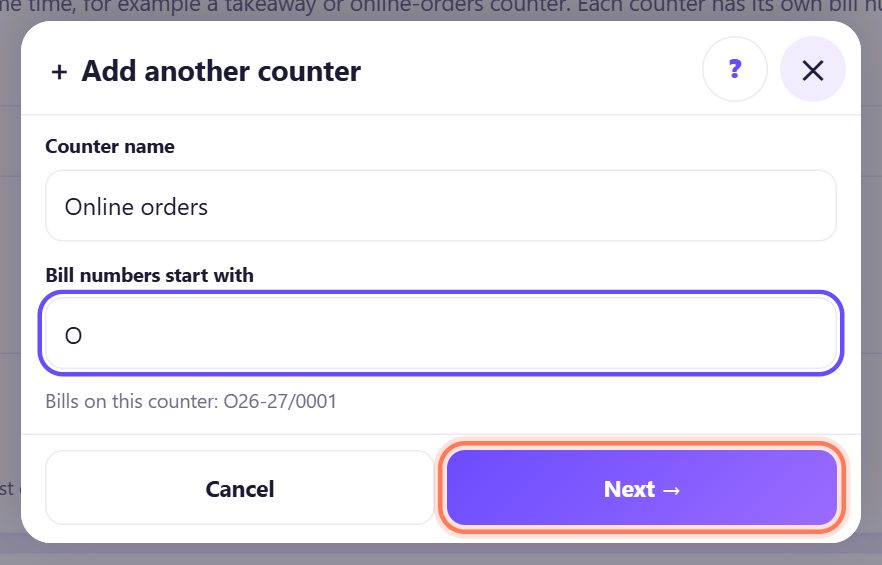
1On the main counter: Add another counter
Open ⚙️ Settings on your main counter and find 🖥 Counters. Tap + Add another counter. Give it a Counter name your staff will understand (Online orders, Takeaway, Counter 2) and choose what its Bill numbers start with: one to three letters or digits, like O. The preview shows its first bill number. Tap Next →.
💡 Tip: Each counter needs its own start letters. The app refuses letters already used in the shop, and a start that would look like another counter’s numbers.
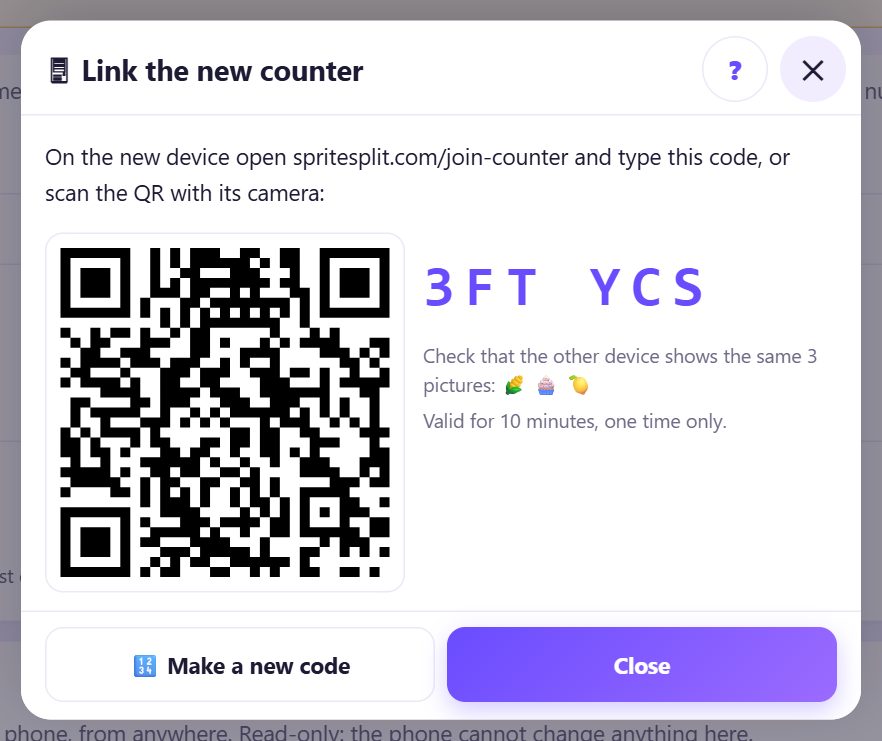
2The code, the QR and 3 pictures
The main counter shows a QR, a 6-character code and 3 pictures. The code works once and only for 10 minutes; after 5 wrong tries the counter makes a new one by itself.
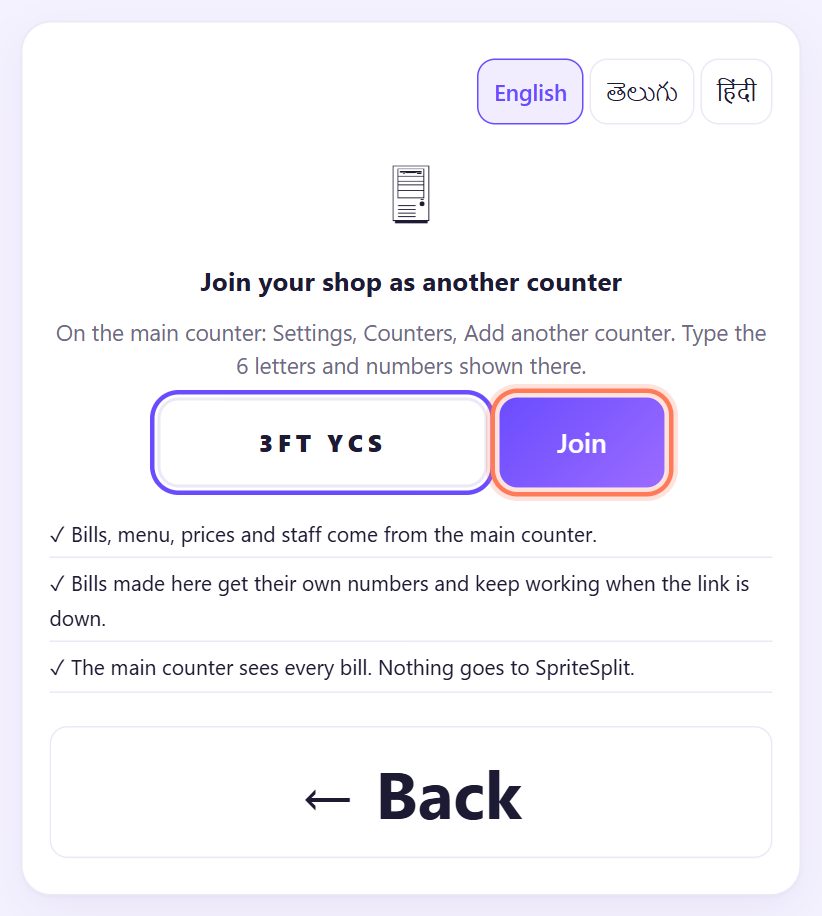
3On the new device: open the join page and type the code
On the second phone, tablet or PC open spritesplit.com/join-counter (or scan the QR with its camera). Type the 6 letters and numbers and tap Join.
Use a device that has no bills of its own yet: a counter that joins starts empty, and its menu, prices and staff come from the main counter.
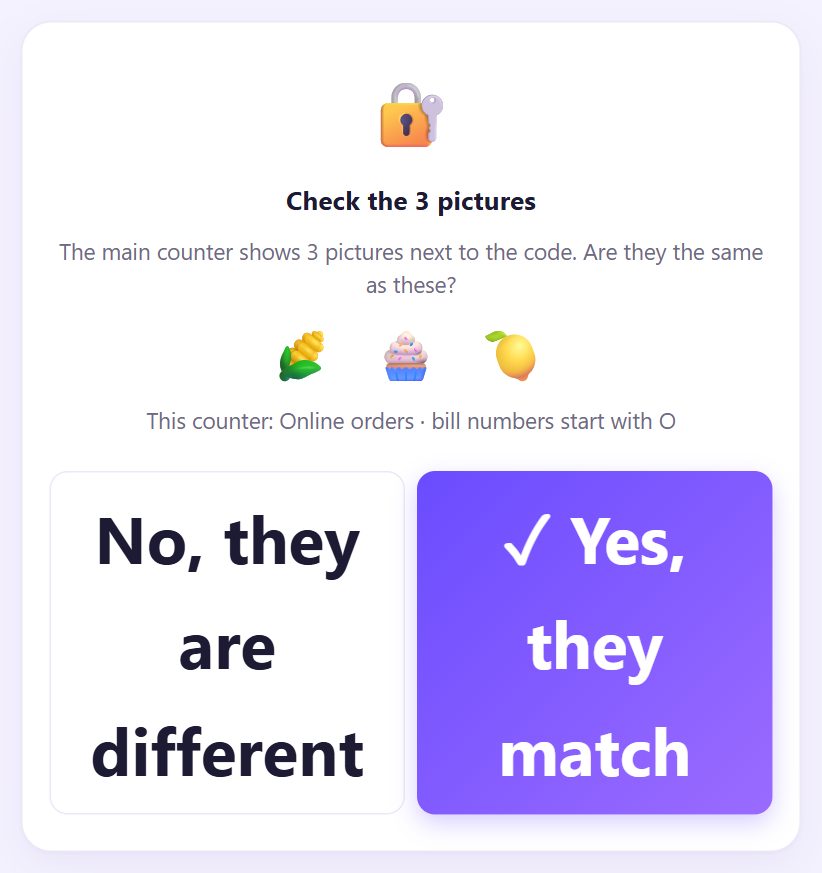
4Check the 3 pictures
The new device shows 3 pictures. Look at the main counter: if they are the same, tap ✓ Yes, they match. If they are different, tap No and make a new code: the device is talking to someone else.
5Bill on the second counter with its own numbers
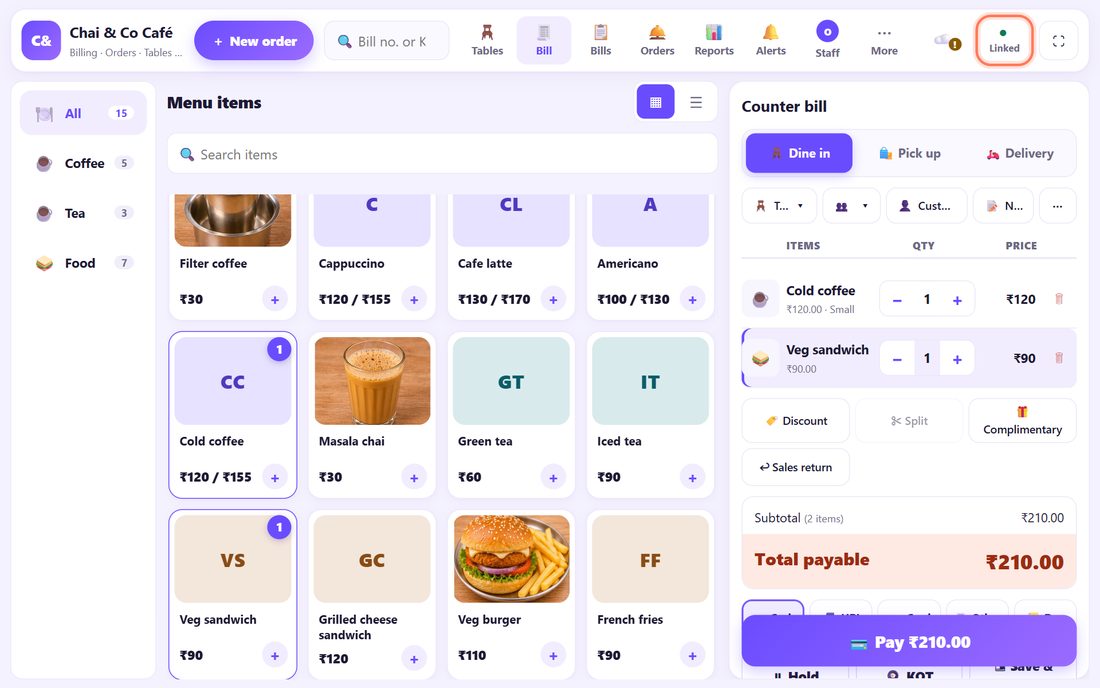
The new counter opens with the same menu, prices, tables and staff. The top bar shows ● Linked. Bill as usual: its bills read O26-27/0001, O26-27/0002 and so on, while the main counter carries on with its own numbers.
Every bill goes to the main counter at once. Menu and price changes are made on the main counter and come here by themselves.

6When the Wi-Fi drops, billing goes on
If the link is down the badge turns to ○ Offline · will sync 3 bills. Keep billing: the numbers are this counter’s own, so nothing can clash. When the link is back, the bills go to the main counter by themselves, each one only once.
7A table order is changed on one counter at a time
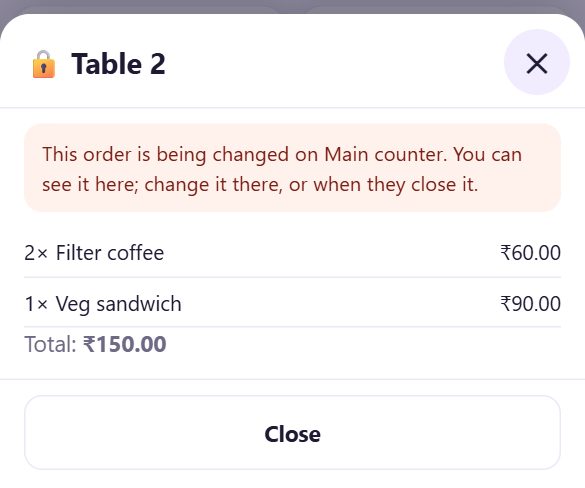
Running orders and tables are shared. While one counter has an order open, the others see it read-only: This order is being changed on Main counter. When that counter closes the order, any counter can open it.
💡 Tip: If a counter that had an order open goes offline for more than 2 minutes, the main counter can tap Take over.
8KOTs from both counters reach the kitchen
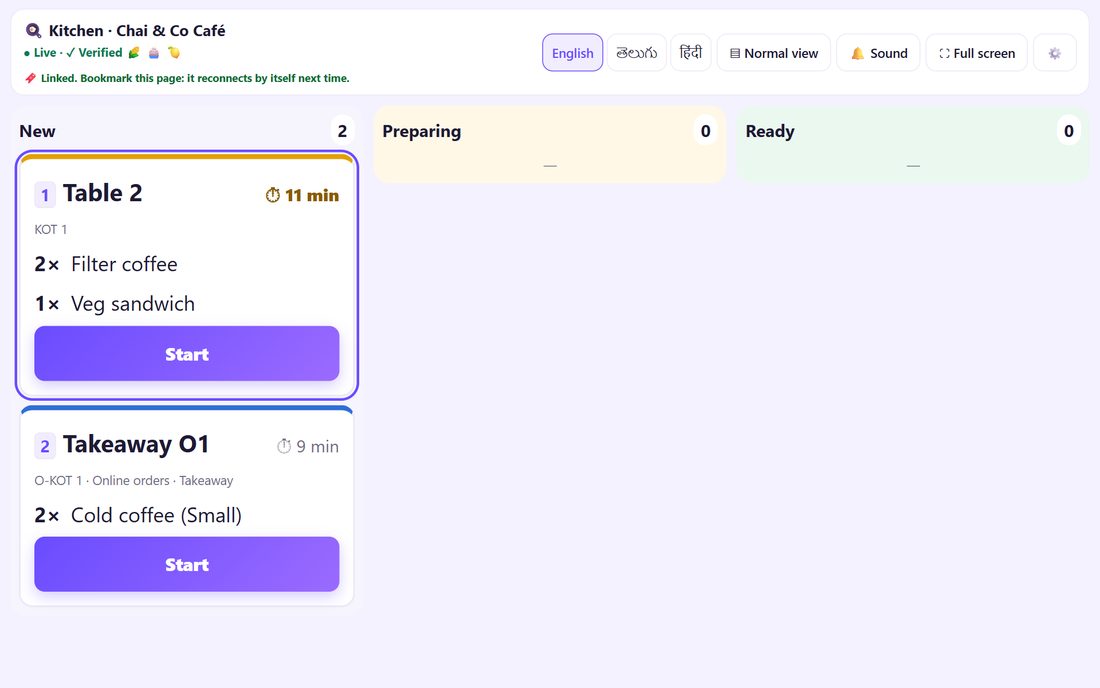
A KOT from the second counter goes to the main counter, which puts it on every kitchen screen. It reads O-KOT 1 with the counter’s name. When the kitchen taps Ready, the counter that sent it gets the 🔔.
A bar or dessert screen can show only its own categories: kitchen screen ⚙️, Show on this screen, Only these.
9Reports per counter, and one day close each
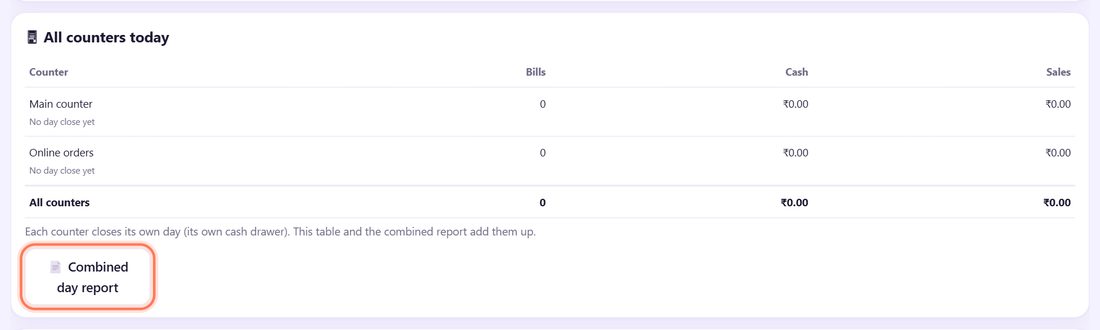
Each counter closes its own day for its own cash drawer. On the main counter Close day also shows 🖥 All counters today and a Combined day report. In Reports choose All counters or one counter: the counters always add up to the total.
💡 What comes next: Have helpers at the counter? Give each one a PIN and decide what they may do.
📝 Example: Meena’s online-orders desk
Meena’s café gets many phone and app orders at lunch. She puts an old tablet next to the phone and links it as Online orders with the letter O. Ravi bills the tables on the main PC (D26-27/…); Sita bills the online orders on the tablet (O26-27/…). Both send KOTs to the one kitchen screen.
At 2 pm the Wi-Fi stops for ten minutes. Sita keeps billing; her badge says Offline · will sync 6 bills. When it comes back the six bills reach the main PC. At night each closes their own drawer, and Meena reads the combined report.
🛠 If something goes wrong
“No main counter is waiting with this code”
The code is old or mistyped. On the main counter tap Make a new code and type it within 10 minutes.
“This device already has its own bills”
A counter that joins must start empty. Use another device, or download a backup of this one and erase it first.
The badge stays Offline
Both devices need the internet once to find each other; the same Wi-Fi is best. Keep billing: the bills go across when the link is back.
I cannot void a bill of the other counter on the main counter
That is on purpose: a bill is voided or refunded on the counter that made it, so two devices never change one bill.
The second device was lost or broken
On the main counter: Counters, New device. The new device gets new start letters (a series is never used again on another device). Bills already sent stay.
Another device says “Another device is using this counter”
Only one device can be a counter. Pair that device as a new counter from the main counter.
🔒 Privacy in plain words
- The counters link directly over an encrypted connection. Bills, menu and staff never go to SpriteSplit.
- Staff PINs travel only as salted codes over this encrypted link, never in backup files.
- The main counter keeps a copy of every bill from every counter; back it up as usual (part 8).
Questions people ask
Can two counters give the same bill number?
No. Each counter has its own series (D…, O…), even offline. The app refuses start letters that could look alike.
Is the bill number still GST-compliant?
Yes. Each series has at most 16 letters, digits, / and -, and starts again every 1 April.
How many counters can I add?
Up to 10 linked counters on one main counter. Most shops need one or two.
Can the second counter change prices?
No. The menu, prices, taxes and staff are changed on the main counter only.
Does it work without internet?
Each counter keeps billing without internet. They need a connection to send bills across; the same Wi-Fi is best.
📚 Counter Billing step by step
All 21 parts
- 1Set up your counter
- 2Make a bill
- 3GST invoice and bill types
- 4Print, WhatsApp and QR receipts
- 5Menu: items, sizes, photos
- 6Close the day, count cash
- 7Reports & GST summary
- 8Backup, restore, PIN lock
- 9Café mode and tables
- 10Connect a kitchen screen
- 11Send KOTs to the kitchen
- 12Add a second counter
- 13Staff, roles and PINs
- 14Shifts and cash
- 15Refunds and credit notes
- 16Udhaar (credit) and dues
- 17Stock and recipes
- 18Owner dashboard
- 19Owner view on your phone
- 20Pharmacy set-up and medicines
- 21Daily pharmacy billing