How to connect a kitchen screen: phone or tablet by QR, or a second PC by code
Shouting orders into the kitchen, or walking paper KOTs back and forth, is where orders get lost. A kitchen screen shows each new kitchen ticket (KOT) the moment you send it, and the cook taps Ready so the counter knows. Any phone, tablet, laptop or TV with a browser can be the kitchen screen. No app, no account.
There are two ways to connect: scan a QR (a phone or tablet with a camera) or type a 6-letter code at spritesplit.com/kitchen (a kitchen PC or TV without a camera). Both are shown here, step by step, on both screens.
Steps
1Counter: open the Kitchen tab
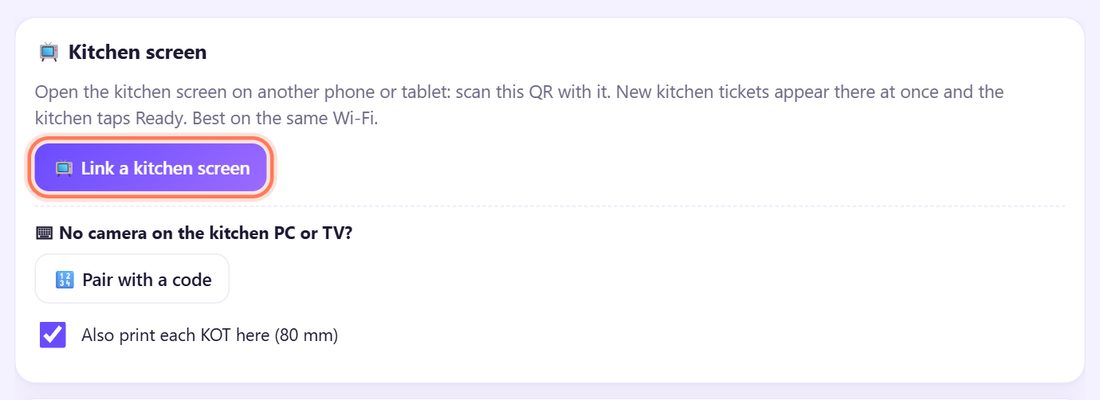
On the counter, open 🍳 Kitchen (in the full-screen counter it is under ⋯ More). The 📺 Kitchen screen box has two buttons: 📺 Link a kitchen screen (QR, for a phone or tablet) and, under No camera on the kitchen PC or TV?, 🔢 Pair with a code.
Kitchen phone or tablet? Tap 📺 Link a kitchen screen. Kitchen PC or TV? Jump to step 5.
2Counter: a QR and 3 pictures appear
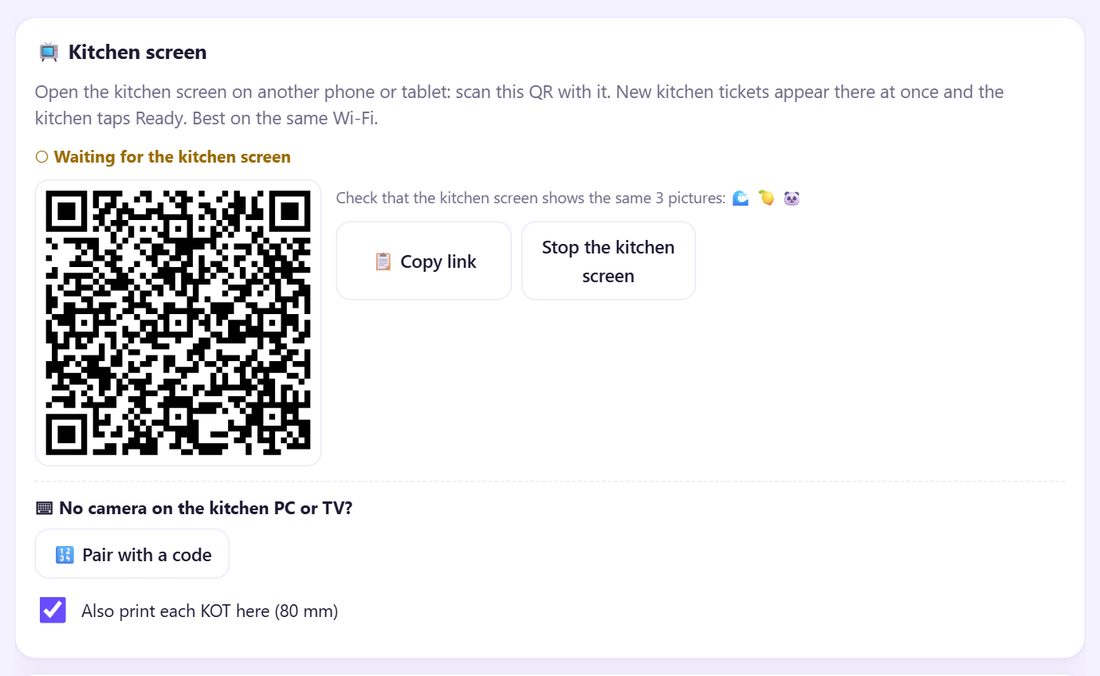
A QR appears with ○ Waiting for the kitchen screen, and the line Check that the kitchen screen shows the same 3 pictures: followed by three small pictures. Remember them: they prove the kitchen joined your counter.
No camera on the kitchen phone? 📋 Copy link and send the link to that phone yourself.
3Kitchen phone: scan the QR
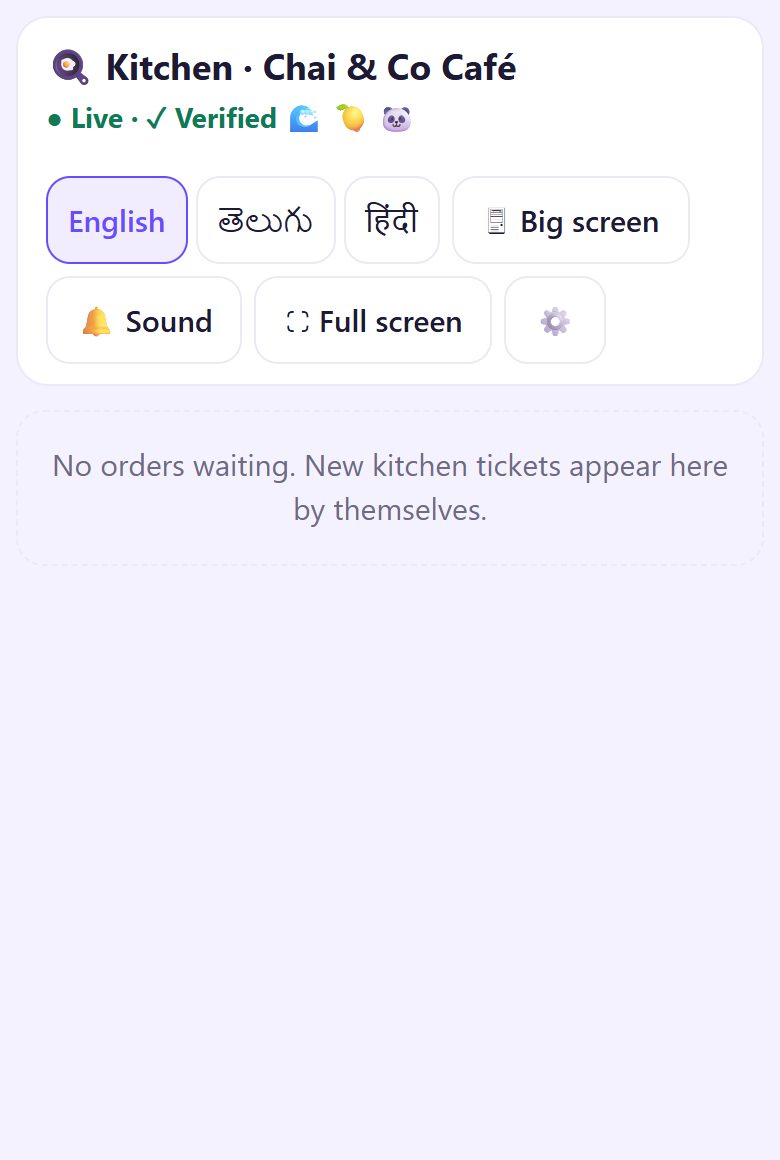
On the kitchen phone or tablet, open the camera, point it at the QR on the counter and tap the link. The kitchen screen opens and says ● Live · ✓ Verified with three pictures.
Then it waits: No orders waiting. New kitchen tickets appear here by themselves. Tap 🔔 Sound once so new tickets ring.
4Both screens: check the 3 pictures
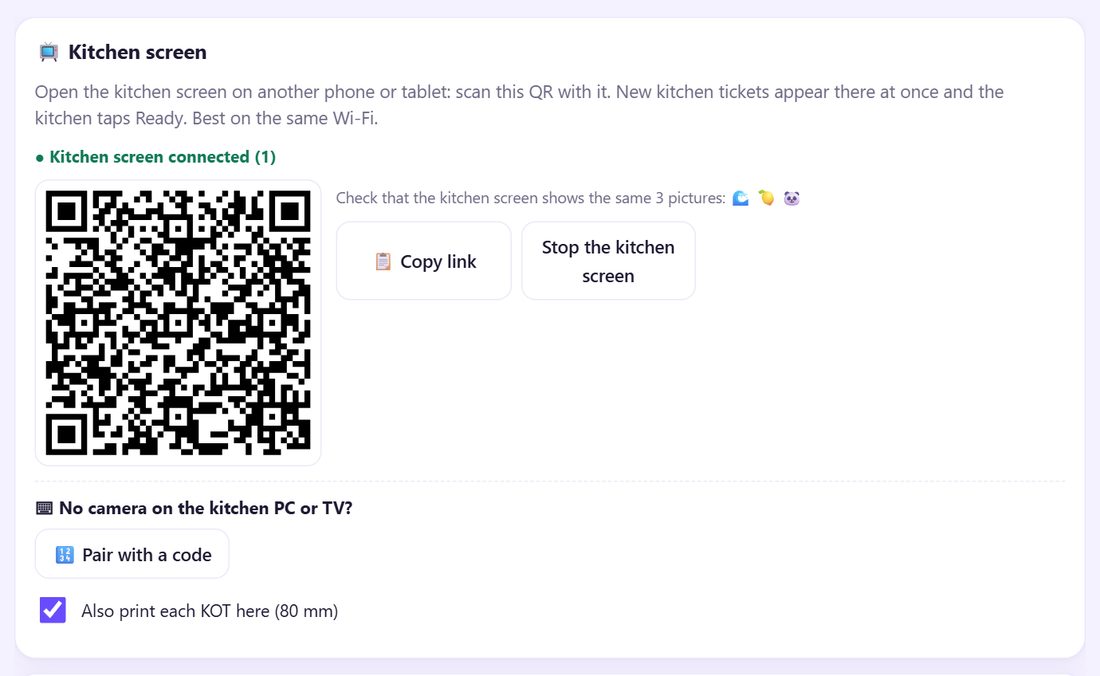
Look at both screens. The counter now says ● Kitchen screen connected (1). The three pictures on the kitchen screen must be the same three, in the same order, as on the counter.
Same pictures: you are done. Different pictures: that screen is linked to another counter; scan your QR again.
💡 Tip: Bookmark the kitchen page on that phone (browser menu ⋮ › ☆) or add it to the home screen. Next time, open the bookmark: it reconnects by itself, no QR.
5No camera? Counter: Pair with a code
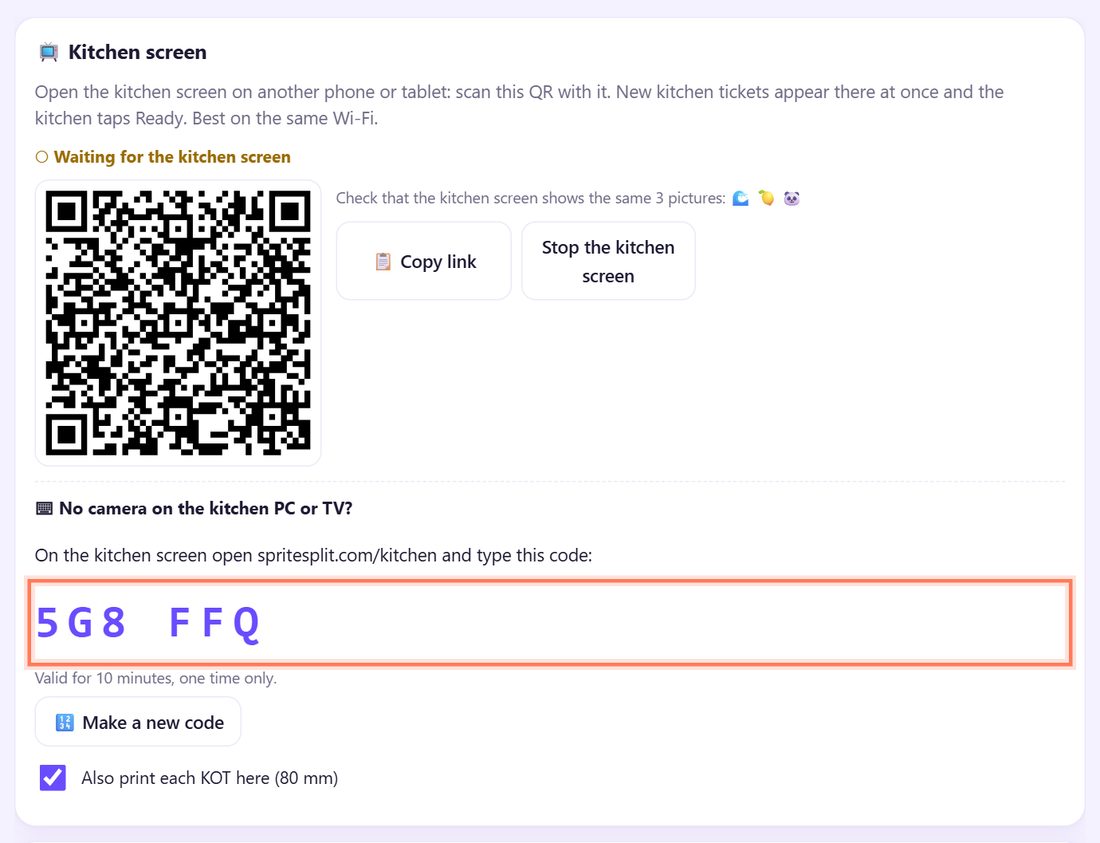
For a kitchen PC, laptop or TV, tap 🔢 Pair with a code on the counter. It shows On the kitchen screen open spritesplit.com/kitchen and type this code: and six letters and numbers (for example 9JJ BYZ).
The code is Valid for 10 minutes, one time only. If it runs out, tap 🔢 Make a new code.
6Kitchen PC: open spritesplit.com/kitchen and type the code
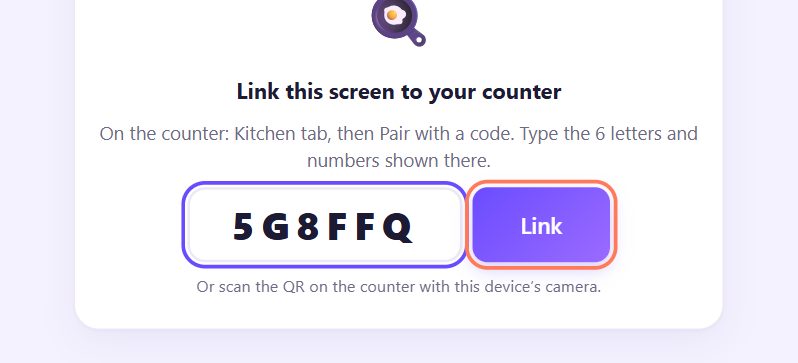
On the kitchen PC, open the browser and type spritesplit.com/kitchen. It shows Link this screen to your counter. Type the 6 letters and numbers from the counter (capital or small letters, with or without the space) and click Link.
7Kitchen PC: Linked. Bookmark this page
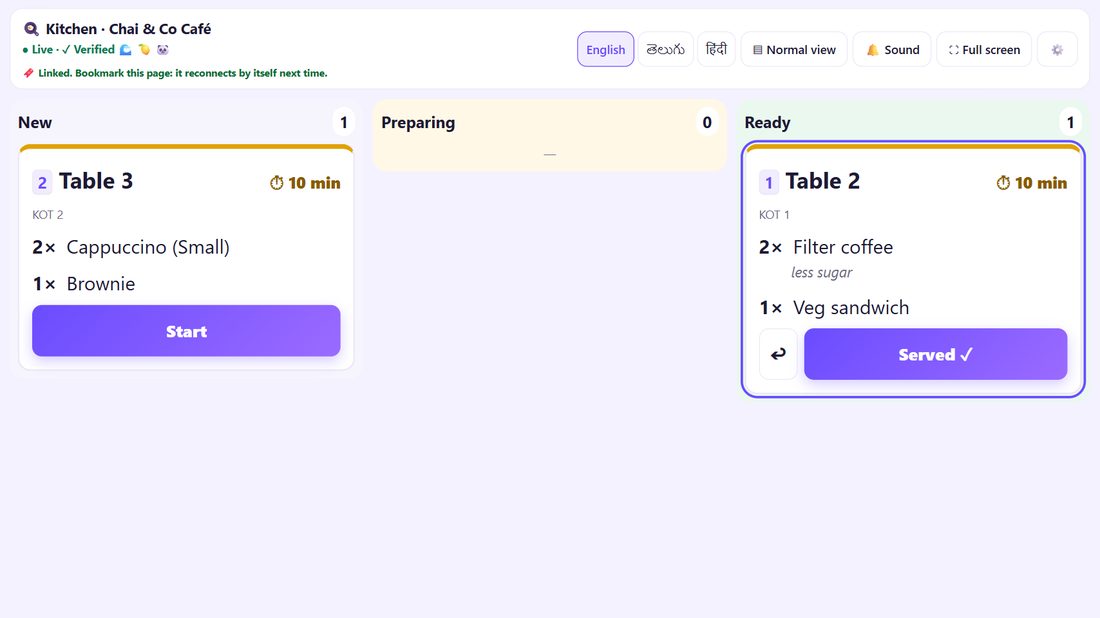
The screen turns into the kitchen view: ● Live · ✓ Verified with the same 3 pictures (check them) and 🔖 Linked. Bookmark this page: it reconnects by itself next time. Press Ctrl + D to bookmark it.
On a wide screen it opens in big-screen mode with three columns: New, Preparing and Ready. ⛶ Full screen hides the browser bars.
8Test it: send one KOT
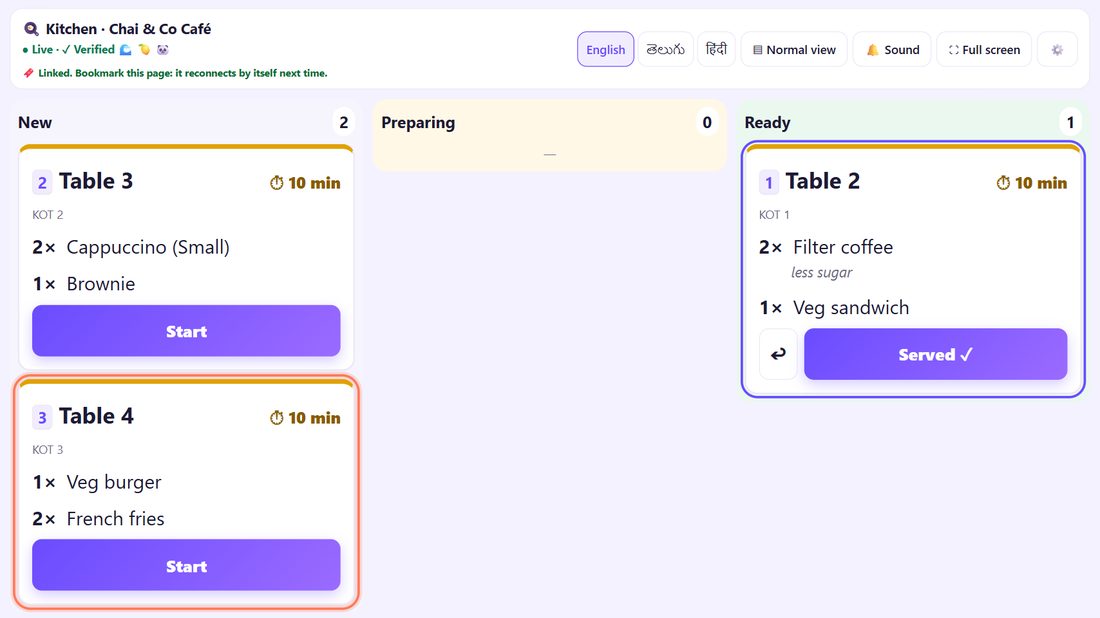
On the counter, open a table, add an item and tap 🍳 KOT. Within a second the ticket appears under New on the kitchen screen, with the table, KOT number, items and notes, and no prices.
Part 11 explains Start, Ready and Served, add-on and cancel tickets.
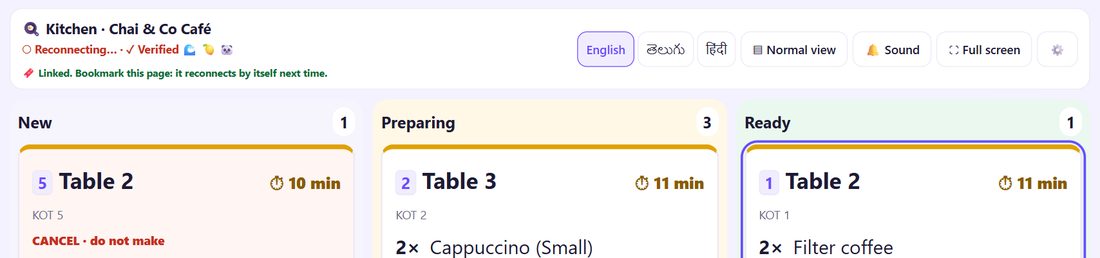
9If the link drops, it comes back by itself
If the counter page is closed or the internet drops, the kitchen shows ○ Reconnecting… and keeps its tickets. The counter says ○ Kitchen link offline: KOTs still print here, so you can print KOTs on paper meanwhile. When both are back online, they join again by themselves.
💡 What comes next: The kitchen screen is linked. Now use KOTs: send, add more, cancel items and mark Ready.
☀️ Daily routine (30 seconds)
- Open the counter (spritesplit.com/counter-billing/app/ or your home-screen icon).
- Open the kitchen bookmark on the kitchen phone, tablet or PC.
- Check “● Live” on the kitchen screen and “Kitchen screen connected” on the counter, and that the 3 pictures match.
That is all. You only scan a QR or type a code again if you clear the browser, use a new device or tap Unlink this screen.
📱 Which device for the kitchen?
- An old Android phone or tablet on a stand: scan the QR. Keep it charging.
- A PC, laptop or smart TV browser: pair with the code at spritesplit.com/kitchen. Big-screen mode shows three columns that cooks can read from a distance.
- Two kitchens (for example juice bar and grill): link one screen for each; every screen gets every ticket.
📝 Example: Chai & Co Café links its kitchen
Ravi’s cook, Salim, has an old phone on a stand by the stove, and the bakery corner has a small laptop. On Monday morning Ravi opens Kitchen on the counter tablet, taps Link a kitchen screen and Salim scans the QR. Both screens show a cupcake, a doughnut and a penguin. Done.
For the laptop, Ravi taps Pair with a code; the counter shows 9JJ BYZ. On the laptop he opens spritesplit.com/kitchen, types the code, clicks Link and presses Ctrl + D. On Tuesday both kitchen screens are back with one tap on their bookmarks, and the counter says Kitchen screen connected (2).
🛠 If something goes wrong
“This code has expired. Make a new one on the counter.”
Codes work for 10 minutes and only once. On the counter tap 🔢 Make a new code and type the new one.
“Too many wrong codes. The counter made a new code.”
After 5 wrong tries the old code stops working. Read the new code on the counter and type it slowly. The code never has O/0 or I/1 mix-ups: it skips those letters.
“No counter is waiting with this code”
The counter is not showing that code right now (it closed the Kitchen tab, or the code was already used). Tap 🔢 Pair with a code again on the counter.
The 3 pictures do not match, or it says “This QR is not from your counter.”
That kitchen screen is joined to a different counter, or the QR was copied from somewhere else. On the kitchen screen open ⚙️ › Unlink this screen, then scan the QR on your counter again.
The kitchen says “Reconnecting…”
The counter page is closed, asleep or offline. Open the counter again and check the Wi-Fi on both. It joins again by itself; tickets made meanwhile arrive when it is back.
The counter says “Kitchen link offline: KOTs still print here”
No kitchen screen is connected. Orders are safe: use KOT & Print for paper KOTs until the kitchen screen is back.
It will not connect at all
Some office, hotel or mobile networks block direct connections between devices. Put both devices on the shop Wi-Fi, or switch the kitchen phone to mobile data, and try again.
I closed the kitchen page by mistake
Open the bookmark (or spritesplit.com/kitchen on that device). It reconnects by itself, no code needed.
🔒 Privacy in plain words
- The counter and the kitchen screen talk directly over an encrypted connection. A public connection service only helps the two browsers find each other; it never sees the orders.
- The kitchen screen gets only what the kitchen needs: table, KOT number, items and notes. No prices, no bills, no customer phone numbers, and it keeps no bills database.
- The 3 pictures are a check that the kitchen joined your counter and not someone else’s.
Questions people ask
Does the kitchen need the internet?
Yes, both the counter and the kitchen screen need the internet to find each other. The same Wi-Fi works best. Billing itself works offline; KOTs then print at the counter.
Can I link more than one kitchen screen?
Yes. Link each one by QR or by code. Every screen gets every ticket, and the counter shows how many are connected.
Do I need to scan the QR every day?
No. Bookmark the kitchen page once. Next time, open the bookmark and it reconnects by itself.
Can the kitchen see prices or sales?
No. The kitchen screen shows tickets only: table, items and notes.
Can a TV be the kitchen screen?
Yes, if it has a browser: open spritesplit.com/kitchen on it and type the code from the counter. Big-screen mode is made for that.
📚 Counter Billing step by step
All 21 parts
- 1Set up your counter
- 2Make a bill
- 3GST invoice and bill types
- 4Print, WhatsApp and QR receipts
- 5Menu: items, sizes, photos
- 6Close the day, count cash
- 7Reports & GST summary
- 8Backup, restore, PIN lock
- 9Café mode and tables
- 10Connect a kitchen screen
- 11Send KOTs to the kitchen
- 12Add a second counter
- 13Staff, roles and PINs
- 14Shifts and cash
- 15Refunds and credit notes
- 16Udhaar (credit) and dues
- 17Stock and recipes
- 18Owner dashboard
- 19Owner view on your phone
- 20Pharmacy set-up and medicines
- 21Daily pharmacy billing