How to make a bill in Counter Billing: items, discount, cash, UPI, card
A bill in Counter Billing is three taps: tap the items, tap Pay, tap how the customer paid. The app adds it up, shows the change for cash or a UPI QR with the exact amount, and saves the bill with the next bill number.
This part shows every button on the way: quantity, notes, item and bill discounts, cash with change, UPI, card and splitting one bill across two payments.
Steps
1Tap items to add them
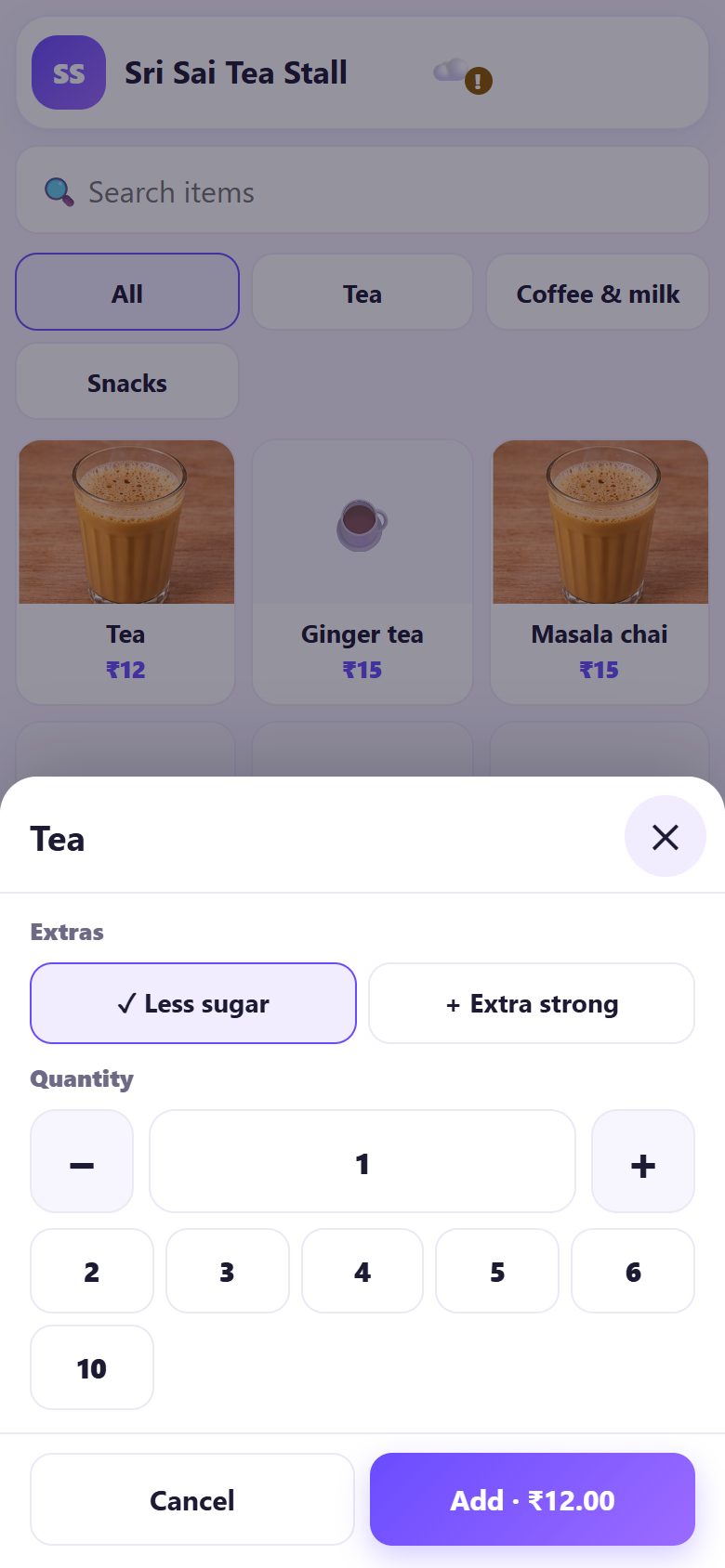
Tap an item tile once for each piece: Tea, Tea, Masala chai… A small number on the tile shows how many are in the bill. Use Search items or the category buttons (All, Tea, Snacks…) on a long menu.
Items with sizes or extras open a small sheet first: pick the size or extra (here ✓ Less sugar), the Quantity, then Add.
💡 Tip: Something not on the menu? Tap Custom amount (the pencil tile at the end) and type the price.
2Open the bill and change quantities
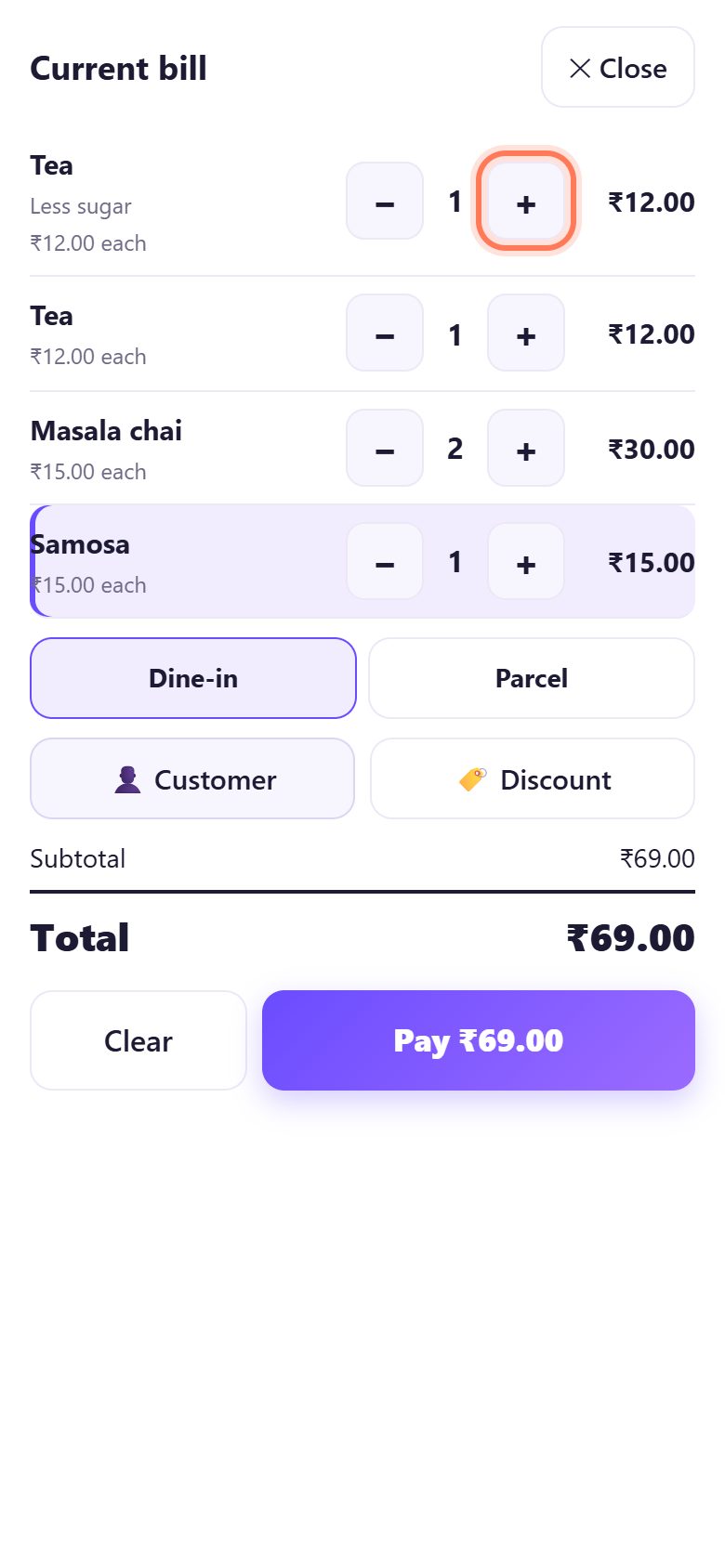
Tap the bar at the bottom (5 items · ₹69.00) to open the Current bill. Use − and + to change a quantity; − on the last piece removes the line. Choose Dine-in or Parcel if you want it on the bill.
On a tablet or PC the bill is always open on the right.
3Add a note or an item discount
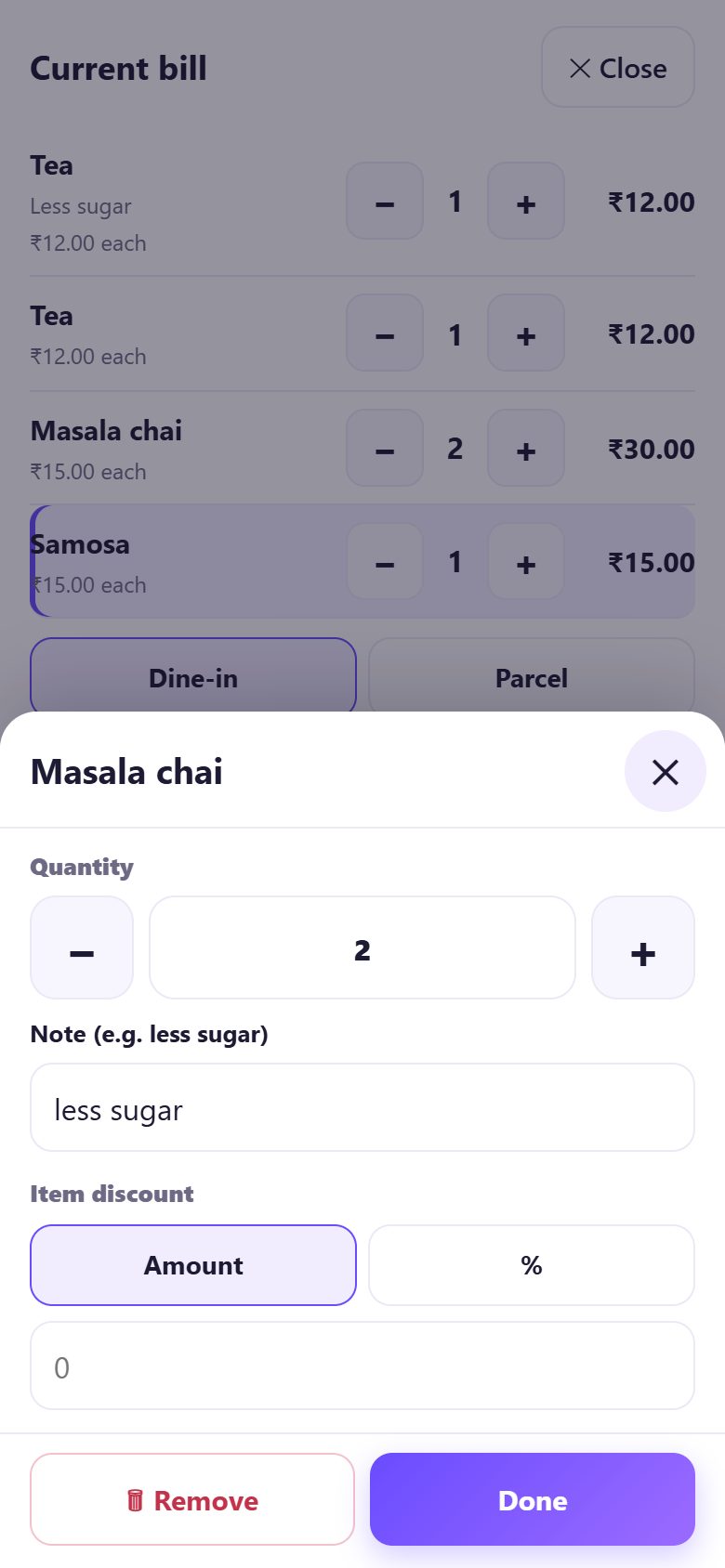
Tap the item’s name in the bill. Type a Note (e.g. less sugar), give an Item discount as an Amount or %, or tap Remove. Tap Done.
4Give a discount on the whole bill
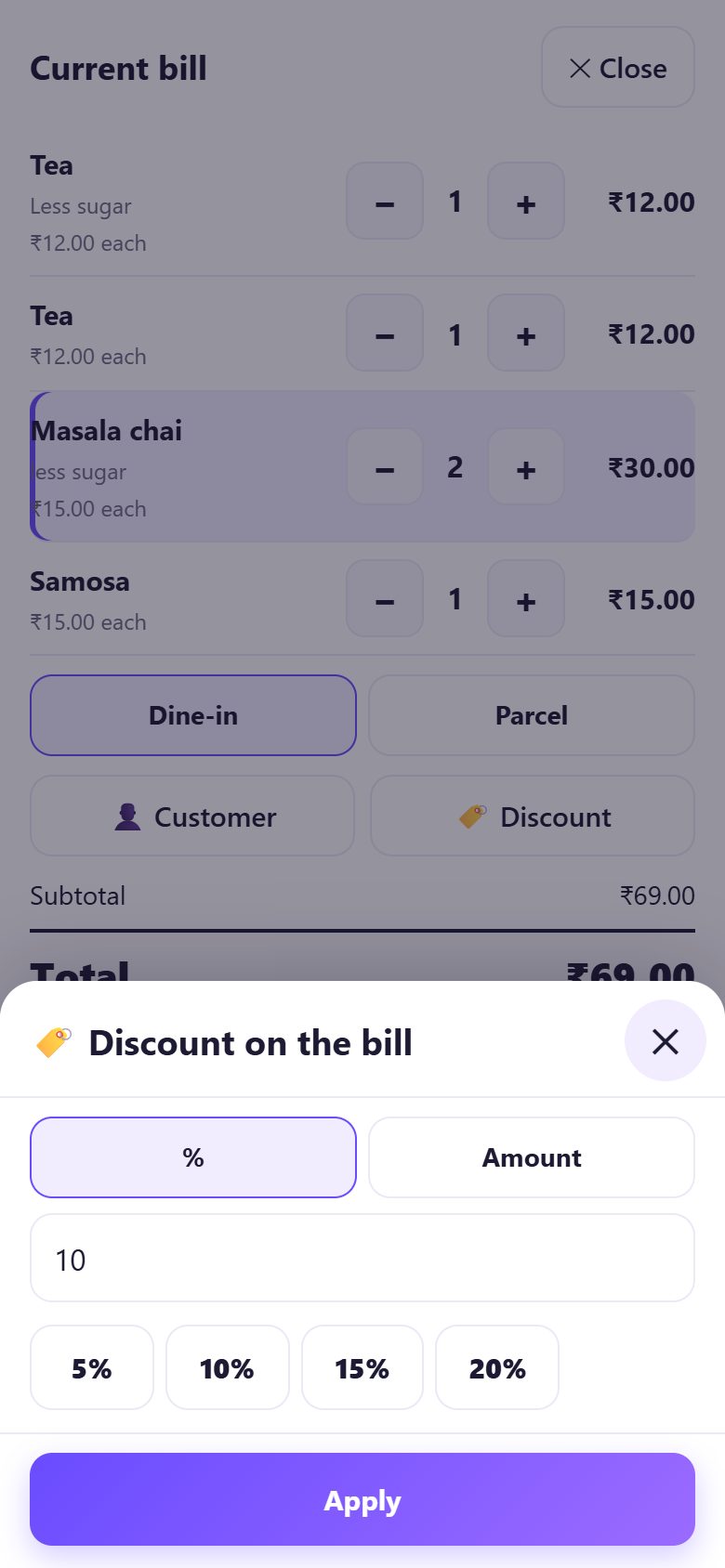
Tap Discount under the items. Choose % or Amount, type it or tap 5%, 10%, 15% or 20%, then Apply. The discount shows on the bill and in your reports.
5Cash: the app shows the change
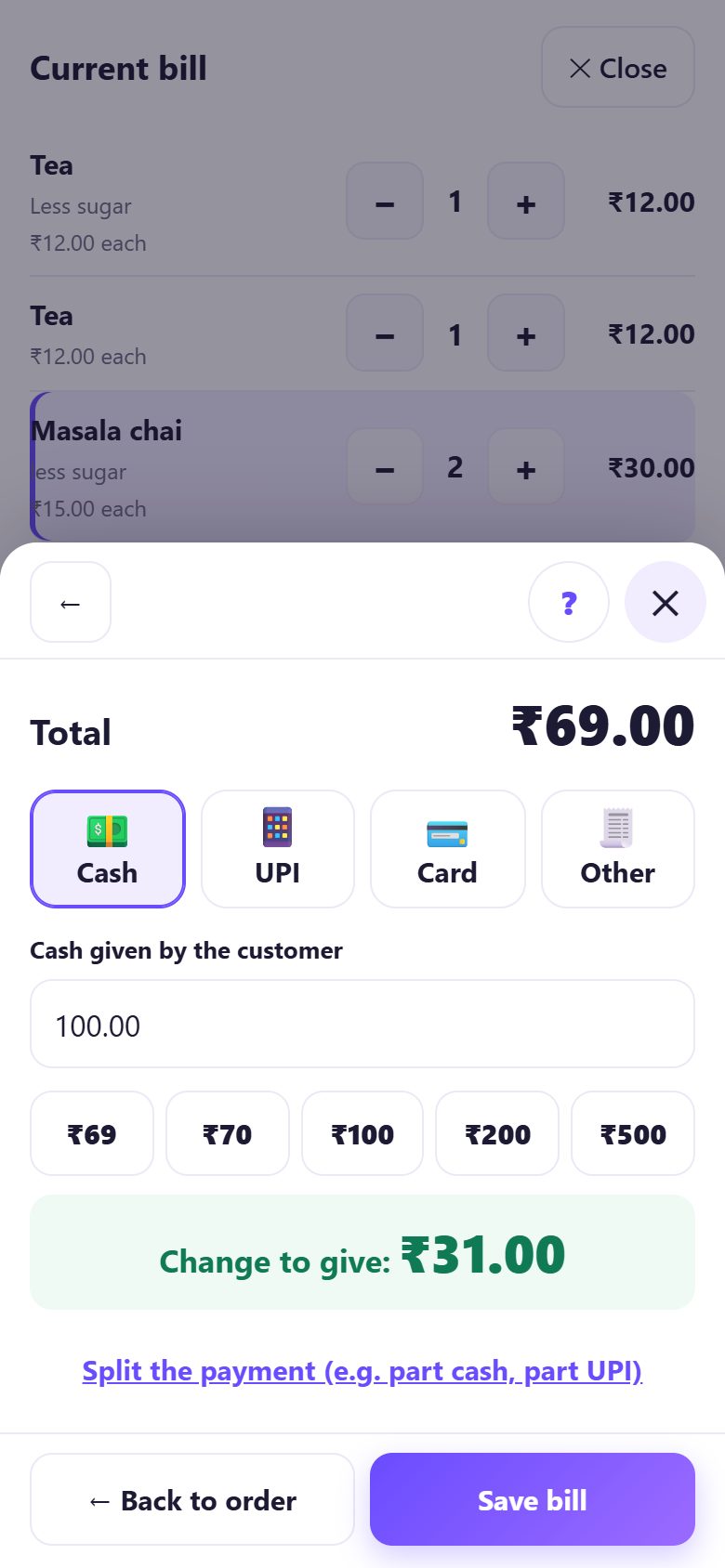
Tap Pay. Cash is chosen. Tap the note the customer gave (₹100, ₹200, ₹500…) or type it in Cash given by the customer: the green box shows Change to give. Tap Save bill.
Exact money? Just tap Save bill (the app says Exact amount. No change.).
6UPI: show the QR with the amount, then tap Paid
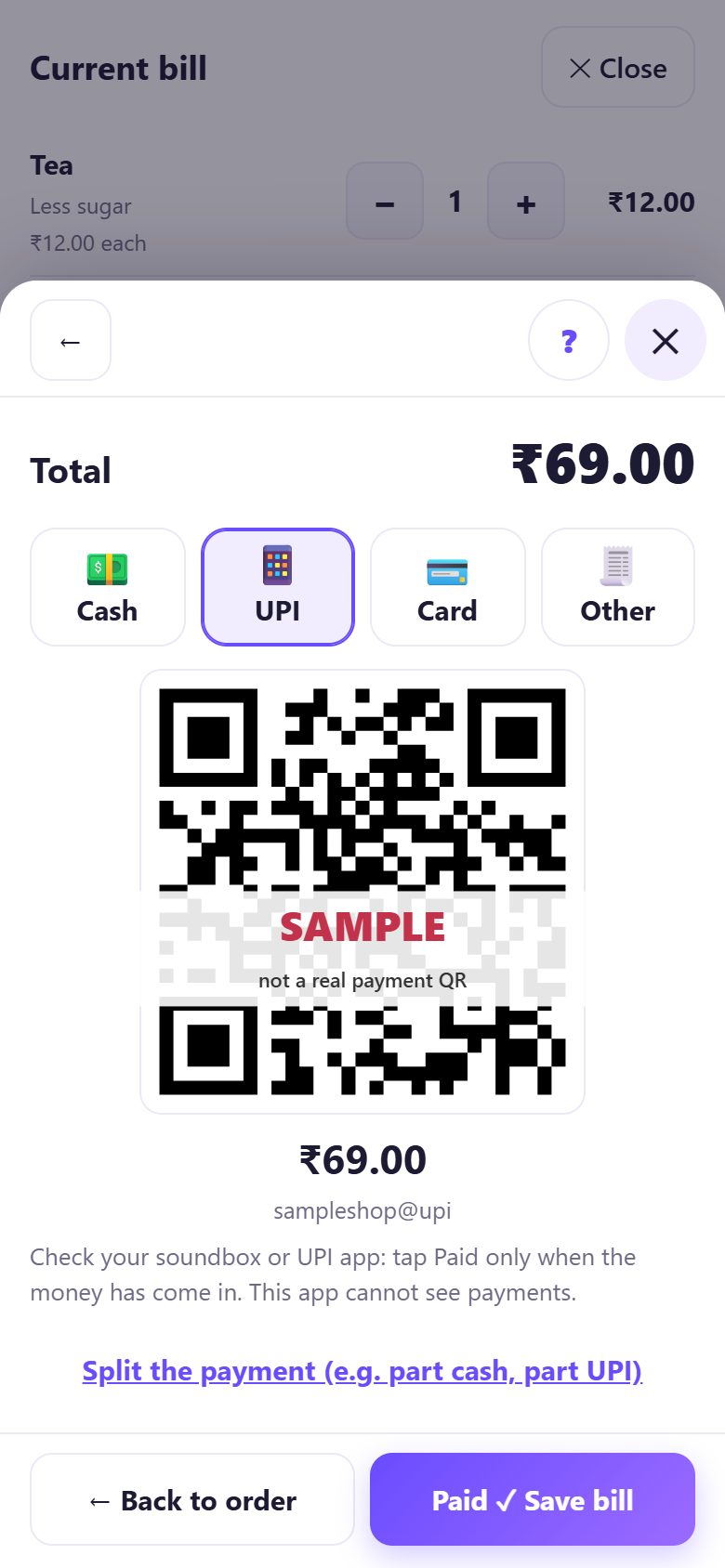
Tap UPI. A pay QR appears with the bill amount already in it, so the customer cannot type a wrong amount. They scan it with any UPI app.
Wait for your soundbox or UPI app to say the money came, then tap Paid ✓ Save bill. The app cannot see payments, so never tap Paid before the money arrives.
💡 Tip: The QR needs the internet the first time. Without it the app shows your UPI ID so the customer can pay to it.
7Card, Other, or split one bill
For a card machine payment tap Card, for anything else (a coupon, a cheque) Other, then save.
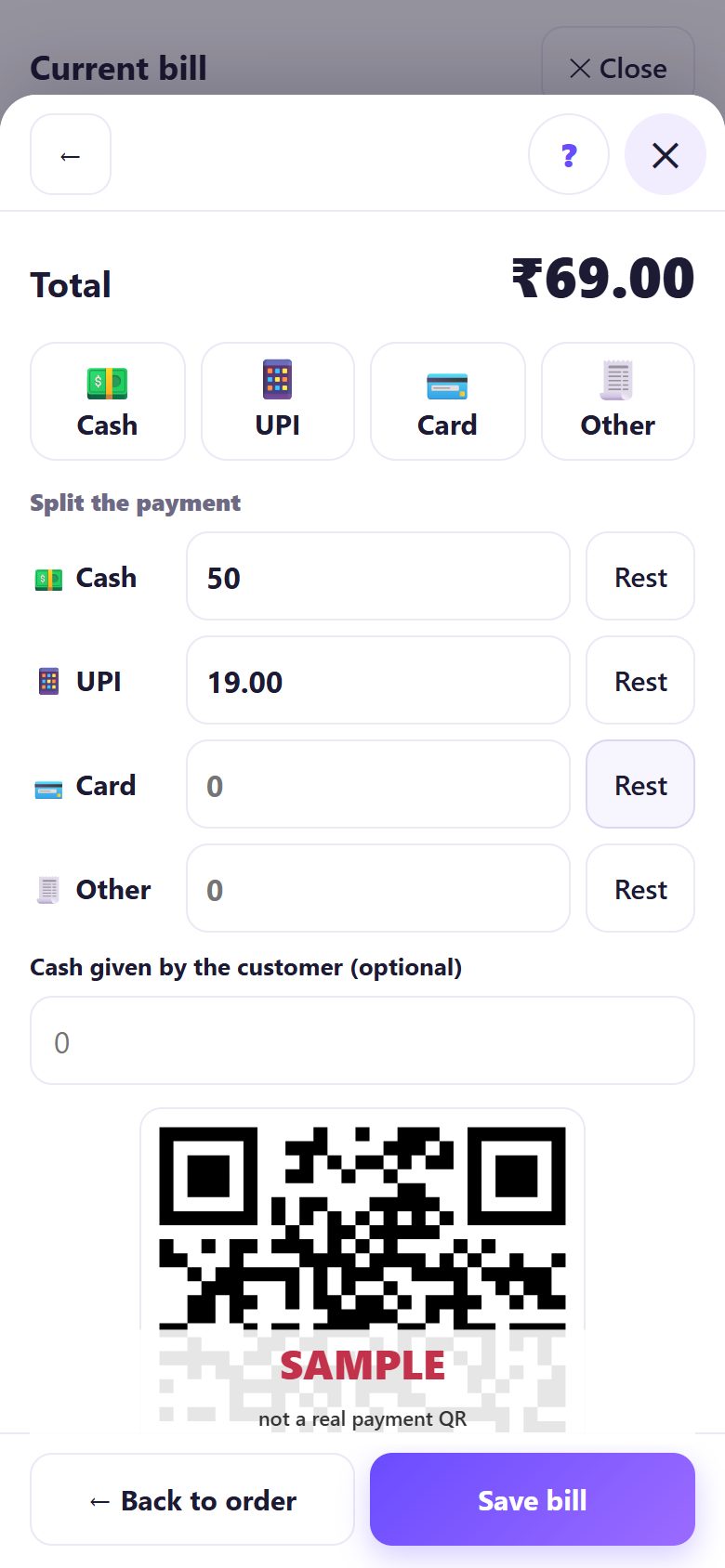
Part cash, part UPI? Tap Split the payment (e.g. part cash, part UPI), type the cash part and tap Rest next to UPI: it fills in what is left, and a QR for that part appears. Save when it says Adds up ✓.
8The bill is saved with its number
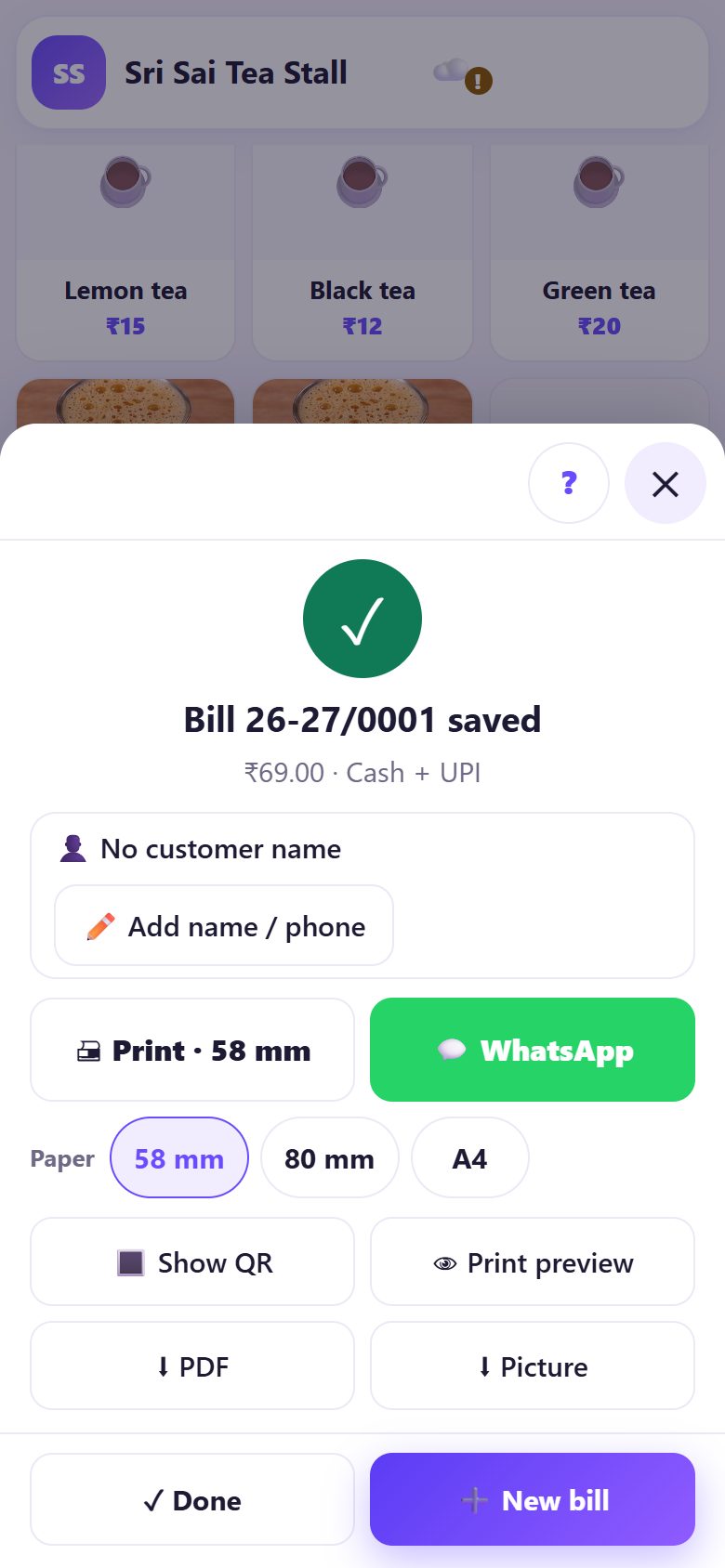
The app shows Bill 26-27/0001 saved with the amount and how it was paid. Now print it, send it on WhatsApp, or Show QR for the customer’s phone (part 4), or tap New bill for the next customer.
A saved bill cannot be changed. If something was wrong, void it from Bills with a reason; it stays crossed out in your records.
💡 What comes next: Registered for GST or on composition? See which bill type you need and what each bill must show.
📝 Example: a rush-hour bill at Sri Sai Tea Stall
Four college students order 2 teas, 2 masala chai “less sugar” and a samosa. Ramesh taps Tea twice, Masala chai twice and Samosa, and adds the note on the masala chai. The total is ₹69. One student hands over ₹50 in cash and pays the rest on PhonePe.
Ramesh taps Pay, Split the payment, types 50 for cash, taps Rest next to UPI and turns the phone round. The QR asks for exactly ₹19. The soundbox says “₹19 received”, he taps Save bill, and bill 26-27/0014 is saved as Cash + UPI. No calculator, no notebook.
🛠 If something goes wrong
The QR is not showing
The QR needs the internet the first time it is made on a device. Without it the app shows your UPI ID and the amount so the customer can pay to the ID. Check that a UPI ID is saved in Settings.
I tapped Paid but the money did not come
The bill is already saved. Open Bills, open that bill and void it with the reason (e.g. Customer cancelled), then bill again. The voided number is never used again.
“The customer gave less than the bill”
The cash typed is less than the total. Type the right amount, or use Split the payment if the rest is paid another way.
An item has the wrong price
Fix it in Menu (tap the item, change the price, Save). Bills already saved keep their old price; new bills use the new one.
I want to start the bill again
Tap Clear in the bill. All items are removed and no bill number is used.
The bill number jumped or looks odd
Numbers follow the financial year: 26-27/0001 is the first bill from 1 April 2026. Each device has its own series; bill on one counter device.
🔒 Privacy in plain words
- Your menu, bills and reports are saved only in this browser on this device. Nothing is uploaded to SpriteSplit.
- The UPI QR is made on your phone with your UPI ID and the amount. The money goes straight from the customer’s UPI app to your bank; Counter Billing never sees or touches payments.
- A customer’s name and phone are saved only if you type them.
- Because the bills live on one device, back up from Settings (a file or your own Google Drive). Without a backup, a lost phone means lost bills.
Questions people ask
Does the UPI QR take money into the app?
No. The QR is a standard UPI pay request for your UPI ID with the amount filled in. The money goes straight to your bank account; Counter Billing only writes down that you were paid.
Can I edit a bill after saving it?
No, a saved bill never changes, which keeps your numbers honest. Void it with a reason in Bills and make a new one.
Can a customer pay part cash and part UPI?
Yes. Tap Split the payment and type each part; Rest fills in what is left.
Can I add an item that is not on the menu?
Yes. Tap Custom amount and type the price, or add the item to the Menu for next time.
Is the bill number different for each day?
No. It runs through the year (26-27/0001, 0002 …) and starts again on 1 April. Close day reports group the bills by day.
📚 Counter Billing step by step
All 21 parts
- 1Set up your counter
- 2Make a bill
- 3GST invoice and bill types
- 4Print, WhatsApp and QR receipts
- 5Menu: items, sizes, photos
- 6Close the day, count cash
- 7Reports & GST summary
- 8Backup, restore, PIN lock
- 9Café mode and tables
- 10Connect a kitchen screen
- 11Send KOTs to the kitchen
- 12Add a second counter
- 13Staff, roles and PINs
- 14Shifts and cash
- 15Refunds and credit notes
- 16Udhaar (credit) and dues
- 17Stock and recipes
- 18Owner dashboard
- 19Owner view on your phone
- 20Pharmacy set-up and medicines
- 21Daily pharmacy billing