How to print or share a bill: 58/80 mm thermal, A4, WhatsApp, receipt QR, PDF
After Save bill, Counter Billing offers every way to hand over the bill: print it on a 58 mm or 80 mm thermal printer, print an A4 invoice, send it on WhatsApp, let the customer scan a receipt QR (no paper at all), or save a PDF or picture.
This part shows each one and what the customer sees.
Steps
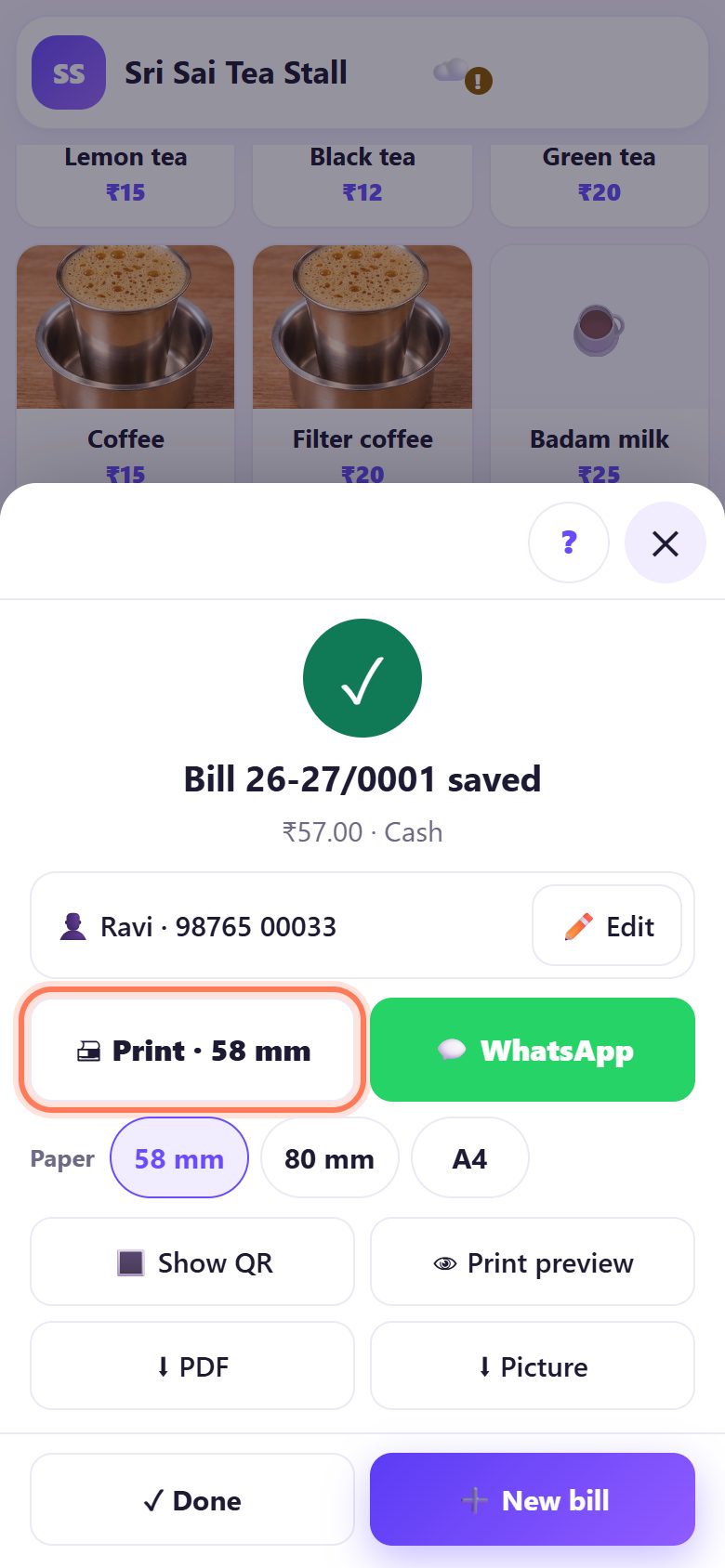
1After saving: pick how to give the bill
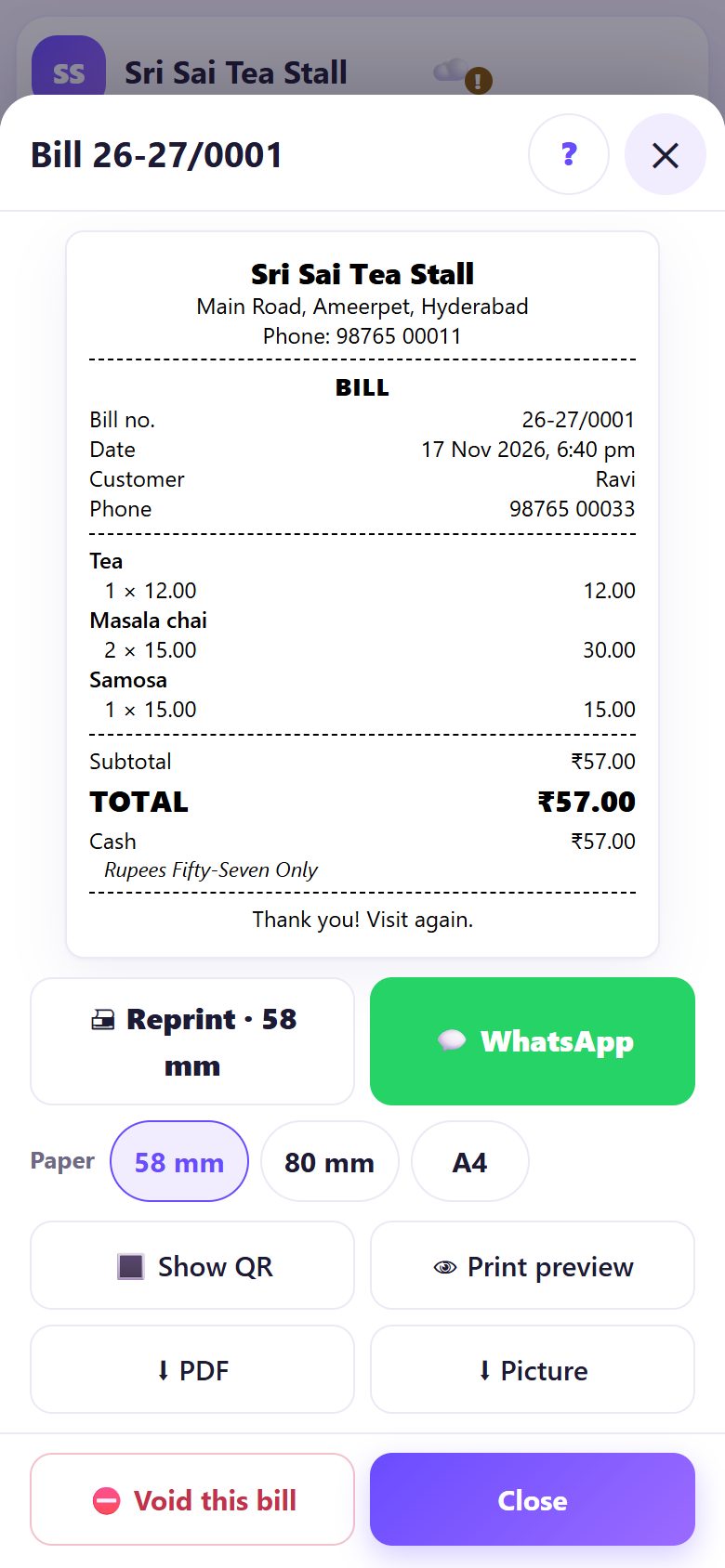
The saved-bill sheet has Print · 58 mm, WhatsApp, Show QR, Print preview, PDF and Picture. The Paper buttons (58 mm, 80 mm, A4) change the size for this print.
Tap Print: your phone’s print screen opens. Choose the printer there. A Bluetooth thermal printer appears once its maker’s print app or service is installed on the phone.
💡 Tip: Settings → Receipt paper sets your usual size, and Print automatically after Pay prints every bill without the extra tap.
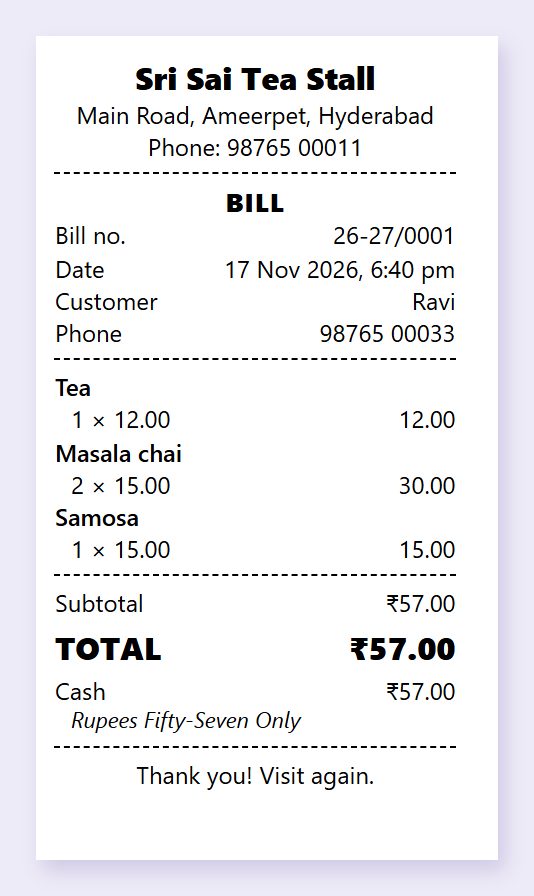
258 mm thermal receipt
The 58 mm slip fits the small 2-inch printers most stalls use: shop name, address and phone, bill number and date, the items, total, payment and your note at the bottom.
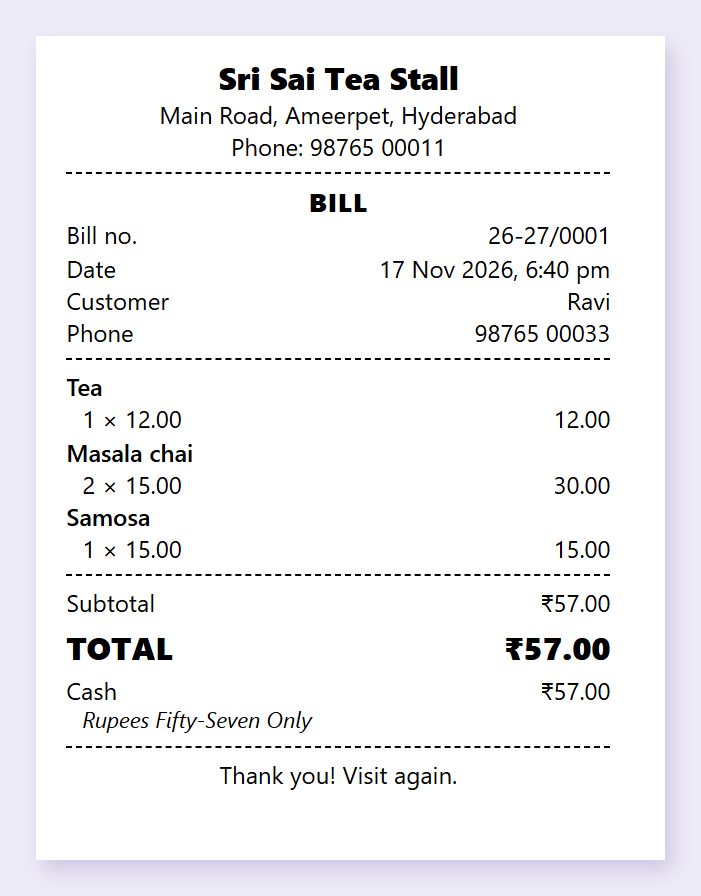
380 mm receipt
Tap 80 mm under Paper for 3-inch printers. Same details, more room for long item names.
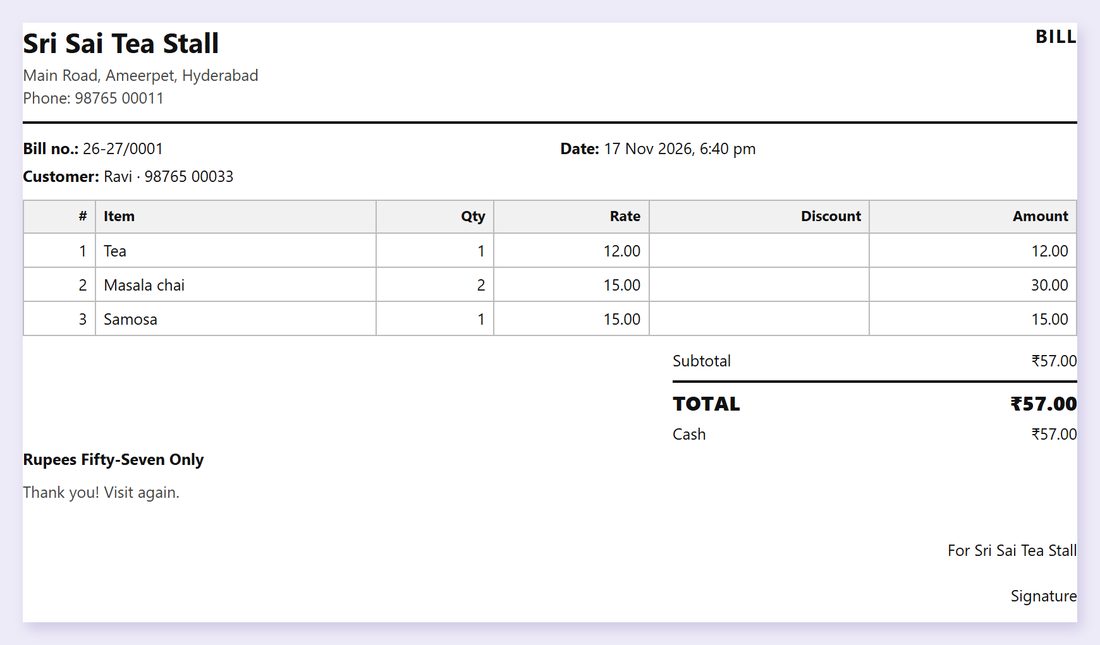
4A4 invoice
Tap A4 for a full-page invoice on any office printer, or save it as a PDF. Useful for offices, catering orders and GST customers (part 3).
5For a WhatsApp bill, add the customer’s phone
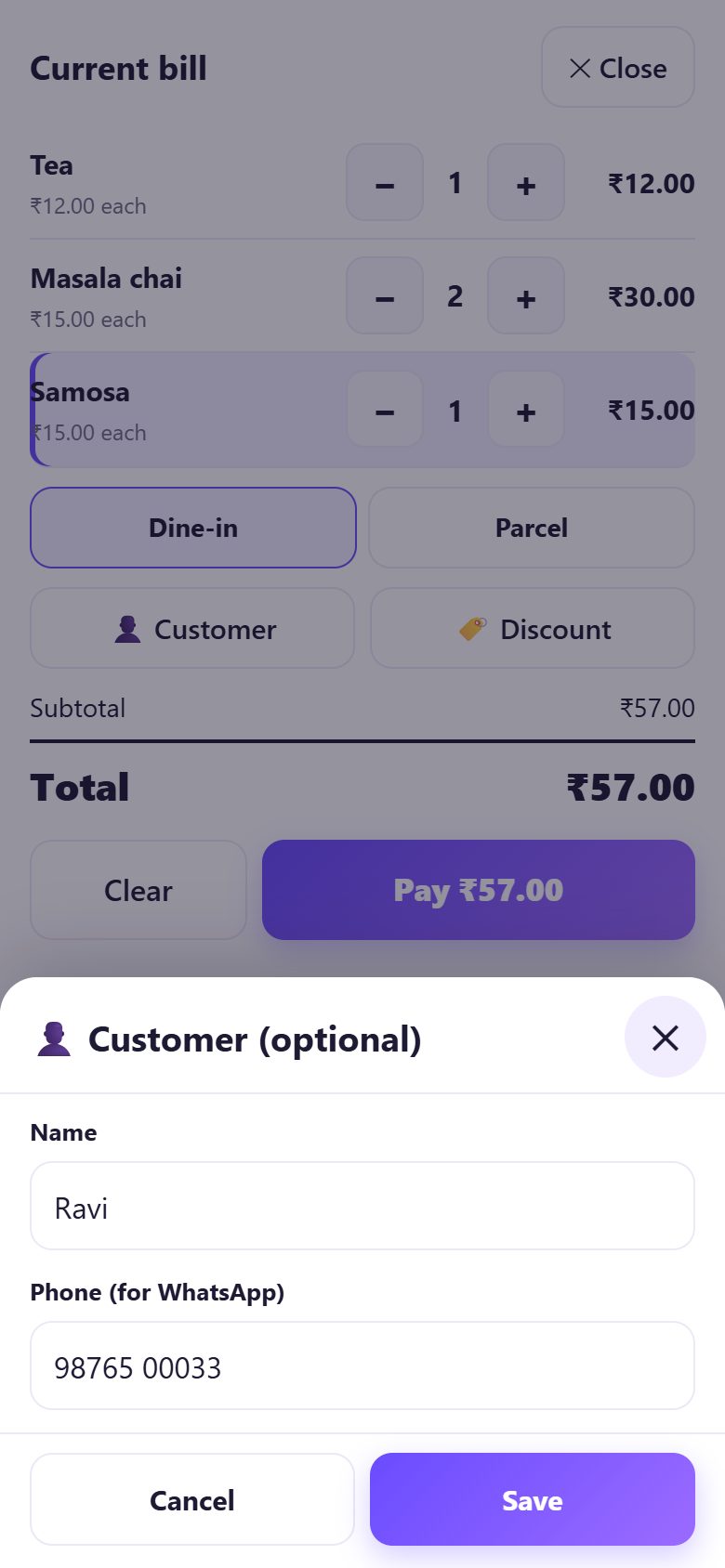
Before paying, tap Customer in the bill and type the Name and Phone (for WhatsApp). After saving you can also tap Add name / phone.
Tap WhatsApp: WhatsApp opens with the bill written out and a link to the receipt. You press send; the app sends nothing by itself.
6No printer? Show the receipt QR
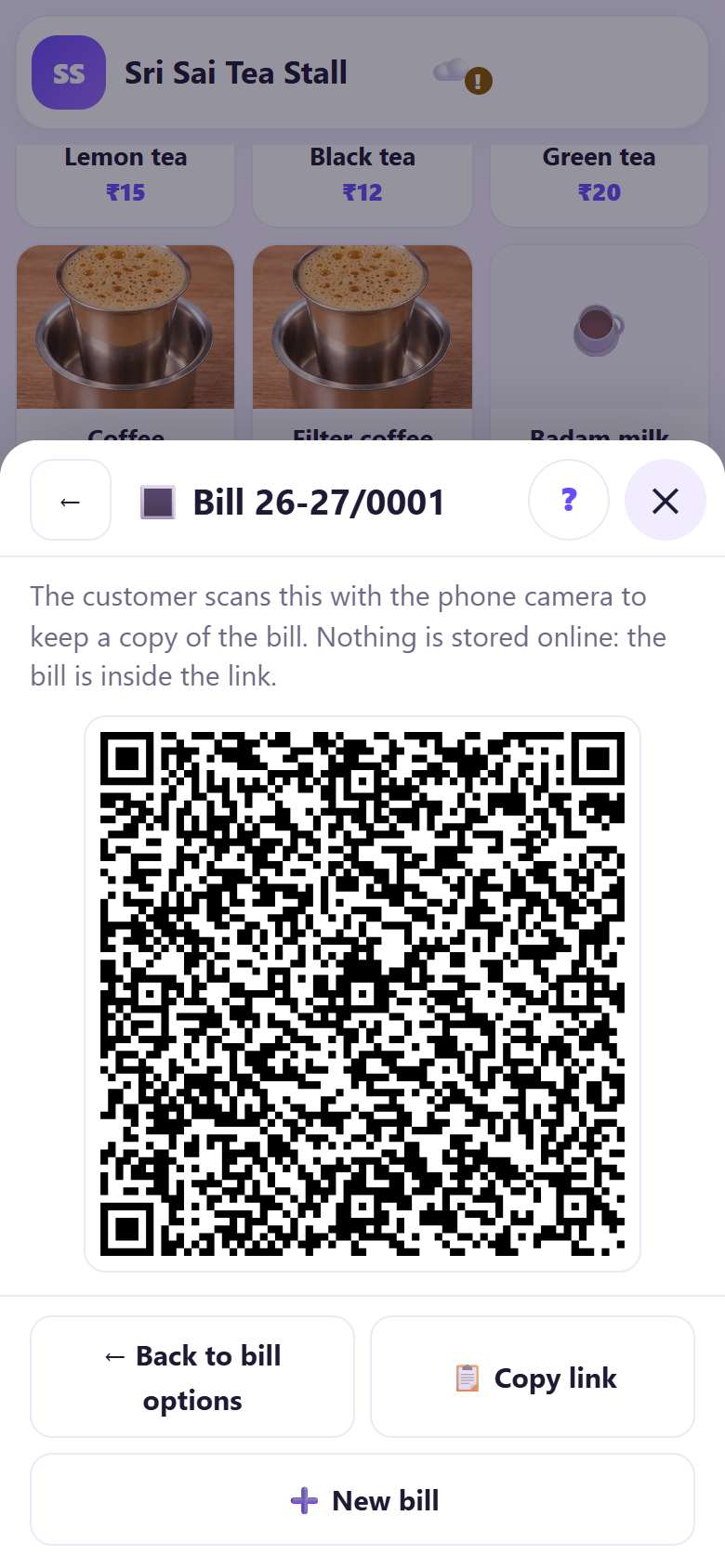
Tap Show QR and turn the screen to the customer. They scan it with the phone camera and the bill opens on their phone. The whole bill is packed inside the link, so nothing is stored online.
7What the customer sees
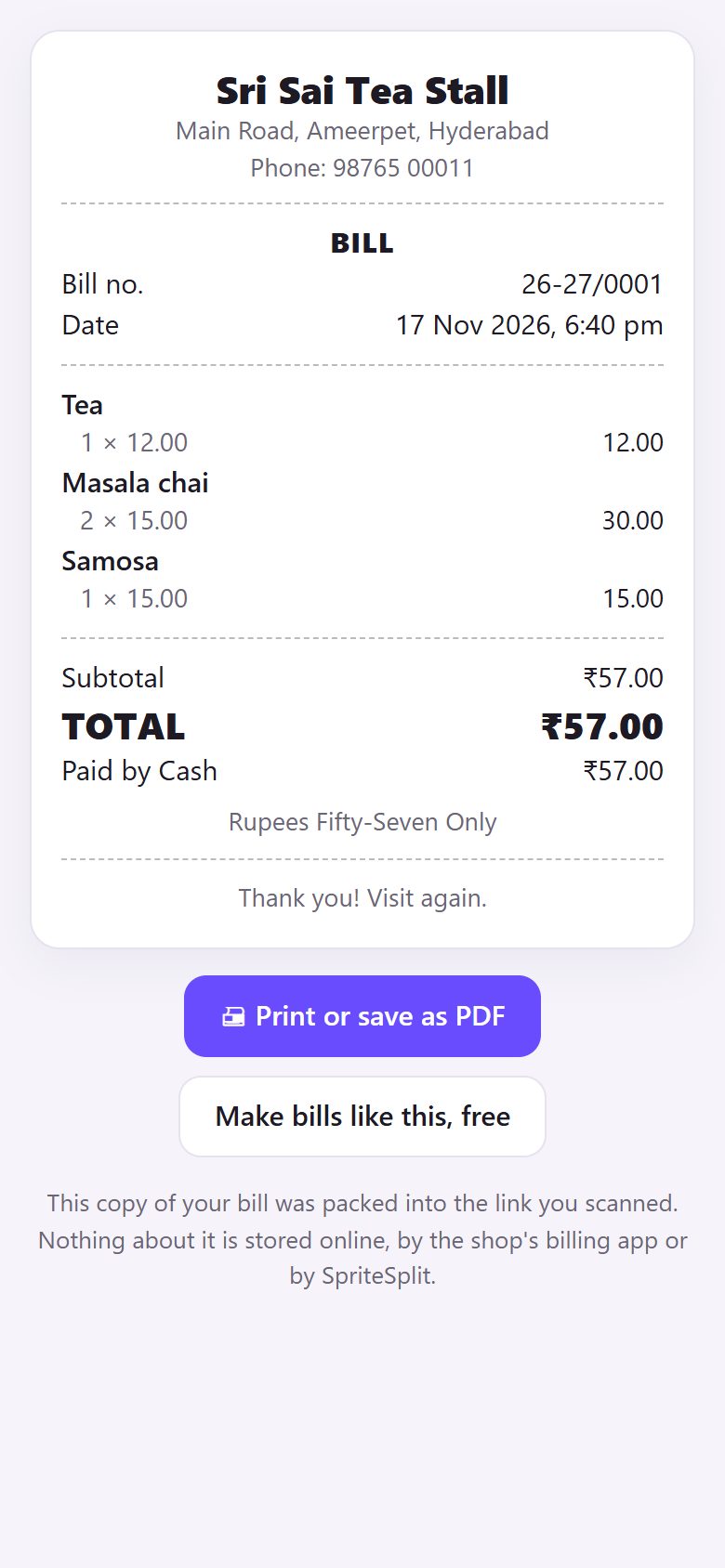
The customer gets a clean receipt page with your shop name, the bill number, items and total. They can tap Print or save as PDF to keep it.
8Reprint or resend any old bill from Bills
Open Bills, pick the day with ← and →, and tap the bill. You get the same buttons: Reprint, WhatsApp, Show QR, PDF and Picture. A reprint is marked REPRINT and written in the activity log.
💡 What comes next: Now make the menu yours: your own items, prices, photos, sizes and extras.
📝 Example: a parcel order with a WhatsApp bill
Ravi orders 1 tea, 2 masala chai and a samosa as a parcel and asks for the bill on WhatsApp for his office claim. Ramesh taps Customer, types “Ravi” and his number, takes ₹57 cash and taps WhatsApp. WhatsApp opens with the bill text and receipt link; Ramesh presses send.
The next customer wants paper. Ramesh taps Print · 58 mm and the Bluetooth printer next to the stove gives a slip in two seconds. A student without a printer at home just scans Show QR and saves the receipt as a PDF on her phone.
🛠 If something goes wrong
Printing did not start
The print screen comes from the phone or PC, not from the app. Check the printer is on and paired, pick it in the print screen, or try PDF and print that. On Android, install the printer maker’s print service if the printer is not listed.
The receipt prints very small or cut off
Choose the paper that matches the roll (58 or 80 mm) under Paper, and in the print screen set the paper size to the roll width with no margins.
WhatsApp does not open
WhatsApp must be installed on this phone (or WhatsApp Web open on a PC). Allow pop-ups if the browser blocks them, then tap again.
The customer’s camera does not open the QR
Ask them to use Google Lens or the camera app’s QR mode. Or tap Copy link and send the link another way.
“The PDF maker needs the internet the first time”
Connect once and tap PDF again; after that it works offline. Or tap Picture, which works offline.
I need a GST invoice in A4
Set the bill type to GST tax invoice in Settings first (part 3); then A4 prints a full tax invoice.
🔒 Privacy in plain words
- Your menu, bills and reports are saved only in this browser on this device. Nothing is uploaded to SpriteSplit.
- The UPI QR is made on your phone with your UPI ID and the amount. The money goes straight from the customer’s UPI app to your bank; Counter Billing never sees or touches payments.
- A customer’s name and phone are saved only if you type them.
- Because the bills live on one device, back up from Settings (a file or your own Google Drive). Without a backup, a lost phone means lost bills.
The receipt QR and the WhatsApp link carry the bill inside the link itself; nothing is stored on a server. WhatsApp messages are sent by you from your own WhatsApp.
Questions people ask
Which thermal printer works?
Any 58 mm or 80 mm printer your phone or PC can print to. USB and Wi-Fi printers on a PC work through the normal print screen; Bluetooth printers on Android need the maker’s print service.
Can I print automatically after every bill?
Yes. Settings → Print automatically after Pay.
Is the WhatsApp bill sent from your server?
No. WhatsApp opens on your phone with the bill text; you press send from your own number.
Does the receipt QR need the internet?
Showing the QR works offline after the first time. The customer needs internet to open the link once; the bill is inside the link.
Can I print the bill in Telugu or Hindi?
Yes. Settings → Receipt language: English or Same as the app.
📚 Counter Billing step by step
All 21 parts
- 1Set up your counter
- 2Make a bill
- 3GST invoice and bill types
- 4Print, WhatsApp and QR receipts
- 5Menu: items, sizes, photos
- 6Close the day, count cash
- 7Reports & GST summary
- 8Backup, restore, PIN lock
- 9Café mode and tables
- 10Connect a kitchen screen
- 11Send KOTs to the kitchen
- 12Add a second counter
- 13Staff, roles and PINs
- 14Shifts and cash
- 15Refunds and credit notes
- 16Udhaar (credit) and dues
- 17Stock and recipes
- 18Owner dashboard
- 19Owner view on your phone
- 20Pharmacy set-up and medicines
- 21Daily pharmacy billing