How to read the Counter Billing owner dashboard (and spot revenue leakage)
At the end of the day you want three answers: how much did we sell, when were we busy, and did any money slip away? The dashboard in 📊 Reports puts them on one screen. The cards and charts show sales; the Revenue leakage box counts the things that quietly lose money in a café: voided bills, refunds, bills printed twice, discounts and free items, and kitchen tickets that never became a bill.
Steps
1Open Reports and pick the dates
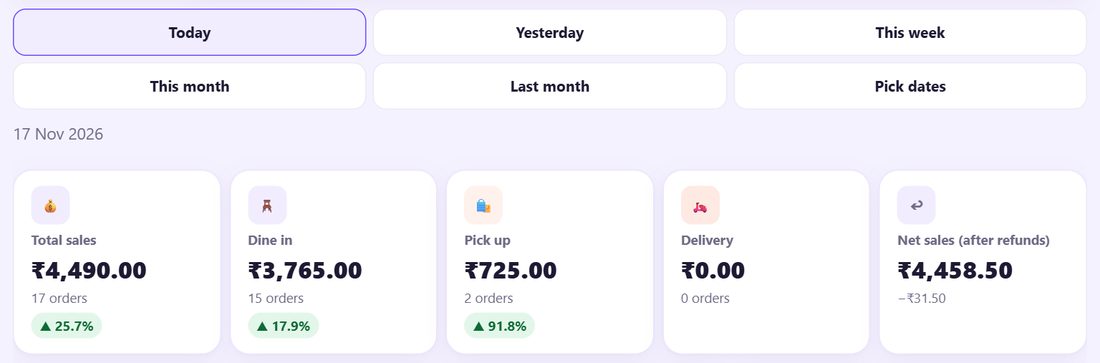
Tap 📊 Reports. Pick Today, Yesterday, This week, This month, Last month or Pick dates.
The cards show Total sales, Dine in, Pick up, Delivery and Net sales (after refunds). The small green ▲ or red ▼ compares with the same number of days just before.
2Sales by hour and payment mode
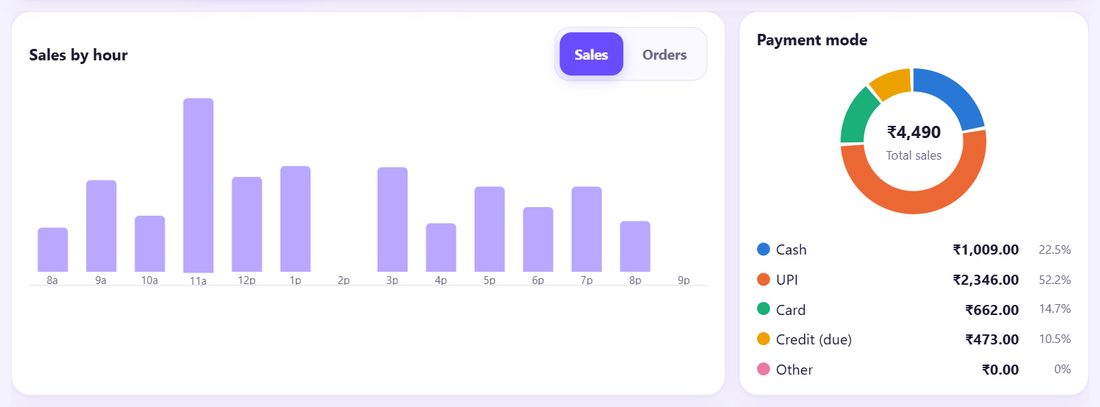
Sales by hour shows when the money comes in; switch to Orders to count bills instead, and tap a bar to see its number. Use it to decide when you need a second person at the counter.
Payment mode splits the sales into Cash, UPI, Card, Credit (due) and Other. Compare the cash part with what you counted.
3Sales per day and discounts by staff
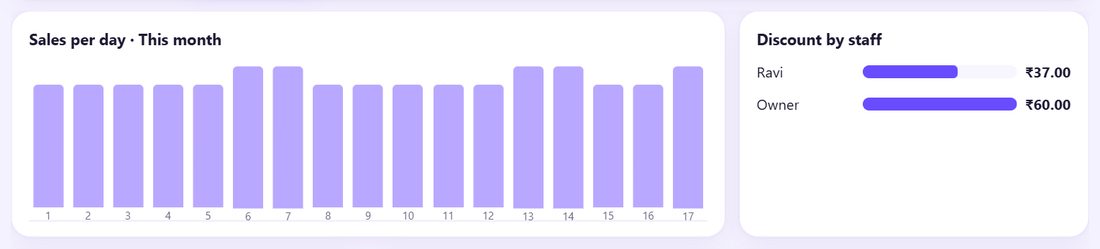
Sales per day shows the month day by day: weekends, rainy days, the day the coffee machine broke. Discount by staff shows how much discount each person gave (names appear when staff logins are on, part 11).
4Taxes, expenses and order statistics
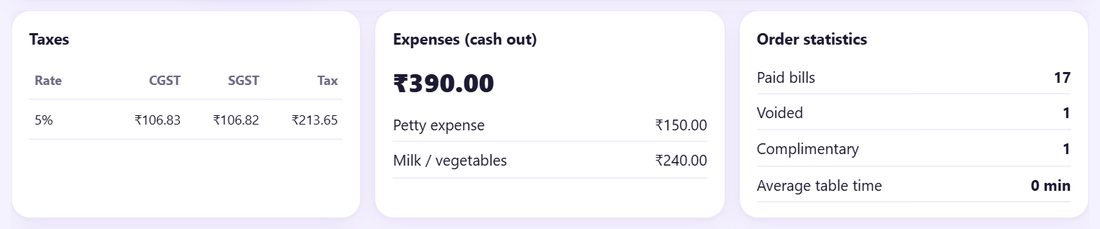
Taxes shows the tax collected per rate. Expenses (cash out) adds up the cash taken from the drawer, by reason (part 14). Order statistics counts paid bills, voided and complimentary bills, and the Average table time from order to payment.
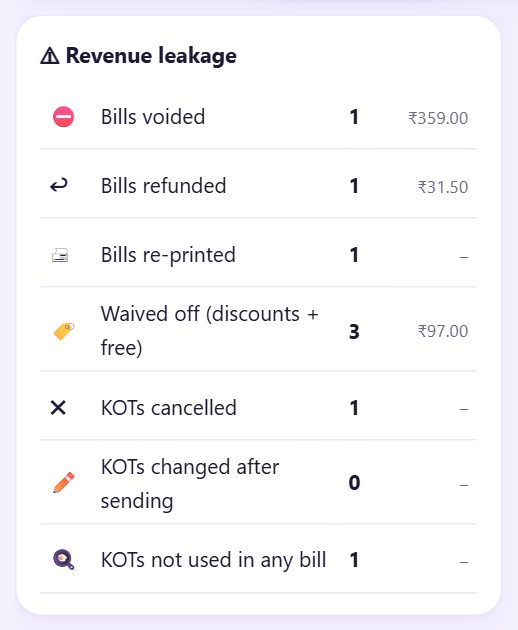
5Revenue leakage: what each card means
- Bills voided: bills crossed out. A few for typing mistakes are normal; many are a warning.
- Bills refunded: credit notes given (part 15).
- Bills re-printed: a printed bill shown twice can be used to collect money without a new bill.
- Waived off (discounts + free): money given away as discounts and complimentary bills.
- KOTs cancelled, KOTs changed after sending, KOTs not used in any bill: food the kitchen was asked to make that was cut, changed or never billed.
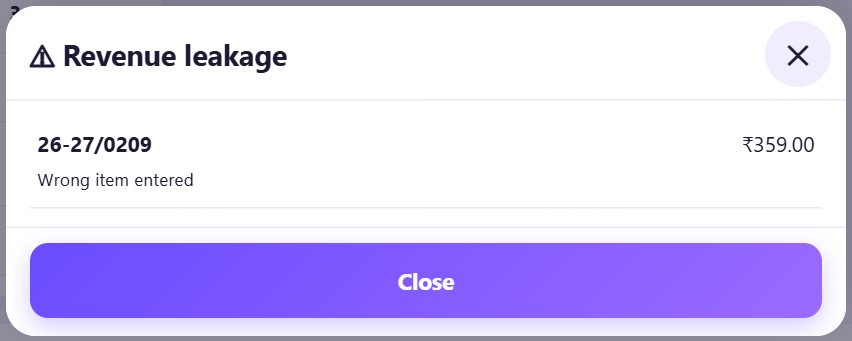
6Tap a card to see exactly which bills
Tap any leakage card. A list opens with each bill or KOT, its reason, the time and the amount. Ask about the ones you do not recognise; the activity log (part 13) shows who did it.
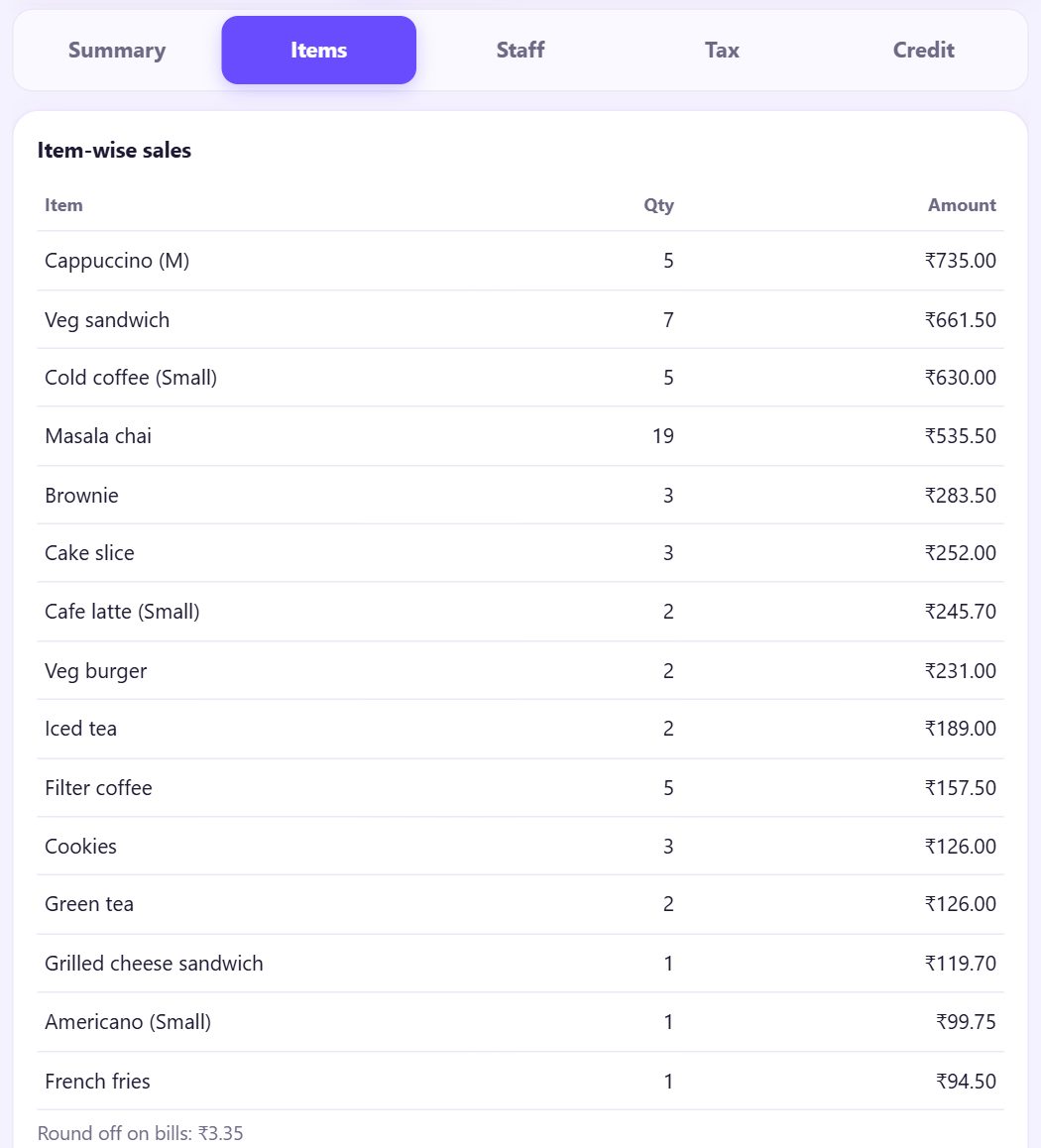
7Items tab: what sells and when
Below the dashboard are tabs: Summary, Items, Staff, Tax, Stock, Credit. Items lists Item-wise sales and Category-wise sales by amount, and Busy hours by day of the week.
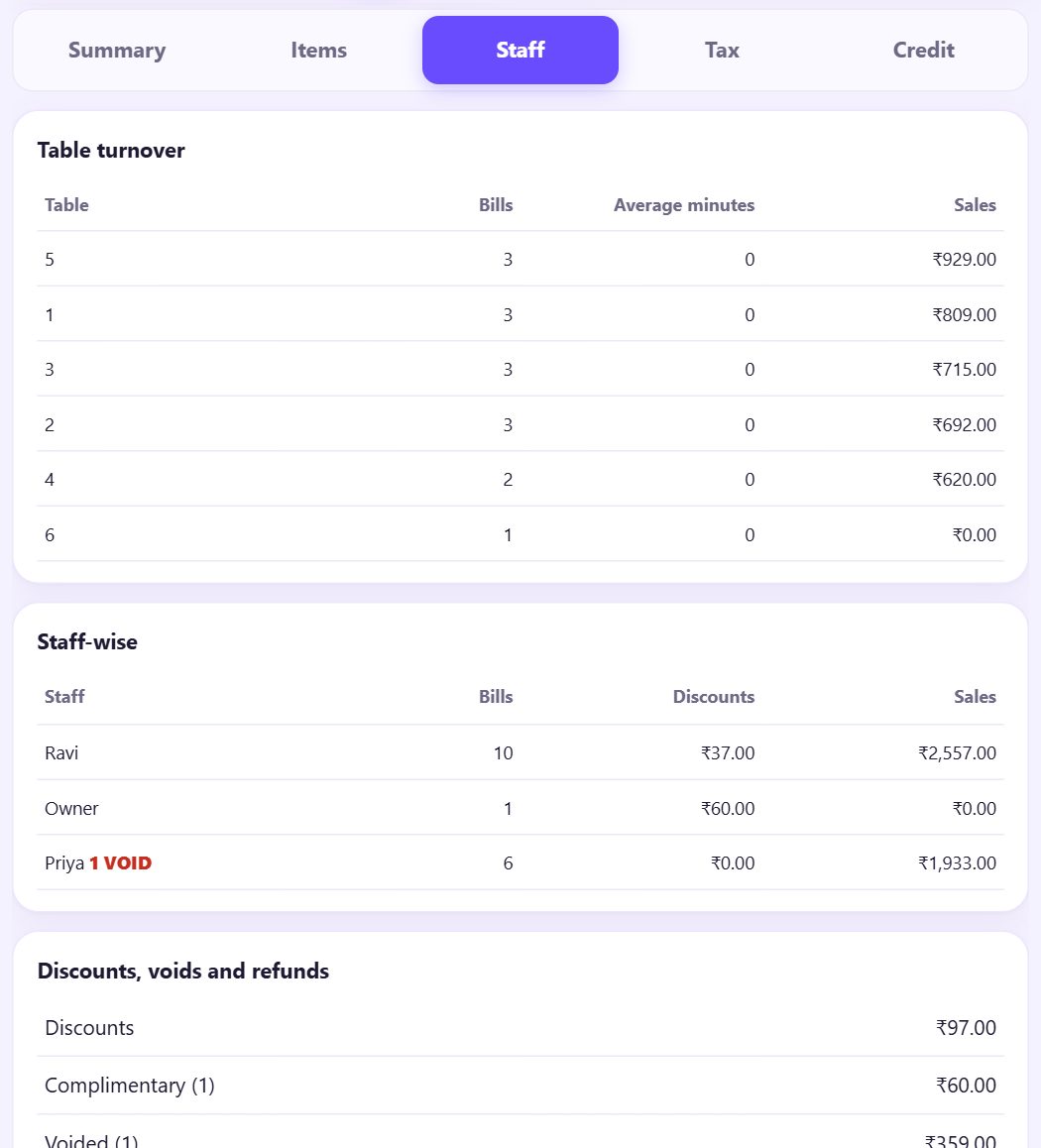
8Staff tab: tables and people
Staff shows Table turnover (bills and average minutes per table), Staff-wise bills, discounts and sales, and the list of Discounts, voids and refunds. The CSV buttons download the details for Excel (part 7).
💡 What comes next: Next: see these numbers on your own phone, from anywhere, without staff seeing your account.
📝 Example: Meena’s two minutes at night
At 9 pm Meena opens Reports on Today: ₹4,490 total, ▲ 25.7% over yesterday, with pick-up orders up strongly. Sales by hour has its peaks at 11 am and in the evening, so she asks Priya to come at 5 instead of 6.
Revenue leakage shows 1 bill voided for ₹359. She taps it: bill 0209, Wrong item entered; the Staff tab shows the void next to Priya’s name, and Priya explains the order was typed twice. Fine. One KOT cancelled for two veg burgers: the kitchen had already started, so she asks the waiters to confirm the order before sending the KOT.
🛠 If something goes wrong
Reports asks for a PIN
Reports are for the owner. Type the owner PIN, or give a helper See reports in their permissions (part 13).
The dashboard is empty
There are no bills in the dates you picked. Choose This month or Pick dates.
Discount by staff says “Not logged in”
Those bills were made without staff logins. Turn them on (part 13) to see names.
Average table time shows 0 min
Table time counts from the first item of a table order to payment; quick counter bills have no table time.
The numbers differ from my cash box
The dashboard shows all payments. Compare only the Cash part with your count, and check Expenses (cash out) and refunds paid in cash.
I need the numbers in Excel
Use the CSV buttons at the bottom of Reports (part 7).
🔒 Privacy in plain words
- The dashboard is worked out on this device from your own bills. Nothing is sent to SpriteSplit or anyone else.
- Only people with the owner PIN or See reports permission can open it.
Questions people ask
What does the ▲ or ▼ percentage mean?
It compares with the same number of days just before: today with yesterday, this week with the week before.
What is revenue leakage?
Money that slips away without a sale on the books: voids, refunds, reprints, discounts and free items, and kitchen tickets never billed.
Is a void always a problem?
No. Typing mistakes happen. Look for patterns: many voids by one person, at closing time, or right after a printed bill.
Can I see the dashboard for last month?
Yes. Tap Last month or Pick dates.
Do I need café mode for the dashboard?
The dashboard with tables, KOTs and staff needs café mode; a simple counter still shows sales, payments, items and the day close.
📚 Counter Billing step by step
All 21 parts
- 1Set up your counter
- 2Make a bill
- 3GST invoice and bill types
- 4Print, WhatsApp and QR receipts
- 5Menu: items, sizes, photos
- 6Close the day, count cash
- 7Reports & GST summary
- 8Backup, restore, PIN lock
- 9Café mode and tables
- 10Connect a kitchen screen
- 11Send KOTs to the kitchen
- 12Add a second counter
- 13Staff, roles and PINs
- 14Shifts and cash
- 15Refunds and credit notes
- 16Udhaar (credit) and dues
- 17Stock and recipes
- 18Owner dashboard
- 19Owner view on your phone
- 20Pharmacy set-up and medicines
- 21Daily pharmacy billing