How to add and edit menu items in Counter Billing (prices, photos, sizes, extras)
The ready menu from set-up is only a start. Your prices are different, you sell things it does not have, and some items come in sizes or with extras. This guide shows every part of the Menu screen: adding an item, giving it a picture, sizes such as Small / Large, extras such as “Extra badam”, categories, and a different tax rate for one item.
Changes are saved on this device at once. Bills you already made never change.
Steps
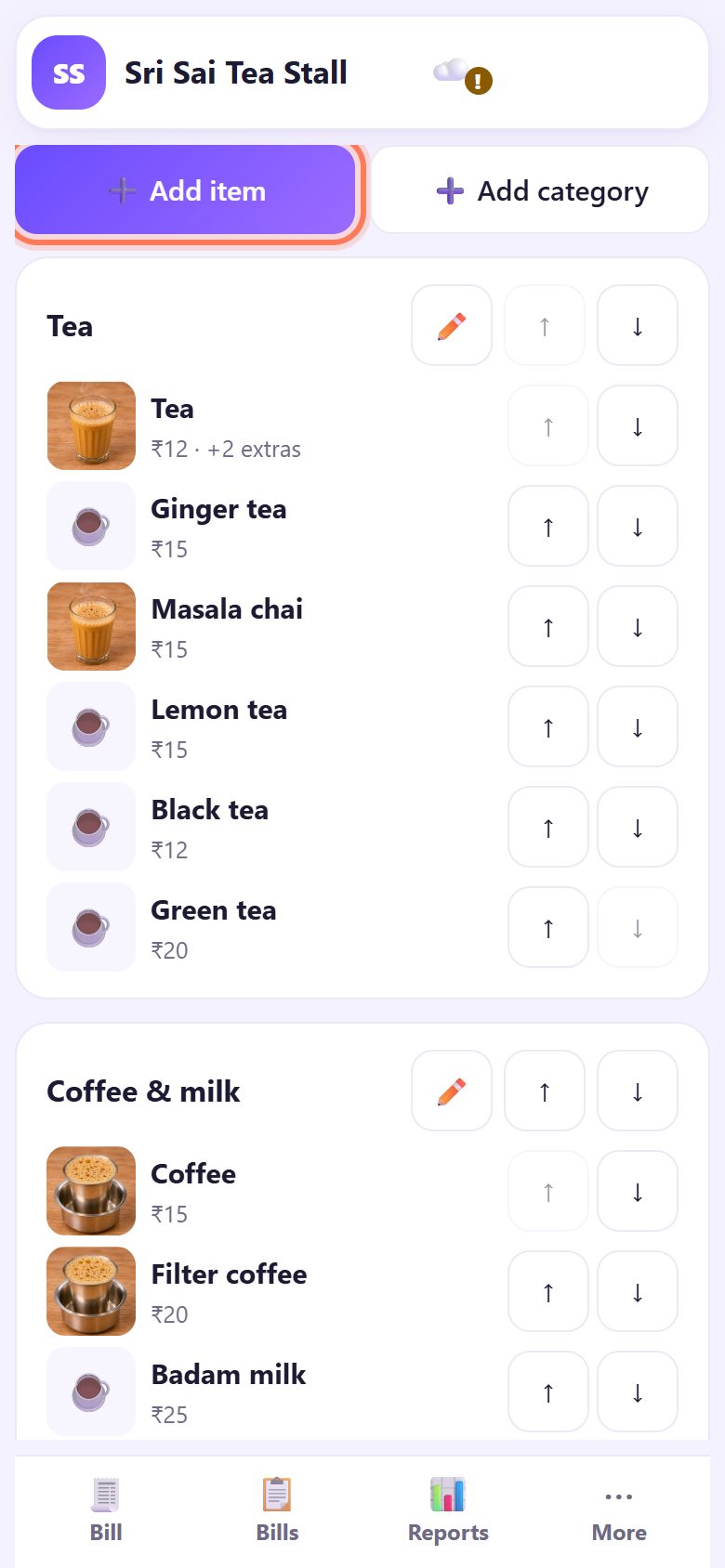
1Open Menu
In the full-screen counter tap ⋯ More at the bottom, then 🍽️ Menu (on a PC, or on the normal Counter Billing page, Menu is a tab of its own). You see every category with its items and prices.
If you set an owner PIN, the counter asks for it first: helpers can bill but cannot change prices.
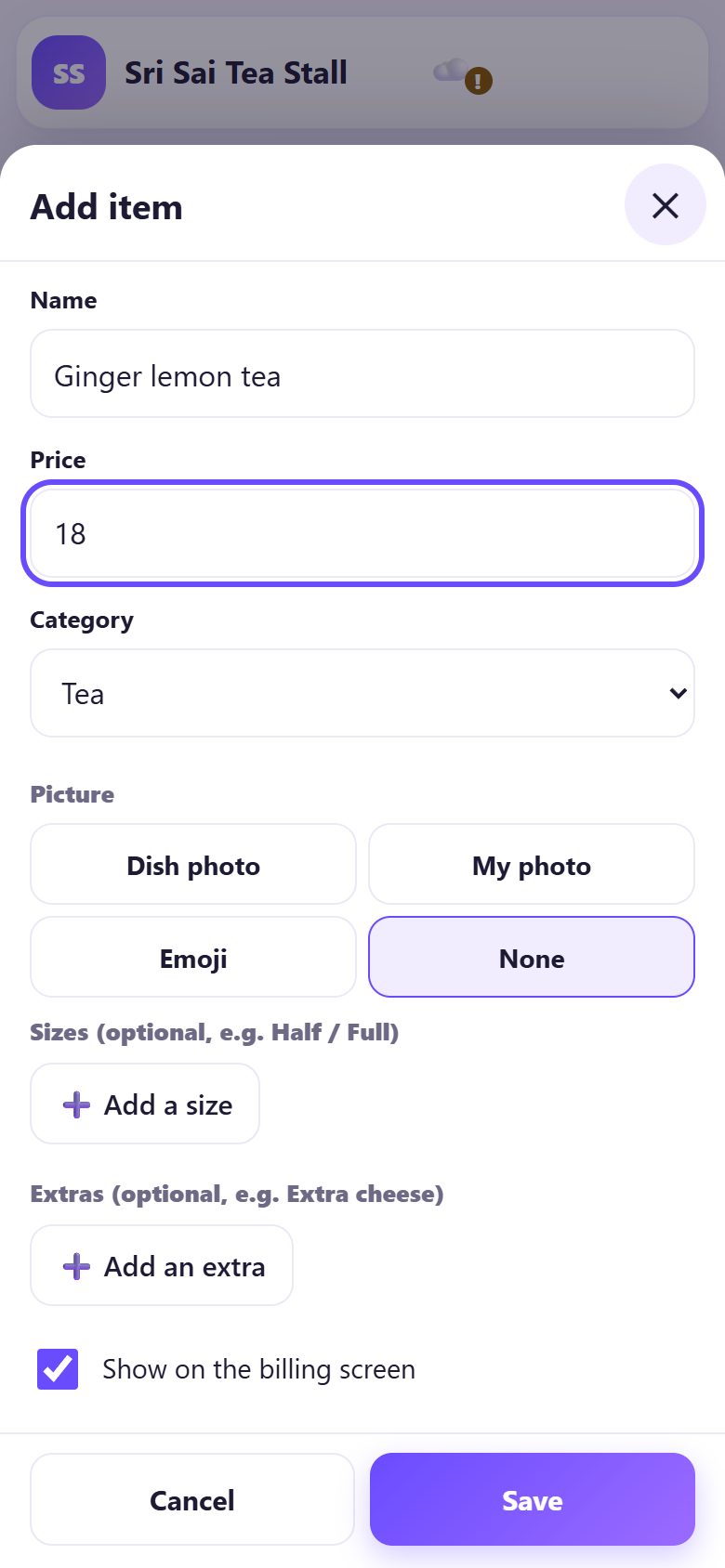
2Tap “Add item” and type the name and price
Tap ➕ Add item. Type the Name as you want it on the bill and the Price (like 18 or 17.50). Pick the Category, or choose ➕ New category at the bottom of that list.
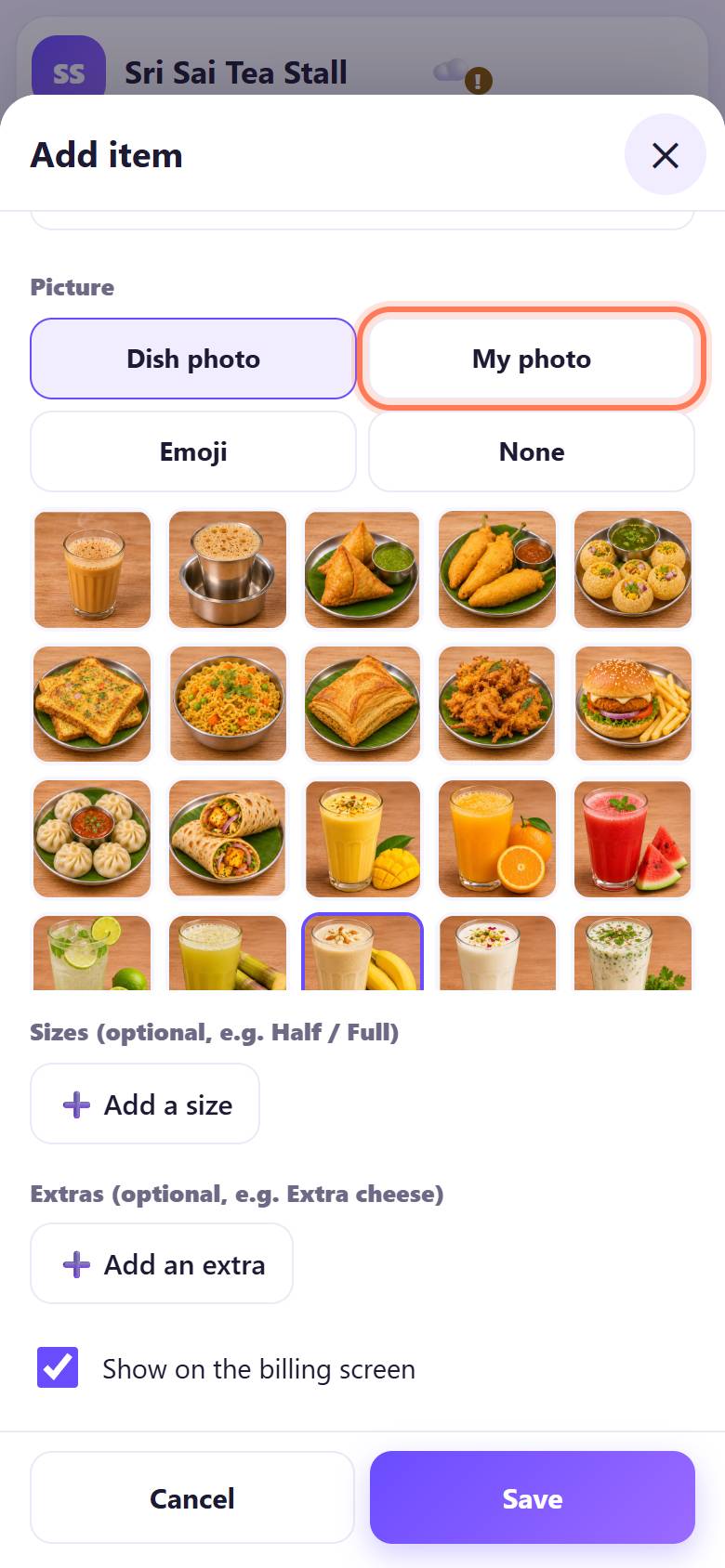
3Give it a picture
Under Picture choose Dish photo and tap one of the ready food photos, or My photo to use a photo from your phone (it stays on this device), Emoji, or None. Pictures help helpers find items fast at rush hour.
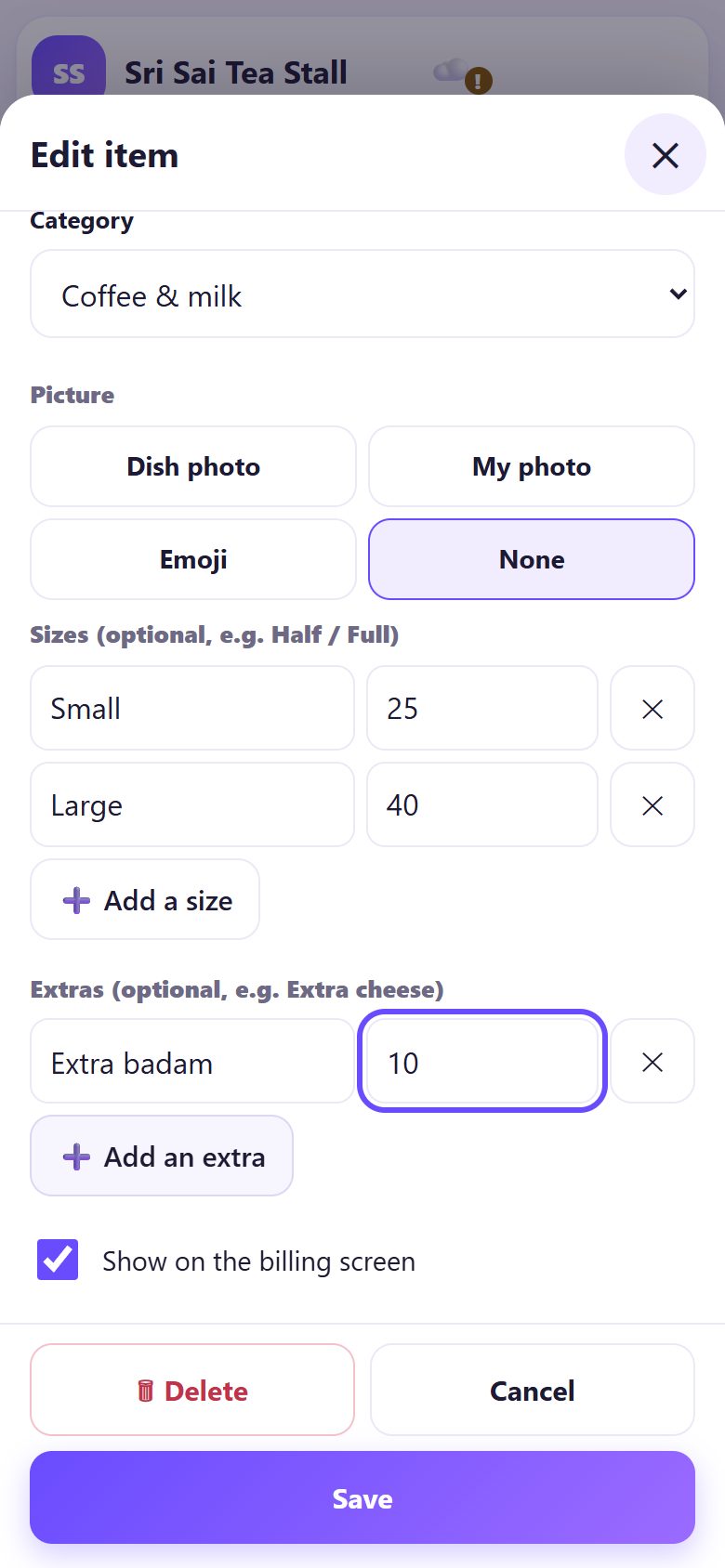
4Add sizes and extras (optional)
For an item sold in sizes, tap ➕ Add a size once per size and type each name and price (for example Small · 25 and Large · 40). Each size needs a name and a price.
Under Extras tap ➕ Add an extra for things like Extra badam · 10 or Less sugar · 0. Untick Show on the billing screen to hide an item that is sold out today. Tap Save.
💡 Tip: Hide, do not delete, items you sell only in some seasons: their sales stay in your reports.
5See how it bills
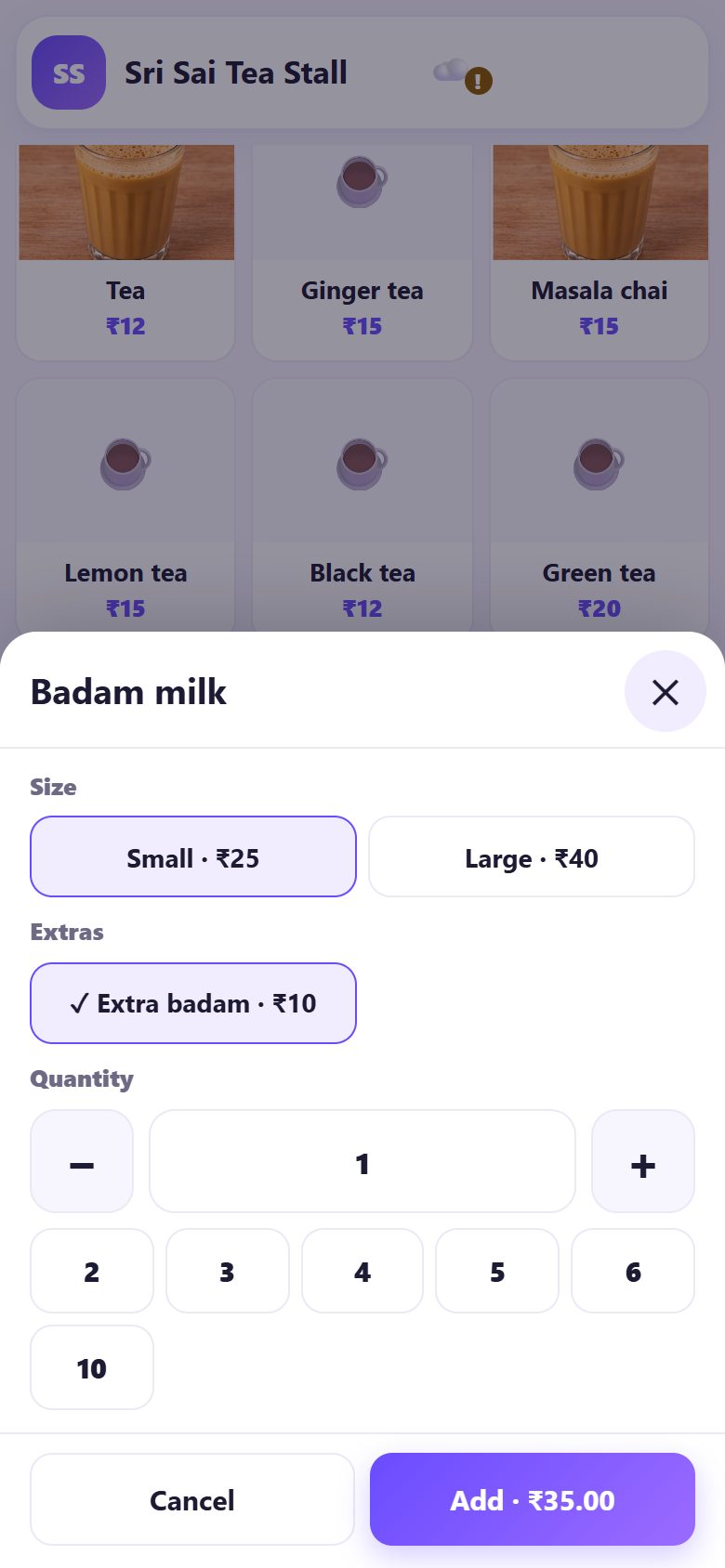
On the Bill screen, tap the item. Items with sizes or extras open a small sheet: pick the Size, tap any Extras, set the Quantity and tap Add. The button shows the price with the extras added.
6Add, rename and order categories
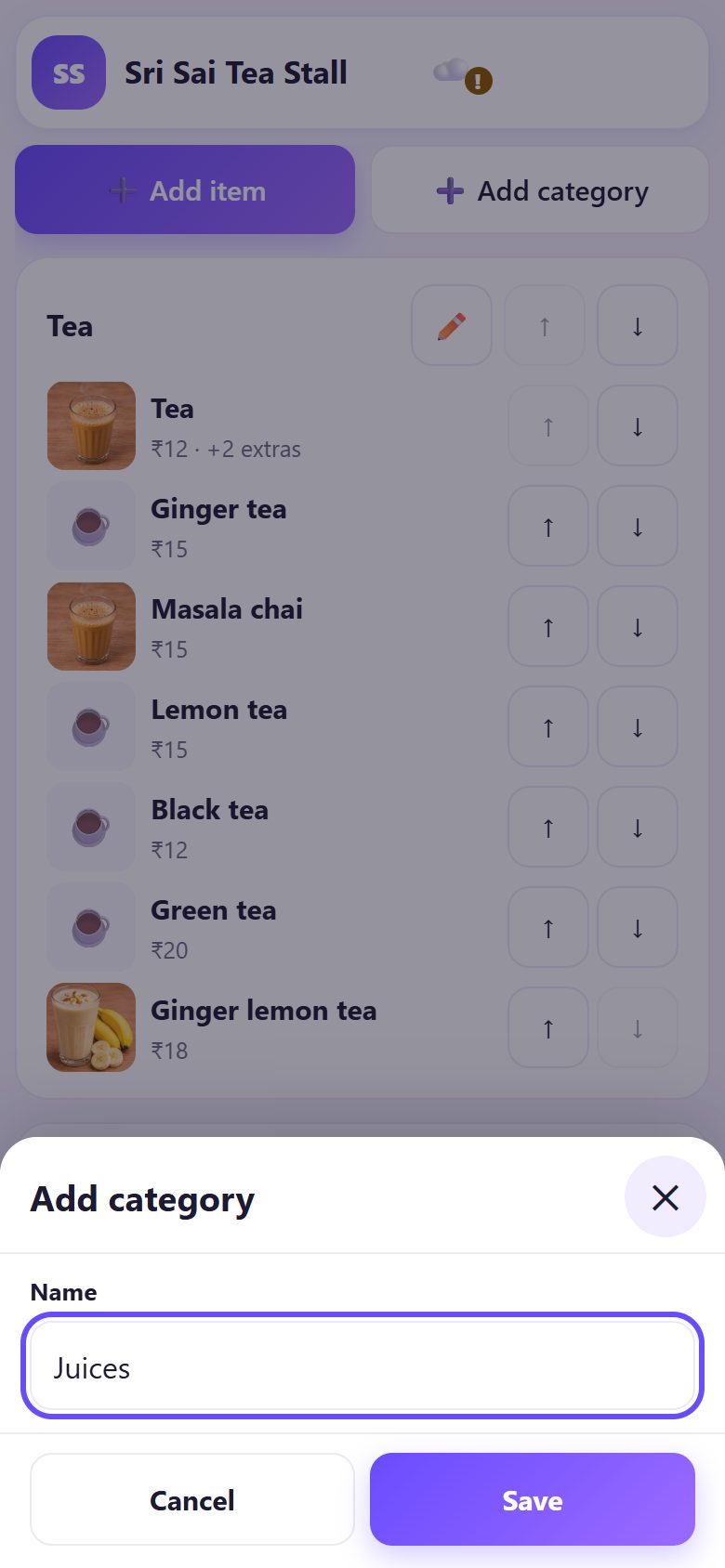
Tap ➕ Add category, type a name such as Juices and tap Save. On the Menu screen, ✏️ renames a category and the ↑ ↓ arrows move categories and items, which is the order on the billing screen.
A category can be deleted only when it is empty: move or delete its items first.
7A different tax rate for one item (GST shops)
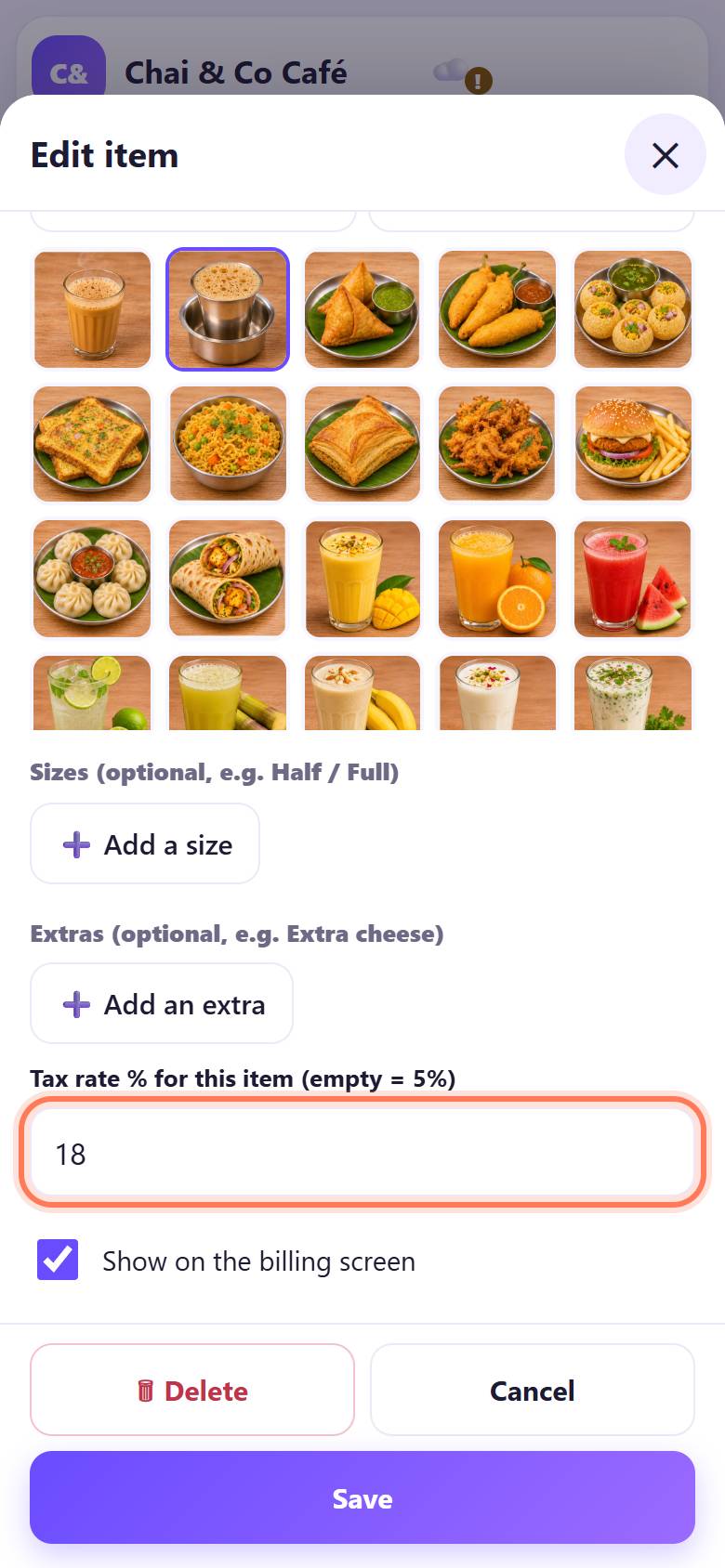
If your bill type is GST tax invoice, every item has a box Tax rate % for this item (empty = 5%). Leave it empty to use your normal rate; type another rate only for an item taxed differently (ask your CA which).
Plain bills and bills of supply have no tax, so this box does not appear there.
💡 What comes next: At night, close the day: count the cash box and save the day-close report.
☕ Café mode: option groups and kitchen notes
With café mode on (Settings, part 9 of this series), the item editor has Option groups (e.g. Size: S / M / L, Add-ons) instead of simple sizes. Each group has a minimum and a maximum (for example choose 1 size, or optional, up to 2 add-ons), and Copy groups from… copies them from another item. You can also mark Veg, Egg or Non-veg and set quick Note for the kitchen choices such as “less sugar, no ice”.
📝 Example: Sri Sai Tea Stall adds badam milk sizes
Ramesh runs Sri Sai Tea Stall near a bus stand. Customers kept asking for a big glass of badam milk, so on Monday morning he opens Menu, taps Badam milk and adds two sizes: Small · 25 and Large · 40, plus an extra Extra badam · 10. He also adds a new item, Ginger lemon tea · 18, with the tea photo.
At 8 am his helper taps Badam milk, picks Large and Extra badam, and the bill shows ₹50 without anyone doing sums. Last week’s bills still show the old menu, exactly as they were printed.
🛠 If something goes wrong
“Please type a correct price, like 15 or 15.50.”
Type only the number: no ₹ sign, no spaces, and a dot for paise.
“Each size needs a name and a price.”
A size row is half filled. Fill both boxes, or tap ✕ next to the row you do not need.
I cannot delete a category
It still has items. Move them to another category (open each item and change Category) or delete them, then delete the category.
The item does not show on the billing screen
Open it and tick Show on the billing screen. Also check that you are looking at the right category, or tap All.
Menu asks for a PIN
An owner PIN is set. Type it; helpers without the PIN can bill but cannot change the menu. See part 8 (backup and PIN).
My own photo does not appear
Some phones save photos in a format the browser cannot open. Choose another photo, or a Dish photo. You will see “That photo could not be opened.” if this happens.
I want the ready menu back
On the Menu screen use Start again from a ready menu. It replaces your current items; bills already made do not change.
🔒 Privacy in plain words
- Your menu, prices and photos are kept only on this device, in the browser. Nothing is uploaded to SpriteSplit.
- A photo you add with My photo is made smaller and stored on the device; it is copied only into your own backup.
- Price changes are written in the Activity log in Settings, on this device only.
Questions people ask
Does changing a price change old bills?
No. Every bill keeps the names and prices it was made with. Only new bills use the new price.
How many items can I add?
There is no fixed limit. Shops with a few hundred items work fine; use categories and the search box on the billing screen.
Can I sell something that is not on the menu?
Yes. Tap ✏️ Custom amount on the billing screen and type the amount for that one bill.
Can each item have its own GST rate?
Yes, in a GST tax invoice shop: type the rate in Tax rate % for this item. Empty means your normal rate.
Do my item photos use mobile data?
The ready dish photos load once and then work offline. Your own photos are stored on the device and never uploaded.
📚 Counter Billing step by step
All 21 parts
- 1Set up your counter
- 2Make a bill
- 3GST invoice and bill types
- 4Print, WhatsApp and QR receipts
- 5Menu: items, sizes, photos
- 6Close the day, count cash
- 7Reports & GST summary
- 8Backup, restore, PIN lock
- 9Café mode and tables
- 10Connect a kitchen screen
- 11Send KOTs to the kitchen
- 12Add a second counter
- 13Staff, roles and PINs
- 14Shifts and cash
- 15Refunds and credit notes
- 16Udhaar (credit) and dues
- 17Stock and recipes
- 18Owner dashboard
- 19Owner view on your phone
- 20Pharmacy set-up and medicines
- 21Daily pharmacy billing