How to back up Counter Billing, restore it on a new phone or PC, and lock it with a PIN
Counter Billing keeps your bills on the device, not on our servers. That is good for privacy, but it means a lost phone, a reset, or cleared browser data takes the bills with it, unless you have a backup. This guide sets one up in minutes and shows how to bring everything back on a new phone or PC.
It also shows the Owner PIN, so helpers can bill but cannot see reports, change prices or void bills.
Steps
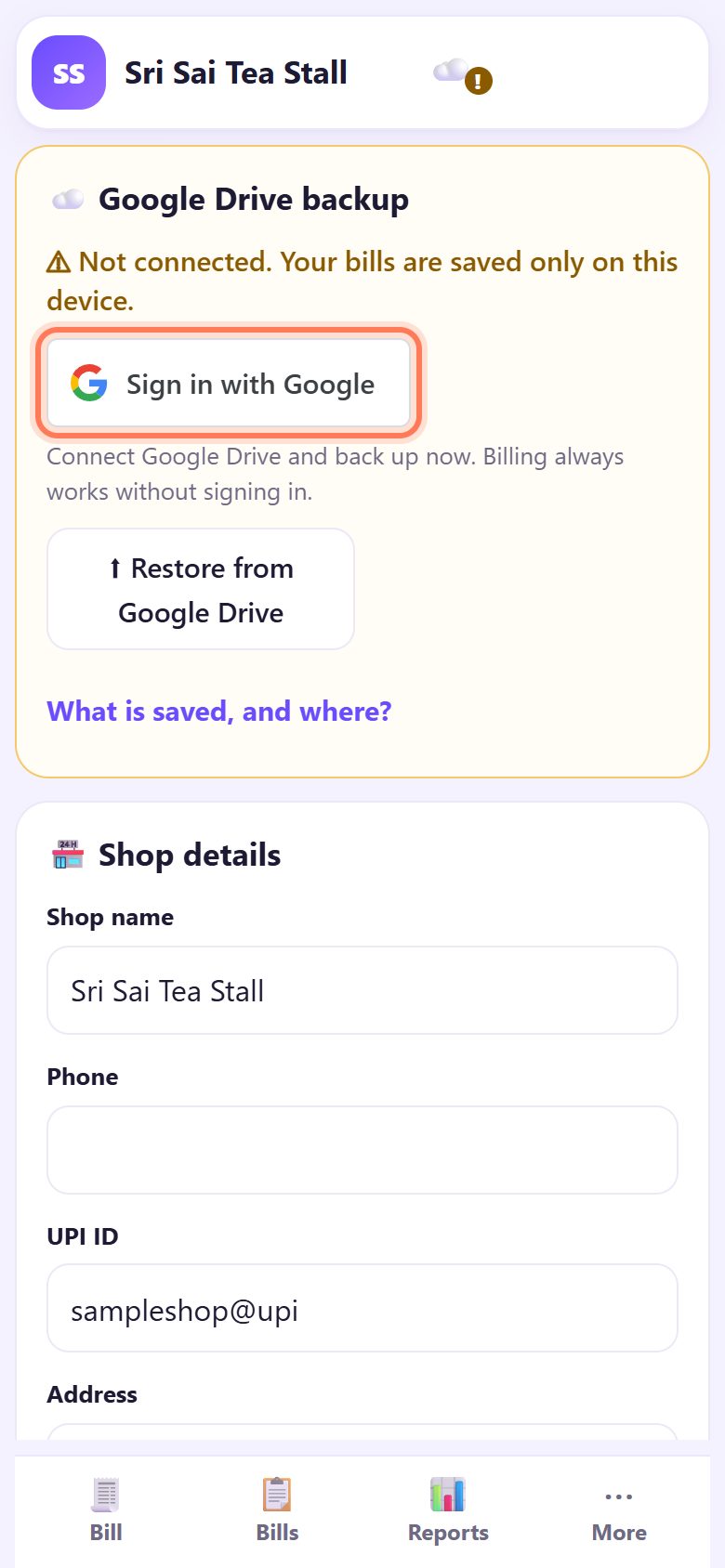
1Best: turn on Google Drive backup
Open ⋯ More › ⚙️ Settings. At the top, ☁️ Google Drive backup says Not connected. Your bills are saved only on this device. Tap Sign in with Google and allow it. After that the counter backs up by itself, after each day close and every 30 minutes after new bills while online.
The copy goes to a private app folder in your own Google Drive; SpriteSplit cannot see it. The first time, choose a 🔑 backup password (at least 6 letters or digits): every Drive backup is locked with it, and you type it only when you restore on a new phone or PC. Writing it on paper in the shop is fine; nobody can recover it, not even SpriteSplit. Tap What is saved, and where? to read the details. Billing always works without signing in. Until you sign in, a yellow reminder with Sign in with Google and Later shows on the counter.
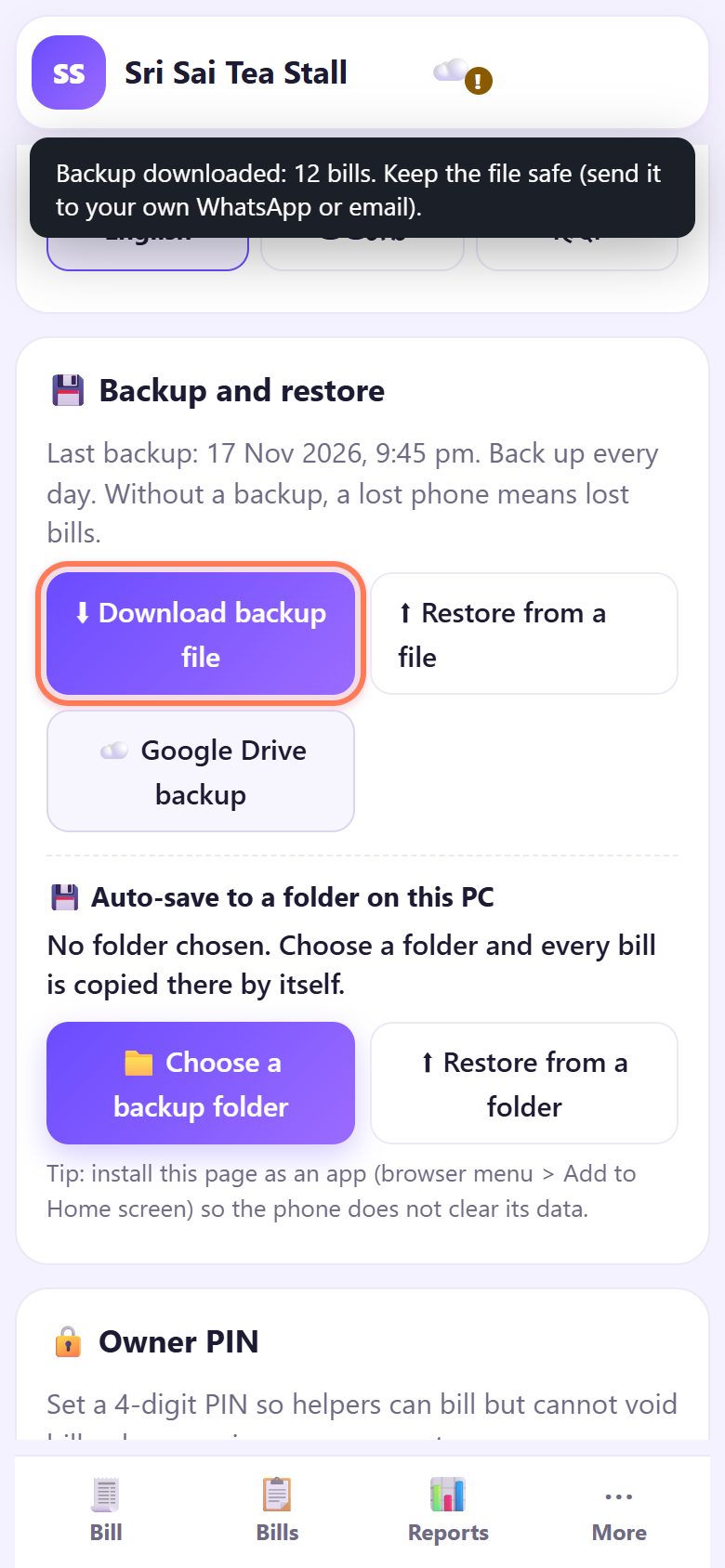
2Also keep a backup file
Under 💾 Backup and restore tap ⬇ Download backup file. The message says Backup downloaded: 12 bills. Keep the file safe (send it to your own WhatsApp or email). and Last backup shows the time.
Do it every night after closing the day, or at least once a week.
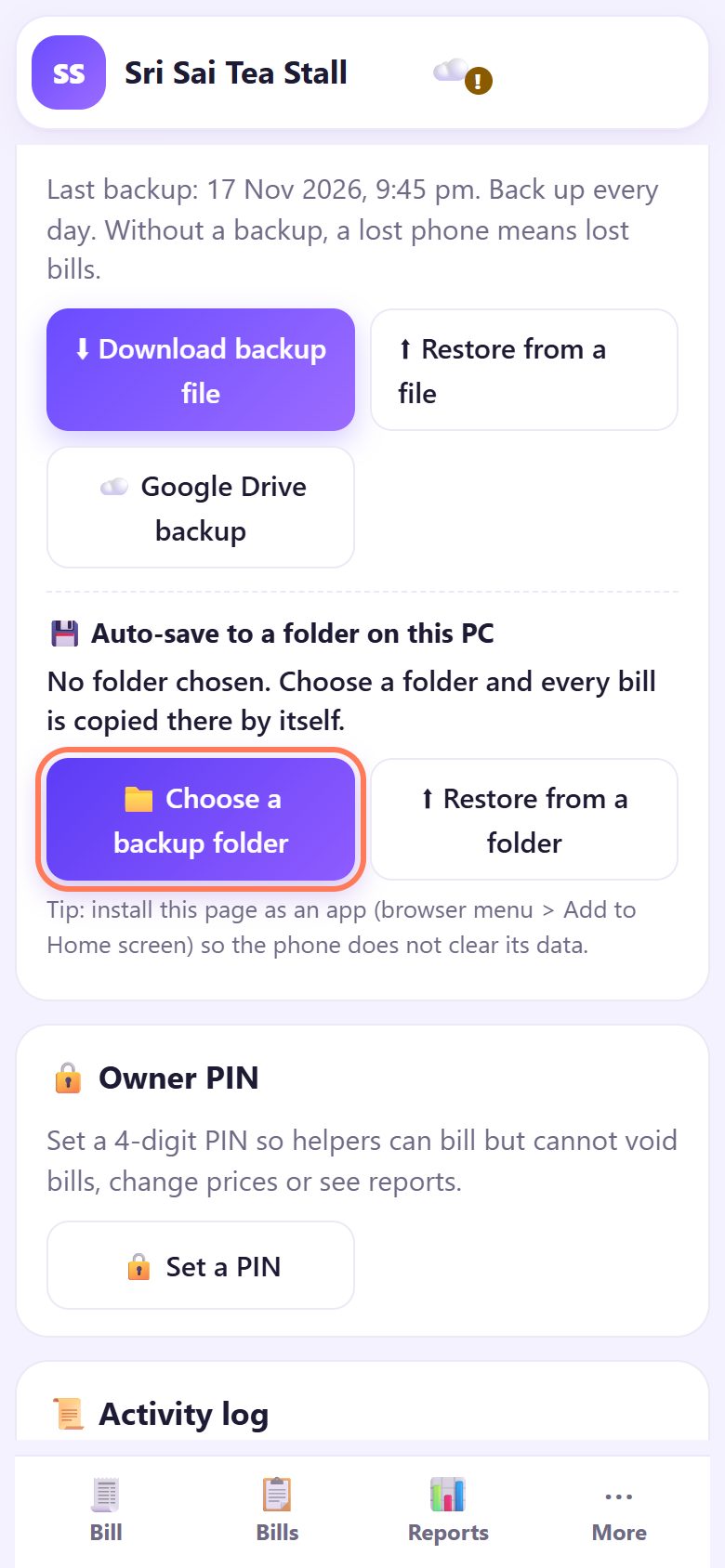
3On a PC: auto-save to a folder
On a shop PC with Chrome or Edge you can also use 💾 Auto-save to a folder on this PC. Tap 📁 Choose a backup folder (for example a folder on another drive or a pen drive) and allow it: every bill is then copied there by itself.
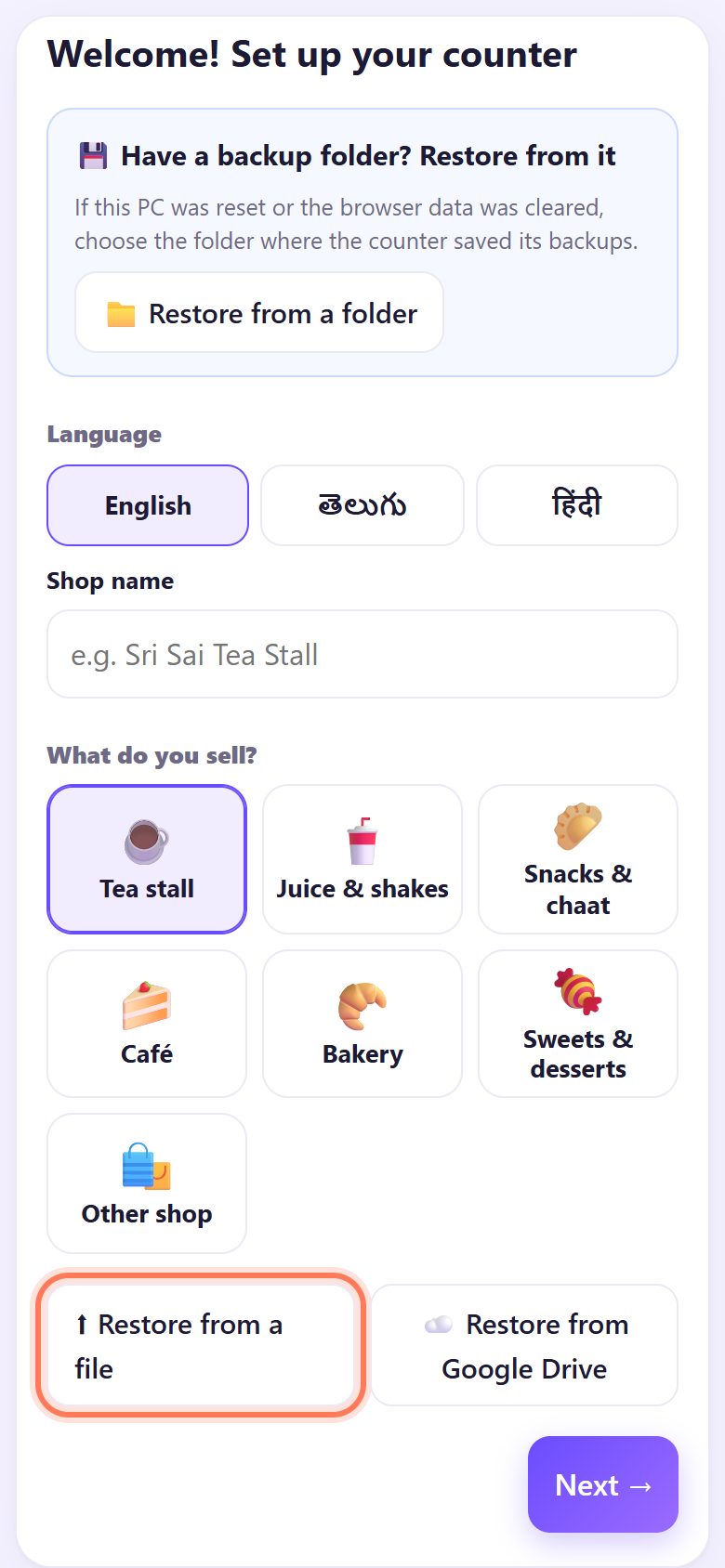
4New phone: restore on the first screen
On the new phone or PC open spritesplit.com/bill. On Welcome! Set up your counter, do not set up again: tap ⬆ Restore from a file and pick your backup file, or ☁️ Restore from Google Drive and sign in with the same Google account. On a PC that used a backup folder, use 📁 Restore from a folder at the top.
5Merge or Replace
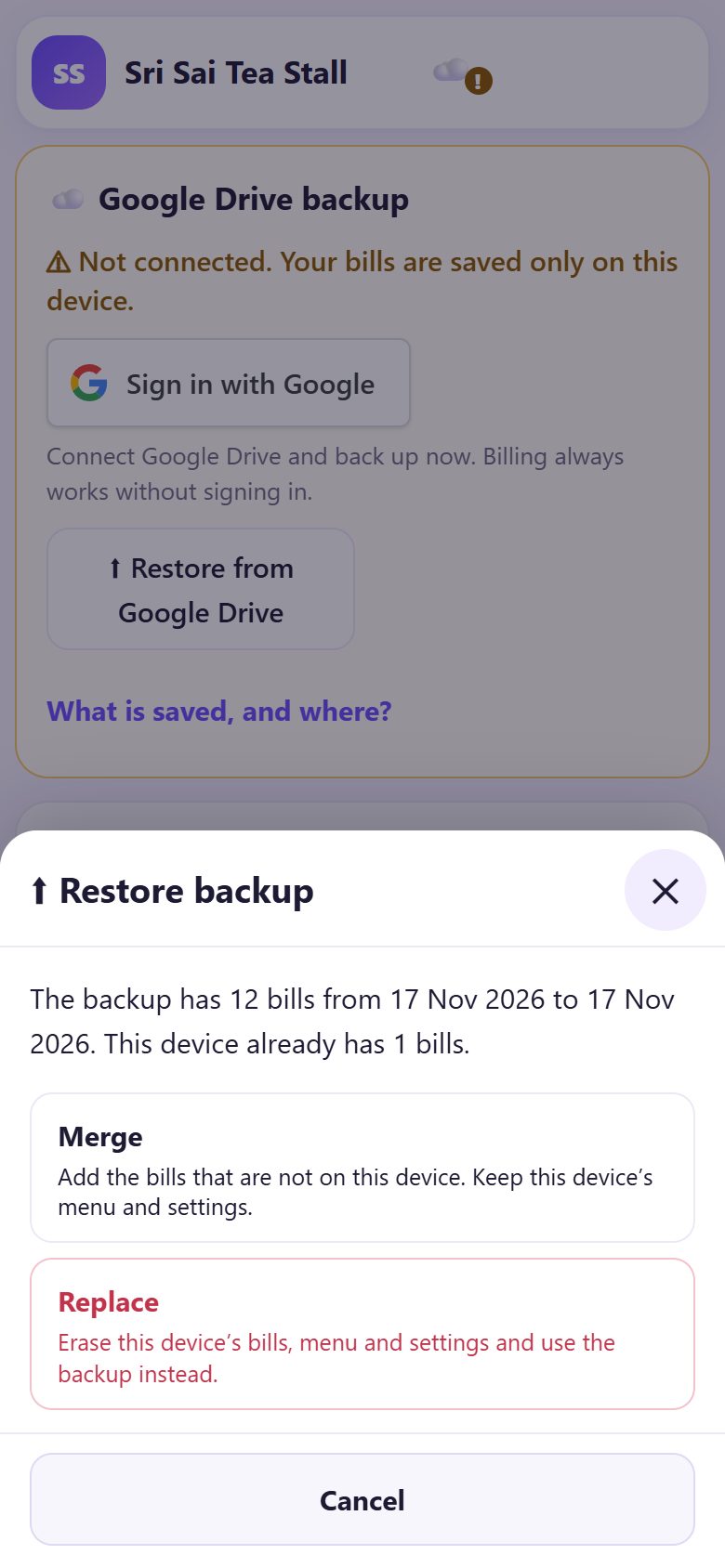
If the device already has bills, Restore backup asks what to do. Merge adds the bills that are not on this device and keeps this device’s menu and settings. Replace erases this device’s bills, menu and settings and uses the backup instead.
Moving to a new phone? Use Replace. Joining bills from two phones? Use Merge.
6Everything is back
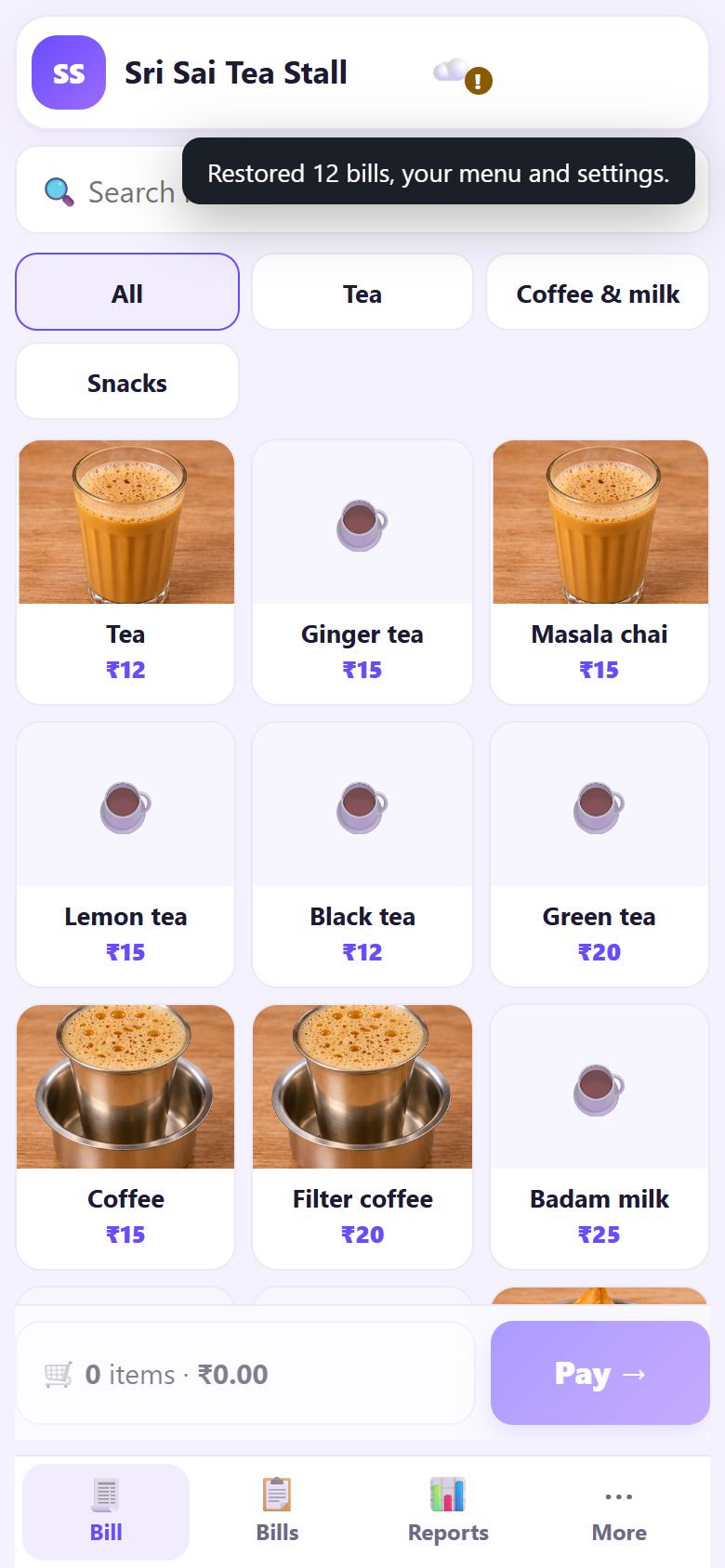
The counter says Restored 12 bills, your menu and settings. Your menu, prices, bill numbers and reports are as they were, and the next bill continues the same numbering. If something does not fit, it says Restore failed. Nothing was changed.
💡 Tip: The owner PIN is never in a backup. Set it again on the new device (next step).
7Set an owner PIN
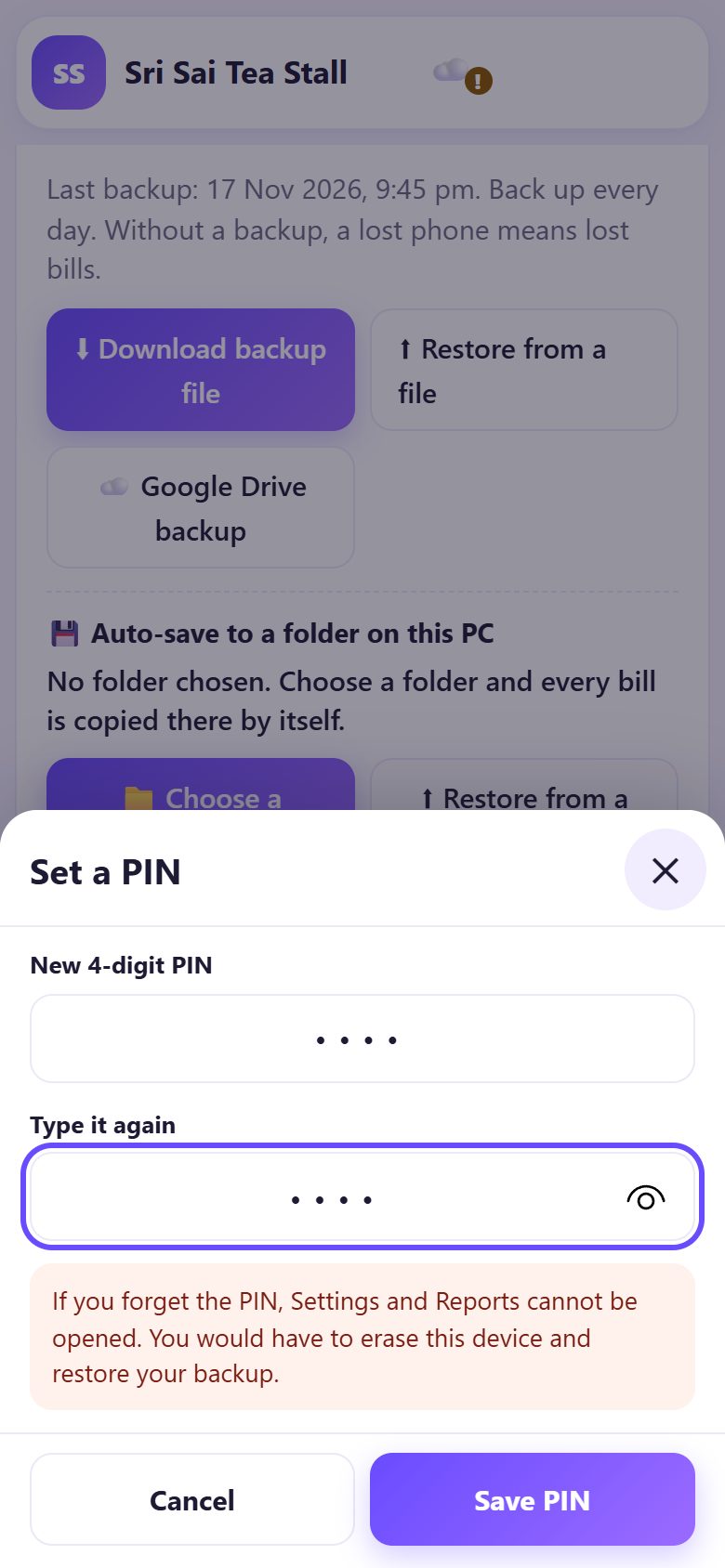
In Settings under 🔒 Owner PIN tap 🔒 Set a PIN, type a New 4-digit PIN, Type it again and tap Save PIN. Write it somewhere safe: if you forget it, Settings and Reports cannot be opened and you would have to erase the device and restore your backup.
8Helpers bill, the PIN guards the rest
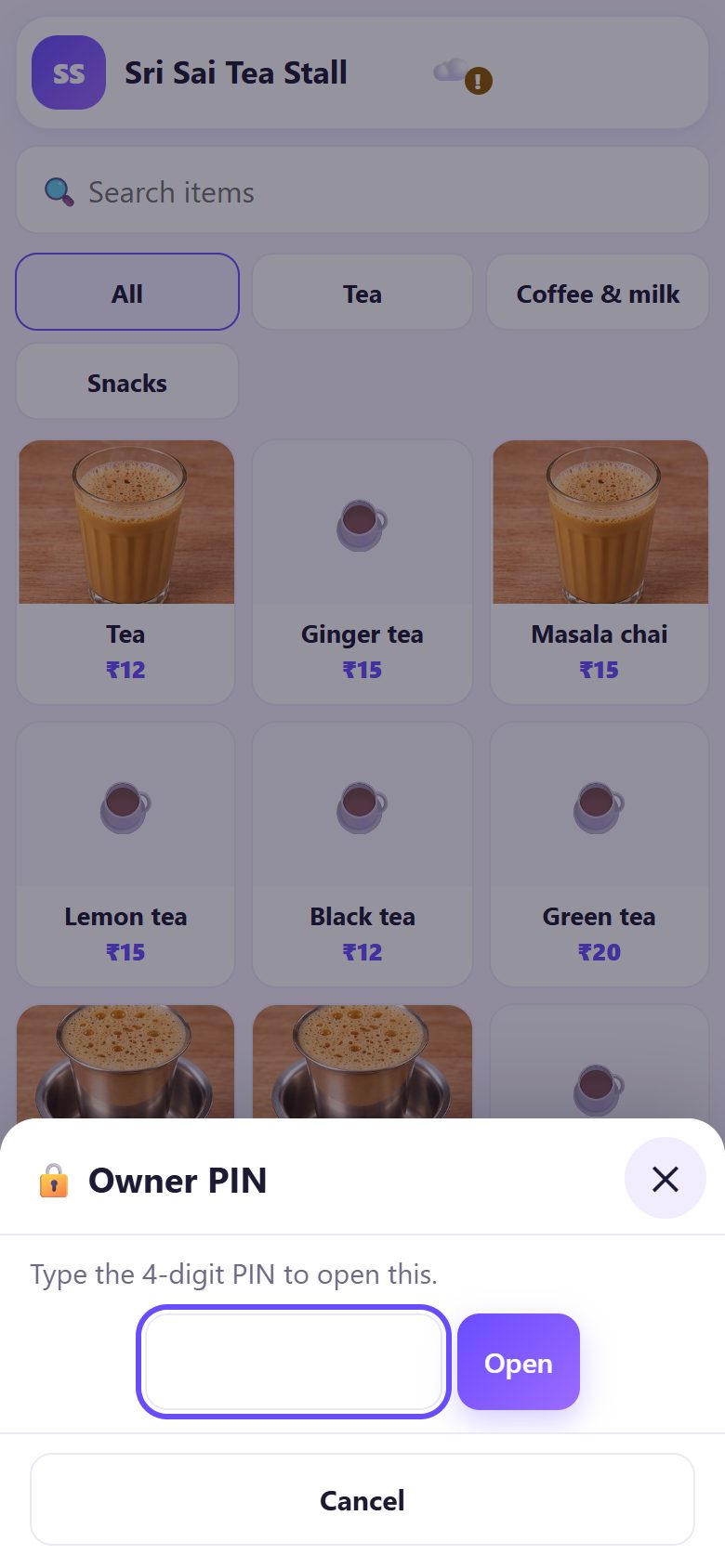
Now Settings, Menu, Reports, Close day and voiding bills ask Type the 4-digit PIN to open this. Billing stays open for everyone. Use 🔒 Lock now when you step away; Change PIN and Remove PIN are in the same place.
For several staff with their own PINs and permissions, see part 13.
💡 What comes next: Have tables or a kitchen? Turn on café mode and take orders table by table.
📝 Example: a dropped phone at Sri Sai Tea Stall
On Saturday Ramesh’s counter phone falls into the tea pan. Three months of bills were on it. Luckily, two months ago he tapped Sign in with Google, and he also sends himself the backup file on WhatsApp every Sunday.
On his new phone he opens spritesplit.com/bill, taps Restore from Google Drive, signs in, and sees Restored 2,914 bills, your menu and settings. The next bill is 26-27/2915, exactly where he stopped. He sets his owner PIN again and is billing in five minutes.
🛠 If something goes wrong
“This file is not a Counter Billing backup.”
You picked another file. Look for a file named like counter-billing-backup….json in Downloads or in the chat where you sent it.
“Bill … in the backup is different from bill … on this device. Nothing was merged.”
Both devices made bills with the same numbers. Use Replace on the device that should take the backup, or keep the two separate.
“No backup found in this Google Drive.”
Sign in with the same Google account you used for the backup. A backup appears only after the first one has run on the old device.
“Your Google Drive is full.”
Free some space in Google Drive or download a backup file instead. Billing keeps working.
“This backup was made by a newer version.”
Reload the page (pull down or press F5) so the counter updates, then restore again.
“Wrong password. Try again.”
Type the backup password chosen on the old device (not your Google password and not the PIN). Nobody can recover a lost backup password: restore an older backup file made before the password was set, if you have one.
I forgot the owner PIN
There is no reset by SMS or email. Download a backup file if you still can bill, erase the device in Settings (Erase all data), restore the backup and set a new PIN.
Bills disappear after a few days
The browser cleared its data. Install the page as an app (browser menu › Add to Home screen), do not use private / incognito windows, and turn on Google Drive backup.
🔒 Privacy in plain words
- Bills, menu and settings stay on your device. A backup file is a file you download and keep; SpriteSplit never receives it.
- Google Drive backup goes to a private app folder in your own Google Drive, locked with your backup password. SpriteSplit cannot open it or recover the password, and your Google password is never shared.
- The owner PIN is stored only as a salted scrambled code on the device and is not included in backups.
Questions people ask
Is Google Drive backup required?
No. Billing works without signing in. But without some backup, a lost phone means lost bills, so use Drive, a backup file, or both.
Can I use the same counter on two phones?
Each device keeps its own bills. You can join bills from another device with Merge, but bill numbers must not clash; one counter device per bill series is safest.
How big is a backup file?
Small: a few hundred kilobytes for thousands of bills, more if you added many of your own item photos.
Does the backup include my reports?
Yes. Reports are worked out from the bills, and day-close reports, the menu and settings are in the backup too. Only the owner PIN is left out.
Can helpers see sales if I set a PIN?
No. Without the PIN they can only bill. Reports, Settings, Menu, Close day and voids ask for the PIN.
📚 Counter Billing step by step
All 21 parts
- 1Set up your counter
- 2Make a bill
- 3GST invoice and bill types
- 4Print, WhatsApp and QR receipts
- 5Menu: items, sizes, photos
- 6Close the day, count cash
- 7Reports & GST summary
- 8Backup, restore, PIN lock
- 9Café mode and tables
- 10Connect a kitchen screen
- 11Send KOTs to the kitchen
- 12Add a second counter
- 13Staff, roles and PINs
- 14Shifts and cash
- 15Refunds and credit notes
- 16Udhaar (credit) and dues
- 17Stock and recipes
- 18Owner dashboard
- 19Owner view on your phone
- 20Pharmacy set-up and medicines
- 21Daily pharmacy billing