How to set up Counter Billing for your shop (first time)
Counter Billing is a free billing counter that runs in the browser: tap items, take cash or UPI, print or WhatsApp the bill, and close the day. There is no sign-up and no app to install. Before the first bill it asks four short questions: your shop, your bill type, what goes on the bill and your menu.
This part follows Sri Sai Tea Stall through those four screens. Everything you choose can be changed later in Settings.
Steps
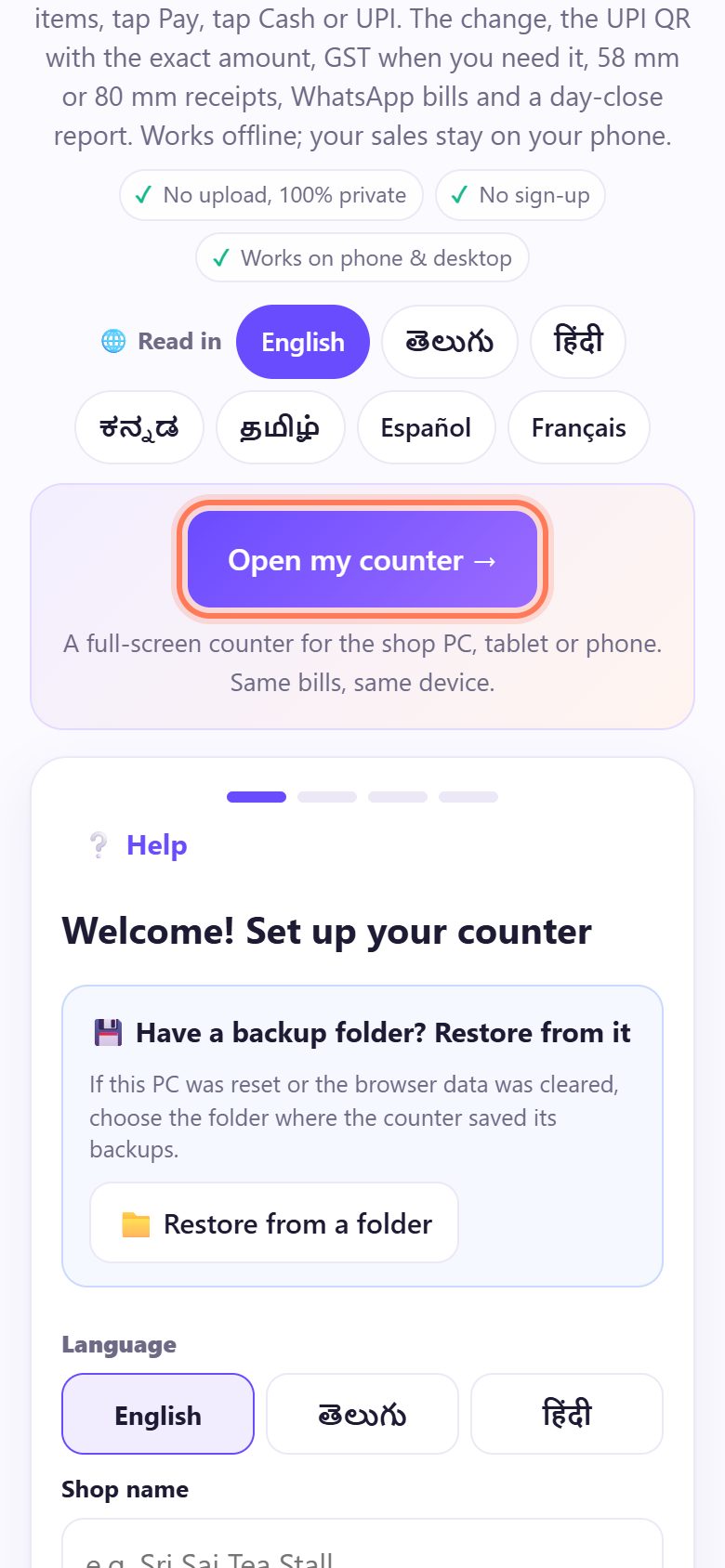
1Open spritesplit.com/bill and tap “Open my counter”
On the phone or tablet you will bill on, open spritesplit.com/bill in Chrome (or Edge or Safari). Tap Open my counter →: the counter opens full screen, without the rest of the website around it.
You can also fill the set-up card right on this page. Both are the same counter with the same bills.
💡 Tip: Use the device that stays at the counter. Bills are saved in that device’s browser, not online.
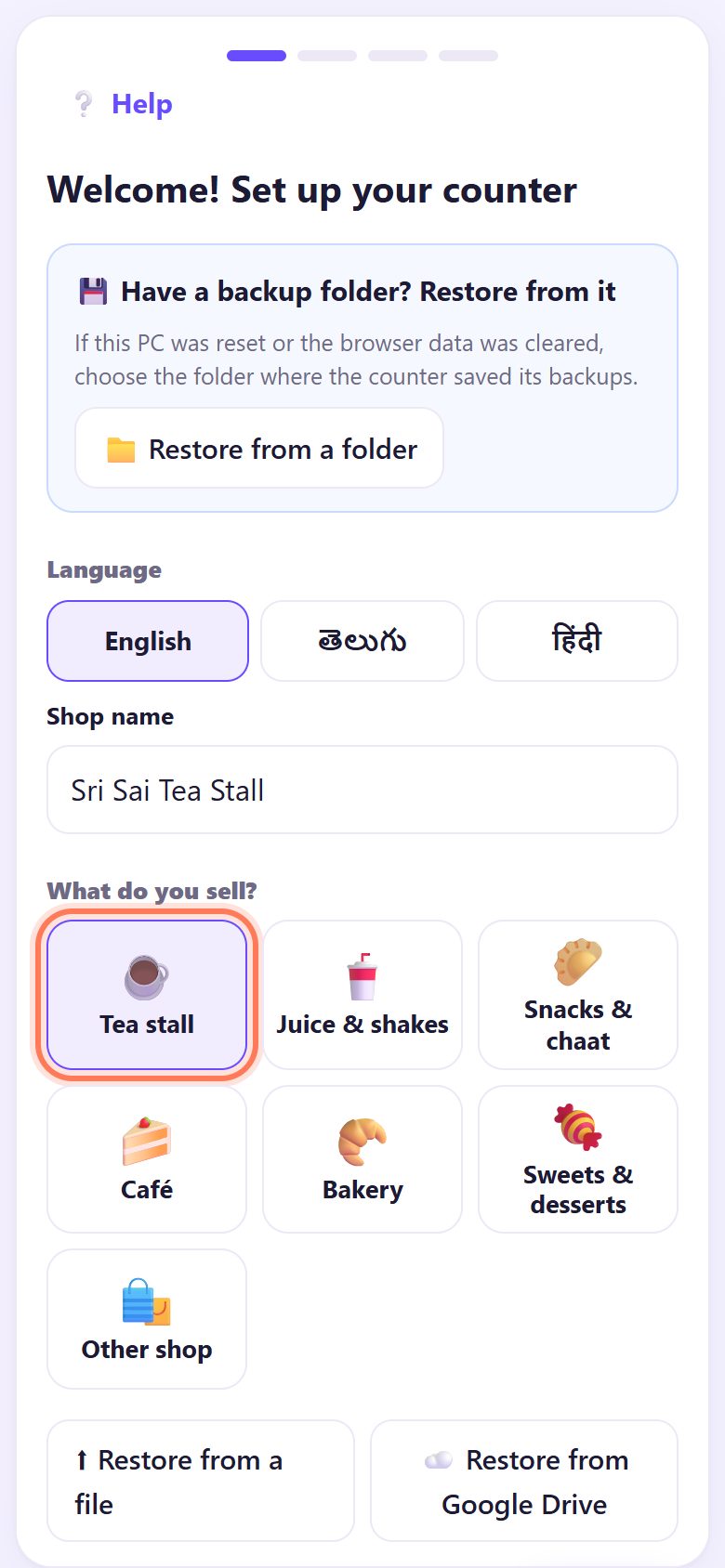
2Pick your language, type the shop name, choose what you sell
On Welcome! Set up your counter, tap your Language (English, తెలుగు or हिंदी), type the Shop name as it should print on the bill, and tap what you sell under What do you sell?: Tea stall, Juice & shakes, Snacks & chaat, Café, Bakery, Sweets & desserts or Other shop. Tap Next →.
The shop type decides the ready menu you get at the end (you can change every item).
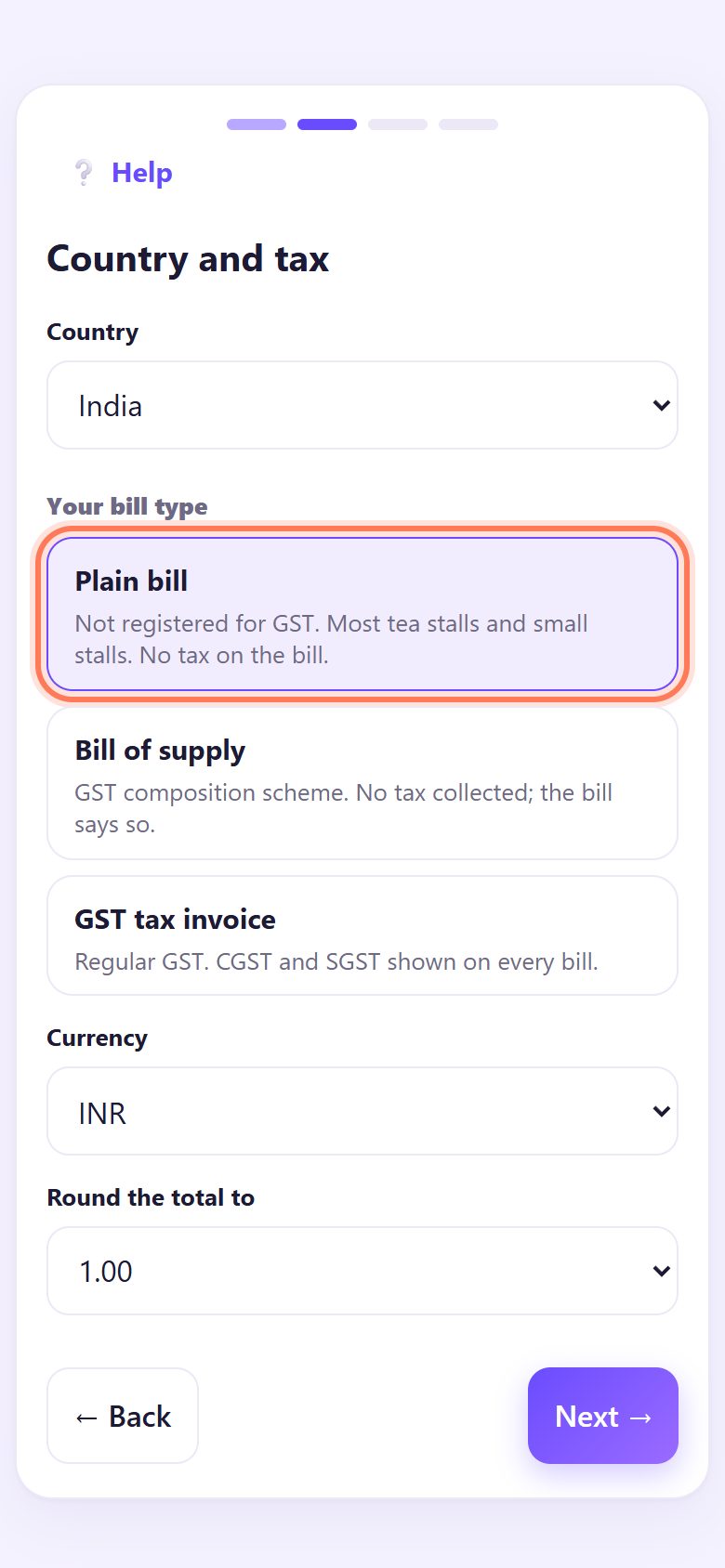
3Choose your bill type: Plain bill if you have no GST
On Country and tax, keep India and choose Your bill type:
- Plain bill: not registered for GST. Most tea stalls and small stalls. No tax on the bill.
- Bill of supply: GST composition scheme. No tax is collected and the bill says so.
- GST tax invoice: regular GST, with CGST and SGST on every bill.
Round the total to 1.00 keeps totals in whole rupees. Tap Next →.
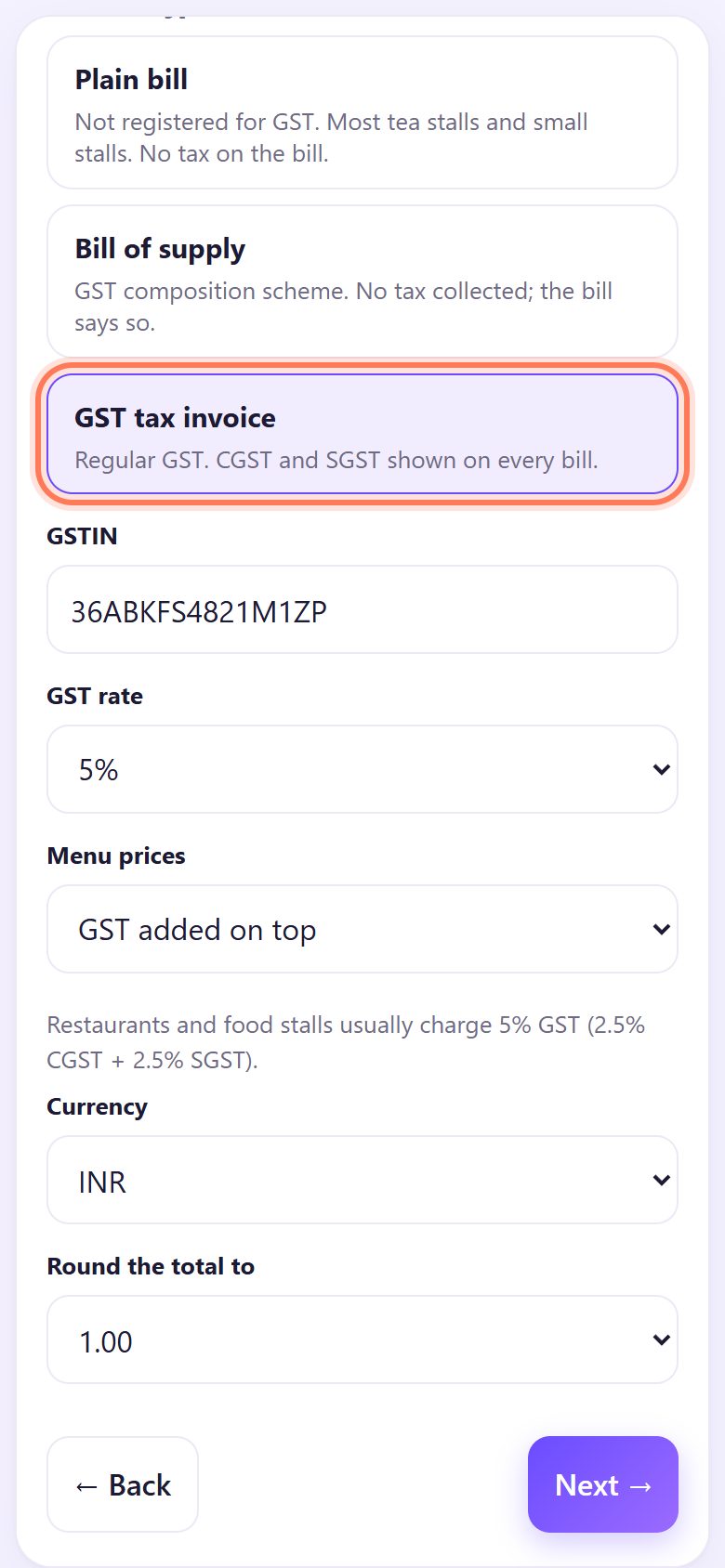
4Registered for GST? Type your GSTIN and rate
If you chose GST tax invoice, type your 15-character GSTIN. The app checks it, including the last check letter, so a typing mistake shows up at once. Then pick the GST rate (restaurants and food stalls usually 5%) and Menu prices: GST added on top or GST included.
Part 3 of this series explains the three bill types in detail.
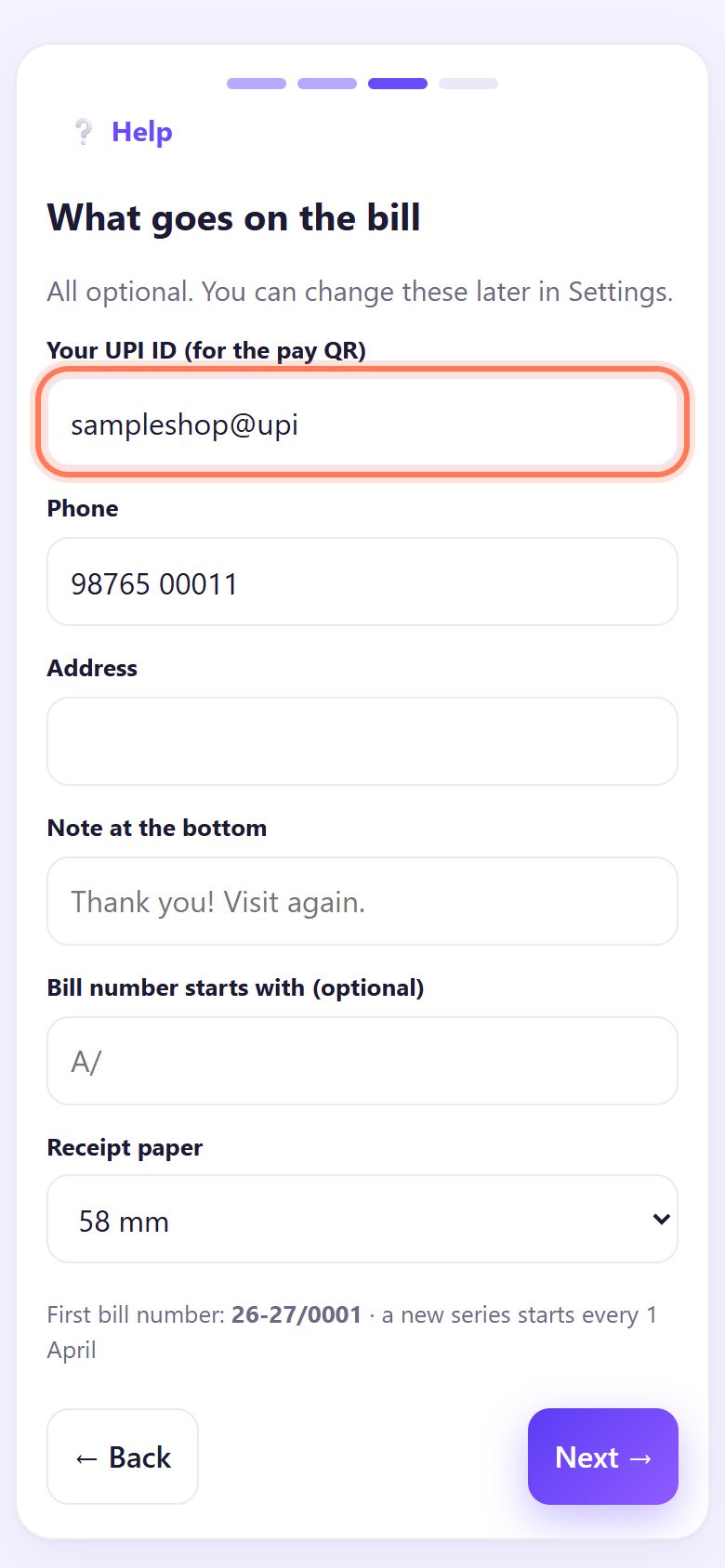
5Add your UPI ID and what prints on the bill
On What goes on the bill, type Your UPI ID (for the pay QR), the one your soundbox or PhonePe / GPay business shows (like name@okaxis). Then the shop Phone and Address, a Note at the bottom, and the Receipt paper: 58 mm, 80 mm, A4 or A5.
Bill numbers look like 26-27/0001 and start again every 1 April. Add letters in Bill number starts with (optional) if you want, like A/. All of this is optional.
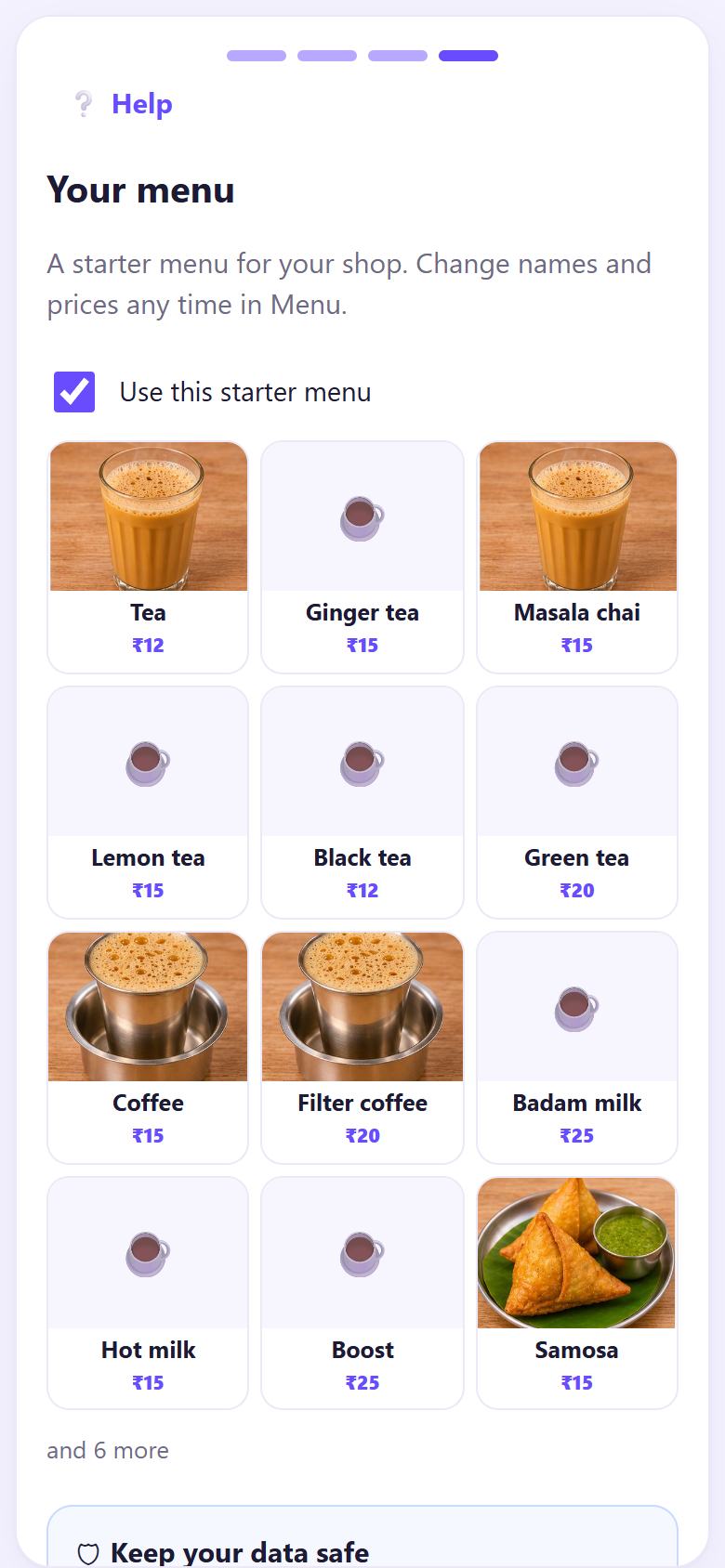
6Keep the ready menu and tap “Start billing”
Your menu shows a starter menu for your shop type, with pictures and common prices. Keep Use this starter menu ticked to begin with it, or untick it to start empty. Change names and prices any time in Menu (part 5).
If you see Keep your data safe, signing in with Google keeps a backup copy in your own Google Drive (part 8). Then tap Start billing.
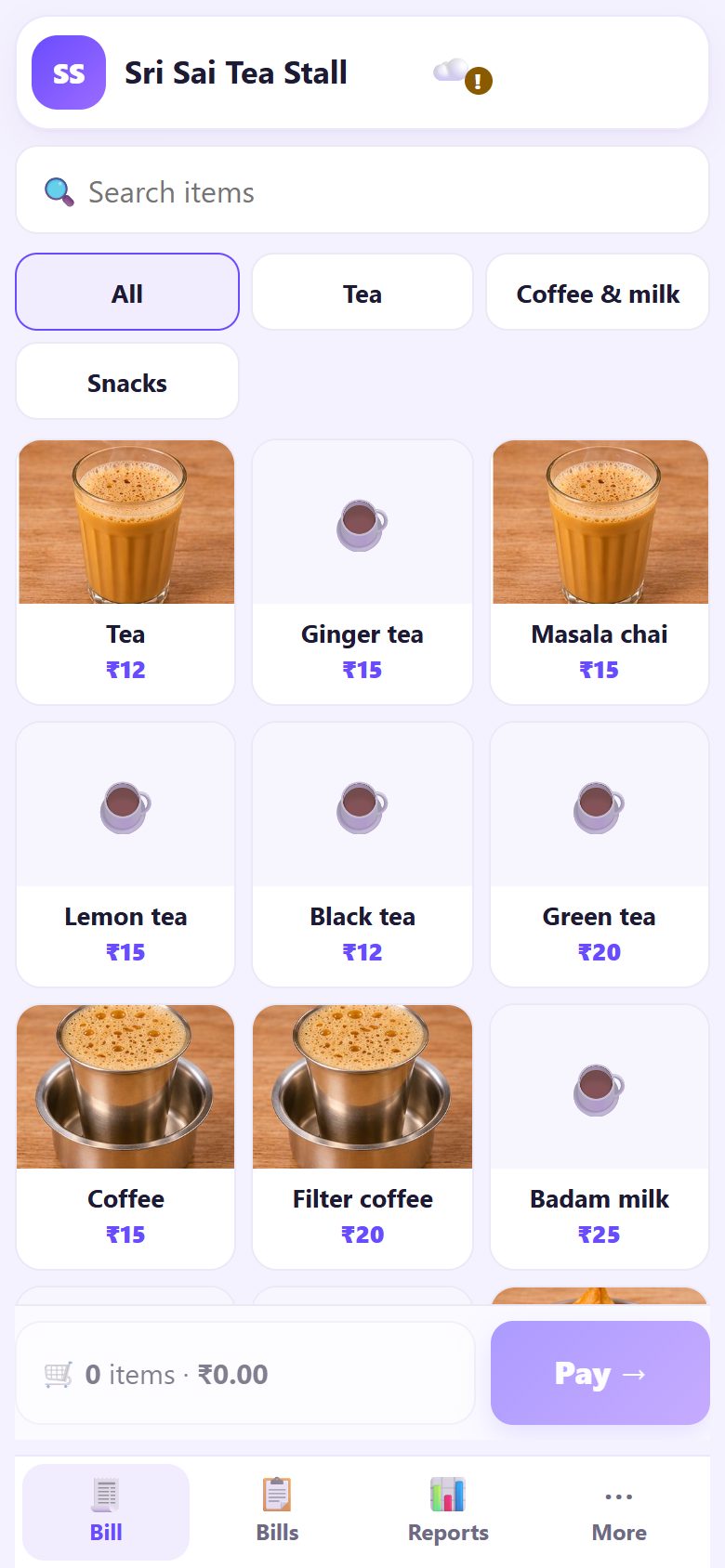
7Your counter is ready
This is the billing screen: tap item tiles to add them, then Pay. At the bottom are Bill, Bills, Reports and More (Close day, Menu, Settings and Help). Part 2 makes the first bill.
Add the counter to your home screen (browser menu, then Add to Home screen) so it opens like an app and the phone does not clear its data.
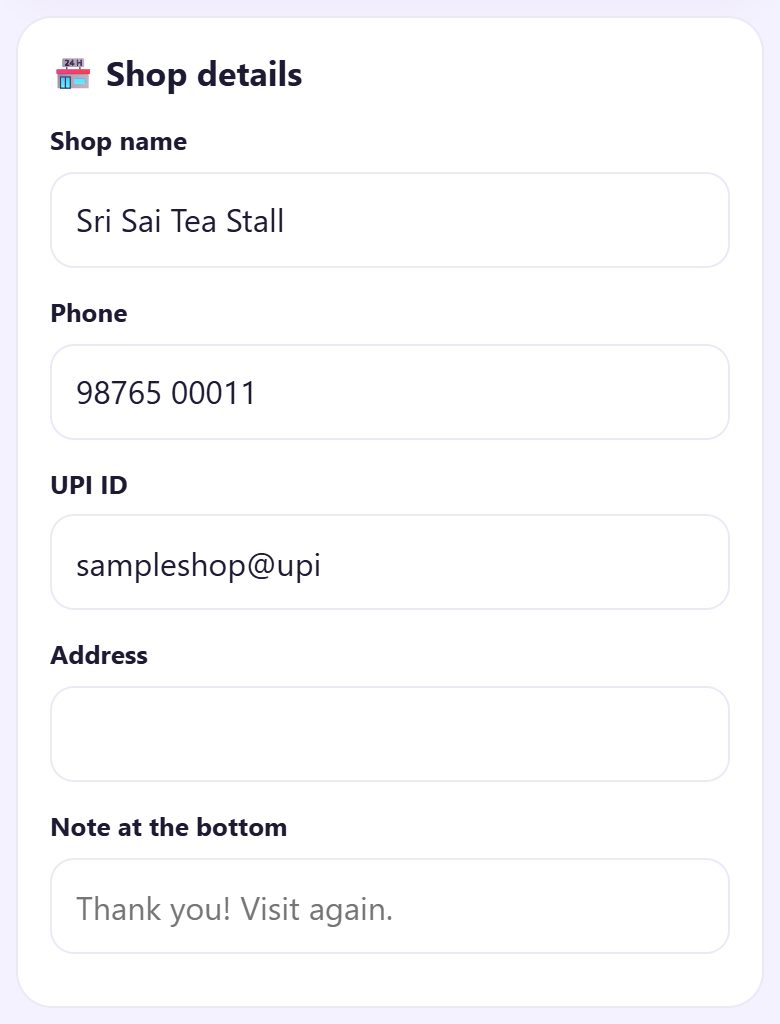
8Change anything later in Settings
Open More → Settings. Under Shop details you can change the shop name, phone, UPI ID, address and the note at the bottom. Further down: bill type and tax, receipt paper, Language, café mode, backup, the owner PIN and more. Tap Save settings after a change.
💡 What comes next: Your counter is ready. Now make your first real bill: items, change for cash, UPI and split payments.
📝 Example: Ramesh sets up Sri Sai Tea Stall before the morning rush
Ramesh runs Sri Sai Tea Stall near a bus stop. He has no GST registration and takes most payments on a PhonePe soundbox. At 6:30 am he opens spritesplit.com/bill on his Android phone, taps Open my counter, chooses తెలుగు, types the shop name and taps Tea stall.
He picks Plain bill, types his UPI ID and phone, keeps 58 mm paper and keeps the starter menu. In Menu he changes Tea from ₹12 to ₹10 and adds “Biscuit packet ₹10”. By 6:40 he has made his first bill. The whole set-up took less time than boiling the first pot of milk.
🛠 If something goes wrong
“This UPI ID does not look right”
A UPI ID has a name, then @, then the bank or app part, like name@okaxis or 9876500011@ybl. Copy it exactly from your UPI app or soundbox stand, with no spaces.
“This does not look like a GSTIN” or “The last character does not match”
A GSTIN has 15 letters and digits and starts with your state code (36 for Telangana, 37 for Andhra Pradesh). Copy it from your GST certificate; the last letter is a check letter, so one wrong character is caught.
“This browser cannot save bills”
Private / incognito windows and some old browsers block storage. Open the page in a normal Chrome, Edge or Safari window.
I chose the wrong bill type or shop type
No problem. Change the bill type in Settings → Bill type and tax. For a different ready menu, use Start again from a ready menu in Menu (your bills stay).
The page says Counter Billing is open in another tab
Billing in two tabs could mix up bill numbers. Close the other tab, or tap Use it here to move the counter to this tab.
I already used Counter Billing on another phone
On the first screen tap Restore from a file or Restore from Google Drive and pick your backup. Your bills, menu and settings come back (part 8).
🔒 Privacy in plain words
- Your menu, bills and reports are saved only in this browser on this device. Nothing is uploaded to SpriteSplit.
- The UPI QR is made on your phone with your UPI ID and the amount. The money goes straight from the customer’s UPI app to your bank; Counter Billing never sees or touches payments.
- A customer’s name and phone are saved only if you type them.
- Because the bills live on one device, back up from Settings (a file or your own Google Drive). Without a backup, a lost phone means lost bills.
Questions people ask
Is Counter Billing really free?
Yes. No sign-up, no login and no limit on bills or items.
Do I need internet to bill?
Only the first time the page opens. After that, billing, receipts, day close and reports work offline. Sharing on WhatsApp, the first PDF and Google Drive backup need internet.
Can I use it on a PC or tablet?
Yes. Open spritesplit.com/bill on any device. Each device keeps its own bills, so bill on one counter device and back up from it.
Which bill type should I choose?
Not registered for GST: Plain bill. Composition scheme: Bill of supply. Regular GST: GST tax invoice. Part 3 of this series explains the difference.
Can I change the language later?
Yes. Settings → Language switches the app between English, Telugu and Hindi. Receipt language can be set separately.
📚 Counter Billing step by step
All 21 parts
- 1Set up your counter
- 2Make a bill
- 3GST invoice and bill types
- 4Print, WhatsApp and QR receipts
- 5Menu: items, sizes, photos
- 6Close the day, count cash
- 7Reports & GST summary
- 8Backup, restore, PIN lock
- 9Café mode and tables
- 10Connect a kitchen screen
- 11Send KOTs to the kitchen
- 12Add a second counter
- 13Staff, roles and PINs
- 14Shifts and cash
- 15Refunds and credit notes
- 16Udhaar (credit) and dues
- 17Stock and recipes
- 18Owner dashboard
- 19Owner view on your phone
- 20Pharmacy set-up and medicines
- 21Daily pharmacy billing