How to set up Counter Billing for a medical store and import your medicines
A medical store bills differently from a tea stall: every strip has a batch and an expiry, a strip can be sold loose, the price is the MRP with GST included, and the bill must show your drug licence number and your registered pharmacist. Counter Billing has a pharmacy mode for this. This part sets it up and fills your medicine list from your distributor’s price list, so you do not type 2,000 medicines by hand.
Pharmacy mode is a billing and record helper for the counter. It does not replace your pharmacist, your licence conditions or your statutory registers.
Steps
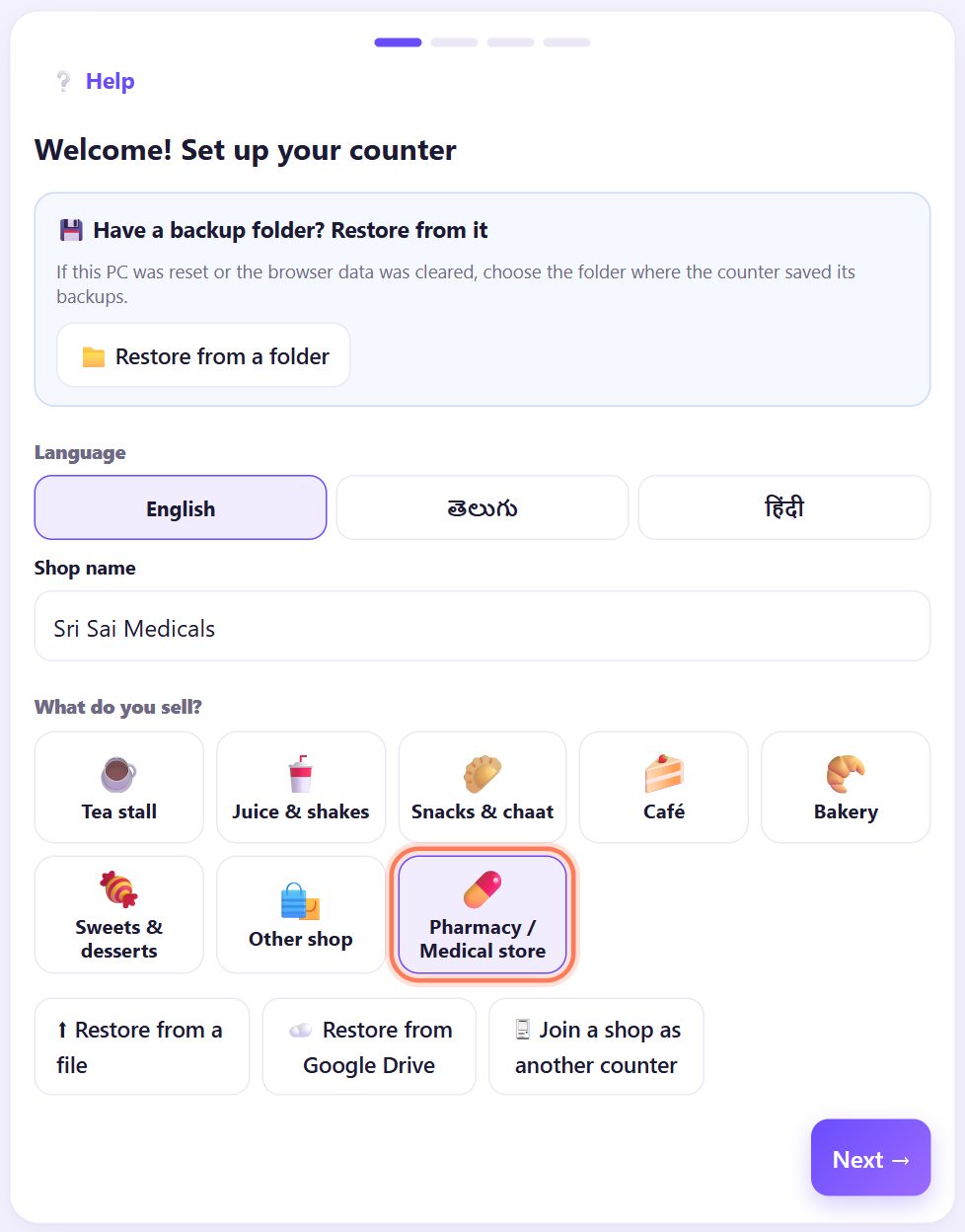
1At set-up, choose Pharmacy / Medical store
Open spritesplit.com/bill, type your Shop name and under What do you sell? tap 💊 Pharmacy / Medical store. Then tap Next →. (This choice appears when the country is India.)
Already using Counter Billing? Open ⚙️ Settings, find 💊 Pharmacy / Medical store and tick Turn on pharmacy mode. Your bills and reports stay as they are.
💡 Tip: Pharmacy mode turns tables and the kitchen screen off, and keeps stock, refunds, credit (udhaar) and staff logins.
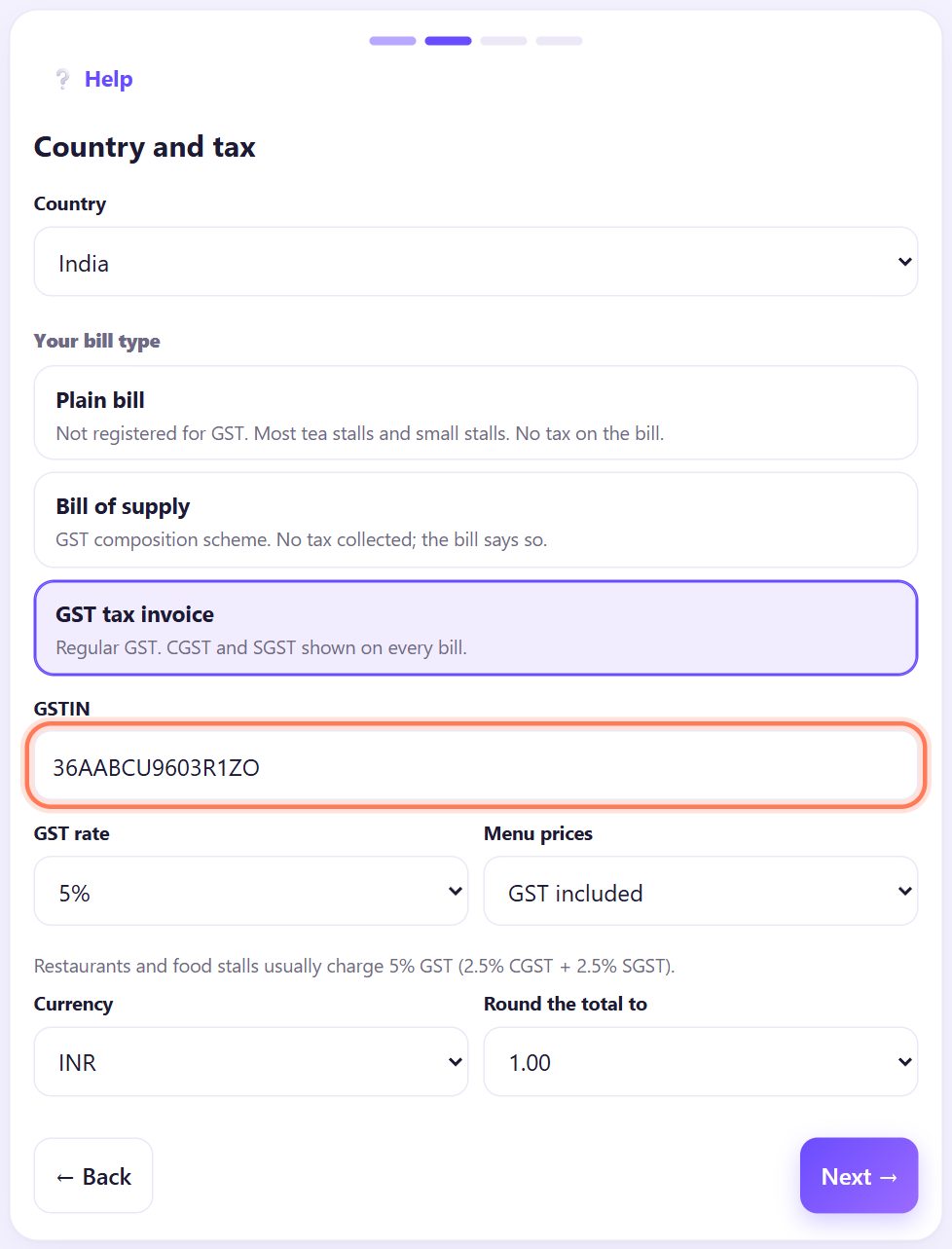
2GST tax invoice and your GSTIN
Under Your bill type tap GST tax invoice and type your 15-character GSTIN. Medicine prices are the MRP with GST included: pharmacy mode sets this by itself, and each medicine gets its own GST rate later.
Not registered for GST? Choose Plain bill. On the composition scheme, choose Bill of supply (part 3 explains the three).
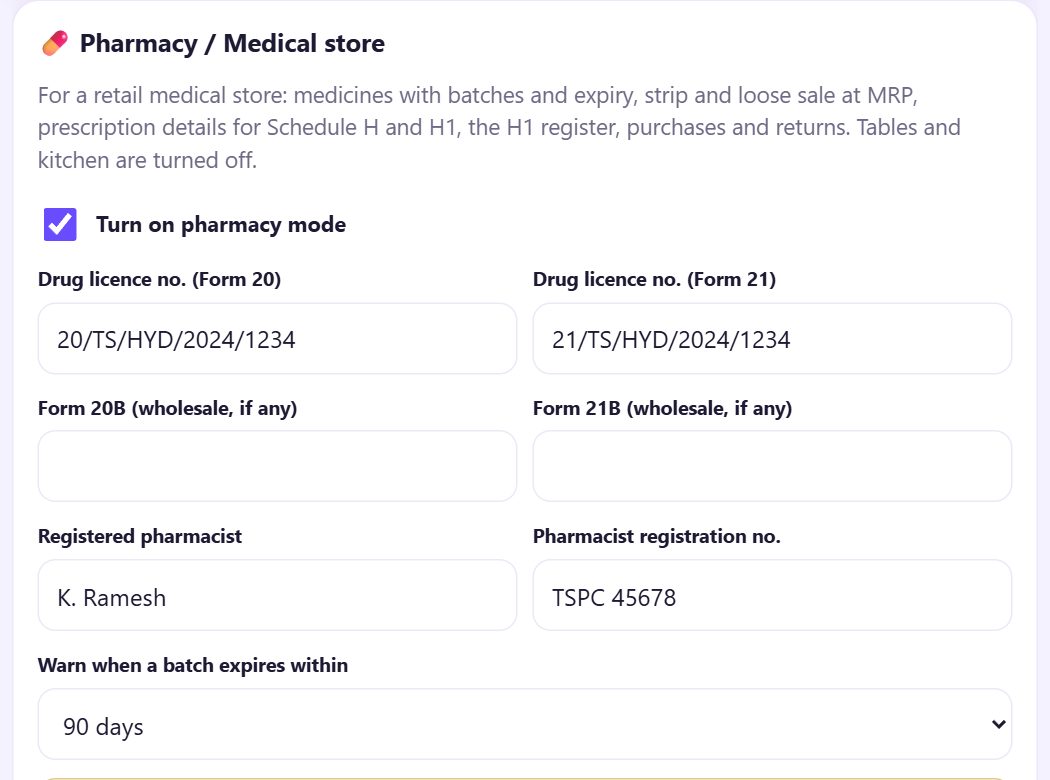
3Type your drug licence numbers and the pharmacist
After set-up the app opens ⚙️ Settings at the 💊 Pharmacy / Medical store box. Type Drug licence no. (Form 20) and Drug licence no. (Form 21) exactly as on your licence. Fill Form 20B and Form 21B only if you also hold a wholesale licence.
Type the Registered pharmacist and the Pharmacist registration no. These are printed on every bill. Warn when a batch expires within is 90 days; change it if you like.
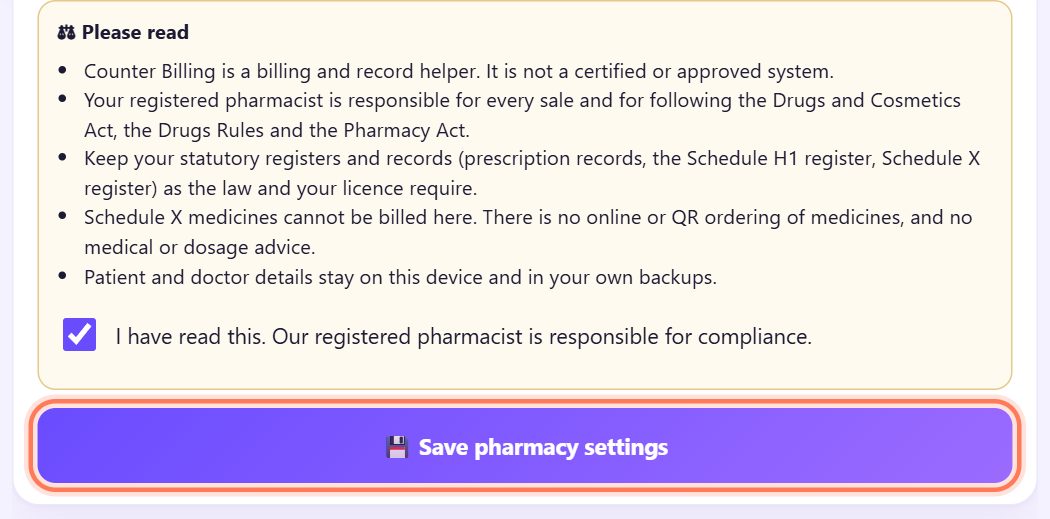
4Read the note, tick it and save
Read the ⚖ Please read note. It says what the app is (a billing and record helper, not a certified system) and who is responsible (your registered pharmacist). Tick I have read this. Our registered pharmacist is responsible for compliance. and tap 💾 Save pharmacy settings.
Until a licence number, the pharmacist and this tick are saved, the app does not bill medicines.
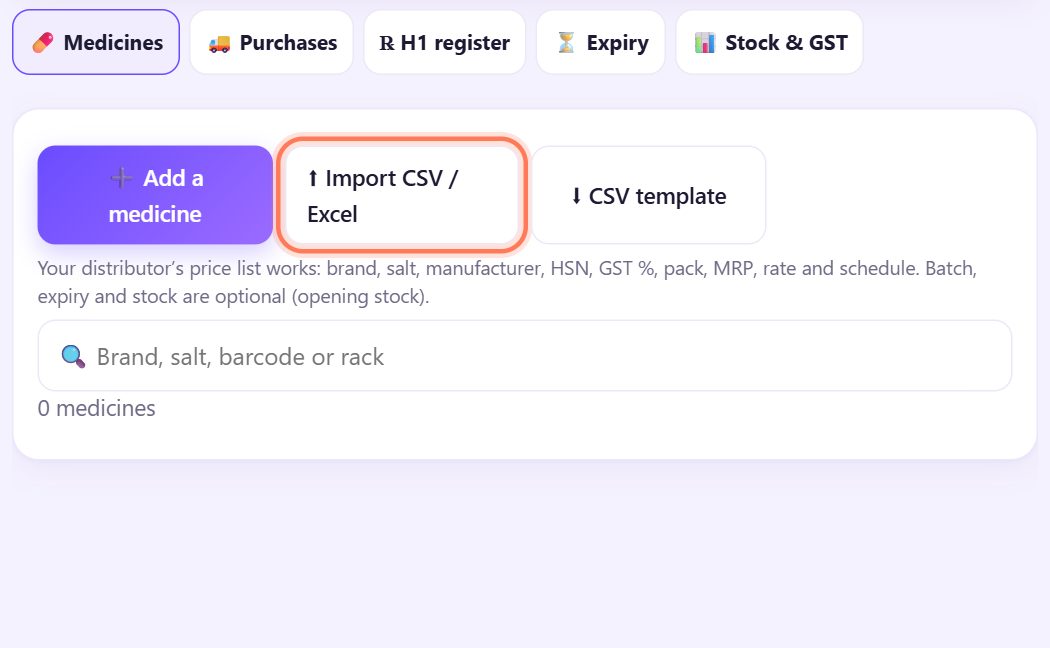
5The Medicines tab and the CSV template
A new tab 💊 Medicines appears, with five views: 💊 Medicines, 🚚 Purchases, ℞ H1 register, ⏳ Expiry and 📊 Stock & GST.
Tap ⬇ CSV template to see the columns the app understands: brand name, generic / composition, manufacturer, HSN, GST %, pack size, pack type, MRP, purchase rate, schedule, rack, barcode, allow loose, and (optional) batch no., expiry and opening stock.
💡 Tip: Most distributors’ price lists work as they are: the app finds the columns by their names. Only Brand name and MRP are a must.
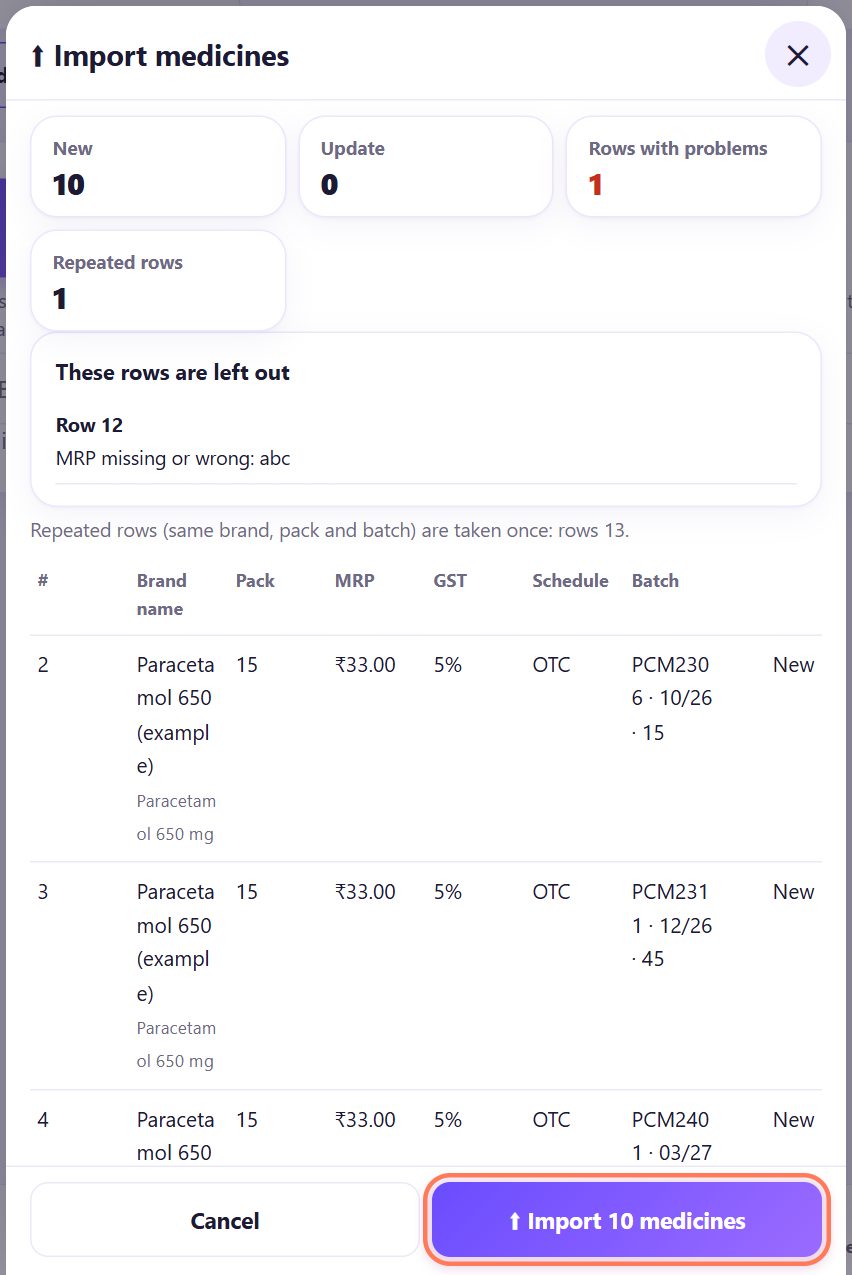
6Import your distributor’s price list and check the preview
Tap ⬆ Import CSV / Excel and choose the file. Before anything is saved you see a preview: New (added to your list), Update (already in your list: MRP, GST and the rest are updated), Rows with problems (left out, with the row number and the reason) and Repeated rows (the same brand, pack and batch twice: taken once).
Check the list and tap ⬆ Import … medicines. Rows with a batch, expiry and stock become batches with that opening stock.
💡 Tip: Fix the rows with problems in Excel and import the same file again: medicines already there are only updated, and a batch already there keeps its stock.
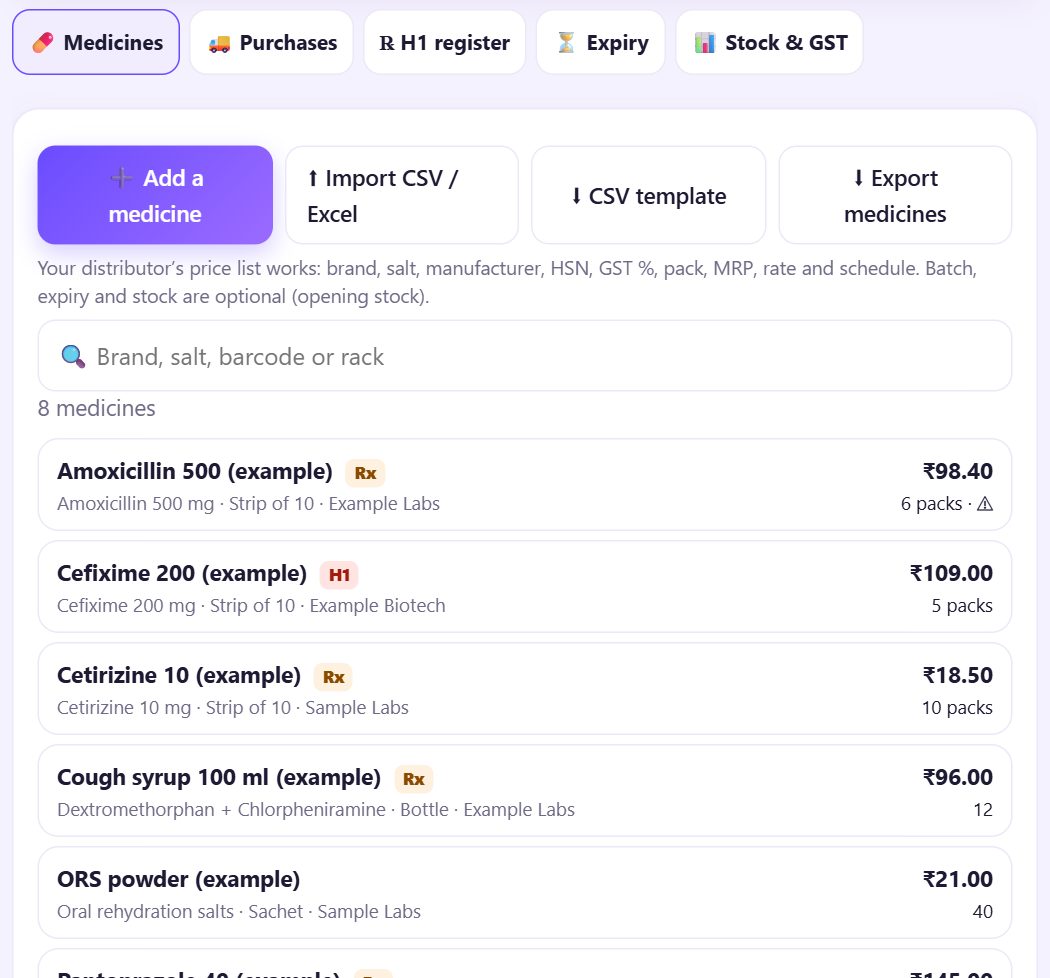
7Your medicine list
Each medicine shows its salt, pack, manufacturer, MRP and the stock that can be sold, in packs. A tag shows the schedule: Rx (Schedule H), H1, G or X. ⚠ means a batch expires soon, ⛔ means there is expired stock.
Search by brand, salt, barcode or rack. ⬇ Export medicines saves the whole list with stock as a CSV file.
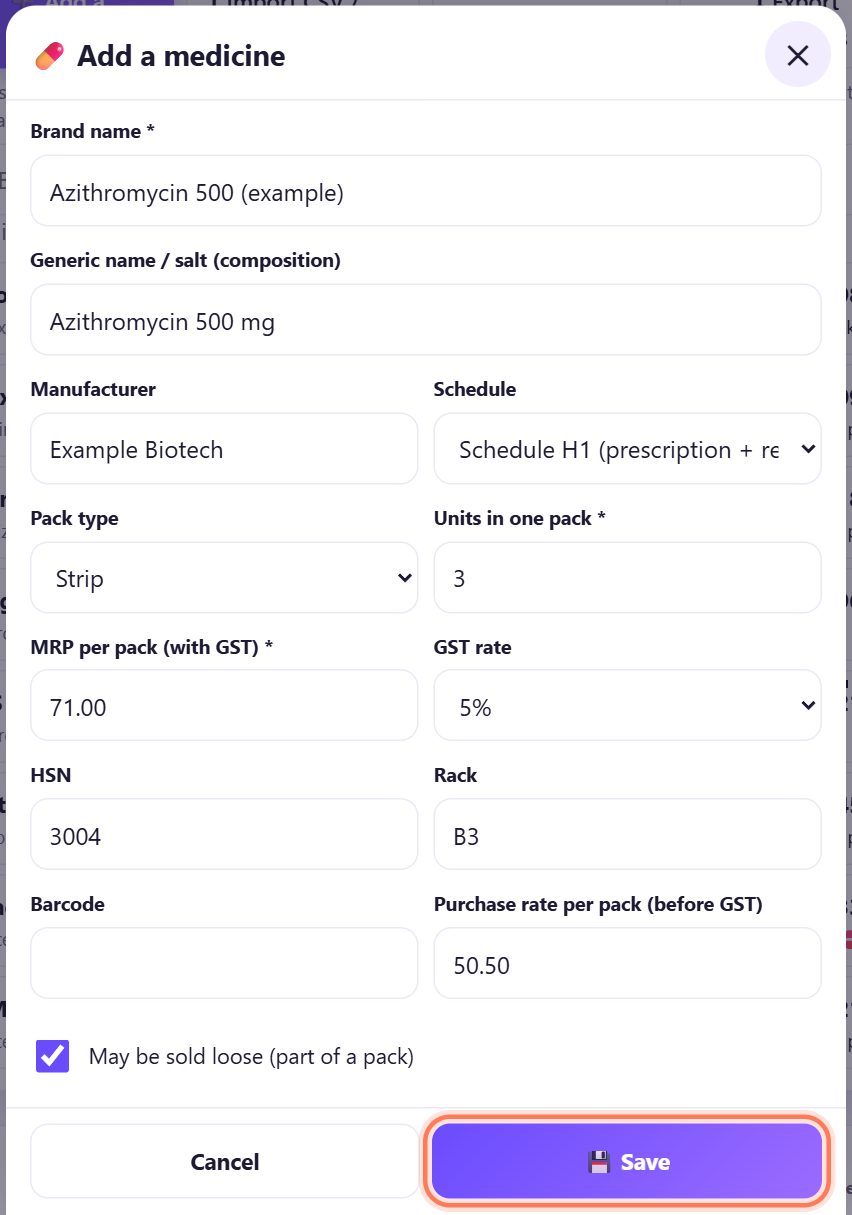
8Add a medicine by hand
A medicine that is not in the list? Tap ➕ Add a medicine and fill Brand name, Generic name / salt (composition), Manufacturer, Schedule, Pack type, Units in one pack, MRP per pack (with GST) and GST rate. HSN, Rack, Barcode and Purchase rate per pack (before GST) help with search and reports.
Leave May be sold loose (part of a pack) ticked for strips. Tap 💾 Save.
9Add a batch with its opening stock
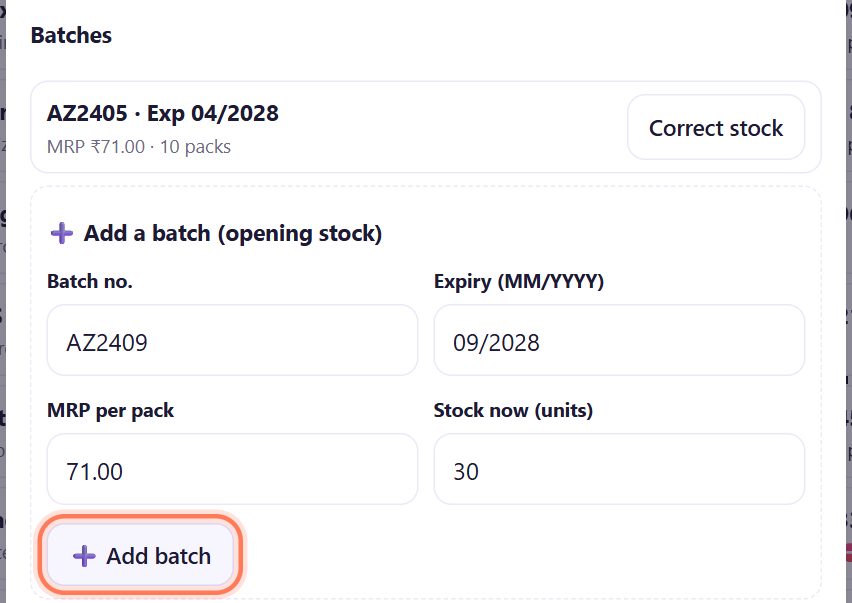
After saving, the same sheet shows Batches. Open ➕ Add a batch (opening stock), type the Batch no., Expiry (MM/YYYY) as printed on the strip, the MRP per pack and Stock now (units), and tap ➕ Add batch.
Stock is counted in units (tablets, capsules, bottles), not strips: 10 strips of 15 tablets are 150 units. After a shelf count, Correct stock sets the right number and keeps the difference in the stock history.
💡 Tip: This is for the stock you already have. New stock from your distributor comes in through Purchases (part 21).
10Schedule tags, and why Schedule X is never billed
Each medicine’s Schedule decides what happens at the counter: OTC (no prescription) and Schedule G are billed normally; Schedule H (prescription) asks for the patient and the doctor before Pay; Schedule H1 (prescription + register) also asks for the doctor’s registration no. or clinic and goes into the H1 register.
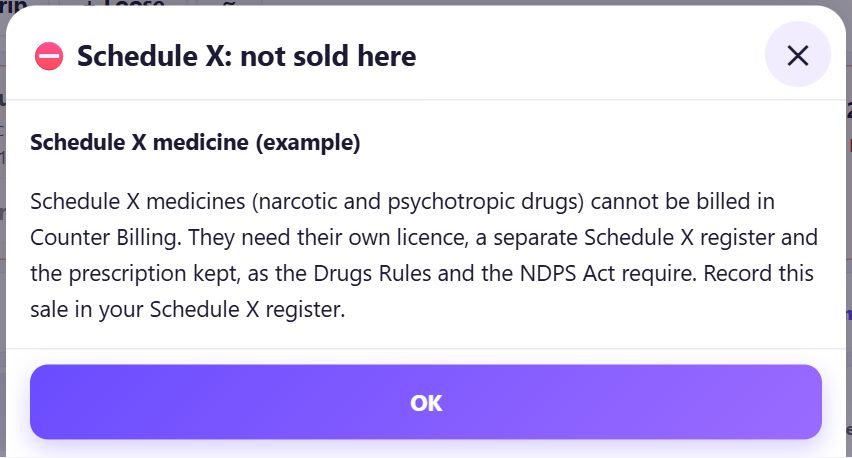
Schedule X (not sold here) is never billed: the app shows Schedule X: not sold here. Keep using your separate Schedule X register for those medicines.
💡 Tip: Take each medicine’s schedule from its label or your distributor. The app uses what you set; the schedules in these pictures are only examples.
💡 What comes next: Now bill medicines every day: strips and loose tablets, batches and expiry, H1 prescriptions, returns and purchases.
📝 Example: Sri Sai Medicals goes live in one evening
Kiran runs Sri Sai Medicals in Kukatpally with the pharmacist K. Ramesh. After closing time he sets up the counter as a pharmacy, types the two licence numbers and Ramesh’s name and registration no., and Ramesh reads the note and ticks it.
Kiran asks his distributor for the price list as Excel and imports it: 1,840 new, 12 rows with problems (MRP missing). He fixes the 12 rows and imports the file again: 12 new, the rest only updated. Next morning they count the shelves rack by rack and type each batch’s stock.
🛠 If something goes wrong
I don’t see Pharmacy / Medical store
It is shown when the country is India, on the main counter. A linked second counter and the owner view do not show the pharmacy settings.
“Please read the note and tick the box first.”
Tick I have read this… under the note, then tap 💾 Save pharmacy settings again.
“Finish the pharmacy set-up first” when I bill
Every medicine bill must show a drug licence number and the registered pharmacist. Open ⚙️ Settings, fill Form 20 or 21 and the pharmacist, tick the note and save.
Many rows with problems in the import
The preview gives the reason for each row: MRP missing or wrong, GST rate wrong (0, 5, 12, 18, 28 or 40), schedule wrong (OTC, G, H, H1, X), expiry wrong (use 03/2027). Fix them in Excel and import the same file again.
“This Excel file could not be read”
Reading Excel needs the internet once. Or save the file as CSV in Excel (File, Save As, CSV) and import that.
The stock shows the wrong number of packs
Stock is typed in units, not packs. A strip of 15 with 10 strips on the shelf is 150. Use Correct stock on the batch to fix it.
“… with this pack size is already in your list.”
The same brand with the same pack size is already there. Open it from the list and change it instead of adding it again.
🔒 Privacy in plain words
- Your medicine list, batches and stock are saved on this device (and in your own backups, part 8). They are not sent to SpriteSplit.
- The price list you import is read inside the browser; the file is not uploaded anywhere.
- Your licence numbers and the pharmacist’s name are printed on your bills and kept in your settings on this device.
Questions people ask
Is Counter Billing approved or certified software for pharmacies?
No. It is a billing and record helper. Your registered pharmacist is responsible for every sale and for following the Drugs and Cosmetics Act, the Drugs Rules and the Pharmacy Act, and you keep your statutory registers as your licence requires.
Does the app know the schedule of each medicine?
No. It uses the schedule you set for each medicine (from the label or your distributor’s list) and asks for prescription details according to it.
Can customers order medicines online or by QR?
No. There is no online or QR ordering of medicines in Counter Billing. It is a counter tool only.
Does it work without internet?
Yes, after the first visit. Importing an Excel file needs the internet once; a CSV file does not.
Can I use it for wholesale?
It is made for a retail counter. Form 20B and 21B numbers are printed if you hold them, but there are no special wholesale features.
📚 Counter Billing step by step
All 21 parts
- 1Set up your counter
- 2Make a bill
- 3GST invoice and bill types
- 4Print, WhatsApp and QR receipts
- 5Menu: items, sizes, photos
- 6Close the day, count cash
- 7Reports & GST summary
- 8Backup, restore, PIN lock
- 9Café mode and tables
- 10Connect a kitchen screen
- 11Send KOTs to the kitchen
- 12Add a second counter
- 13Staff, roles and PINs
- 14Shifts and cash
- 15Refunds and credit notes
- 16Udhaar (credit) and dues
- 17Stock and recipes
- 18Owner dashboard
- 19Owner view on your phone
- 20Pharmacy set-up and medicines
- 21Daily pharmacy billing