How to see your shop’s sales on your own phone with the Counter Billing owner view
You are at home, at the market or in another town, and you want to know: how much did we sell today, was anything voided, was the cash short at closing? The owner view shows it on your own phone. It is read-only: nothing at the shop can be changed from it.
The counter puts an encrypted copy in the shop’s own Google Drive every few minutes. Only phones you pair at the counter get the key; SpriteSplit never sees the data, and even the Google account alone cannot read it.
Steps
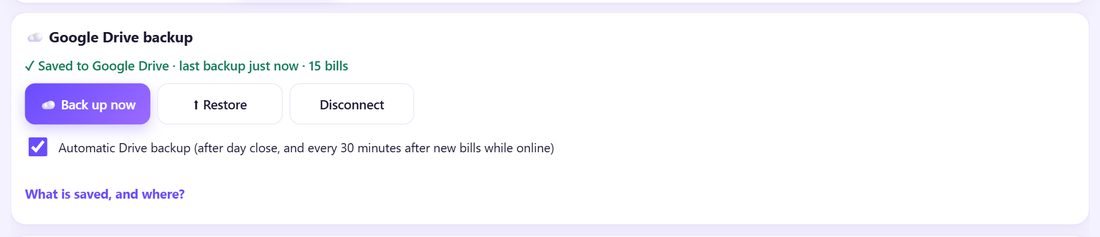
1Use a separate Gmail for the shop on the counter
On the shop counter, turn on ☁️ Google Drive backup (part 8) with a Gmail made just for the shop, not your personal one. The owner view uses this same shop account.
💡 Tip: Never type your Google password into the app or give it to staff: Google’s own sign-in window is used every time.
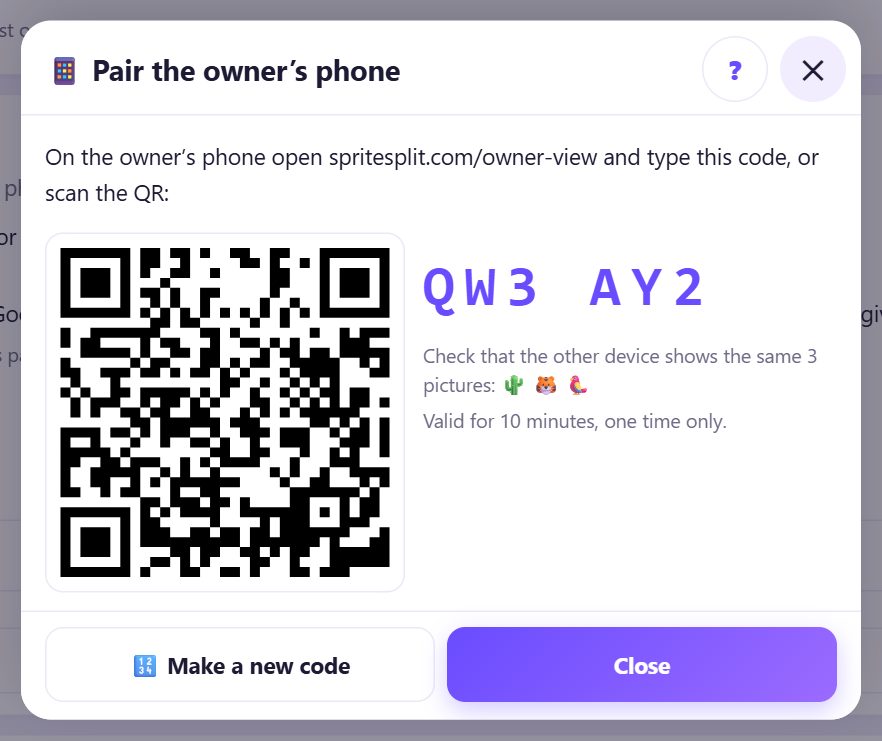
2On the main counter: Pair owner phone
Open ⚙️ Settings, find 📱 Owner view and tap 📱 Pair owner phone. A QR, a 6-character code and 3 pictures appear (one time, 10 minutes).
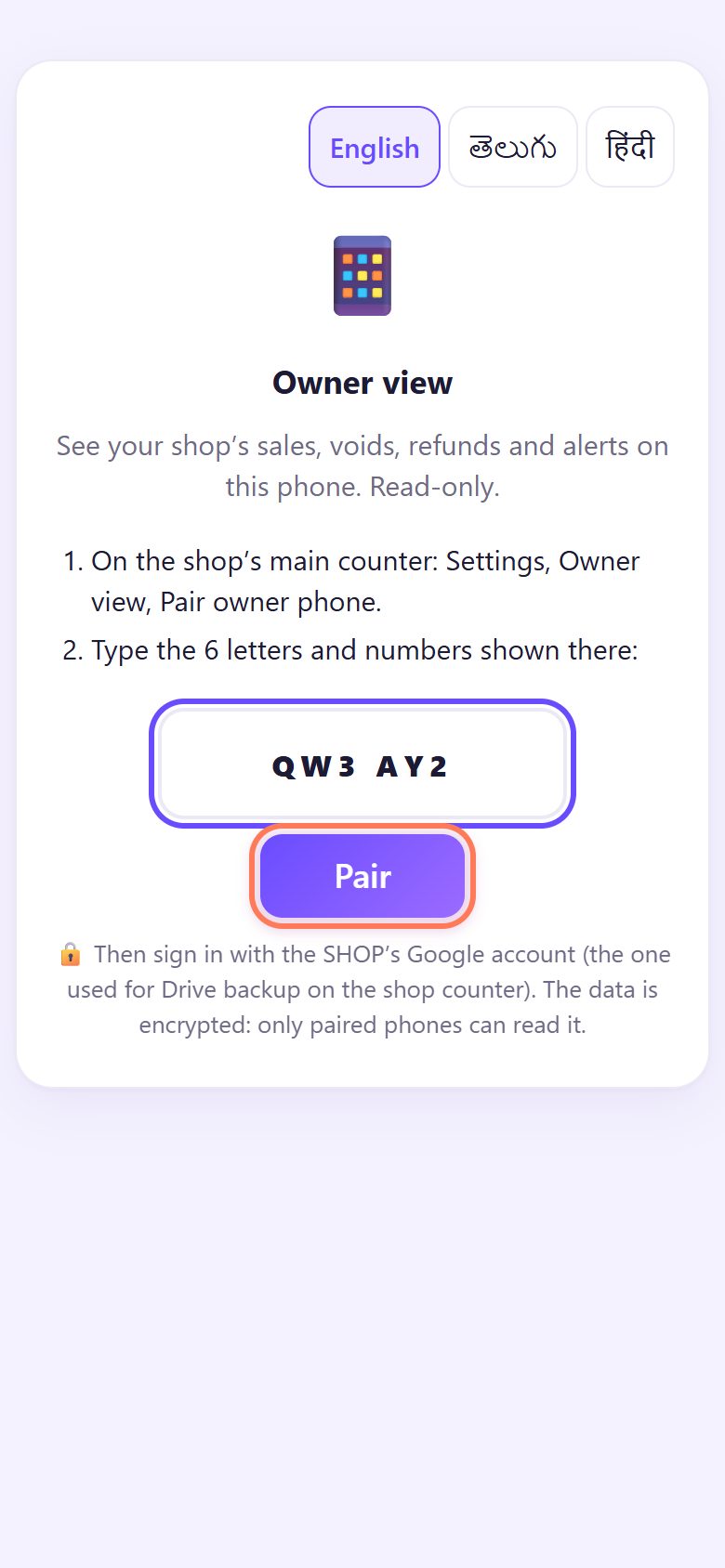
3On your phone: open the owner view and type the code
On your phone open spritesplit.com/owner-view (or scan the QR). Type the code and tap Pair. Check that the 3 pictures are the same as on the counter and tap ✓ Yes, they match.
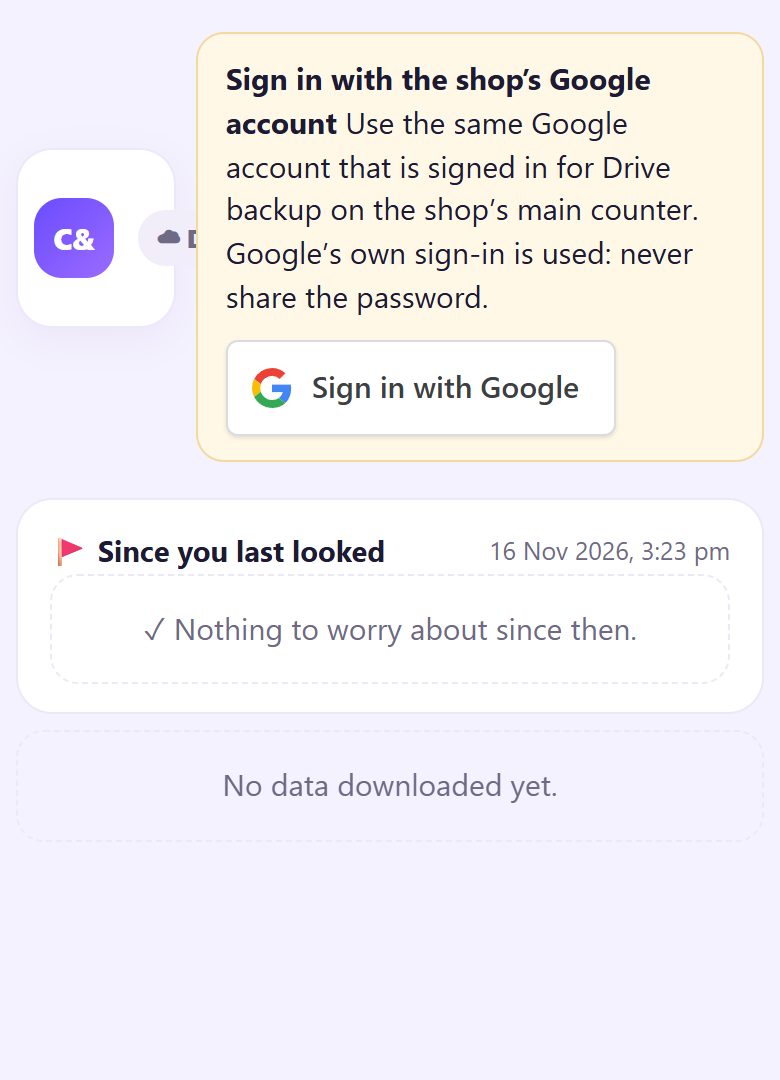
4Sign in with the shop’s Google account
Tap Sign in with Google and choose the shop’s Google account (the one on the counter). Google asks for its password in its own window. Add the page to your home screen so it opens like an app.
5Today’s numbers, live or from Drive
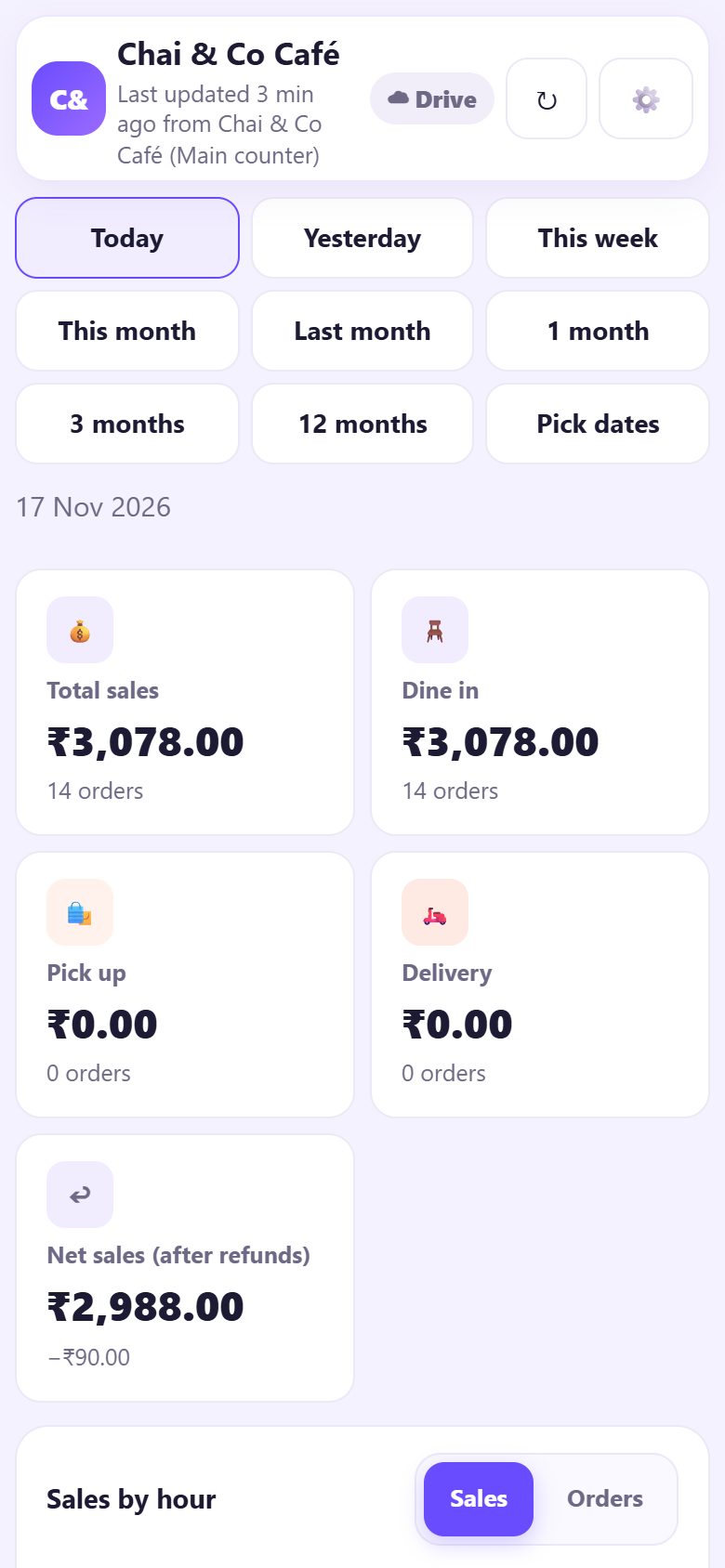
The same reports as the counter: sales cards, sales by hour, payment modes, items, staff and tax. The top line says when it was last updated. When your phone can reach the counter it shows ● Live and new bills appear at once; otherwise it reads the copy in Drive, updated every 5 minutes and at day close. Pull down or tap ↻ Refresh.
6Since you last looked
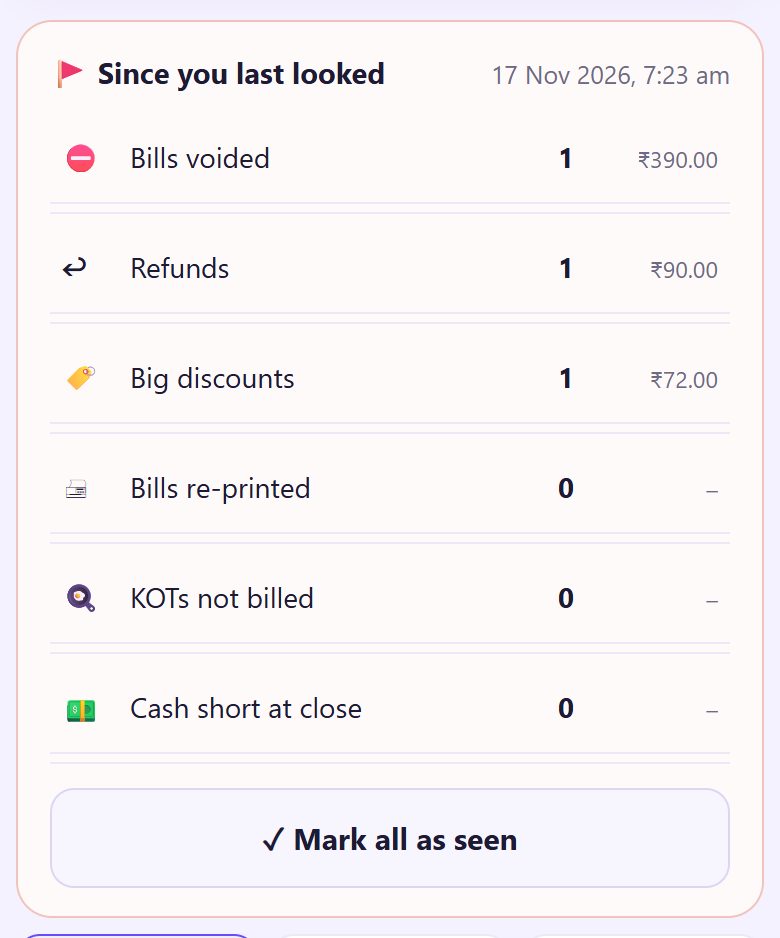
When you open the owner view, the card 🚩 Since you last looked lists what deserves a question: voided bills, refunds, big discounts, re-prints, KOTs never billed, and cash short at a day close. Tap a line to see the bills. Tap Mark all as seen when done.
7Any dates, any counter
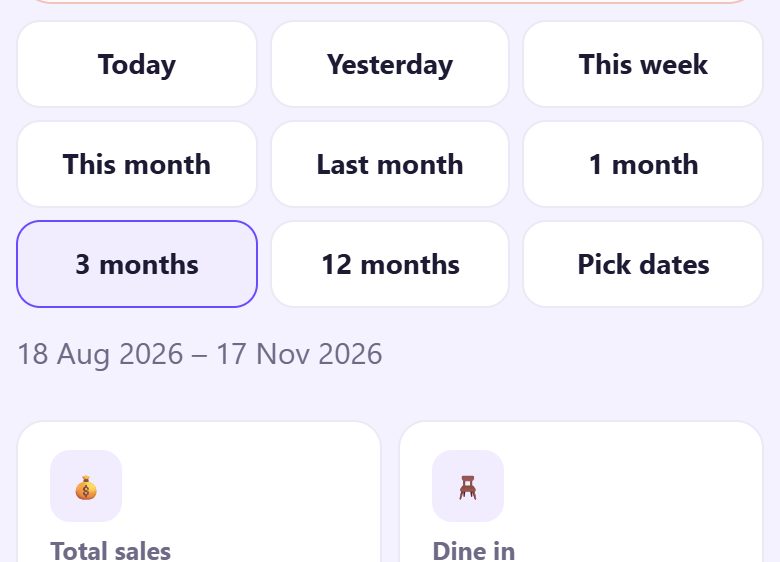
Pick Today, This month, 1 month, 3 months, 12 months or your own dates, and one counter or all of them (part 12). The CSV buttons work here too. Older years show daily totals.
8Remove a phone, and the day-end WhatsApp
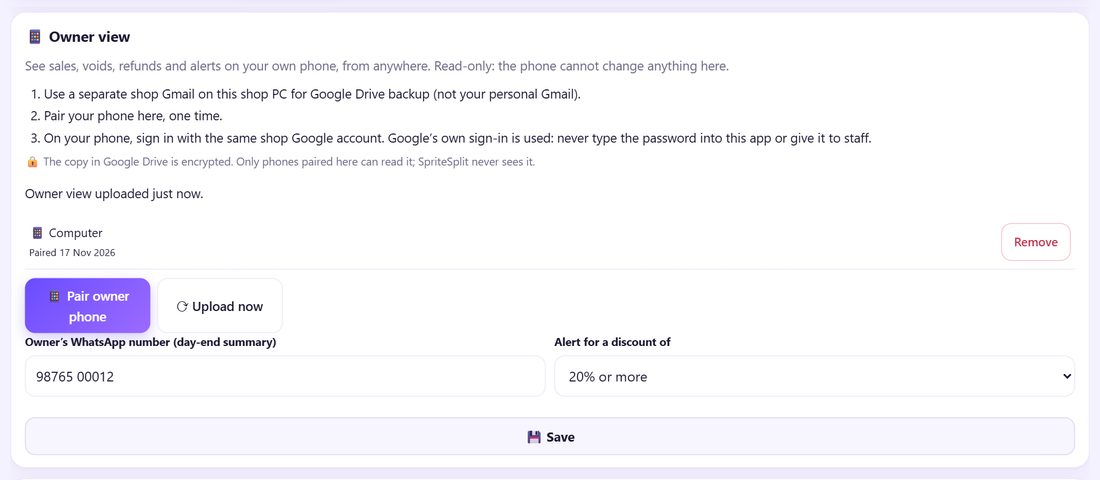
On the counter, 📱 Owner view lists the paired phones. Remove locks a phone out at once: a new key is made and the copy in Drive is encrypted again. Type your WhatsApp number and after each day close the staff can tap 💬 Send to owner to send you the day’s summary.
💡 What comes next: Run a medical store? Turn on pharmacy mode: licence and pharmacist on every bill, and your medicines imported from a price list.
📝 Example: Meena checks from her sister’s wedding
Meena is away for two days. At 10 pm she opens the owner view: ₹18,420 today, Ravi closed his drawer ₹200 short, and one bill of ₹540 was voided. She taps the void: Customer cancelled, at 7:52 pm. She calls Ravi; the customer had walked out before the food came. The ₹200 was a note given as change twice.
🛠 If something goes wrong
“No owner data in this Google account yet”
You signed in with another account. Sign out (⚙️) and choose the shop’s Google account. Check that the counter is online and its Drive backup is on.
“This phone was removed from the owner view”
Someone tapped Remove on the counter. Pair the phone again on the main counter.
The numbers are a few minutes old
The copy in Drive is updated every 5 minutes while there are new bills, and at day close. On the shop Wi-Fi the phone shows them live.
The counter says “Waiting for Google sign-in”
Google sign-ins last about an hour. On the counter tap Back up now once to sign in again; the owner view catches up by itself.
Can I change a price from the owner view?
No, it is read-only on purpose. Change prices on the main counter.
I lost my phone
On the counter: Owner view, Remove next to that phone. It can no longer read anything new.
🔒 Privacy in plain words
- The copy is stored only in the shop’s own Google Drive, in a hidden app folder, and is encrypted (AES-GCM). Only phones paired at the counter hold the key.
- SpriteSplit never sees it. The live numbers go directly from the counter to your phone over an encrypted link.
- Removing a phone makes a new key at once; the removed phone cannot read anything after that.
Questions people ask
Why a separate Gmail for the shop?
So you never share your personal account with the shop PC, and you can give the shop account to a manager later without giving away your mail.
Can someone with the shop’s Google password read my sales?
Not without a paired phone: the Drive copy is encrypted with a key only paired phones have.
Do I get alerts without opening the app?
No push messages: open the owner view and the Since you last looked card shows everything. The day-end summary can come on WhatsApp.
How many phones can I pair?
As many as you need, for example yours and your partner’s. Remove any of them at any time.
Does the owner view use mobile data?
A little: only what changed is downloaded, one month at a time.
📚 Counter Billing step by step
All 21 parts
- 1Set up your counter
- 2Make a bill
- 3GST invoice and bill types
- 4Print, WhatsApp and QR receipts
- 5Menu: items, sizes, photos
- 6Close the day, count cash
- 7Reports & GST summary
- 8Backup, restore, PIN lock
- 9Café mode and tables
- 10Connect a kitchen screen
- 11Send KOTs to the kitchen
- 12Add a second counter
- 13Staff, roles and PINs
- 14Shifts and cash
- 15Refunds and credit notes
- 16Udhaar (credit) and dues
- 17Stock and recipes
- 18Owner dashboard
- 19Owner view on your phone
- 20Pharmacy set-up and medicines
- 21Daily pharmacy billing