How to run tables and running orders in a café with Counter Billing
A tea stall bills and forgets. A café is different: Table 4 orders two coffees, then a sandwich, then dessert, and pays at the end. Café mode keeps every table’s order open until it is paid, shows at a glance which tables are waiting, and gives the bill a number only when the money comes in.
This part turns café mode on, adds your tables and walks through a busy evening at Chai & Co Café.
Steps
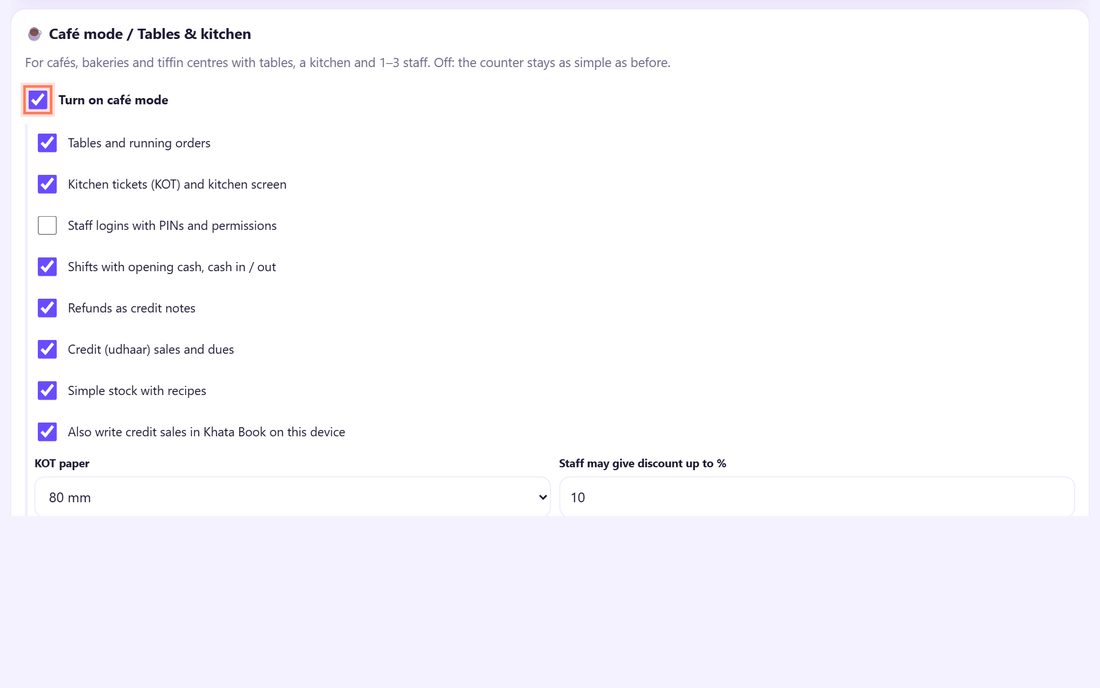
1Turn on café mode in Settings
Open ⚙️ Settings and scroll to ☕ Café mode / Tables & kitchen. Tick Turn on café mode. A list of parts appears: Tables and running orders, Kitchen tickets (KOT) and kitchen screen, Shifts, Refunds as credit notes, Credit (udhaar) sales and dues and Simple stock with recipes. Keep what you need and tap 💾 Save café settings.
New tabs appear: Tables, Kitchen, Shift and Stock. Turn café mode off any time and the counter is as simple as before.
💡 Tip: Leave Staff logins with PINs and permissions off for now. Part 13 sets it up.
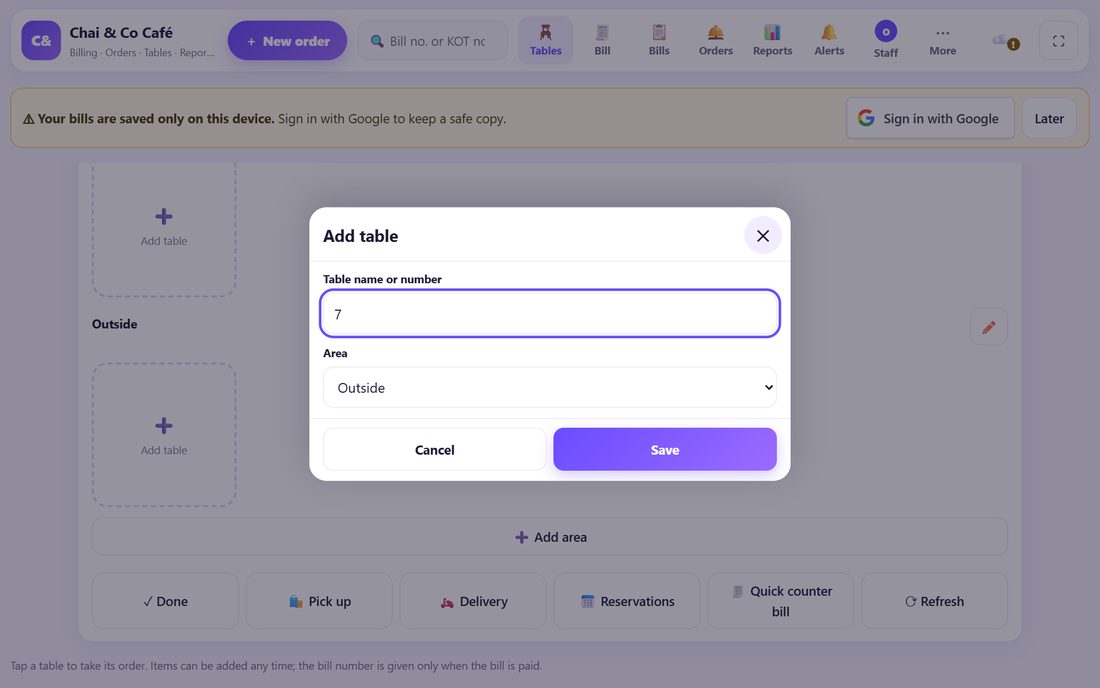
2Add your areas and tables
Open Tables. Six tables are ready in the area Inside. Tap ➕ Add table to edit: tap ➕ Add area for a second room (for example Outside or AC hall), then the ➕ Add table tile in that area. Type the Table name or number, pick the Area and tap Save.
Tap a table in edit mode to rename or delete it. Tap ✓ Done when finished.
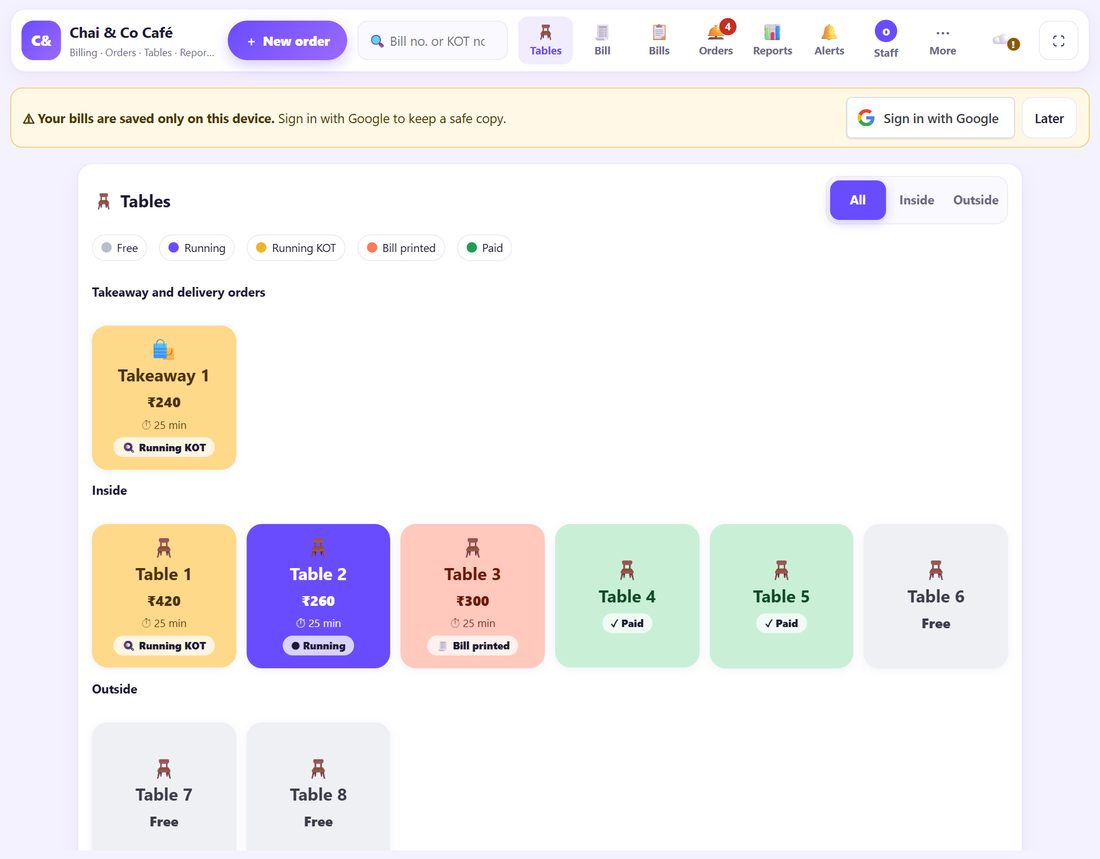
3Read the tables at a glance
Each table shows its amount and minutes since the first order. The colours: Free (grey), Running (violet: items taken, not sent to the kitchen), Running KOT (yellow: the kitchen has it), Bill printed (orange: check given) and Paid (green, for 15 minutes).
Parcels and home delivery sit on top under Takeaway and delivery orders: start one with 🛍️ Pick up or 🛵 Delivery. Area tabs show one room at a time.
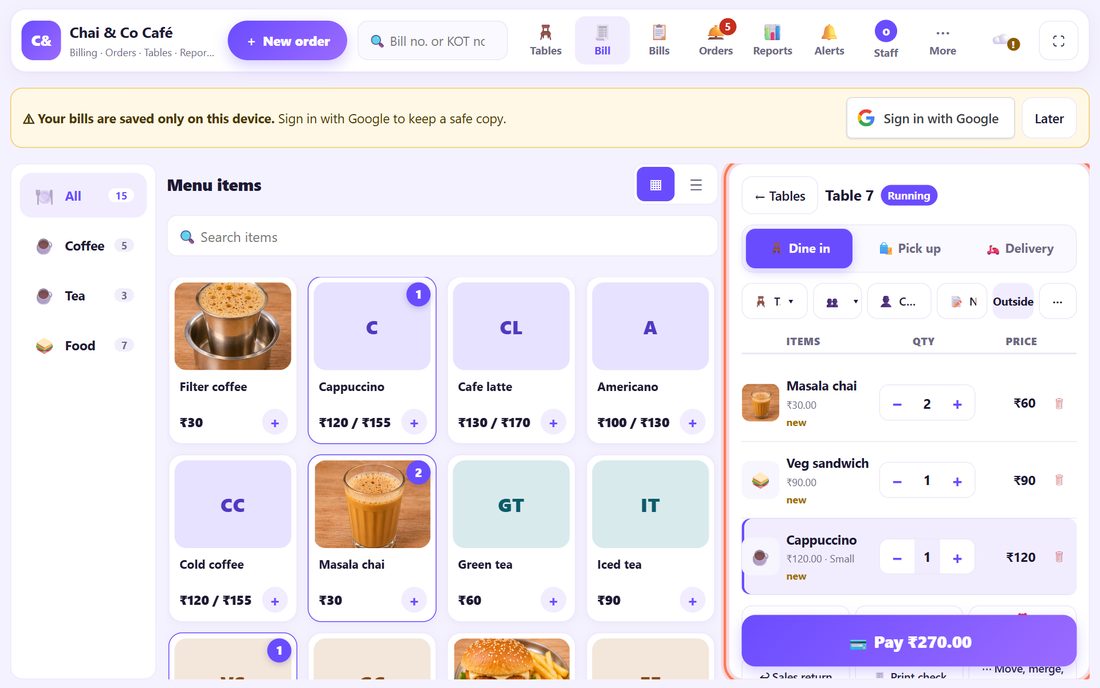
4Tap a table and take the order
Tap a free table. The menu opens with the order panel on the right. Tap items to add them; an item with sizes or add-ons asks first. Use 👥 for the number of guests, 📝 Note for the whole order (it goes on the KOT and the bill), or tap an item for its own note such as less sugar.
New items say new until they go to the kitchen. Tap ← Tables to go back: the order stays open, and you can add more any time.
5Move, merge or cancel
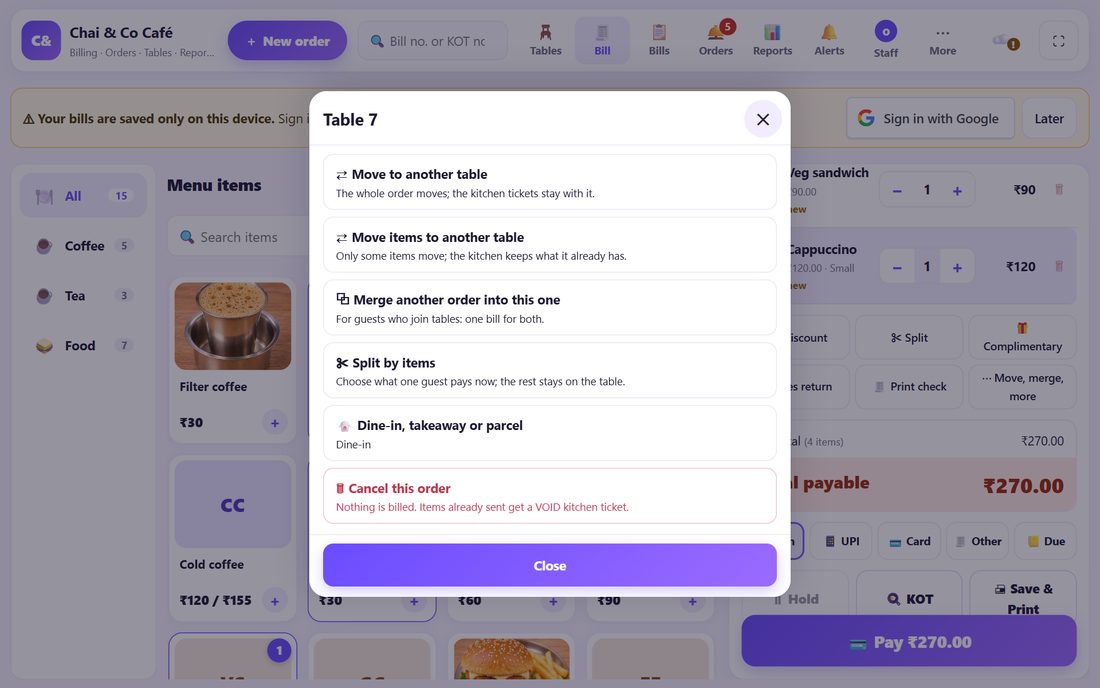
In the order, tap ⋯ Move, merge, more. ⇄ Move to another table moves the whole order (the kitchen tickets go with it); ⇄ Move items to another table moves only some items. ⧉ Merge another order into this one joins two tables on one bill.
🗑 Cancel this order bills nothing; items already sent get a VOID ticket so the kitchen stops.
6Split the bill by items
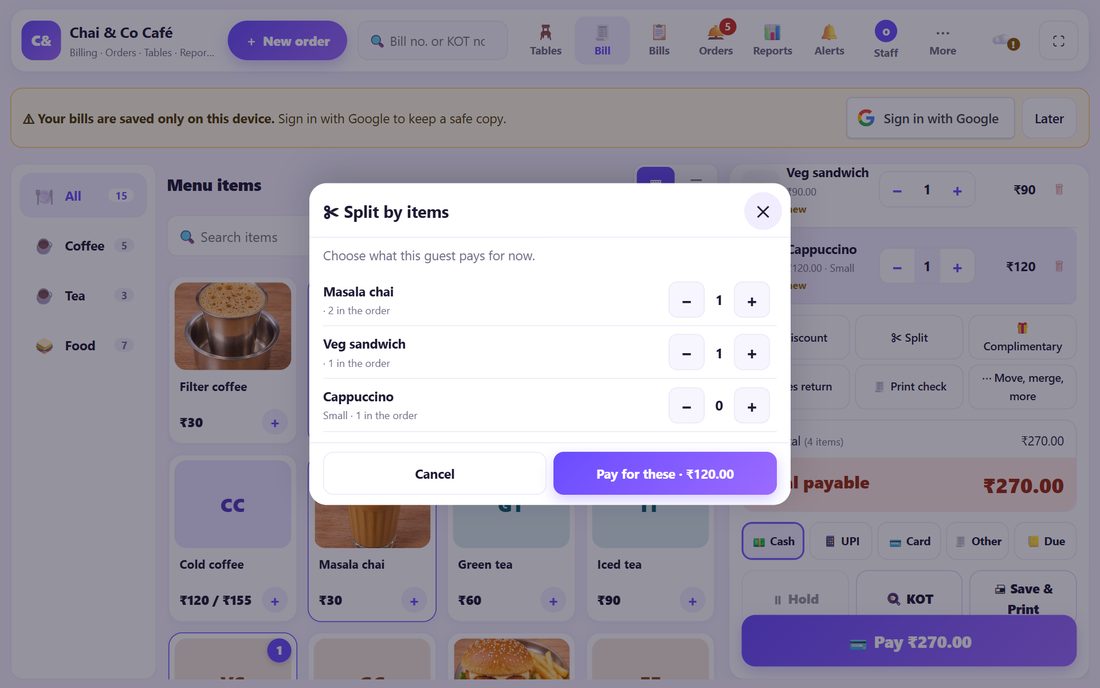
One guest wants to pay for his own share? Tap ✂ Split, choose with + what this guest pays for now and tap Pay for these. He gets his own bill; the rest stays on the table.
To split the same amount between people, use split in the payment screen instead (part 2).
7Quick counter bill and Hold
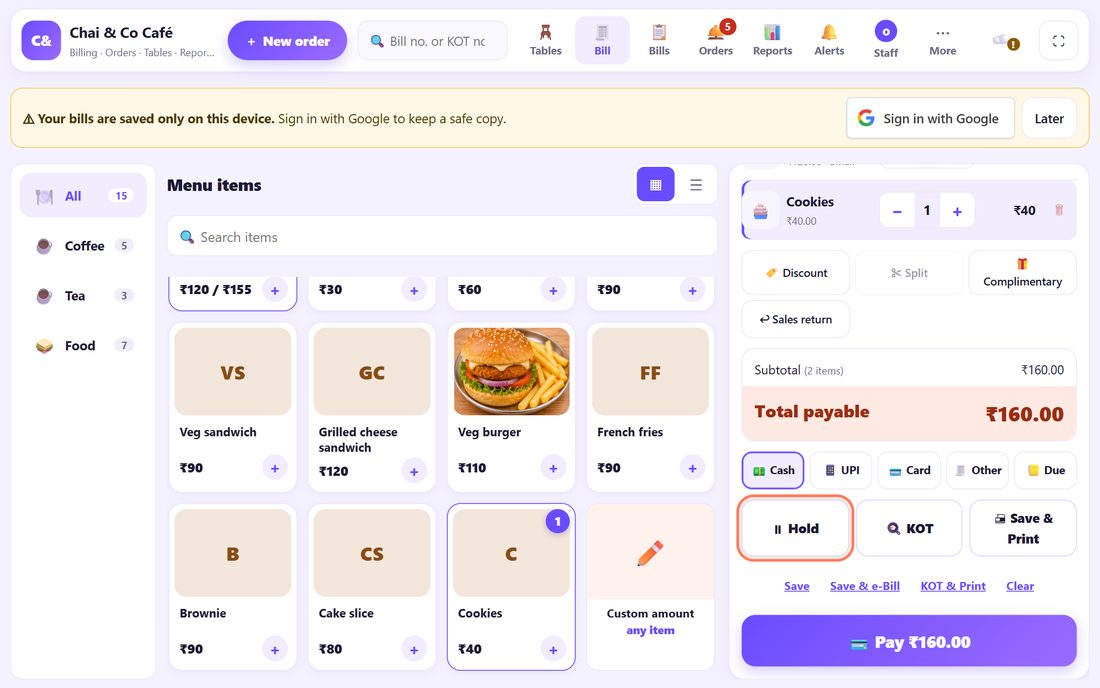
Someone buys a cookie at the counter? On Tables, tap 🧾 Quick counter bill: it bills like a tea stall, without a table. If the customer steps away to find money, tap ⏸ Hold: the bill is kept as a takeaway order and the counter is free for the next person.
8Use the full-screen counter
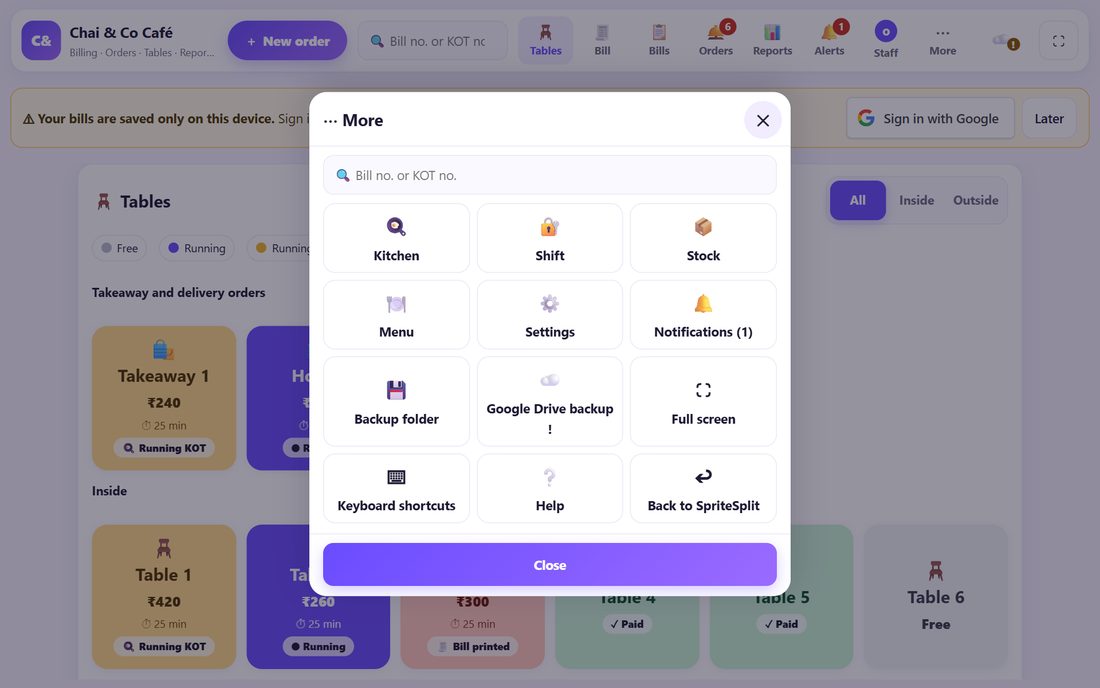
On a shop PC or tablet, open spritesplit.com/counter-billing/app/ (or tap Open my counter on the Counter Billing page). It fills the screen: the top bar has + New order, a search box for a bill no. or KOT no., and the main screens (Tables, Bill, Orders, Reports). ⋯ More has the rest: Kitchen, Shift, Stock, Menu, Settings, ⛶ Full screen and Help.
It is the same counter with the same bills on this device. Add it to the home screen to open it like an app.
💡 What comes next: Send orders to the kitchen on a screen: link a phone, tablet or second PC in two minutes.
🪑 Tips for a busy evening
- Name tables the way staff say them: “7”, “Window 2”, “Sofa”. Short names fit the tiles.
- Bill number only when paid. A running order has no bill number, so cancelling an order never leaves a gap in your bill series.
- Print check gives the guests a check to read before they pay; the table turns orange so nobody forgets it.
- Reservations on the Tables screen keeps a simple list of names, phone numbers, times and guests on this device.
📝 Example: a Saturday evening at Chai & Co Café
Ravi runs Chai & Co Café with 8 tables inside and two on the terrace. At 6 pm a family takes Table 7: three masala chai, a veg sandwich and a cappuccino. Ravi taps Table 7, taps the items, sets 3 guests and sends the order to the kitchen. The tile turns yellow.
At 6:30 their friends arrive and sit at Table 8. Ravi merges Table 8 into Table 7, so one bill covers both. When they leave, the uncle wants to pay only for his chai and sandwich: Split, pick them, Pay for these. The rest is paid by card. Meanwhile a walk-in buys cookies through Quick counter bill without touching any table.
🛠 If something goes wrong
I do not see Tables or Kitchen
Café mode is off. Open Settings, tick Turn on café mode and tap 💾 Save café settings. Check that Tables and running orders is ticked too.
A table cannot be deleted
It has an open order. Pay, move or cancel that order first; then delete the table in edit mode.
An area cannot be deleted
Move or delete the tables in that area first.
Merge says there is no other order
Merge joins two open orders. If the other table has already paid, its bill is closed; open Bills instead.
Split by items asks to remove a discount
An amount discount cannot be shared between two bills. Remove it, or use a % discount, then split.
The order is open on another device
Counter Billing keeps everything on one device. Use one counter device for billing; a second phone or PC can be the kitchen screen (part 10).
A table stays green after it paid
Green means paid in the last 15 minutes, so staff can clean it. It turns grey (Free) by itself, or when the next order starts.
🔒 Privacy in plain words
- Tables, running orders and bills are kept only in this browser on this device. Nothing is uploaded to SpriteSplit.
- Customer names, phone numbers and delivery addresses are optional and stay on this device.
- Back up every day from Settings (part 8): a lost phone without a backup means lost bills.
Questions people ask
Is café mode free?
Yes. Tables, running orders, KOTs and the kitchen screen are free, with no sign-up and no limit on tables or bills.
When does an order get a bill number?
Only when it is paid. Running orders, held orders and cancelled orders never use a bill number, so your bill series has no gaps.
Can two guests at one table pay separately?
Yes. Use ✂ Split to bill one guest’s items now; the rest stays on the table. Or split the amount equally in the payment screen.
Can I use it on a phone?
Yes. On a phone the order panel opens from the bar at the bottom. A tablet or laptop is easier for many tables.
Can I turn café mode off again?
Yes. Untick it in Settings. Bills already made are kept; the counter goes back to the simple tea-stall screen.
📚 Counter Billing step by step
All 21 parts
- 1Set up your counter
- 2Make a bill
- 3GST invoice and bill types
- 4Print, WhatsApp and QR receipts
- 5Menu: items, sizes, photos
- 6Close the day, count cash
- 7Reports & GST summary
- 8Backup, restore, PIN lock
- 9Café mode and tables
- 10Connect a kitchen screen
- 11Send KOTs to the kitchen
- 12Add a second counter
- 13Staff, roles and PINs
- 14Shifts and cash
- 15Refunds and credit notes
- 16Udhaar (credit) and dues
- 17Stock and recipes
- 18Owner dashboard
- 19Owner view on your phone
- 20Pharmacy set-up and medicines
- 21Daily pharmacy billing