How to bill medicines in Counter Billing: batches, expiry, Schedule H1 and returns
This part is the counter day of a medical store: find a medicine by brand, salt or barcode, sell a strip or a few tablets at MRP, take the prescription details when the medicine needs them, and print a bill with the batch and expiry on every line.
Then the back office: stock from purchases, returns to the supplier, the expiry list, the Schedule H1 register and the GST summary for your CA. The app never gives medical or dosage advice, and it never sells an expired batch or a Schedule X medicine.
Steps
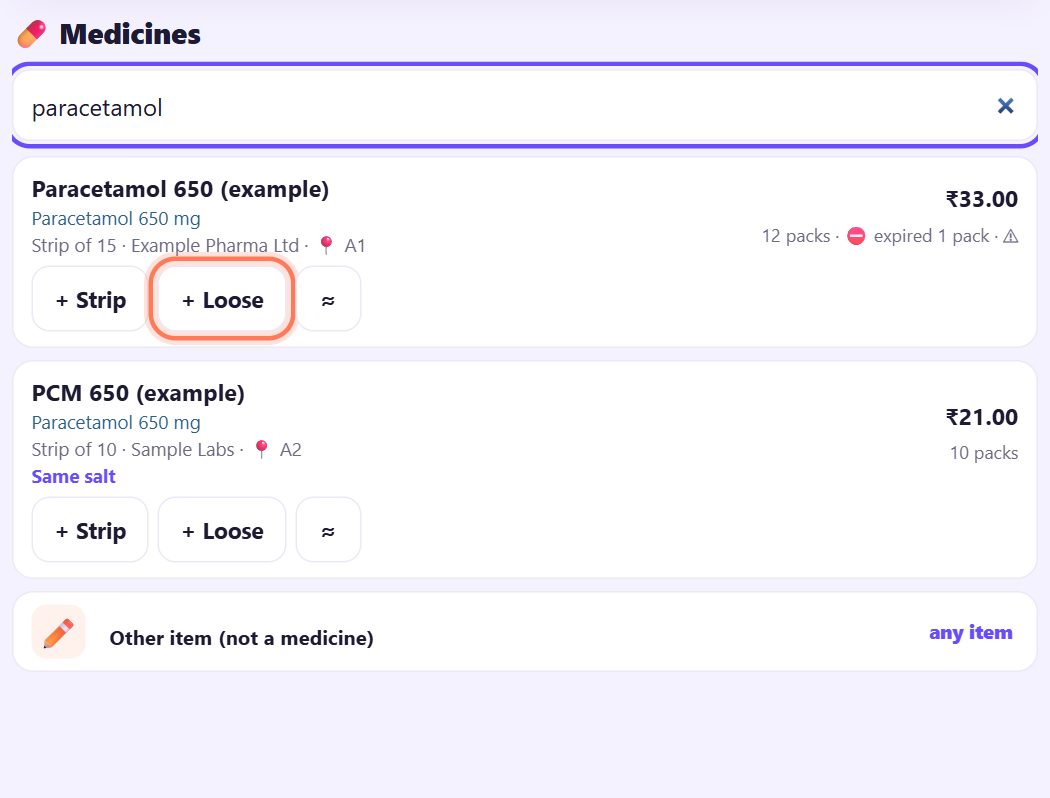
1Search by brand, salt, barcode or rack
On the 🧾 Bill screen type in the search box: a brand, a salt (generic name), a rack, or scan the barcode (a barcode scan adds one pack by itself). Each result shows the salt, pack, maker, rack 📍, MRP and the stock that can be sold. A brand found by its salt is marked Same salt.
Tap + Strip (or + Bottle, + Box …) to add one pack, or + Loose to sell part of a strip.
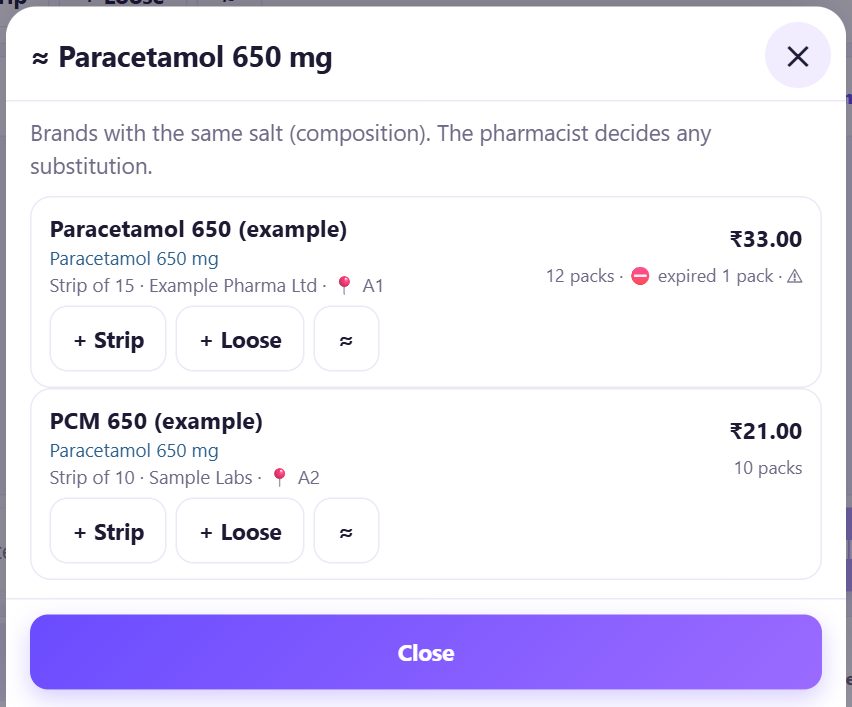
2≈ Brands with the same salt
Tap ≈ next to a medicine to see every brand with the same salt (composition) that you stock, with its price and stock.
This is only a list. The pharmacist decides any substitution, as the sheet says.
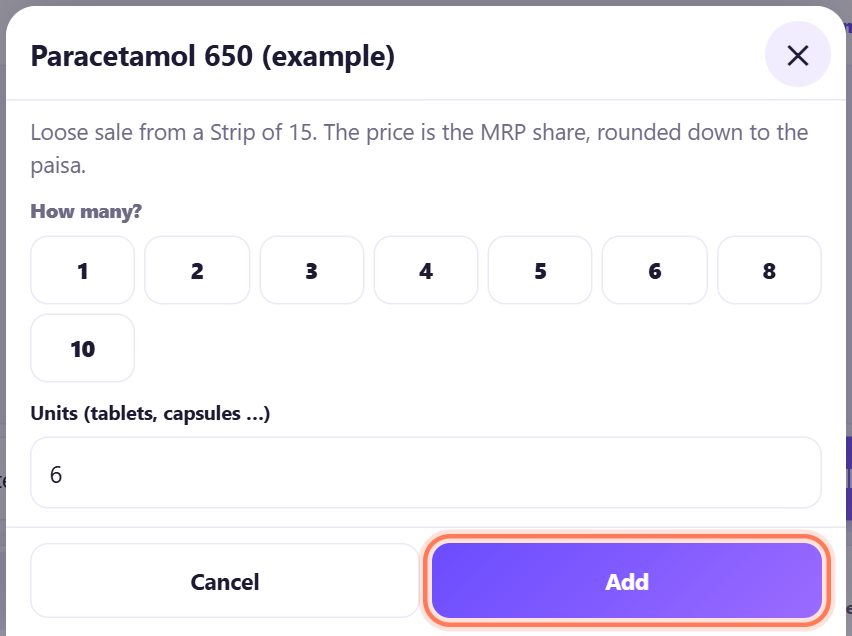
3Loose tablets: the MRP share, rounded down
Tap + Loose, choose How many? or type the Units (tablets, capsules …), and tap Add.
The price is the MRP share, rounded down to the paisa: 6 tablets from a ₹33 strip of 15 are ₹13.20. A loose price can never go above the MRP.
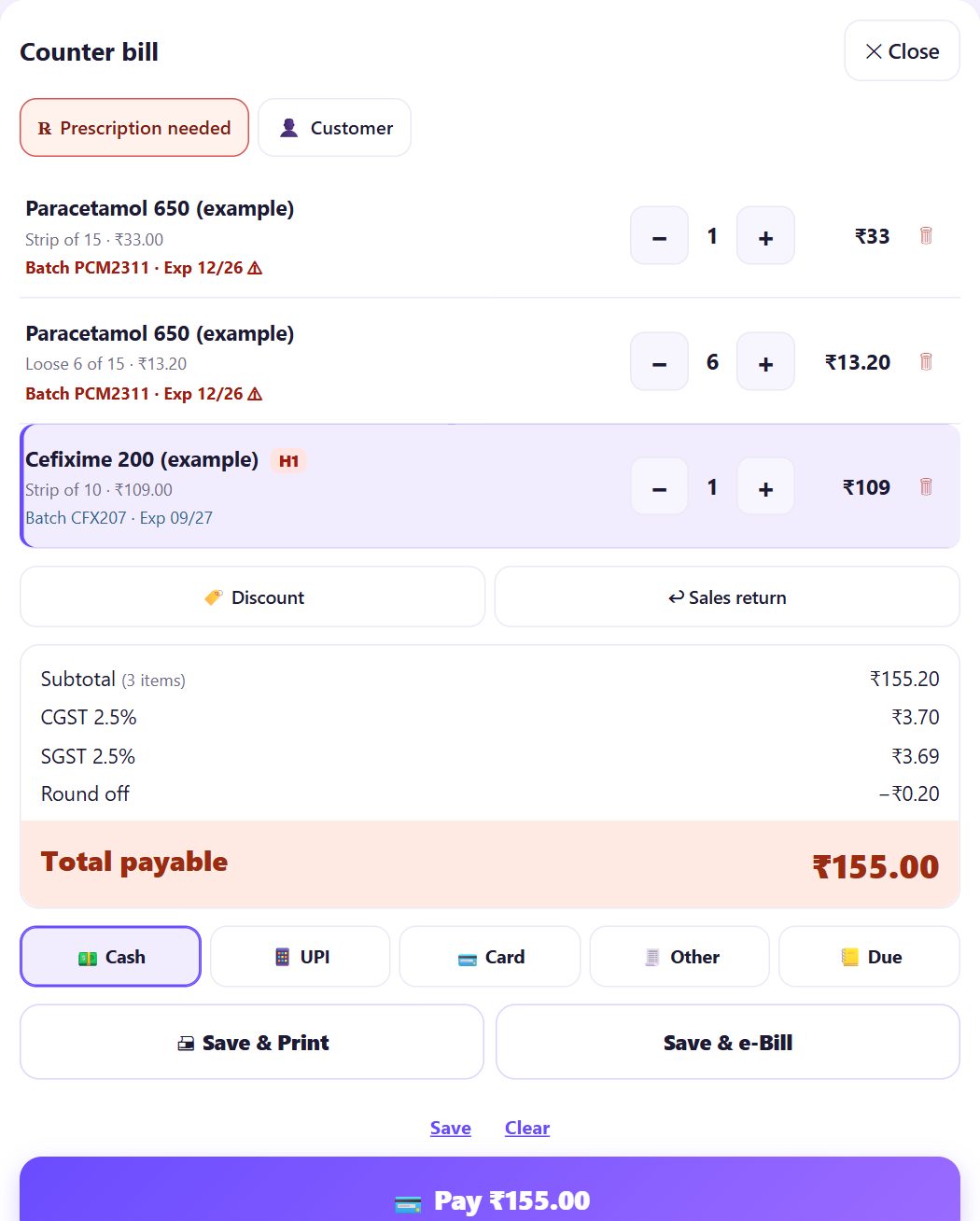
4The bill: batch and expiry on every line
Each line shows its Batch and Exp. A batch close to its expiry is shown in red with ⚠, and a message tells you when you add it.
When the bill has a Schedule H or H1 medicine, the chip at the top turns to ℞ Prescription needed. Tap it any time to type the details.
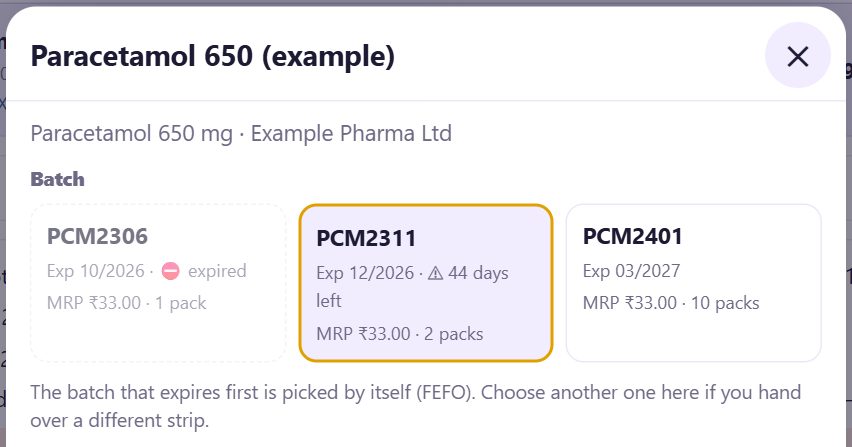
5The batch is picked by itself; change it on the line
The app picks the batch that expires first (FEFO). If you hand over a strip from another batch, tap the line and choose that batch.
An expired batch is grey with ⛔ expired and cannot be chosen: expired medicines cannot be sold, on any screen.
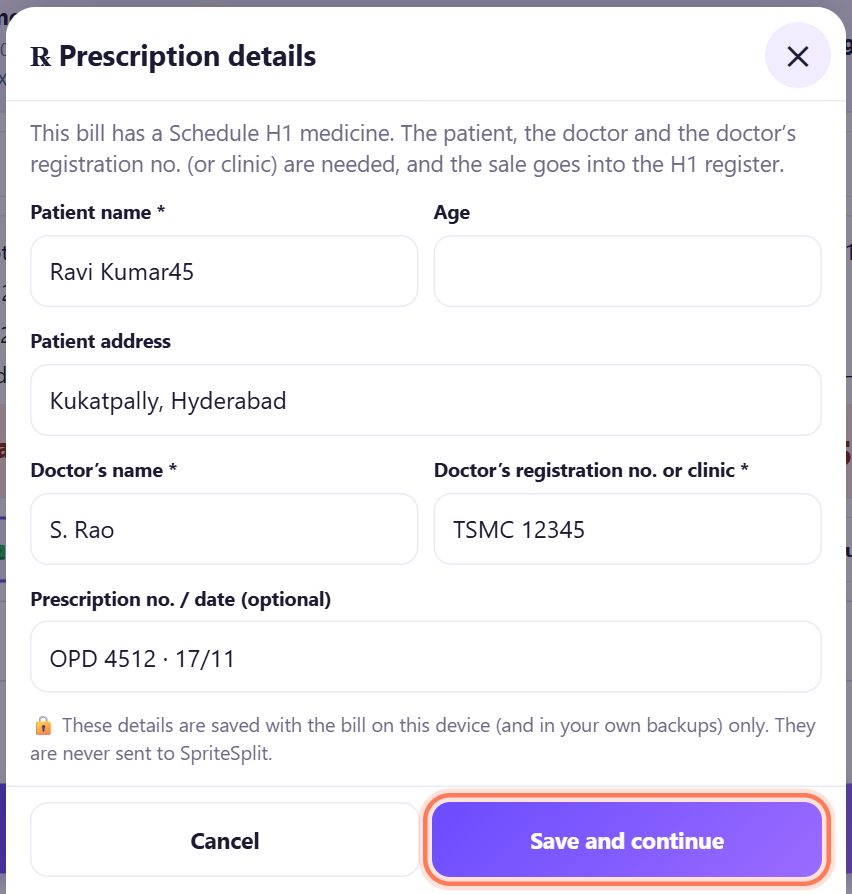
6Prescription details before Pay (Schedule H and H1)
Tap 💳 Pay. If the bill has a Schedule H medicine, the app asks for the Patient name and the Doctor’s name; for Schedule H1 also the Doctor’s registration no. or clinic. Age, Patient address and Prescription no. / date (optional) can be added.
Tap Save and continue and take the payment as usual (part 2).
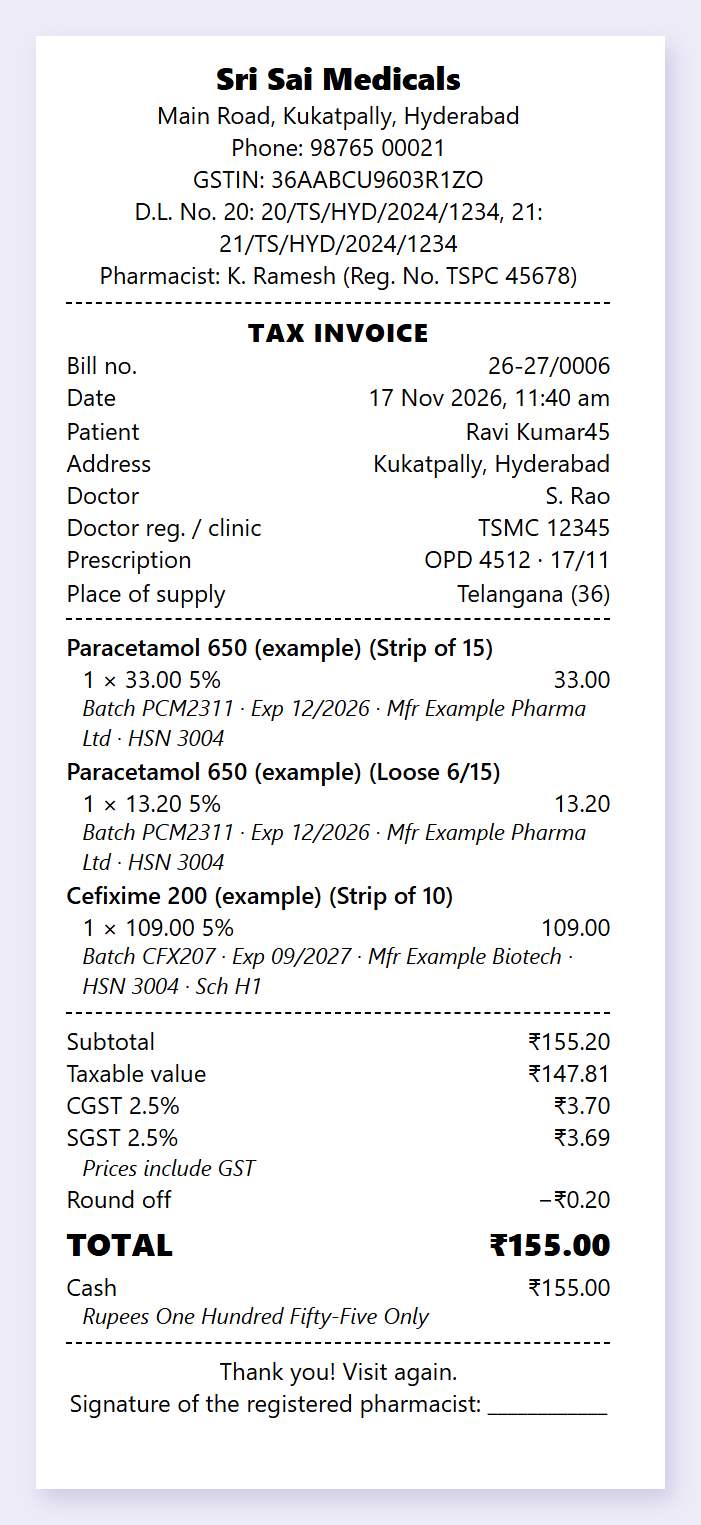
7What the bill shows
The printed bill or e-bill shows your D.L. No. (Form 20 and 21), the Pharmacist with the Reg. No., the patient and doctor when typed, and on every medicine line the Batch, Exp, Mfr (manufacturer), HSN and the schedule. It says Prices include GST and ends with a line for the registered pharmacist’s signature.
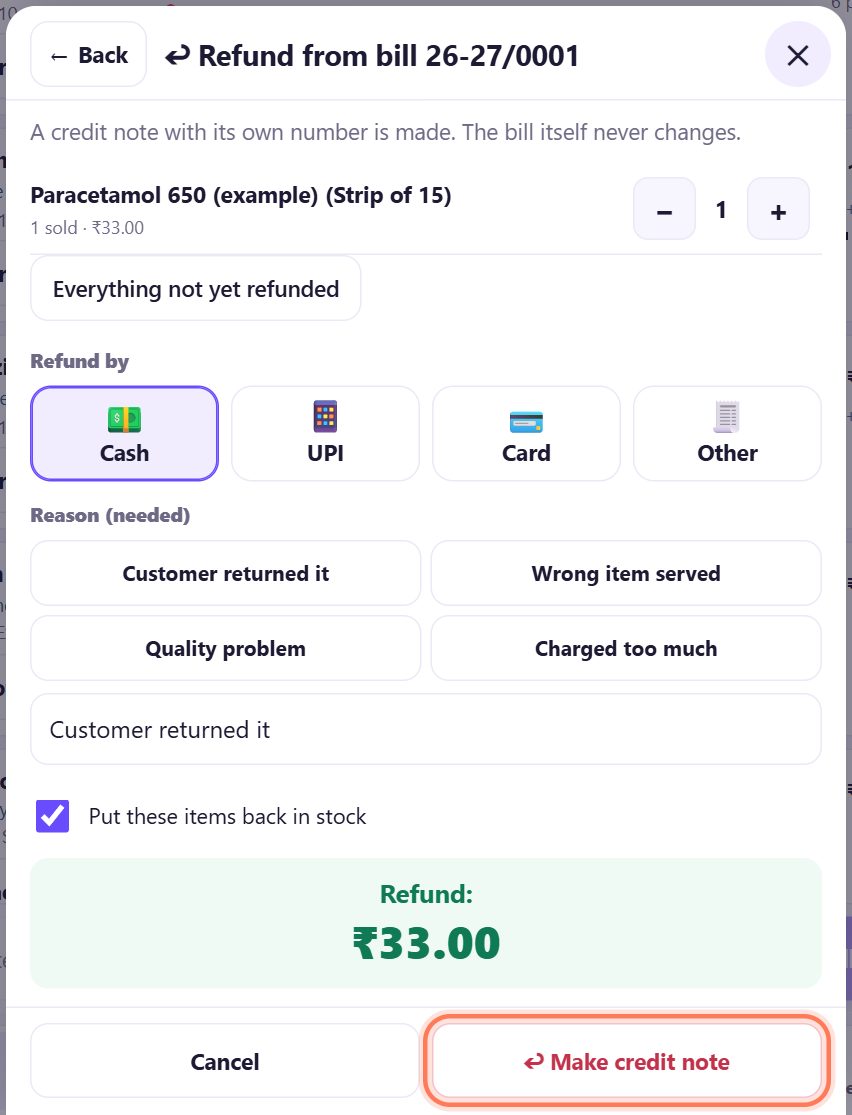
8A sales return: a credit note, back in stock
In the bill panel tap ↩ Sales return, type the Bill no. and open it, then tap ↩ Refund. Choose the items, Refund by and a Reason (needed), and tap ↩ Make credit note. The bill never changes; a credit note with its own number is made (part 15).
Keep Put these items back in stock ticked only for medicine that can be sold again.
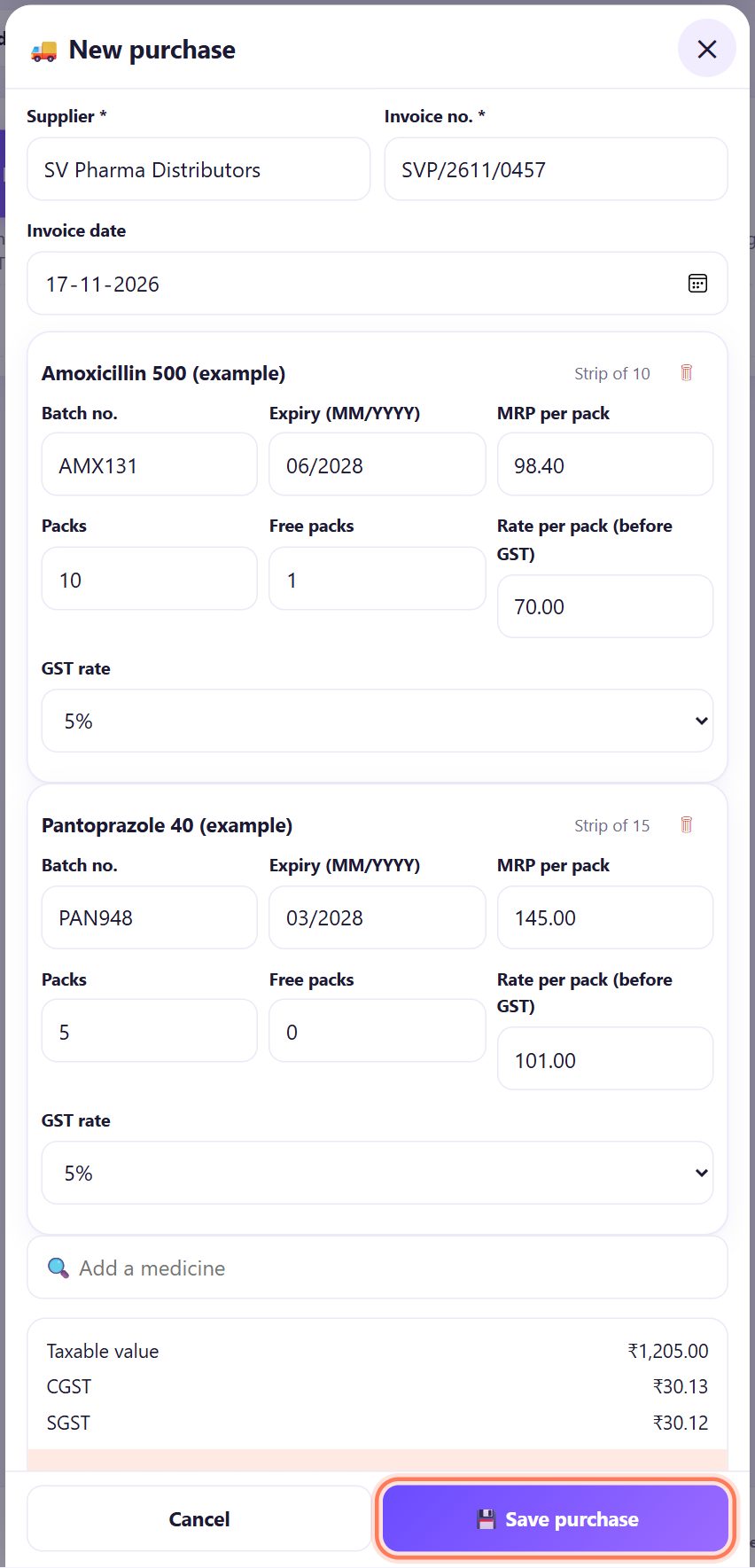
9New stock: Purchases, ➕ New purchase
In 💊 Medicines open 🚚 Purchases and tap ➕ New purchase. Type the Supplier, Invoice no. and Invoice date, search and add each medicine, and fill its Batch no., Expiry (MM/YYYY), MRP per pack, Packs, Free packs, Rate per pack (before GST) and GST rate.
Tap 💾 Save purchase: the batches go into stock and the GST goes into the input GST summary.
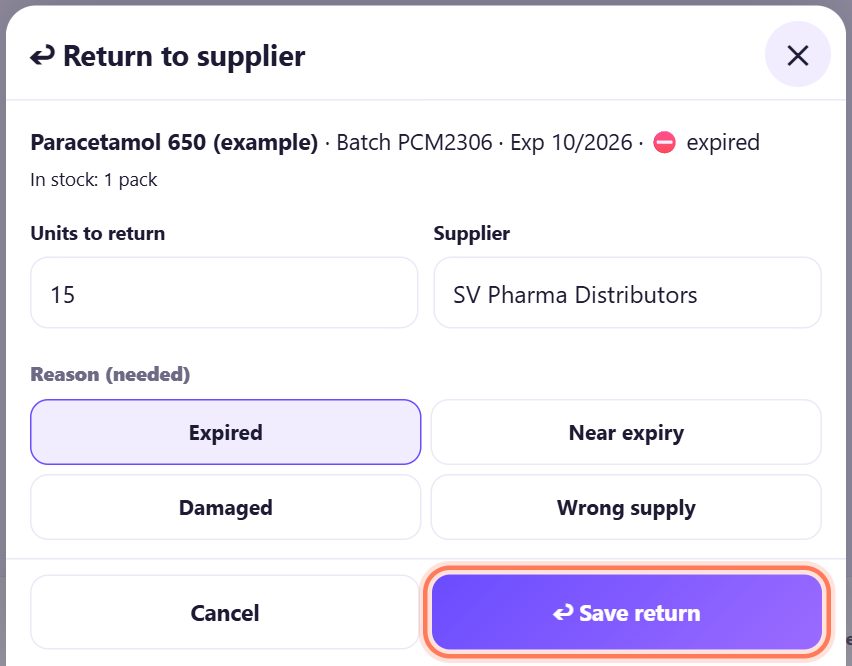
10↩ Return to supplier
Expired, damaged or wrongly supplied stock goes back with ↩ Return to supplier (in 🚚 Purchases, or ↩ Return next to a batch in the expiry list). Check the Units to return and the Supplier, choose the Reason (needed): Expired, Near expiry, Damaged or Wrong supply, and tap ↩ Save return. The stock comes out and the input GST goes down.
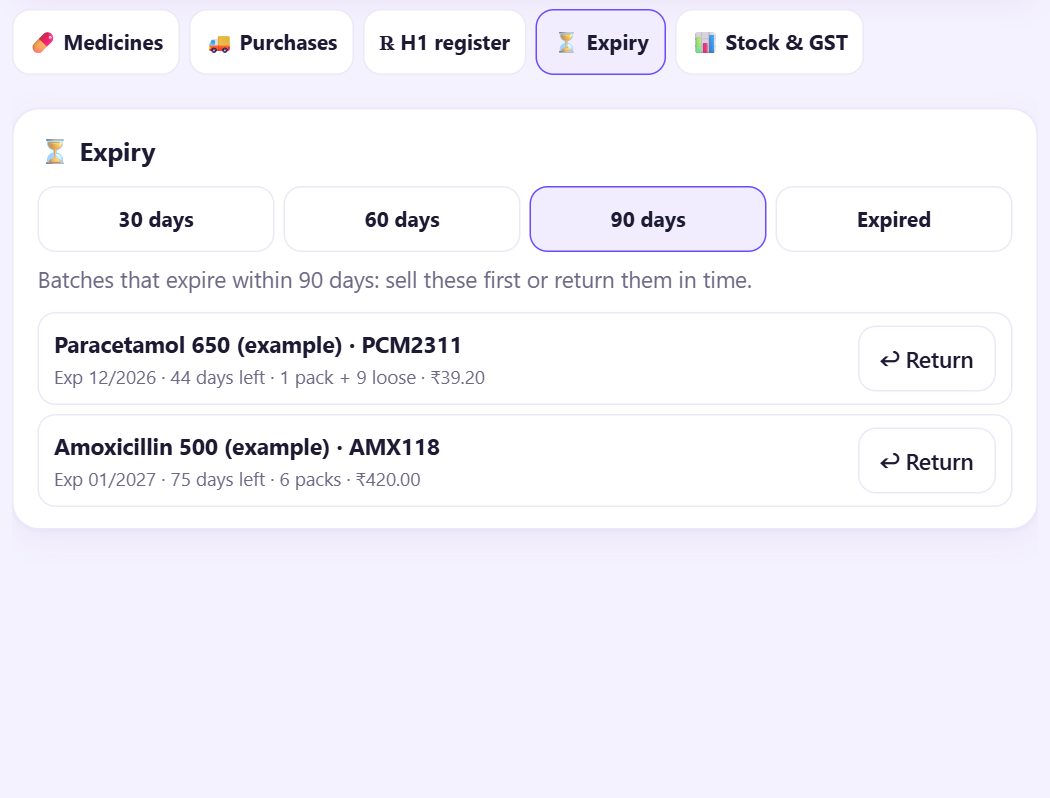
11⏳ The expiry list
⏳ Expiry lists the batches that expire within 30 days, 60 days or 90 days, or are already Expired, with the days left, the stock and its value at the purchase rate. Look at it once a week: sell those batches first or return them in time.
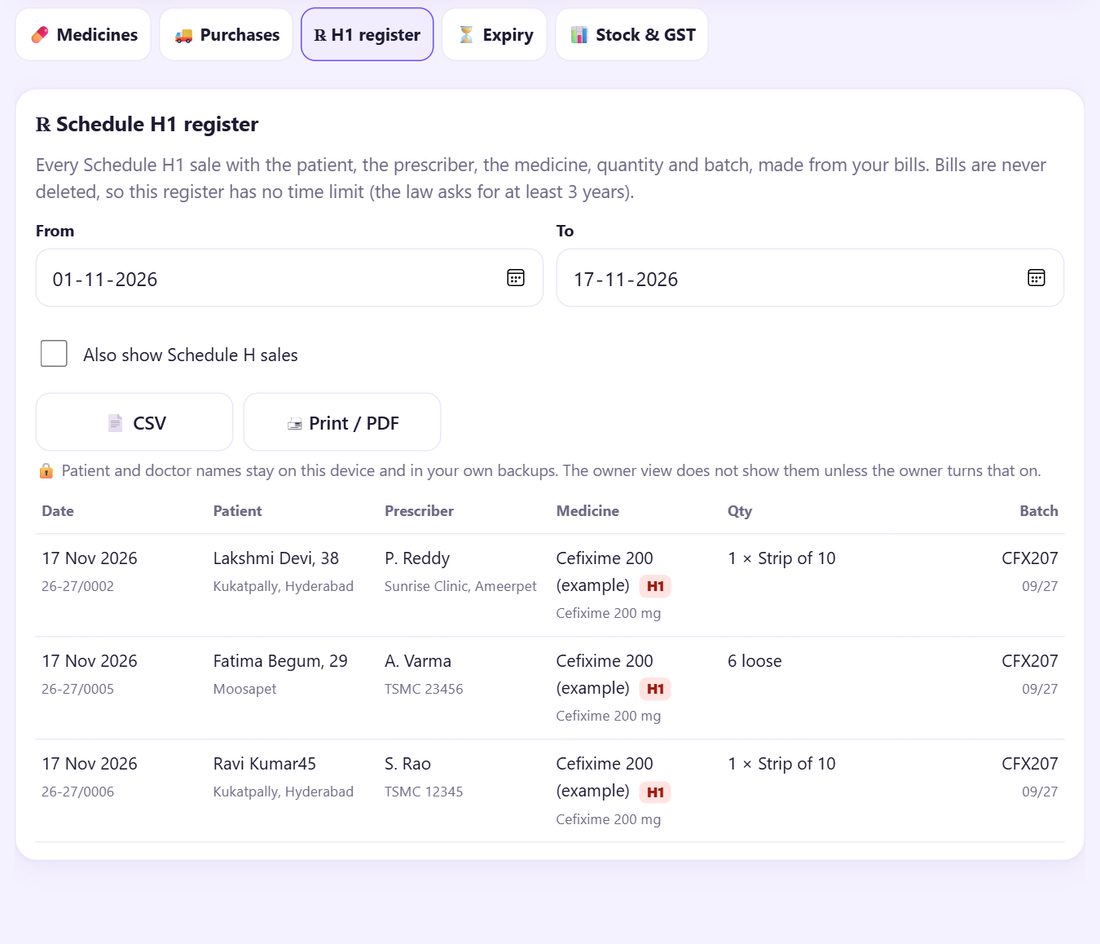
12℞ The Schedule H1 register
℞ H1 register lists every Schedule H1 sale from your bills: date and bill no., patient, prescriber, medicine, quantity and batch. Choose From and To, tick Also show Schedule H sales if you want them too, and tap 📄 CSV or 🖨 Print / PDF (A4, with a line for the pharmacist’s signature). A voided bill stays in the list, marked VOID.
13📊 Stock & GST for your CA
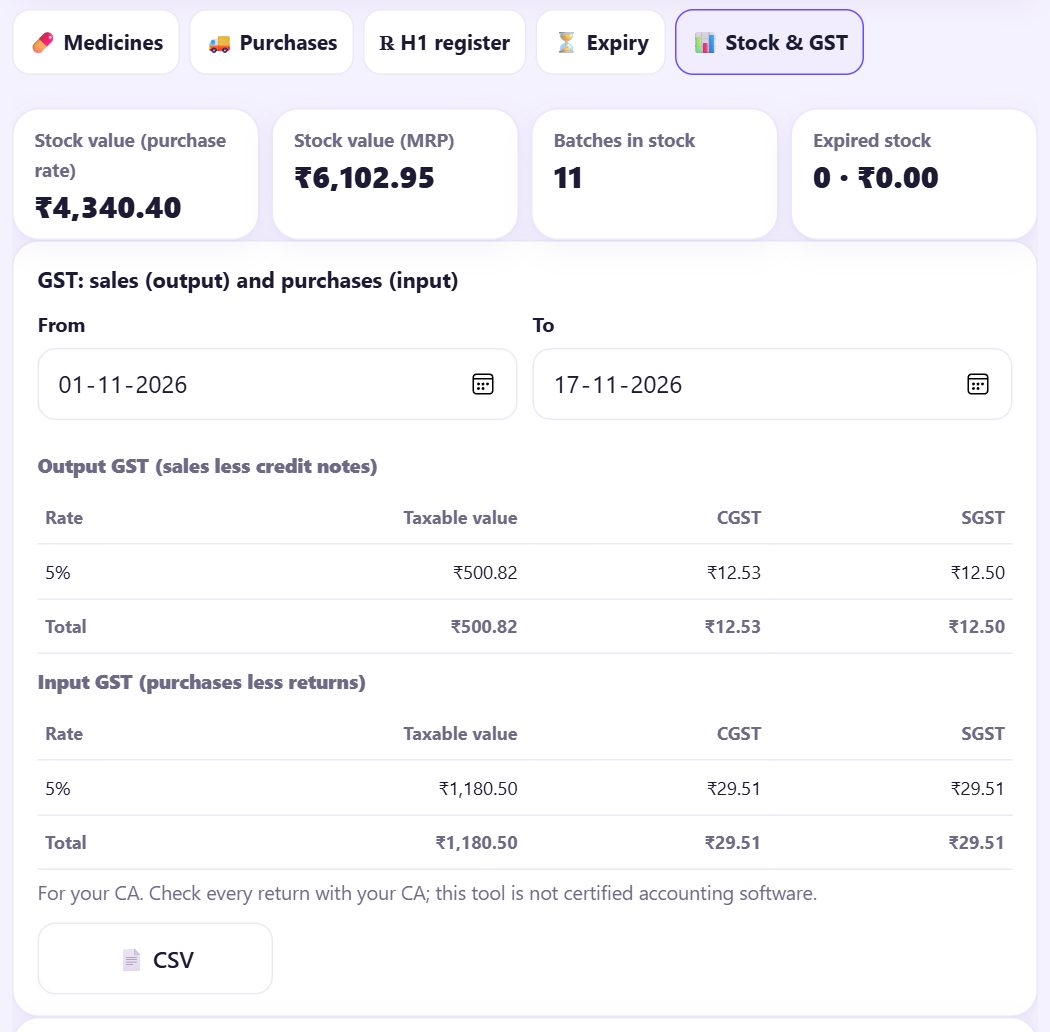
📊 Stock & GST shows the stock value (at purchase rate and at MRP), the batches in stock and any expired stock. Below, for the dates you choose: Output GST (sales less credit notes) and Input GST (purchases less returns), with 📄 CSV for your CA, and the fast and slow movers.
💡 Tip: This is a summary to help your CA. It is not certified accounting software: check every return with your CA.
💡 What comes next: You have finished the series. Open your counter and put it to work; come back to any part from the list below.
What pharmacy mode does not do
- Counter Billing is a billing and record helper. It is not a certified or approved system.
- Your registered pharmacist is responsible for every sale and for following the Drugs and Cosmetics Act, the Drugs Rules and the Pharmacy Act.
- Keep your statutory registers and records (prescription records, the Schedule H1 register, the Schedule X register) as the law and your licence require. The H1 register here is made from your bills to help you; check that it has what your licence needs.
- Schedule X medicines are never billed here.
- There is no online or QR ordering of medicines.
- There is no medical or dosage advice anywhere in the app or in these guides. The same-salt list is not a recommendation.
📝 Example: an evening at Sri Sai Medicals
Ravi Kumar brings a prescription from Dr. S. Rao. The pharmacist K. Ramesh searches by the salt, adds one strip of a Schedule H1 medicine and a strip of another medicine, and six loose tablets. At Pay the app asks for the prescription details; Ramesh types them from the prescription and the bill prints with the batch and expiry on every line.
On Monday the expiry list shows one expired batch with a strip left. Ramesh returns it to SV Pharma Distributors with the reason Expired. At the month end he prints the H1 register to PDF for the file and sends the Stock & GST CSV to the CA.
🛠 If something goes wrong
“Batch … expired on … Expired medicines cannot be sold.”
Choose another batch on the line, and return the expired one to the supplier from the expiry list.
“Not enough stock of …”
The unexpired stock is less than the bill. Save the purchase that brought the stock in, or use Correct stock on the batch after a count.
Pay always opens Prescription details
The bill has a Schedule H or H1 medicine. Fill the patient and the doctor (and for H1 the doctor’s registration no. or clinic) and tap Save and continue.
“A price on this bill is above the MRP.”
A medicine can be sold at its MRP or less, never above. Check the MRP of the batch, or give an item discount instead.
The H1 register is empty
Check the From and To dates. Only bills with a medicine set to Schedule H1 at the time of the sale are listed.
A customer brings back an opened strip
That is the pharmacist’s decision. If you take it back but it cannot be sold again, untick Put these items back in stock.
🔒 Privacy in plain words
- Patient and doctor details are saved with the bill on this device and in your own backups only. They are never sent to SpriteSplit. In pharmacy mode your backups (Google Drive, backup files and the PC folder) are locked with your backup password (part 8).
- The owner view (part 19) leaves patient and doctor names out unless the owner turns that on.
- The H1 register and GST CSV and PDF files are made on your device and saved where you choose. They are not locked: the H1 register has patient details, so keep it private.
Questions people ask
Does the app tell me which brand to give instead?
No. The ≈ list only shows the brands with the same salt that you stock. The pharmacist decides any substitution.
Can a medicine be sold after its expiry date?
No. An expired batch cannot be added to a bill, and a bill with an expired batch cannot be saved.
Is this H1 register enough for an inspection?
It is a helper made from your bills. Keep the register in the form your licence and the Drugs Rules require, signed by the registered pharmacist.
Can I bill Schedule X medicines?
No. Schedule X medicines are never billed in Counter Billing. Use your separate Schedule X register.
Can the owner see patient names on the phone?
Not unless the owner turns that on in Settings, Owner view, on the main counter.
📚 Counter Billing step by step
All 21 parts
- 1Set up your counter
- 2Make a bill
- 3GST invoice and bill types
- 4Print, WhatsApp and QR receipts
- 5Menu: items, sizes, photos
- 6Close the day, count cash
- 7Reports & GST summary
- 8Backup, restore, PIN lock
- 9Café mode and tables
- 10Connect a kitchen screen
- 11Send KOTs to the kitchen
- 12Add a second counter
- 13Staff, roles and PINs
- 14Shifts and cash
- 15Refunds and credit notes
- 16Udhaar (credit) and dues
- 17Stock and recipes
- 18Owner dashboard
- 19Owner view on your phone
- 20Pharmacy set-up and medicines
- 21Daily pharmacy billing
 📚