How to send KOTs to the kitchen and track them until served
A KOT (kitchen order ticket) tells the kitchen what to make. In Counter Billing you send it with one tap from the order; it appears on the kitchen screen, prints on paper, or both. Only the new items go each time, cancelled items go as a red cancel ticket, and the cook’s Ready comes back to the counter.
Steps
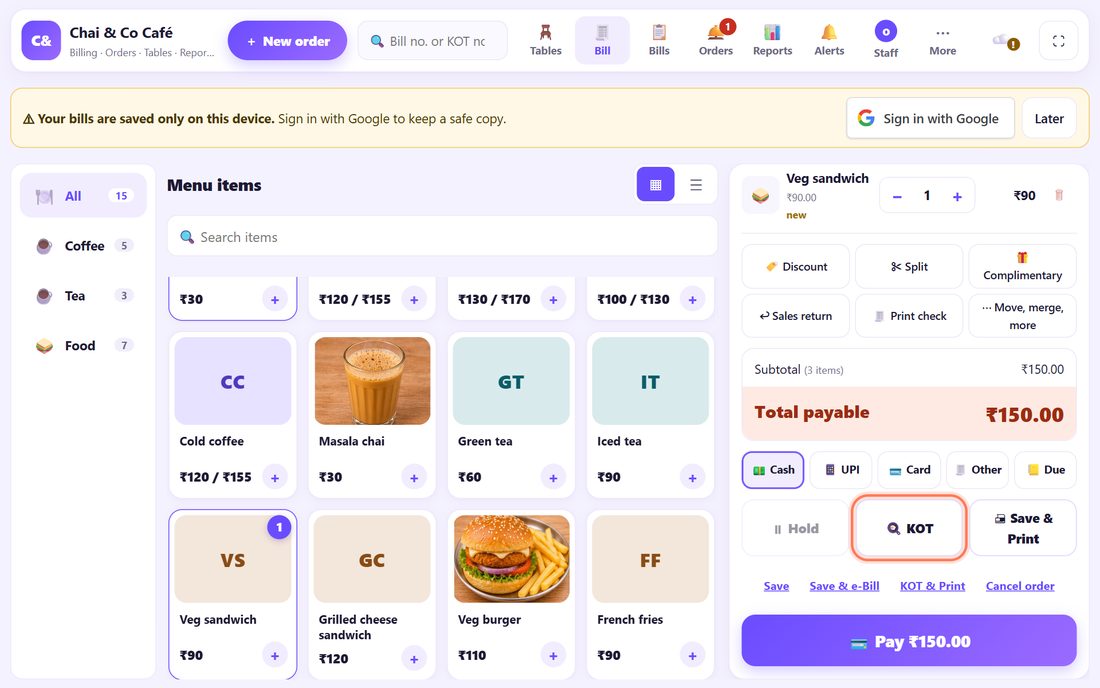
1Take the order, then tap 🍳 KOT
Open the table and add the items (notes like less sugar go on the item). Items not yet sent say new. Tap 🍳 KOT: the counter says KOT 1 sent to the kitchen. and the items now say ✓ sent. The table turns yellow (Running KOT).
KOT numbers start again every day. Search any KOT no. in the search box at the top.
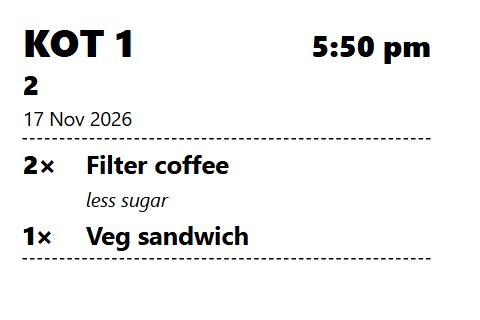
2KOT & Print: a paper ticket too
KOT & Print (the small link under the buttons) sends the KOT and prints it on the counter’s receipt printer: big KOT number, table, time, items and notes, no prices.
No kitchen screen? Use KOT & Print and hand the slip to the kitchen. Pick 80 mm or 58 mm under KOT paper in Settings › Café mode. Also print each KOT here in the Kitchen tab keeps a paper copy of KOTs sent from elsewhere.
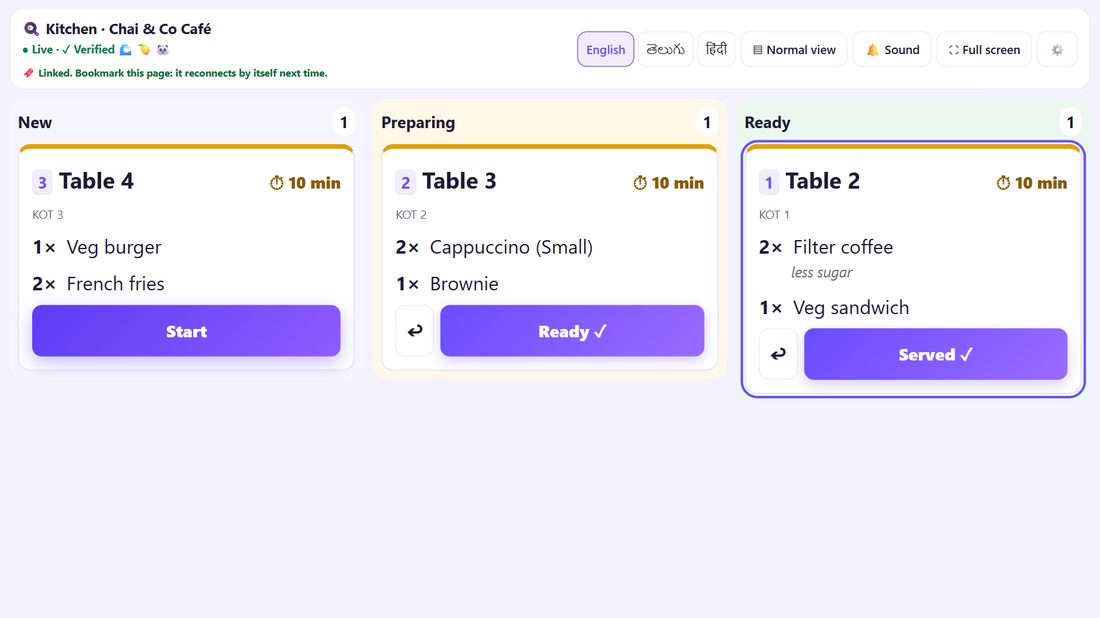
3Kitchen: Start, then Ready ✓
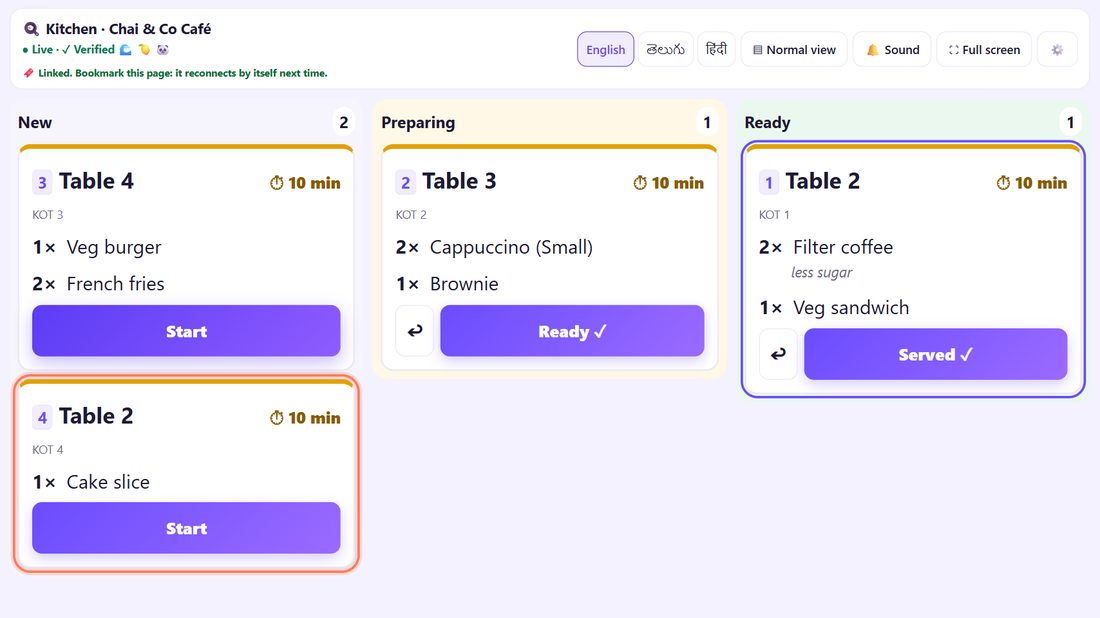
On the kitchen screen each ticket starts under New. The cook taps Start (it moves to Preparing), then Ready ✓ when the food is out. ↩ moves a ticket one step back if tapped by mistake.
Each ticket shows minutes since it was sent; it turns amber, then red, if it waits too long.
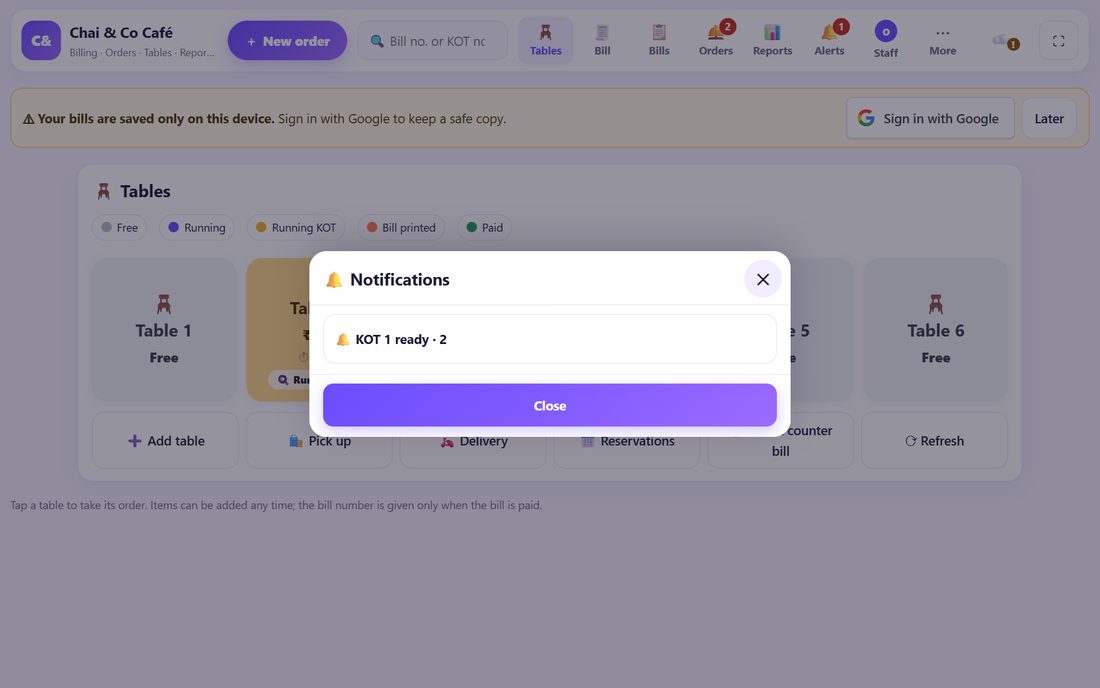
4Counter: the table rings when food is ready
When the kitchen taps Ready, the counter shows a toast (KOT 1 ready · 2), the table tile gets a 🔔 and 🔔 Alerts counts it. Tap Alerts to see what is waiting, so the waiter picks it up hot.
5More items later: an add-on KOT
The same table orders a cake slice later? Open the table, add it and tap 🍳 KOT again. Only the new item goes, as a new ticket (KOT 4 for Table 2). The kitchen never makes the first items twice.
Nothing new? The counter says Nothing new to send to the kitchen.
6Cancel an item already sent: a VOID ticket
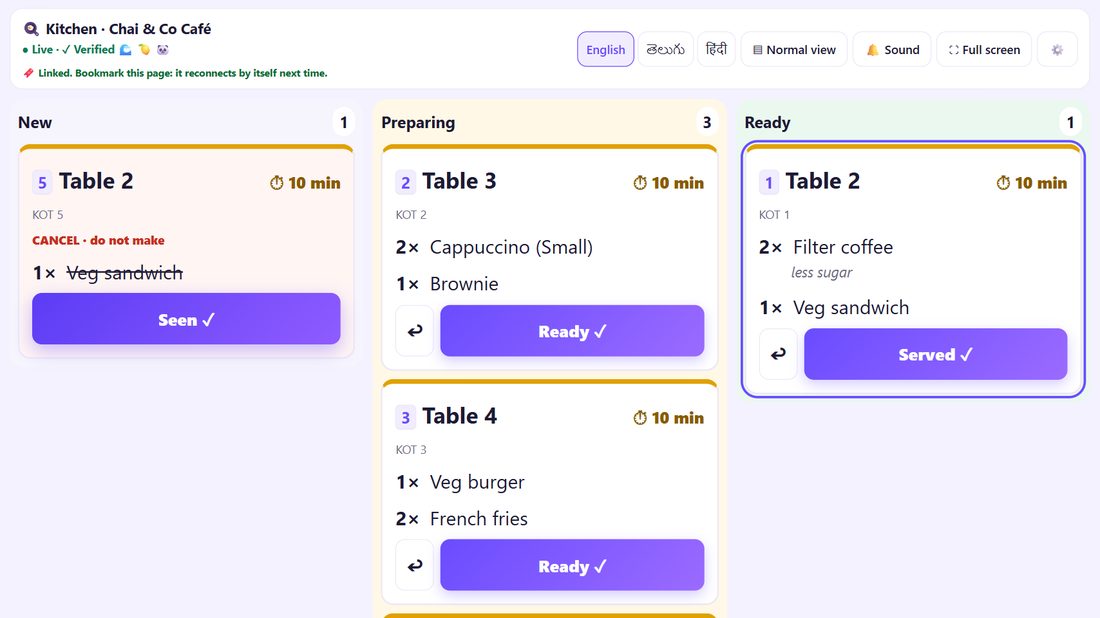
A guest cancels the sandwich? In the order lower its quantity (or 🗑) and tap 🍳 KOT. The kitchen gets a red ticket CANCEL · do not make with the item crossed out. The cook taps Seen ✓.
Cancelling sent items may need permission when staff logins are on (part 13), and it shows in the owner’s report.
7Kitchen: Served ✓, sound and timers
When the waiter takes the food, tap Served ✓: the ticket leaves the screen and the counter marks it served. 🔔 Sound rings for new tickets; 🖥 Big screen shows three columns on a wide screen.
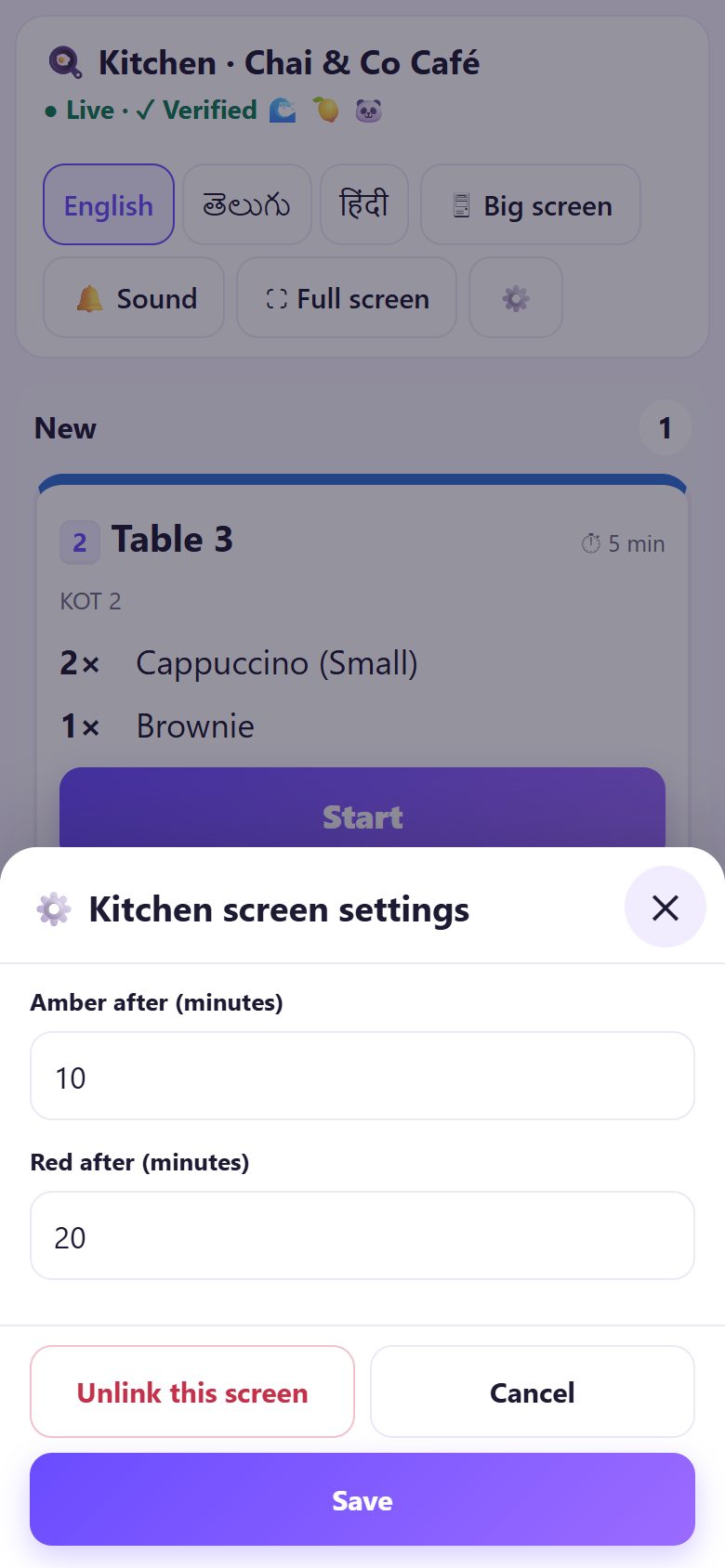
⚙️ opens Kitchen screen settings: Amber after (minutes) and Red after (minutes), and Unlink this screen.
8Counter: Kitchen tickets today
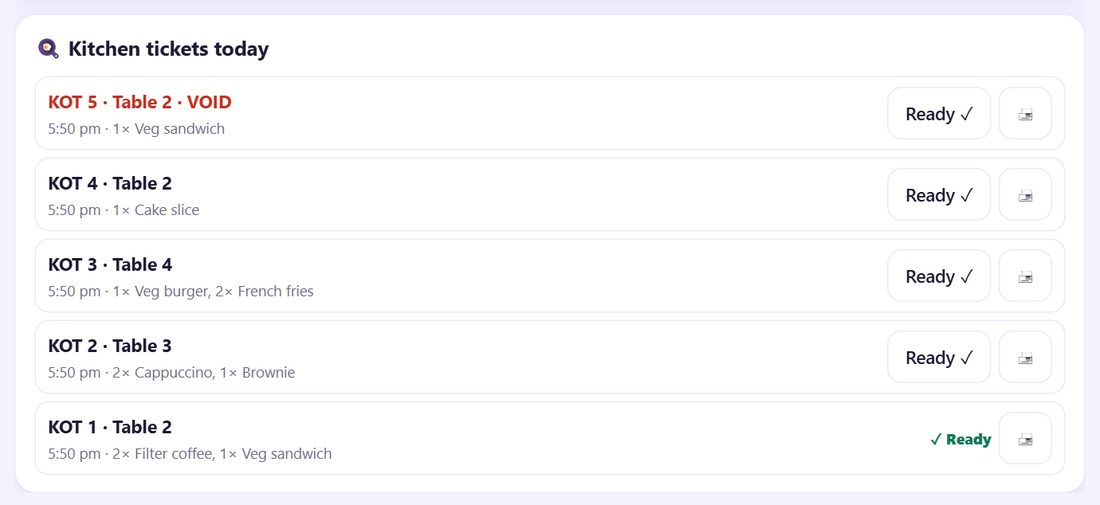
The 🍳 Kitchen tickets today list on the counter’s Kitchen tab shows every KOT with its table, time and items. Without a kitchen screen, tap Ready ✓ here yourself; tap 🖨 to reprint a KOT.
💡 What comes next: Long queue at lunch? Add a second counter on a phone or tablet, with its own bill numbers.
🍳 Good habits
- Notes on the item, not by shouting: “less spicy”, “no onion”, “parcel” go on the KOT exactly as typed.
- Send often: send drinks first, mains later. Each KOT carries only what is new.
- Watch the colours: amber and red tickets are the ones guests are waiting for.
- Owner check: the report shows KOTs cancelled, changed after sending, and KOTs never billed (part 18).
📝 Example: Table 2 at Chai & Co Café
At 5:50 pm Table 2 orders two filter coffees (less sugar) and a veg sandwich. Ravi taps KOT & Print: the kitchen phone rings and a slip prints for the coffee counter. Salim taps Start, then Ready; the counter tablet pings “KOT 1 ready · 2” and the waiter carries it out.
At 6:05 they add a cake slice (KOT 4, only the cake), then cancel the sandwich: the kitchen sees a red CANCEL · do not make and taps Seen. At night Ravi’s report shows one KOT cancelled, with the time and the reason, and no food wasted.
🛠 If something goes wrong
🍳 KOT is grey
There is nothing new to send, or the order is empty. Add an item first. If you just added one and it is still grey, tap the item once more or switch Dine in / Pick up and back.
The kitchen screen did not get the KOT
Check the Kitchen tab on the counter: Kitchen screen connected? If it says Kitchen link offline, use KOT & Print and reconnect the kitchen screen (part 10). Tickets sent meanwhile arrive when it is back.
Nothing prints
Use KOT & Print, and choose the receipt printer in the print window. The printer must be set up on this device (part 4).
The kitchen made an item twice
Each KOT has only new items. If the cook reads an old ticket, ask them to tap Served ✓ on finished tickets so only open work stays on screen.
I need to cancel a whole order
In the order, ⋯ Move, merge, more › 🗑 Cancel this order. Nothing is billed; sent items get a VOID ticket.
A ticket turned red
It has waited longer than Red after (minutes). Change the minutes in the kitchen’s ⚙️ settings to suit your kitchen.
🔒 Privacy in plain words
- KOTs go straight from the counter to the kitchen screen over an encrypted link, or to your own printer. Nothing is uploaded to SpriteSplit.
- KOTs show no prices and no customer details, only table, items and notes.
- KOT history stays on the counter device with your bills.
Questions people ask
What is a KOT?
A kitchen order ticket: the list of items the kitchen should make for a table, with notes, and no prices. It is not a bill.
Can I print KOTs without a kitchen screen?
Yes. Use KOT & Print; choose 80 mm or 58 mm paper under KOT paper in Settings.
Does the KOT use a bill number?
No. KOTs have their own numbers that start again every day. The bill number is given only when the order is paid.
How does the counter know the food is ready?
The kitchen taps Ready ✓; the counter shows a toast, a bell on the table and an alert.
Can the kitchen move a ticket back?
Yes, ↩ moves it one step back (for example from Ready to Preparing).
📚 Counter Billing step by step
All 21 parts
- 1Set up your counter
- 2Make a bill
- 3GST invoice and bill types
- 4Print, WhatsApp and QR receipts
- 5Menu: items, sizes, photos
- 6Close the day, count cash
- 7Reports & GST summary
- 8Backup, restore, PIN lock
- 9Café mode and tables
- 10Connect a kitchen screen
- 11Send KOTs to the kitchen
- 12Add a second counter
- 13Staff, roles and PINs
- 14Shifts and cash
- 15Refunds and credit notes
- 16Udhaar (credit) and dues
- 17Stock and recipes
- 18Owner dashboard
- 19Owner view on your phone
- 20Pharmacy set-up and medicines
- 21Daily pharmacy billing