How to refund a bill with a credit note in Counter Billing (void or refund?)
A customer brings back a cold cappuccino, or you charged for two when they had one. Changing the old bill is not allowed (bill numbers must stay honest, especially with GST), and voiding the whole bill is wrong when only one item comes back. The right way is a credit note: a small document with its own number that says what was returned and how the money went back. The bill itself never changes.
Steps
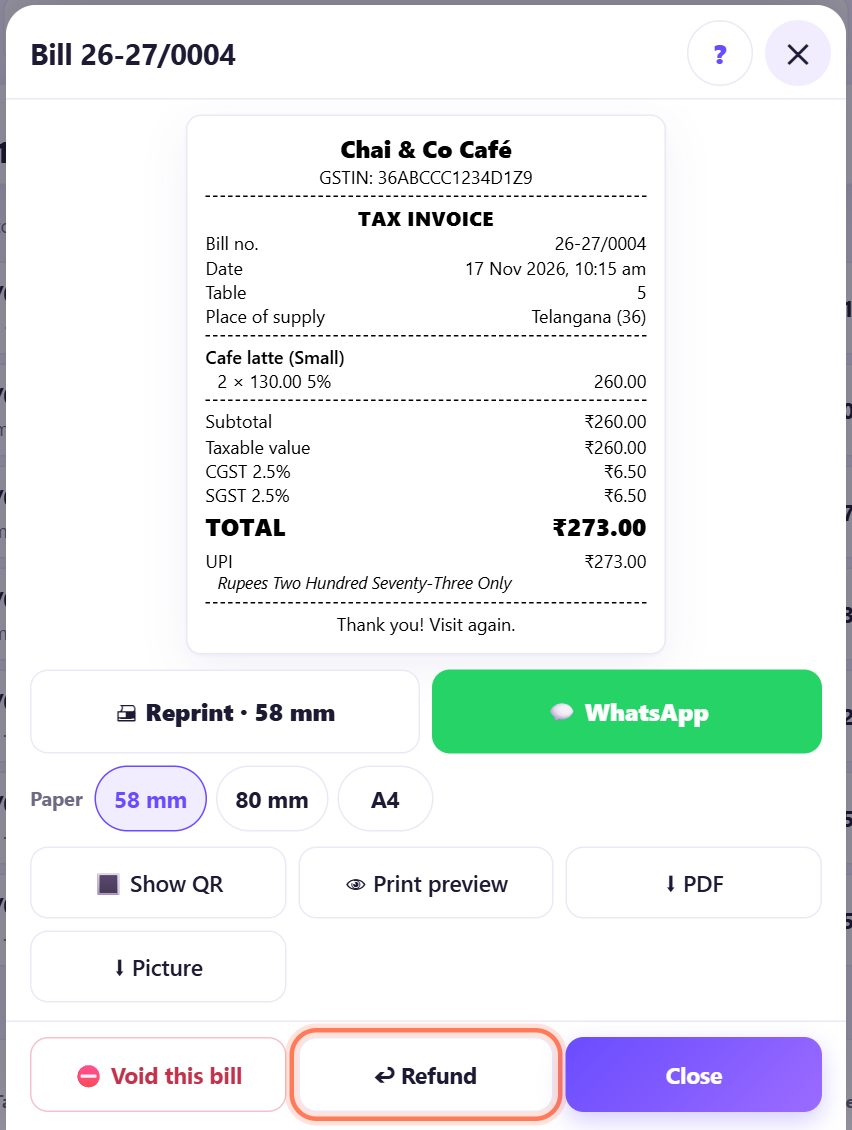
1Void or refund? Open the bill
Open 📋 Bills and tap the bill. At the bottom are two buttons:
- ⛔ Void this bill: the bill was a mistake (wrong items, a duplicate, a test). The whole bill is crossed out, left out of all totals, and its number is never used again.
- ↩ Refund: the sale was real, but some or all of it comes back. A credit note is made; the bill stays as it was.
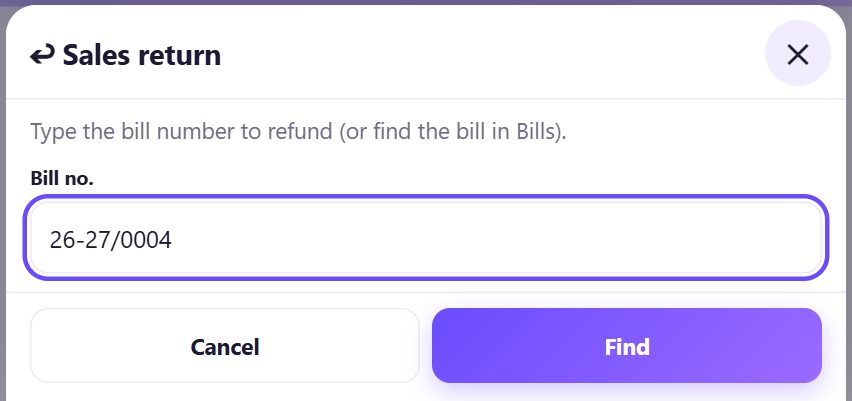
2Or start from the order screen: Sales return
On the order screen tap ↩ Sales return, type the number from the customer’s bill in Bill no. and tap Find. The bill opens; tap ↩ Refund.
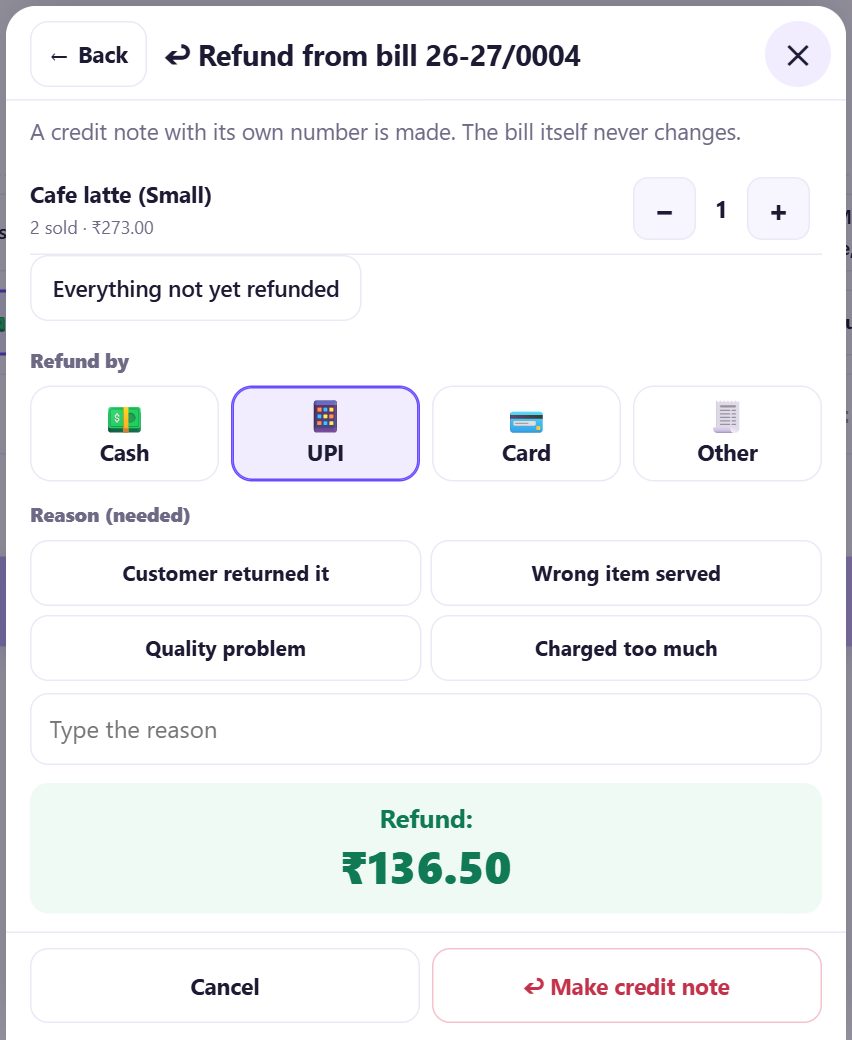
3Choose what comes back
Use + and − on each line to choose how many come back, or tap Everything not yet refunded. The green box shows the refund, with its share of GST.
You cannot refund more than was sold, and a line already refunded shows how many are left.
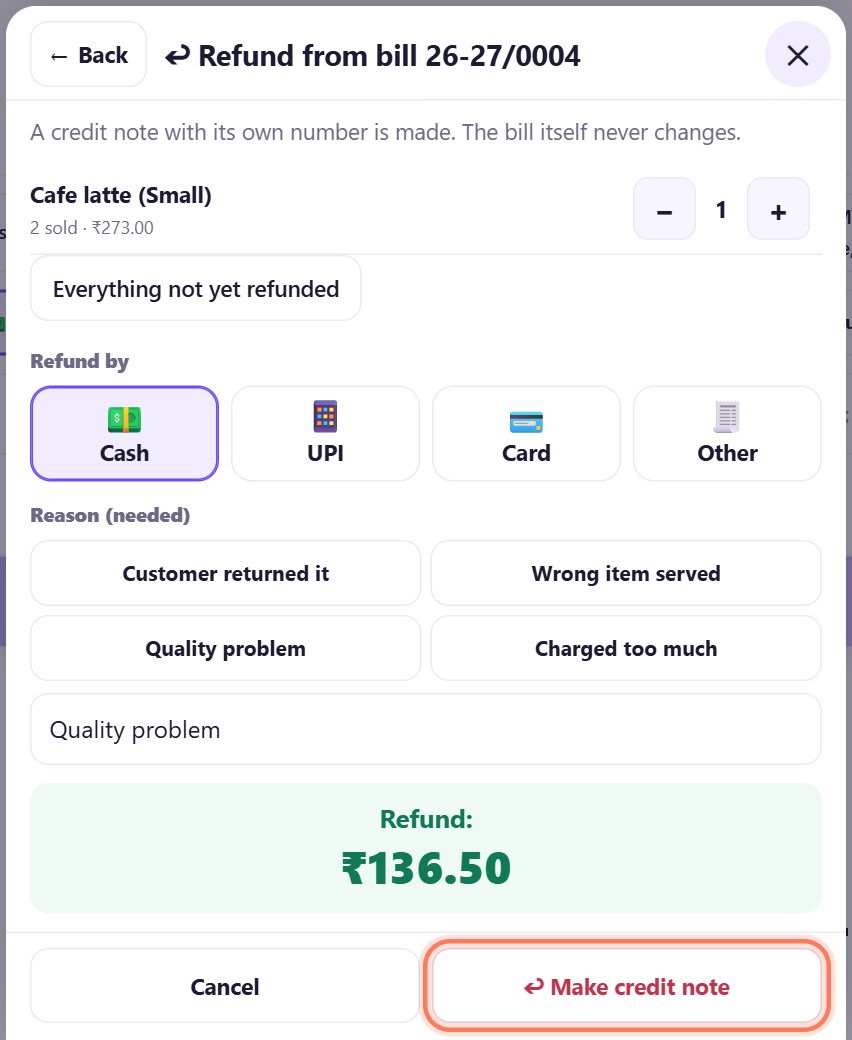
4Pick how the money goes back and why
Under Refund by pick Cash, UPI, Card or Other. For a bill on credit (udhaar) you can choose Reduce the due instead. Under Reason (needed) tap Customer returned it, Wrong item served, Quality problem, Charged too much, or type your own.
If you use stock (part 17), keep Put these items back in stock ticked when the item can be sold again. Tap ↩ Make credit note.
5The credit note gets its own number
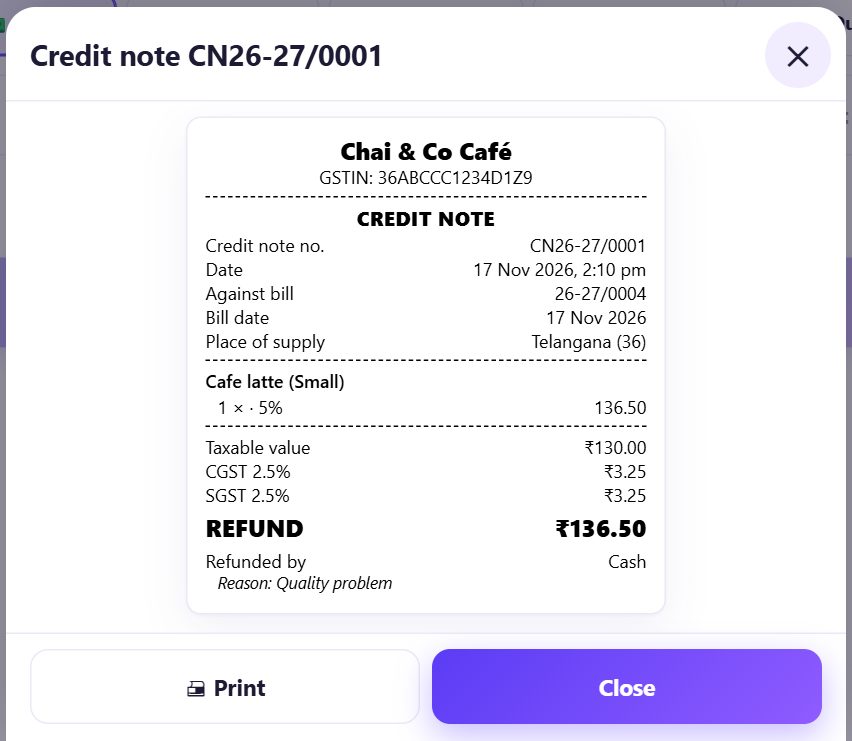
The credit note has its own series, CN26-27/0001, starting again every 1 April like your bills. It shows the original bill and date, the items, taxable value, CGST and SGST, the REFUND total, how it was paid back and the reason. Tap 🖨 Print to give a copy.
Then pay the customer back the way you chose. The app does not move money.
6Find credit notes later
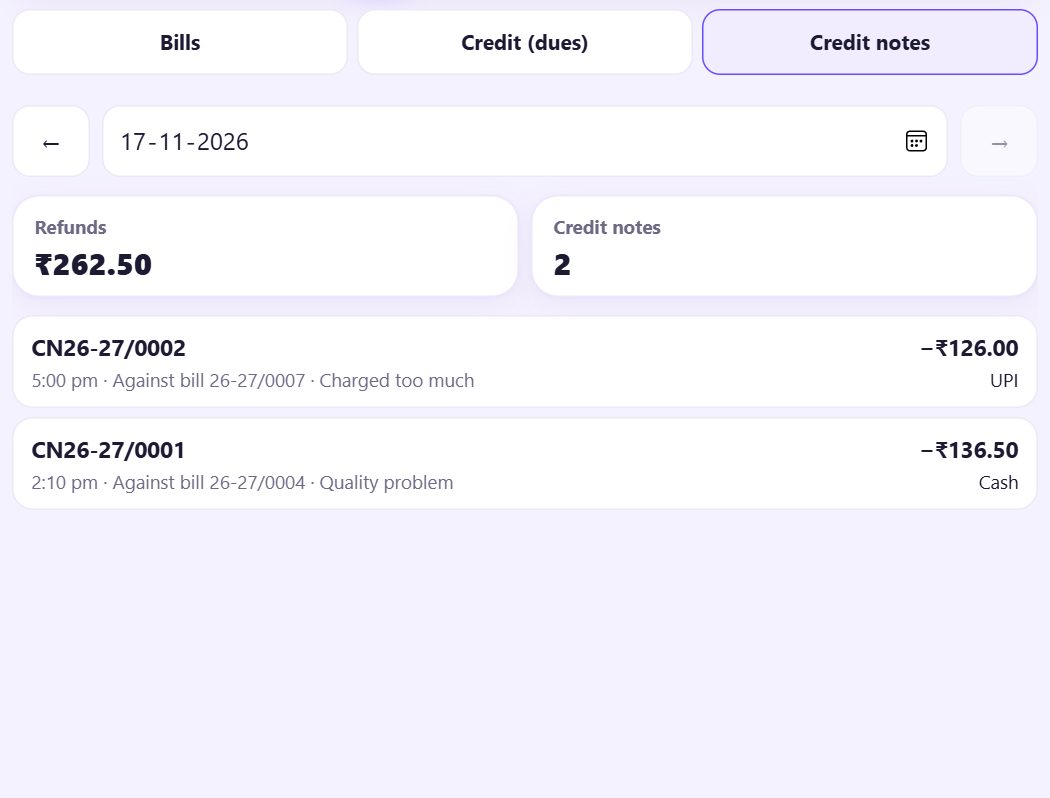
In 📋 Bills, tap Credit notes to see the day’s refunds: the total, the number, and each note with its bill and reason. Use ← and → for other days and tap a note to print it again.
7Reports and GST take refunds off
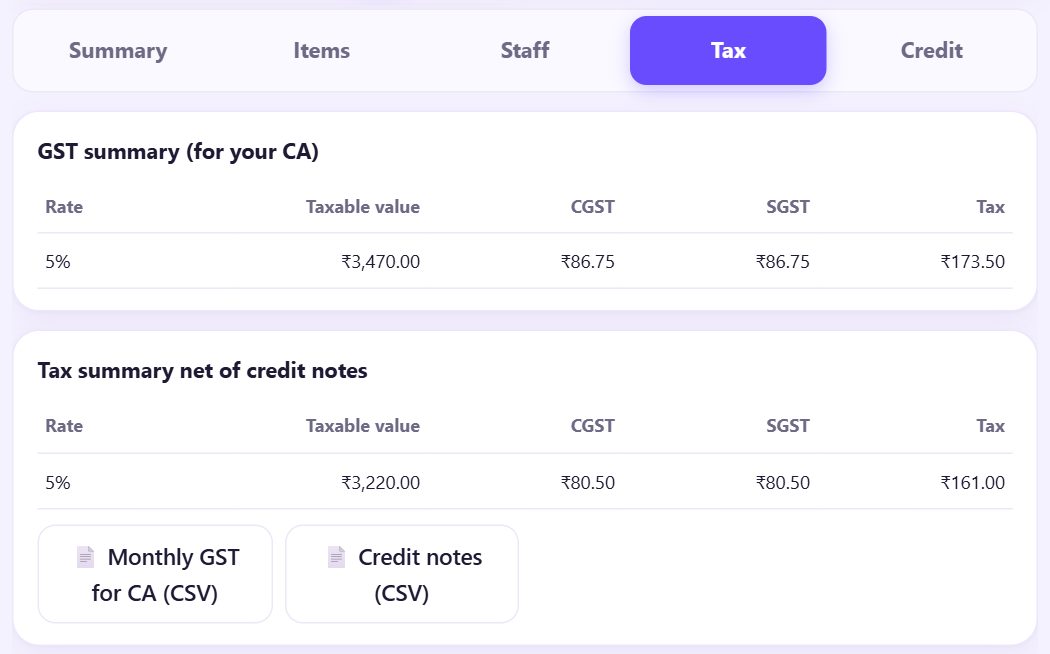
Reports show Net sales (after refunds), and the Tax tab gives the GST summary net of credit notes for your CA. The CSV buttons include Credit notes (CSV) and Monthly GST for CA (CSV) (part 7).
On the dashboard, Bills refunded shows under Revenue leakage (part 18).
💡 What comes next: Regular customers who pay later: keep their udhaar and send a polite reminder.
📝 Example: a cold latte at Chai & Co Café
At 2:10 pm a customer from table 5 comes back: one of the two lattes on bill 26-27/0004 was cold. Ravi taps ↩ Sales return, types 0004 and taps Find, then ↩ Refund. He sets one Cafe latte, picks Cash and Quality problem, and taps Make credit note.
Credit note CN26-27/0001 for ₹136.50 (₹130 + ₹6.50 GST) prints, Ravi hands back the cash, and the shift’s expected cash goes down by ₹136.50. Bill 0004 is unchanged, and the month’s GST summary already takes the ₹6.50 off.
🛠 If something goes wrong
I do not see Refund on the bill
Turn on Refunds as credit notes in ⚙️ Settings › ☕ Café mode. A voided bill cannot be refunded.
“This bill has a credit note. It cannot be voided; refund the rest instead.”
Once part of a bill is refunded, the bill cannot be voided. Use Everything not yet refunded.
“Part of this credit bill is already paid. Refund it instead of voiding.”
The customer already paid some of their udhaar. Make a refund so the paid part and the due stay correct.
“The due on this bill is less than the refund. Choose another way to refund.”
Reduce the due can only take off what is still owed. Pick Cash or UPI for the rest.
A helper cannot make refunds
They need Refunds (credit notes) in their permissions, or the owner types a PIN when asked (part 13).
I refunded the wrong item
A credit note cannot be deleted, just like a bill. Make a new sale for the item at the counter and write the reason, so the records stay honest.
🔒 Privacy in plain words
- Credit notes are stored only on this device with your bills, and go into your backups.
- The app records how you paid back but never touches money: no bank, UPI or card connection.
- Counter Billing is a free helper, not certified accounting software; ask your CA how to file returns.
Questions people ask
Why not just edit the bill?
Saved bills never change. That keeps the bill numbers and GST honest; refunds are shown as credit notes instead.
Does the credit note have GST on it?
Yes, on a GST tax invoice the credit note shows the taxable value, CGST and SGST of the refunded items, and reports take them off.
Do credit note numbers start again each year?
Yes. Like bills, the CN series starts again every 1 April (CN26-27/0001).
Can I refund only part of an item’s price?
Choose Charged too much and refund the item; for a different amount, make the correct new sale and refund the old line.
Does a refund put the item back in stock?
Only if Put these items back in stock is ticked (when stock is on).
📚 Counter Billing step by step
All 21 parts
- 1Set up your counter
- 2Make a bill
- 3GST invoice and bill types
- 4Print, WhatsApp and QR receipts
- 5Menu: items, sizes, photos
- 6Close the day, count cash
- 7Reports & GST summary
- 8Backup, restore, PIN lock
- 9Café mode and tables
- 10Connect a kitchen screen
- 11Send KOTs to the kitchen
- 12Add a second counter
- 13Staff, roles and PINs
- 14Shifts and cash
- 15Refunds and credit notes
- 16Udhaar (credit) and dues
- 17Stock and recipes
- 18Owner dashboard
- 19Owner view on your phone
- 20Pharmacy set-up and medicines
- 21Daily pharmacy billing