How to open a shift, record cash in and out, and close the shift in Counter Billing
The cash box is where small losses hide: change added from the owner’s pocket, ₹180 taken for milk, a helper who leaves early. A shift ties all of it to a time and a person. You count the float when the shift starts, write every cash in or expense with a reason, and at the end you count the notes and the app tells you at once if the box is short or has extra.
Steps
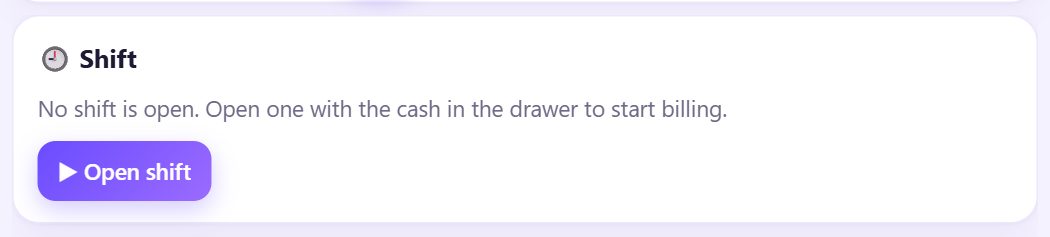
1Open the Shift screen
Tap ⋯ More and then 🔐 Shift. Before the first shift of the day it says No shift is open. Open one with the cash in the drawer to start billing.
Shifts are part of café mode: in ⚙️ Settings › ☕ Café mode keep Shifts with opening cash, cash in / out ticked.
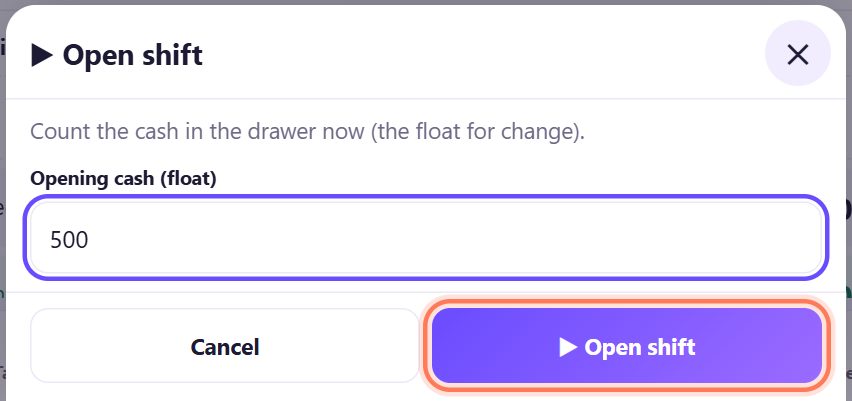
2Count the float and open the shift
Tap ▶ Open shift. Count the cash already in the drawer (the change you start with) and type it in Opening cash (float), for example 500. Tap ▶ Open shift.
The shift gets a number (SH00001) and the name of the person logged in.
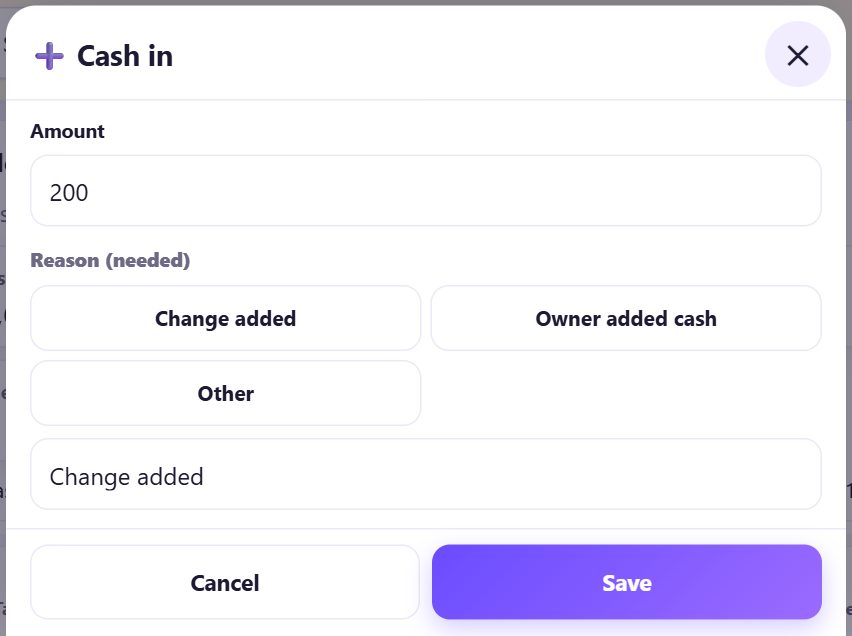
3Cash in: money added to the drawer
When you add money that is not a sale (more change, the owner topping up), tap ➕ Cash in, type the Amount, pick a reason (Change added, Owner added cash, Other) or type one, and tap Save.
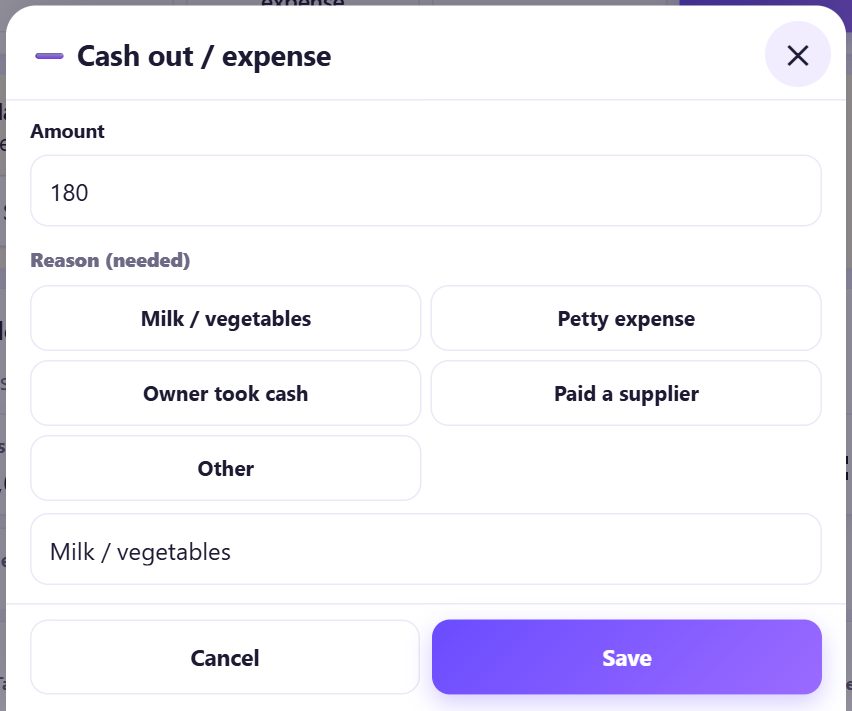
4Cash out: expenses and money taken out
Paid the milkman from the drawer? Tap ➖ Cash out / expense, type the amount and pick Milk / vegetables, Petty expense, Owner took cash, Paid a supplier or Other. Tap Save.
Every expense also shows in Reports under Expenses (cash out).
5Check the shift at any time
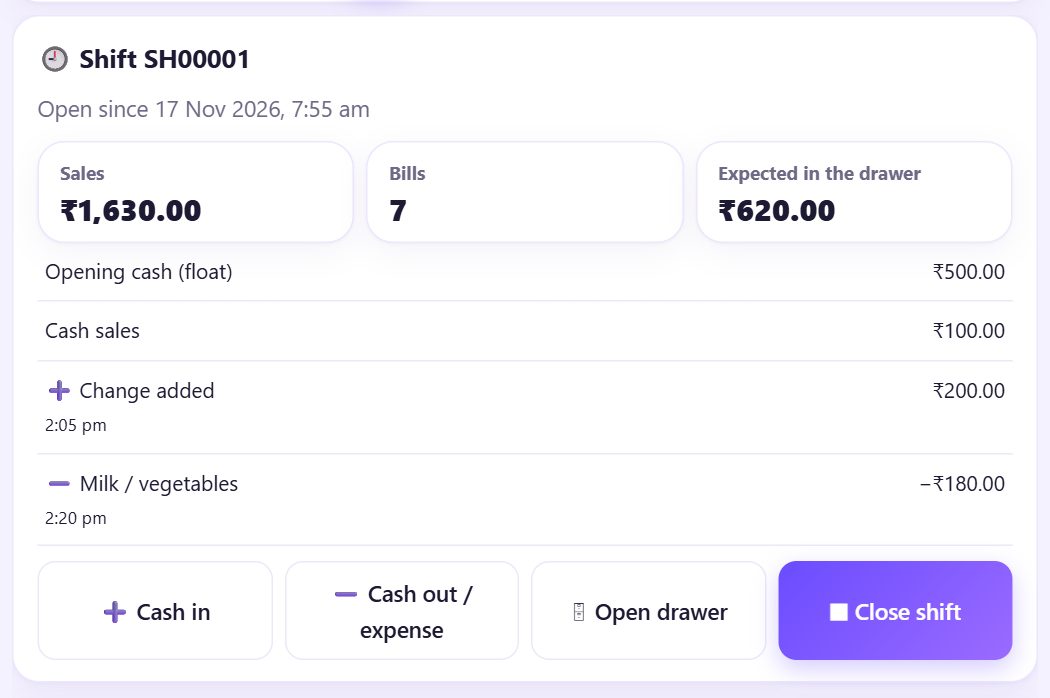
The shift card shows Sales, Bills and Expected in the drawer: float + cash sales − cash refunds + cash in − cash out. Each cash in or out is listed with its time.
🗄 Open drawer opens the drawer without a sale and writes it in the activity log.
6Close the shift: count notes and coins
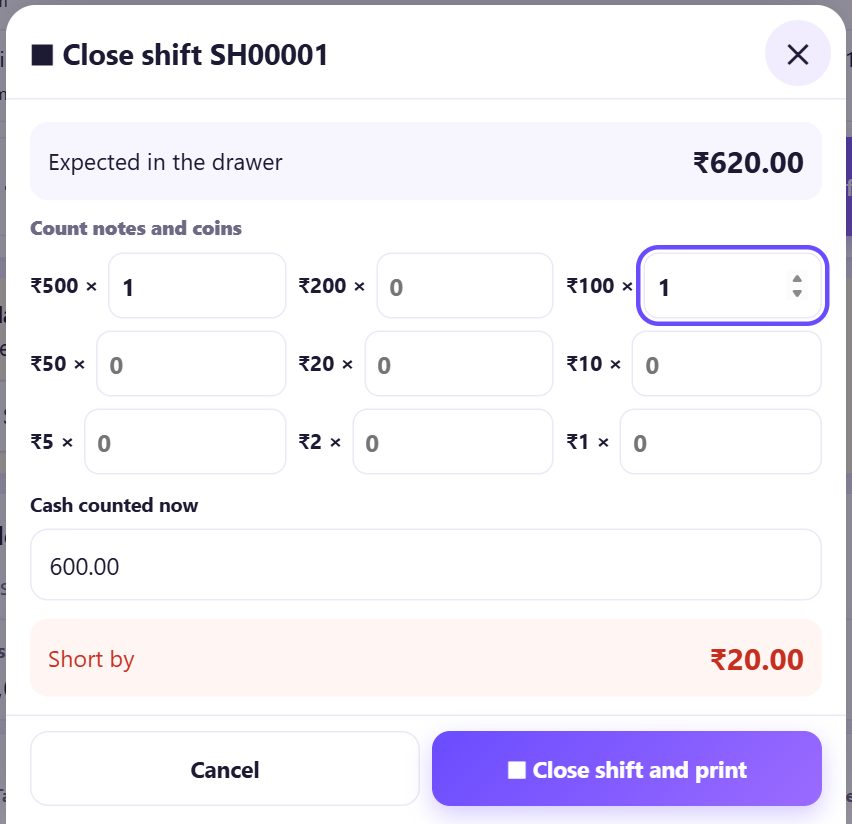
Tap ⏹ Close shift. Under Count notes and coins type how many of each note and coin you have; the app adds them up in Cash counted now (or type the total yourself). It shows Matches ✓, Short by or Too much by at once.
Recount once if it is short, then tap ⏹ Close shift and print.
7Keep the shift report
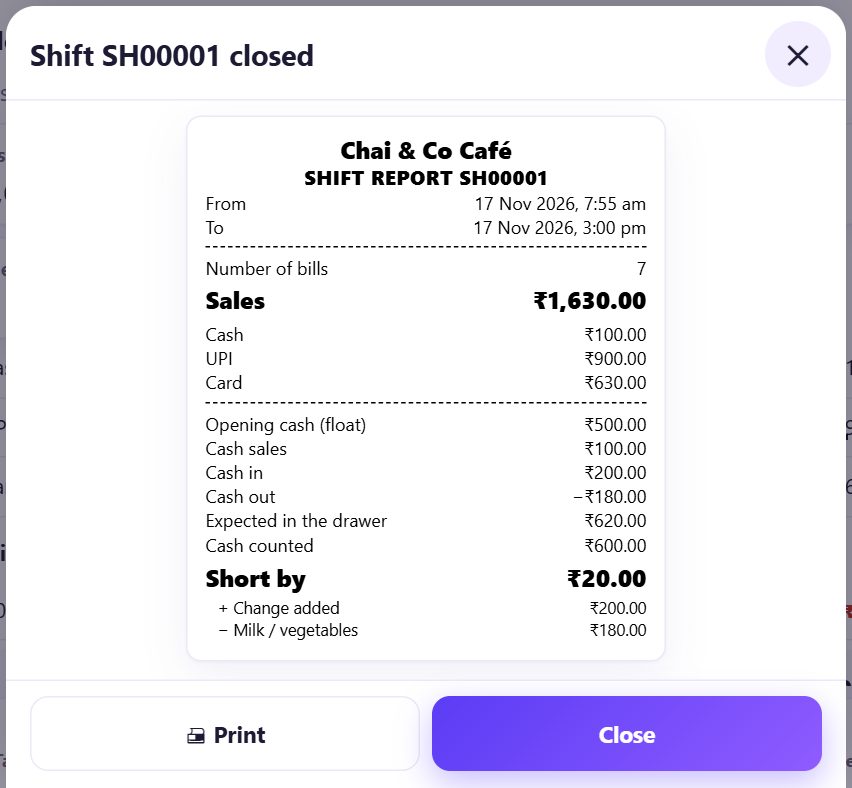
The SHIFT REPORT lists the times, the bills, sales by Cash, UPI and Card, the float, every cash in and out, what was expected, what was counted and the difference. It prints on your receipt printer; tap 🖨 Print for another copy.
The next person opens a new shift with their own float.
8After the last shift, close the day
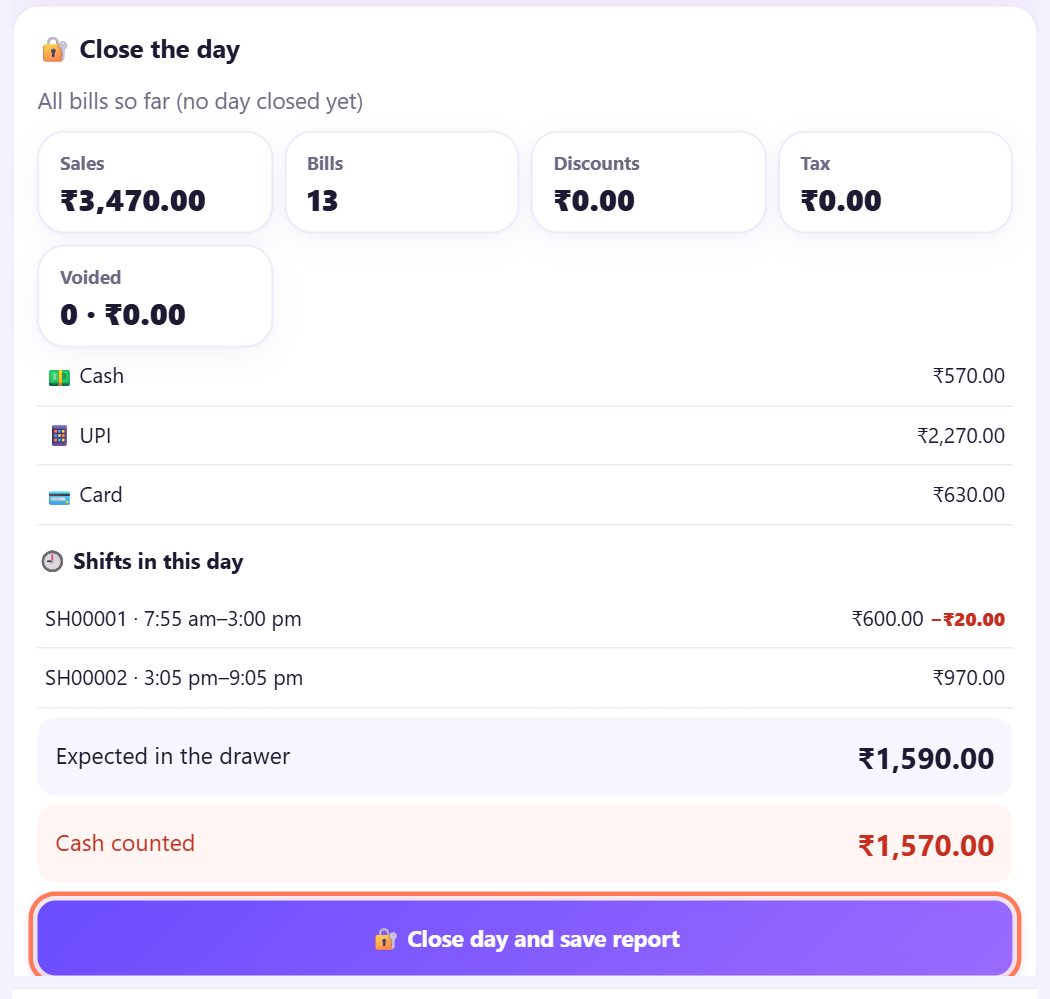
Below the shift, 🔐 Close the day lists every Shift in this day with its difference. When the last shift is closed, tap 🔐 Close day and save report (part 6 explains the day report).
If a shift is still open the app says Close the open shift first, then close the day.
💡 What comes next: A customer returned something? Refund it the right way, with a credit note instead of a void.
📝 Example: two shifts at Chai & Co Café
Ravi opens shift SH00001 at 7:55 am with a ₹500 float. At 2:05 pm Meena adds ₹200 of change (Change added); at 2:20 pm Ravi pays ₹180 to the milkman (Milk / vegetables). At 3 pm the shift card expects ₹620. Ravi counts one ₹500 and one ₹100 note: Short by ₹20. He recounts, finds nothing, and closes the shift; the report prints with the ₹20 shown.
Priya opens SH00002 with her own ₹500. At 9 pm her shift matches. When Meena closes the day, both shifts are listed and the ₹20 is the only difference, on Ravi’s shift, with the time.
🛠 If something goes wrong
Billing says no shift is open
With shifts on, the counter needs an open shift to take payment. Open 🔐 Shift and tap ▶ Open shift.
“A shift is already open.”
Only one shift can be open on a counter. Close it with ⏹ Close shift before the next person opens theirs.
The count is short every day
Check that every expense is written as Cash out, every UPI payment was really received (the app cannot see payments), and that change given back matches the screen.
Close shift is not allowed for a helper
The helper needs Close shift and day in their permissions, or the owner types a PIN when asked (part 13).
I forgot to write an expense
Write it now with ➖ Cash out / expense and put the real time in the reason (for example “milk 9 am”) before you close the shift.
The shift report did not print
Tap 🖨 Print on the report. Check the receipt printer is chosen in the print window (part 4).
🔒 Privacy in plain words
- Shifts, cash entries and counts stay only on this device. Nothing is uploaded to SpriteSplit.
- Each entry carries the name of the person logged in, so the record is fair to everyone.
- The app never connects to a bank, a soundbox or a card machine; it only records what you type.
Questions people ask
What is the float?
The cash you put in the drawer at the start to give change. It is not a sale, so the app keeps it apart.
Do I have to use shifts?
No. Untick Shifts with opening cash, cash in / out in café settings and the day close (part 6) counts the cash for the whole day instead.
Are UPI and card payments in the expected cash?
No. Only cash sales, cash refunds and cash in / out change the drawer. UPI and card are listed separately.
Can two people close shifts on the same day?
Yes. Each opens and closes their own shift, and the day close lists them all.
Can I see old shift reports?
The day close report lists the shifts of that day with their differences, and Reports shows expenses for any dates.
📚 Counter Billing step by step
All 21 parts
- 1Set up your counter
- 2Make a bill
- 3GST invoice and bill types
- 4Print, WhatsApp and QR receipts
- 5Menu: items, sizes, photos
- 6Close the day, count cash
- 7Reports & GST summary
- 8Backup, restore, PIN lock
- 9Café mode and tables
- 10Connect a kitchen screen
- 11Send KOTs to the kitchen
- 12Add a second counter
- 13Staff, roles and PINs
- 14Shifts and cash
- 15Refunds and credit notes
- 16Udhaar (credit) and dues
- 17Stock and recipes
- 18Owner dashboard
- 19Owner view on your phone
- 20Pharmacy set-up and medicines
- 21Daily pharmacy billing