How to see sales reports and send the monthly GST summary to your CA
“How much did we sell this month?” and “Send me the GST figures” are the two questions every owner hears. Reports answers both from the bills on your device: sales for any dates, how customers paid, which items sell, and a GST summary (for your CA) with taxable value, CGST and SGST by rate.
With one tap you download the same figures as CSV files that open in Excel or Google Sheets.
Steps
1Open Reports
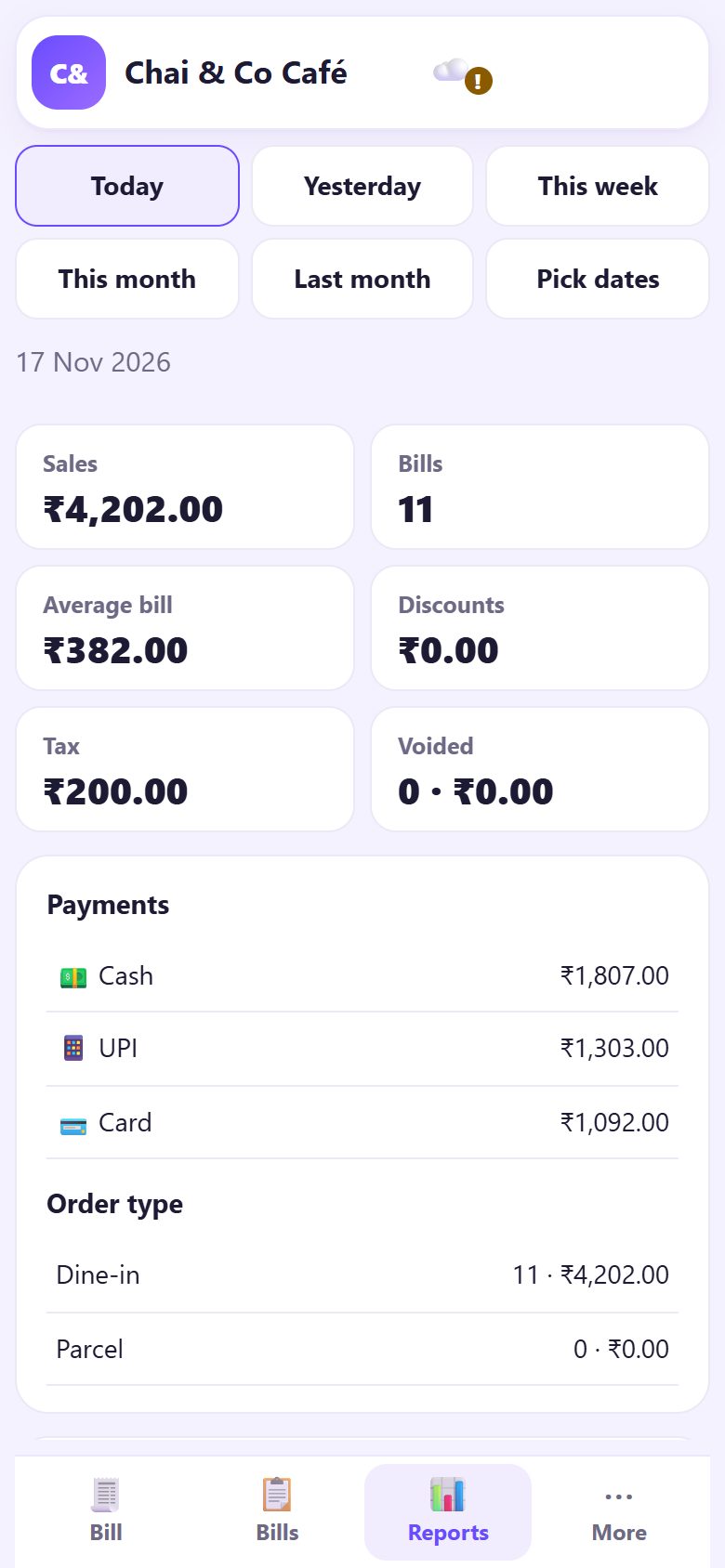
Tap 📊 Reports at the bottom. It opens on Today: Sales, number of Bills, Average bill, Discounts, Tax and Voided, then Payments (cash, UPI, card) and Order type (dine-in, parcel).
2Pick the period
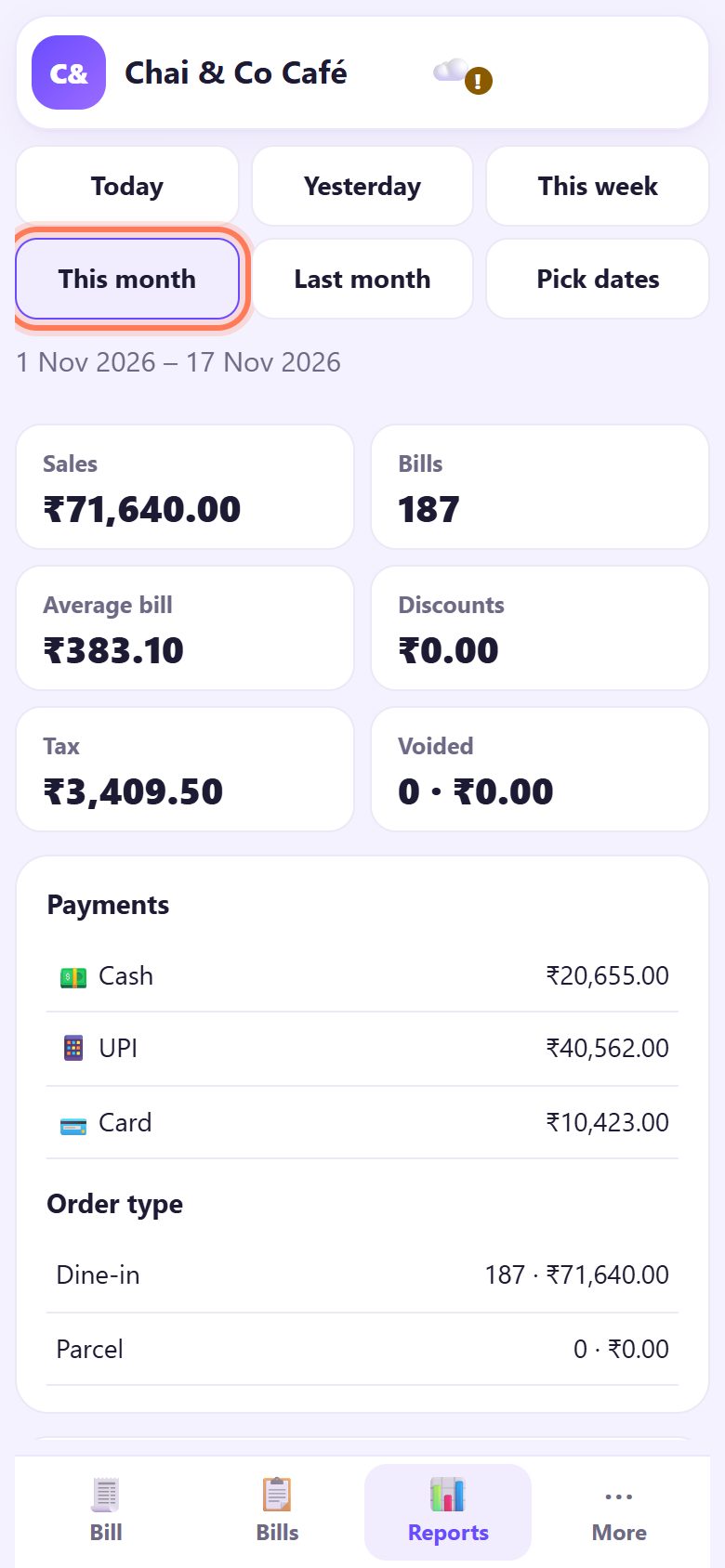
Tap Yesterday, This week, This month or Last month. The dates shown under the buttons tell you exactly which days are counted.
3Or pick any dates
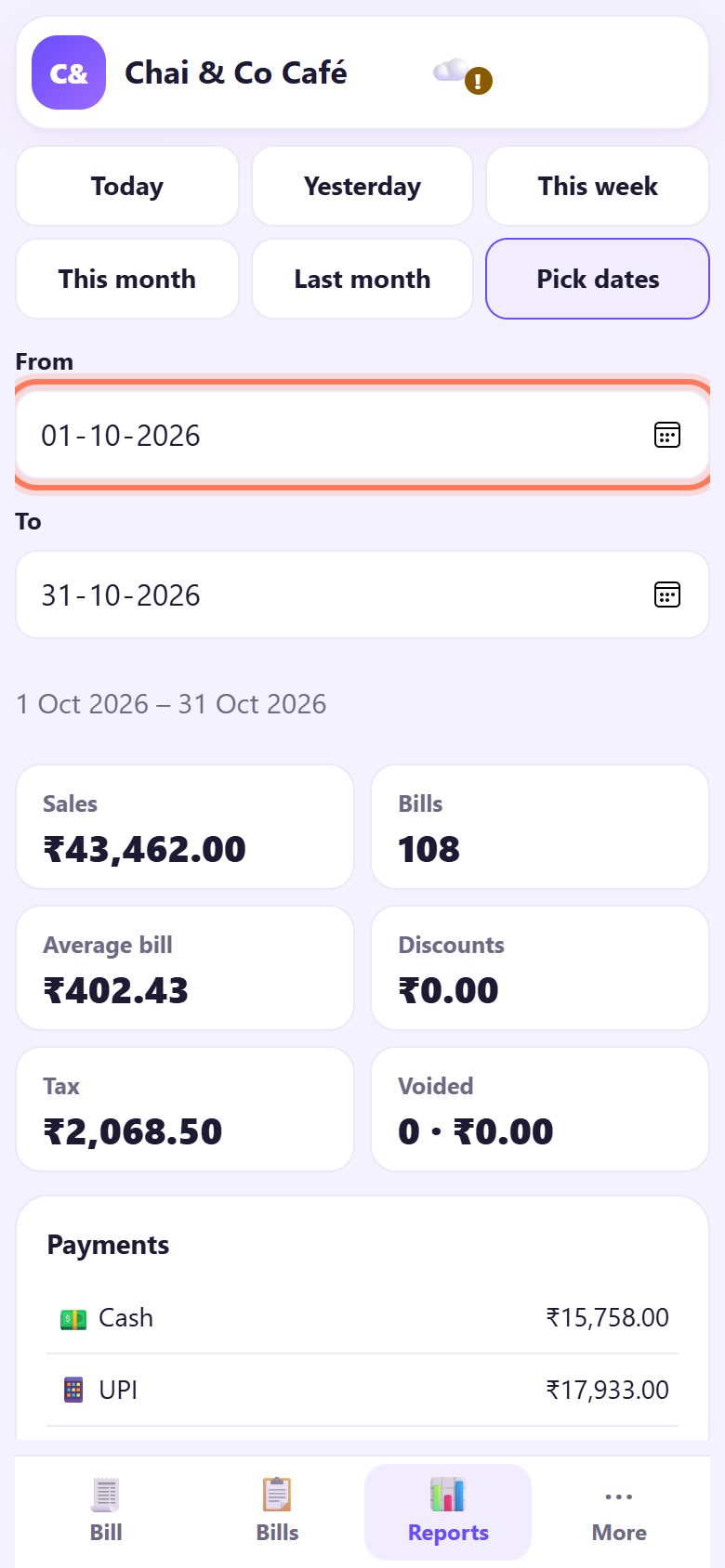
Tap Pick dates and set From and To, for example 1 to 31 October for last quarter’s return or a festival week. All the figures below change at once.
4Read the GST summary and item-wise sales
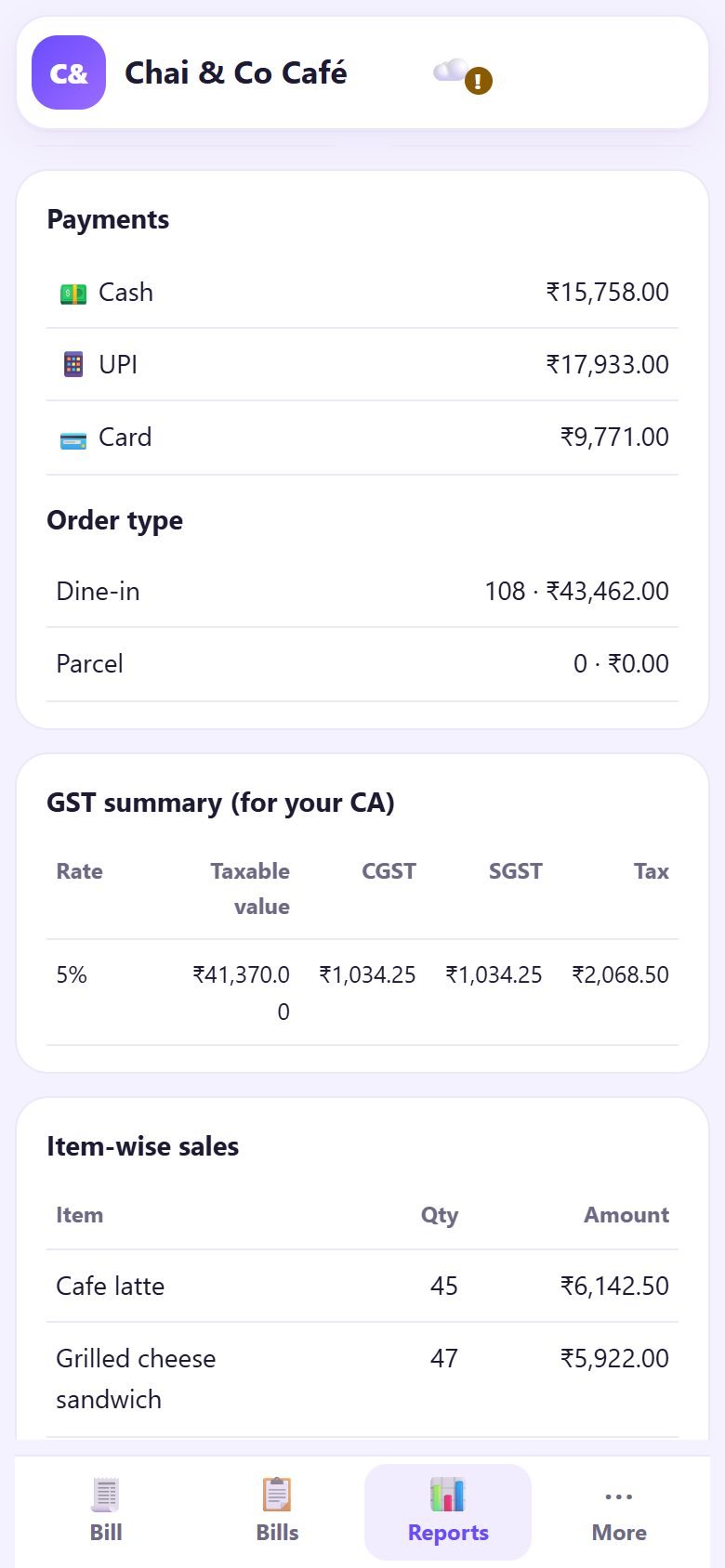
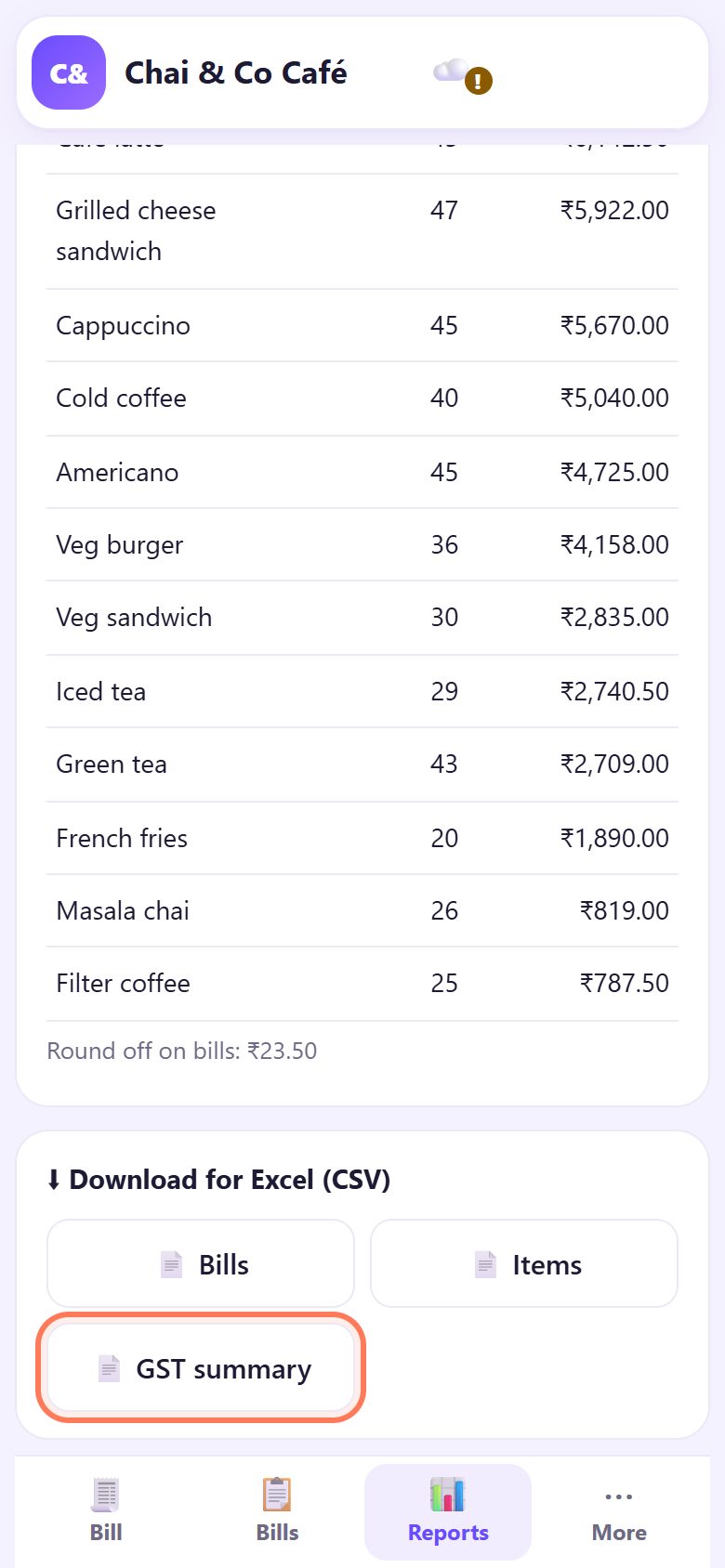
Scroll down. GST summary (for your CA) shows, for each Rate, the Taxable value, CGST, SGST and total Tax for the period. Item-wise sales lists every item with quantity and amount, best sellers first.
Shops on plain bills or bill of supply see a tax of 0 here, which is correct.
5Download CSV files for Excel
Under ⬇ Download for Excel (CSV) tap 📄 Bills (one row per bill with its tax and payment), 📄 Items (item-wise sales) or 📄 GST summary (tax by rate). The files cover the period you picked.
Send them to your CA on WhatsApp or email, or open them in Excel or Google Sheets. Non-GST shops see Tax summary.
6Café mode: the monthly GST file for your CA
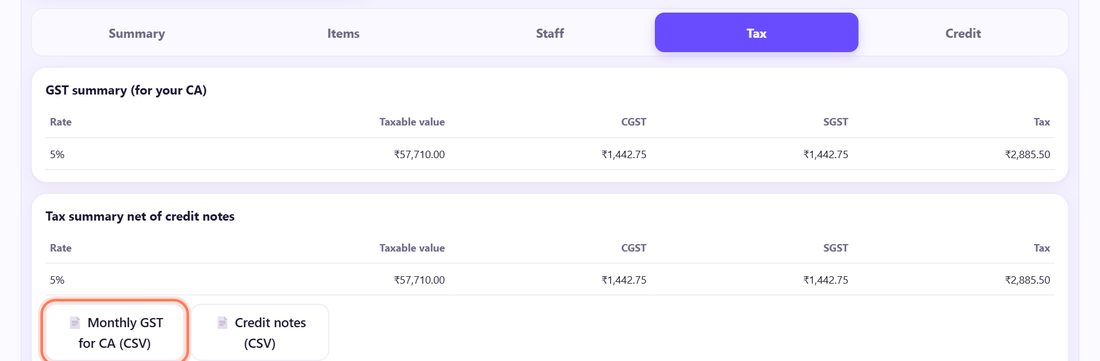
With café mode on, Reports opens with a dashboard (part 18), and the details are in tabs. Pick This month or Last month, open the Tax tab and tap 📄 Monthly GST for CA (CSV): day-wise B2C sales by rate with CGST and SGST, after refunds. 📄 Credit notes (CSV) lists refunds for the same period.
💡 What comes next: Protect your bills: take a backup and lock reports and settings with a PIN.
📝 Example: Chai & Co Café sends October to the CA
Chai & Co Café is GST registered at 5%. On 3 November the CA messages: “Send October sales.” The owner, Meena, opens Reports, taps Last month and checks the totals: ₹43,462 in sales from 108 bills, ₹2,068.50 GST.
She taps 📄 Bills and 📄 GST summary and sends both files on WhatsApp. The CA opens them in Excel, and the CGST and SGST columns match the bills to the paisa. It took two minutes, with no register to copy out.
🛠 If something goes wrong
Reports asks for a PIN
An owner PIN is set, so only the owner sees sales. Type the PIN.
The CSV opens as one long column
Your Excel uses another list separator. In Excel use Data › From Text/CSV and choose comma; Google Sheets opens it directly.
Indian letters look strange in Excel
Open the file through Data › From Text/CSV with UTF-8, or open it in Google Sheets.
Tax is 0
Your bill type is plain bill or bill of supply, which charge no tax. Change it in Settings only if you are really registered for regular GST (part 3).
Numbers differ from my day-close reports
Reports count by calendar dates; day-close reports count from one close to the next. A close after midnight moves bills between days.
Voided bills are missing
That is on purpose: voided bills are left out of all totals and shown separately under Voided. They are still in the Bills CSV with their reason.
🔒 Privacy in plain words
- Reports are worked out on your device from your own bills. Nothing is uploaded.
- CSV files are saved to your device; you decide whom to send them to.
- Customer names and phone numbers appear in the Bills CSV only if you typed them on a bill.
Questions people ask
Is the GST summary ready to file?
It gives your CA the figures (taxable value, CGST, SGST by rate and by day). The CA files the return; Counter Billing does not file anything.
Can I see last year’s sales?
Yes, with Pick dates, as long as the bills are on this device or restored from your backup.
Does it show B2B invoices?
Counter Billing makes counter (B2C) bills. If you sell to businesses with their GSTIN, use proper invoicing for those sales.
Why does my financial year start in April?
Bill numbers in India start again every 1 April (for example 26-27/0001). Reports themselves work for any dates you pick.
Can my CA see the reports online?
No, nothing is online. Send the CSV files, or share your backup file if the CA uses Counter Billing too.
📚 Counter Billing step by step
All 21 parts
- 1Set up your counter
- 2Make a bill
- 3GST invoice and bill types
- 4Print, WhatsApp and QR receipts
- 5Menu: items, sizes, photos
- 6Close the day, count cash
- 7Reports & GST summary
- 8Backup, restore, PIN lock
- 9Café mode and tables
- 10Connect a kitchen screen
- 11Send KOTs to the kitchen
- 12Add a second counter
- 13Staff, roles and PINs
- 14Shifts and cash
- 15Refunds and credit notes
- 16Udhaar (credit) and dues
- 17Stock and recipes
- 18Owner dashboard
- 19Owner view on your phone
- 20Pharmacy set-up and medicines
- 21Daily pharmacy billing